

Create a sequence
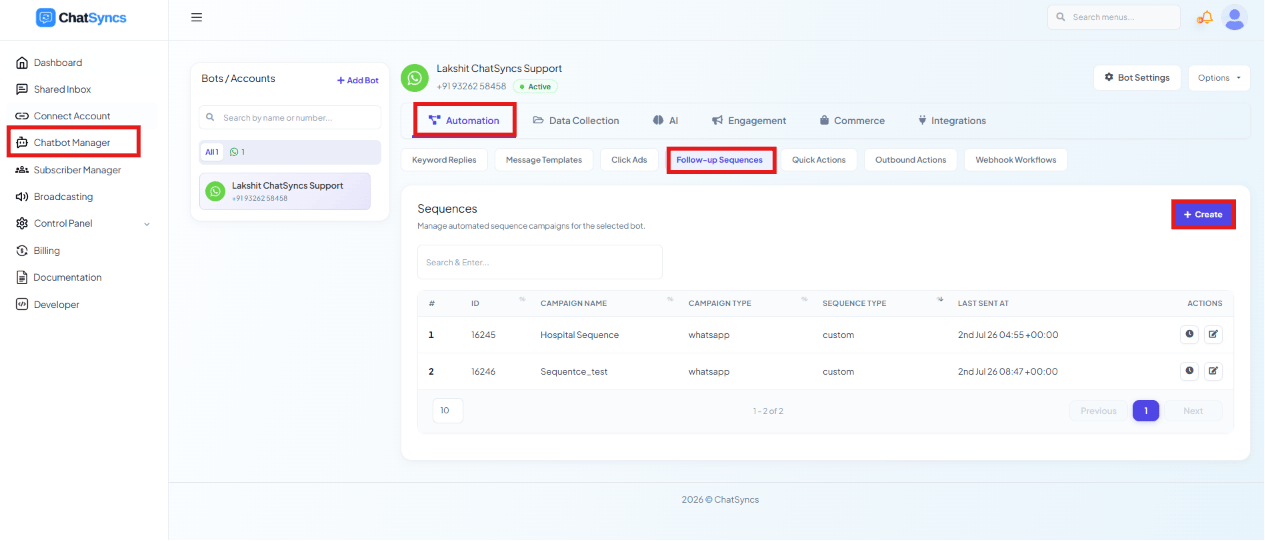
Chatbot Manager → Automation → Follow-up Sequences, showing the Sequences list and the Create button.
Open Chatbot Manager
Open the Automation tab
Click Follow-up Sequences
Click Create
Name the sequence
Product Launch Follow-up.Delivery schedule & re-entry rules
The Configure New Sequence panel sets two things beyond the name: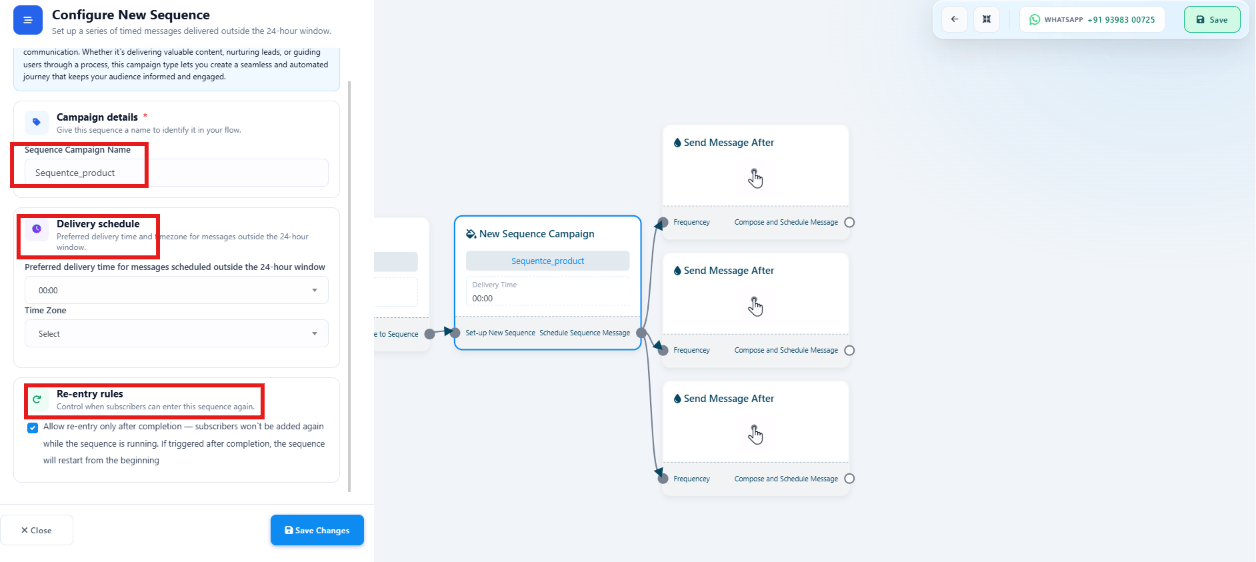
The Configure New Sequence panel — Campaign details, Delivery schedule, and Re-entry rules.
- Delivery Schedule — the Preferred Delivery Time (e.g.
10:00 AM) and Time Zone (e.g.Asia/Kolkata) used for messages sent to subscribers who are outside the WhatsApp 24-hour window, so they land at a consistent, appropriate local time. - Re-entry Rules — Allow Re-entry Only After Completion, which blocks a subscriber from being added to the sequence again while it’s already running for them. Once they finish, they can be re-enrolled if triggered again. For example, a subscriber in a 7-day onboarding sequence can’t be re-added during those 7 days, but can re-enter after it finishes.
Example: why re-entry rules matter
Say a bot triggers a sequence on the keywordHi, sending Message 1 immediately and
Message 2 one minute later.
Without re-entry protection, sending Hi again before Message 2 arrives restarts the whole
sequence from Message 1 — the subscriber ends up with duplicate messages:
Hi is ignored while the
sequence is already running — the subscriber just continues to Message 2 normally, and can
only restart the sequence after it’s fully finished:
Configure each message step
Each step in the sequence (a Send Message After block) is configured with: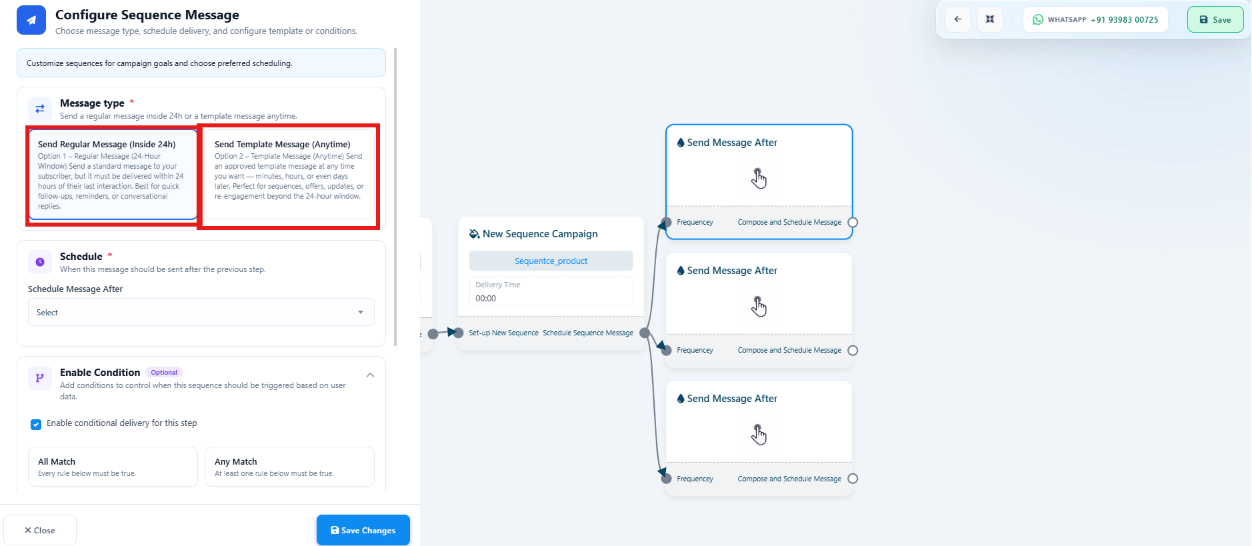
Configure Sequence Message — Message Type (Regular vs Template), Schedule, and Enable Condition.
Message Type
Schedule
Enable Condition (optional)
Condition logic for a step
Enable Condition sends a step’s message only when a subscriber meets criteria you set — if the condition is true, the message sends; if false, it’s skipped for that subscriber.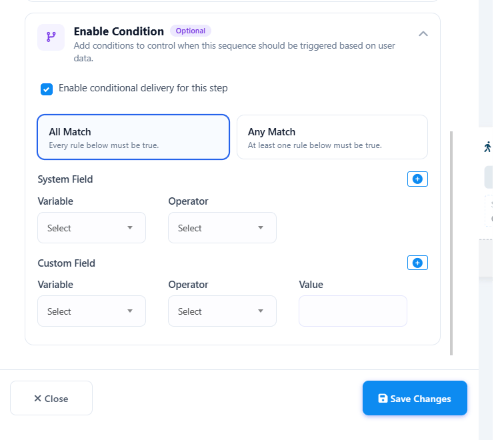
The Enable Condition panel — All Match / Any Match, System Field, and Custom Field rows.
Match types
- All Match (AND) — every condition must be true. E.g.
Country = IndiaandMembership = Goldonly sends to Indian Gold members; an Indian Silver member or a US Gold member is skipped. - Any Match (OR) — at least one condition must be true. E.g.
Membership = GoldorMembership = Platinumsends to either, skipping only Silver.
Variable types
- System Field — built-in subscriber details ChatSyncs already tracks: First Name, Last Name, Phone Number, Country, Gender.
- Custom Field — fields you created yourself, e.g. Membership, City, Product, Plan, Order Value.
Operators
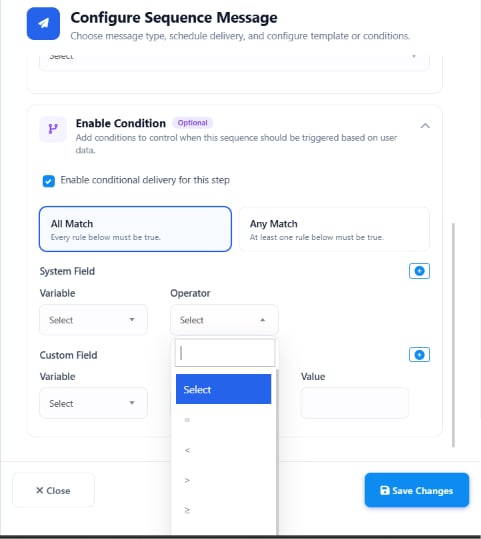
The Operator dropdown open on a condition row, showing the available comparison operators.
Practical examples
- Gold members only: Custom Field
Membership=Gold→ only Gold members receive the step. - High-value customers: Custom Field
Order Value>=10000→ only customers who’ve ordered ₹10,000+ receive the step. - India only: System Field
Country=India→ only Indian subscribers receive the step.
Add a step’s content
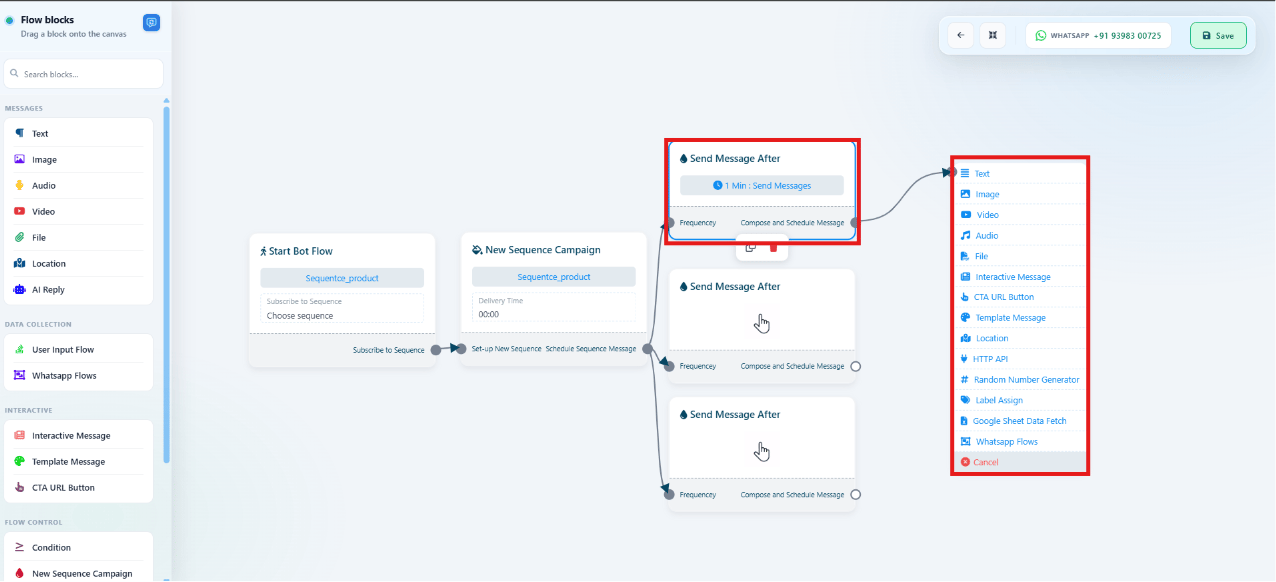
The Flow blocks panel for choosing a Send Message After step's content.
Send a Template Message step
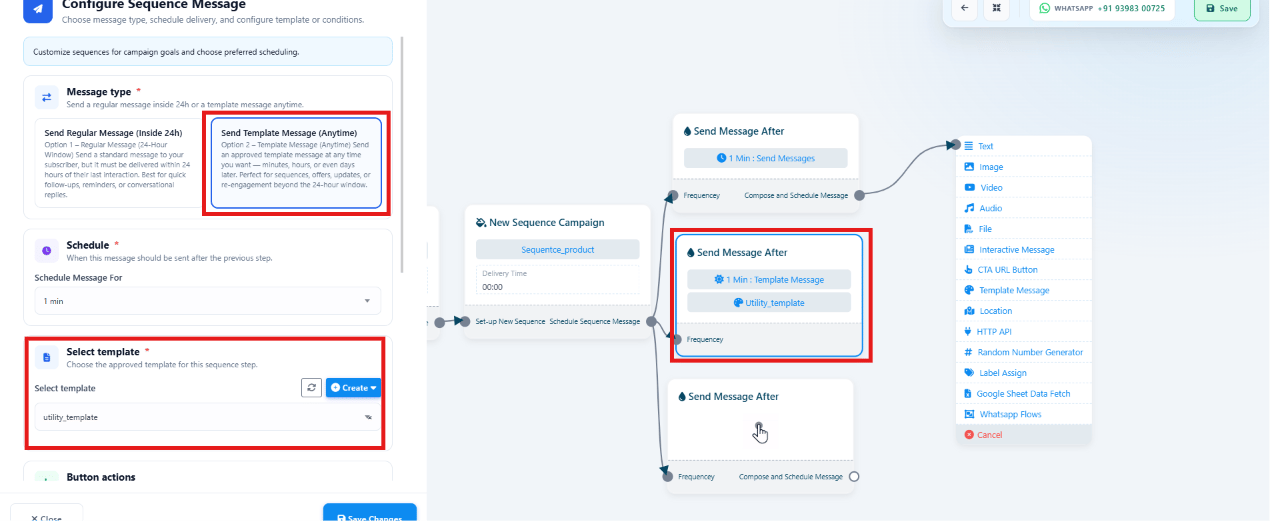
A Template Message step — Select Template and configurable button actions.
Use a sequence in Keyword Replies
Once saved, a sequence becomes available across the platform — most commonly, you subscribe users to it from a Keyword Replies action block:Follow-up Sequences actions
The Sequences list shows every sequence with two actions: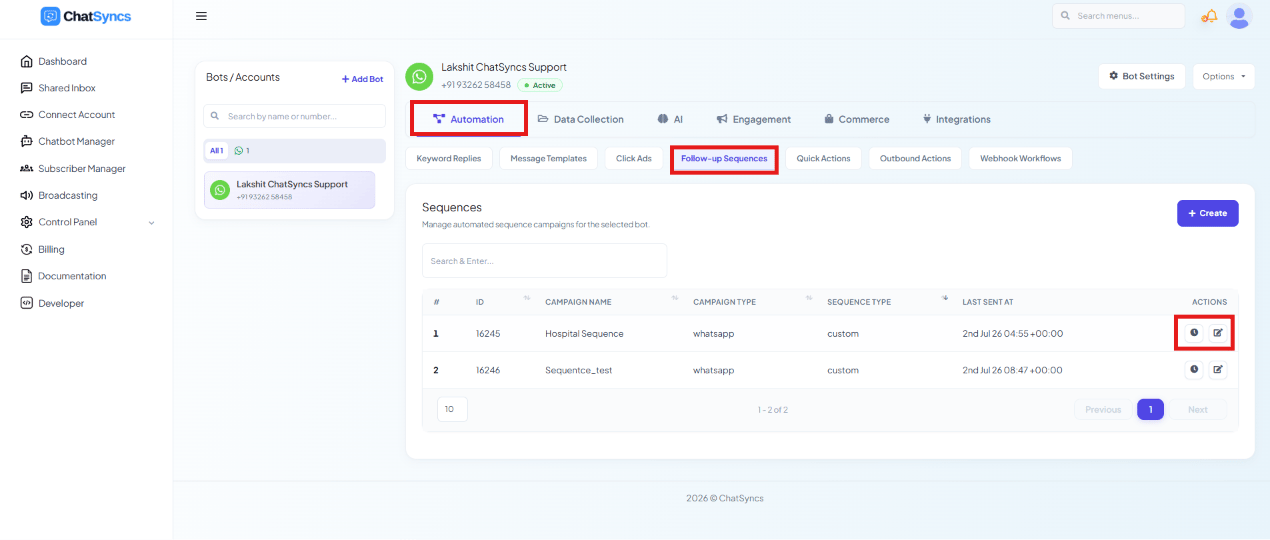
The Sequences list with the Report and Edit action icons highlighted on a sequence row.
- View Report — subscribers enrolled, messages sent, delivery status, and progress.
- Edit — update message content, delivery schedule, conditions, or templates. Edits apply only to subscribers who enter the sequence after the change; subscribers already running it finish on the version they started with.
Frequently asked
How do I send a series of follow-up messages automatically?
How do I send a series of follow-up messages automatically?
What's the difference between a regular message step and a template message step?
What's the difference between a regular message step and a template message step?
Can the same subscriber go through a sequence twice?
Can the same subscriber go through a sequence twice?
If I edit a sequence, does it change messages already sent?
If I edit a sequence, does it change messages already sent?
How do I subscribe a user to a sequence?
How do I subscribe a user to a sequence?
Can I send a sequence step only to certain subscribers?
Can I send a sequence step only to certain subscribers?