Install ChatSyncs as a Progressive Web App (PWA) on Android via Chrome, for faster, app-like access to the Shared Inbox without a separate app store download.
ChatSyncs can be installed as a Progressive Web App (PWA) on Android for faster, app-like
access to the Shared Inbox — no separate app store download needed.
1
Open ChatSyncs in Chrome
On your Android device, open Google Chrome and log in to your ChatSyncs account.
2
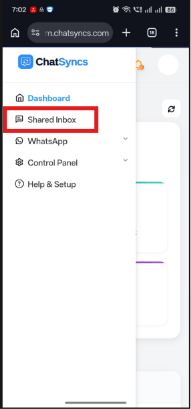
Go to Shared Inbox
From the dashboard, open Shared Inbox from the sidebar.
3
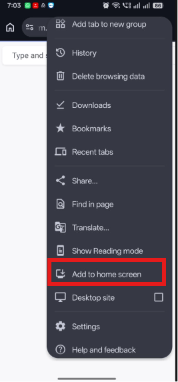
Open the Chrome menu
Tap the ⋮ (three-dot) menu in the top-right corner of Chrome.
4
Select "Add to Home screen"
Depending on your Chrome version, this may instead say Install App or Install.
5
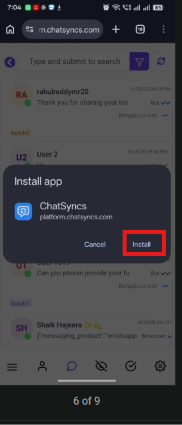
Install
Tap Install to confirm. Chrome installs the ChatSyncs PWA on your device.
6
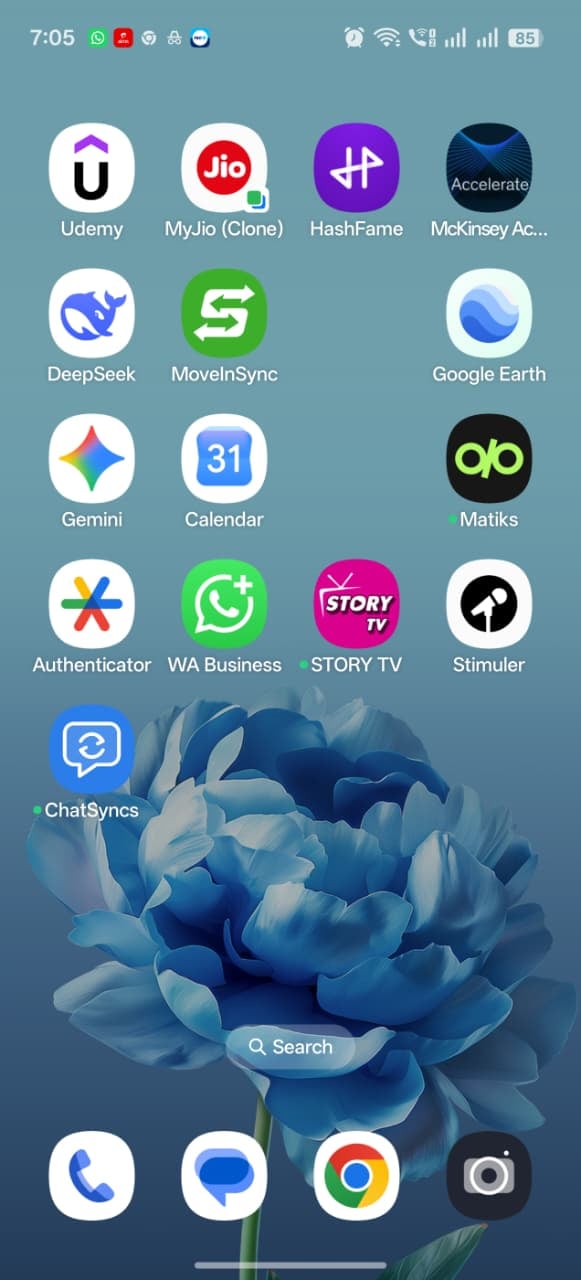
Launch from your home screen
The ChatSyncs icon appears on your Home Screen and in your App Drawer. Tap it to
launch ChatSyncs like a native app — faster than opening Chrome and navigating there each
time.
If Install appears grayed out the first time you open Add to Home screen, close the
menu, let the page finish loading fully, and try again.
Can I use the Shared Inbox like a mobile app instead of opening Chrome every time?
Yes — open the Shared Inbox in Chrome on Android, tap the ⋮ menu, choose Add to Home
screen, then Install. ChatSyncs is added to your home screen and app drawer like a
native app.
Install is greyed out when I open Add to Home screen — what do I do?
Close the menu, wait for the page to finish loading completely, then try again.
Do I need to install anything from the Play Store?
No — this is a Progressive Web App install through Chrome, not a Play Store download.