

When to add a subscriber manually
Use Create Subscriber when you need one contact in ChatSyncs right now and importing a whole file is overkill — a walk-in customer, a lead from a phone call, or someone you want to label, message, or enroll in a Sequence before they’ve ever messaged the bot themselves. For more than a handful of contacts, Import Using CSV or Import from Google Sheets is faster.Create a subscriber
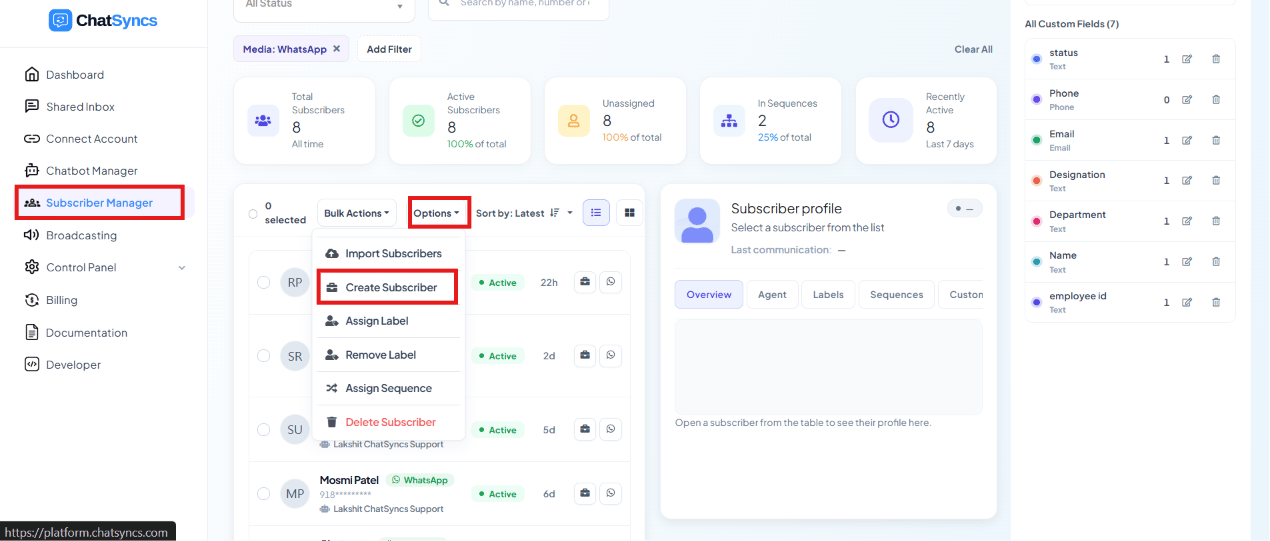
Options dropdown with Create Subscriber highlighted.
1
Open Options → Create Subscriber
From the Subscriber Manager list, open Options, then Create Subscriber.
2
Enter the subscriber's Name
Type their name into the Name field.
3
Enter the subscriber's Phone Number
Type the number in the exact format below — see the Warning.
4
Save
Click Save — the subscriber appears in the list immediately.
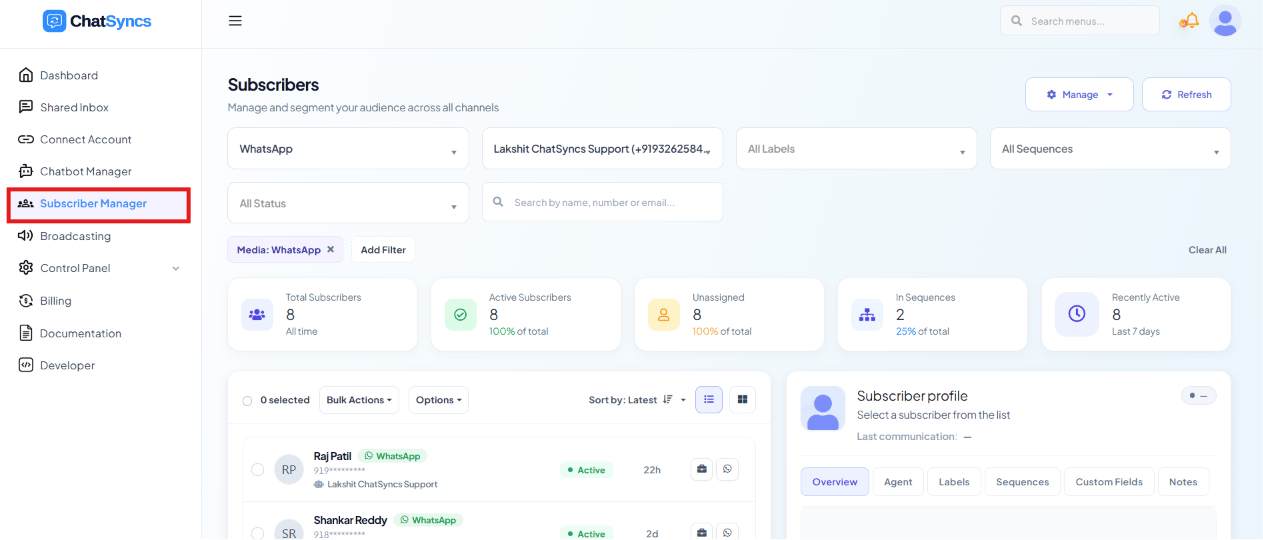
The Create Subscribers modal — Name and Phone Number fields, with a Save button.
Frequently asked
What phone number format does Create Subscriber expect?
What phone number format does Create Subscriber expect?
Country code directly followed by the number, with no
+, spaces, or other punctuation —
e.g. 919876543210 for an Indian number. See the Warning above.When should I use this instead of a CSV or Google Sheet import?
When should I use this instead of a CSV or Google Sheet import?
For one or two contacts at a time — a walk-in, a phone lead, someone you want in the system
before they’ve messaged the bot. For more than a handful, bulk import is faster and less
error-prone.
Can I fill in a custom field while creating a subscriber manually?
Can I fill in a custom field while creating a subscriber manually?
No — the Create Subscriber modal only takes Name and Phone Number. Add custom field data
afterward from the subscriber’s profile, or import them via CSV/Google Sheet instead, where
extra columns are picked up as custom fields automatically.
What happens if I enter the phone number in the wrong format?
What happens if I enter the phone number in the wrong format?
ChatSyncs matches subscribers by the exact number format it expects. An inconsistent format
(missing country code, added
+, extra spaces) risks creating a duplicate subscriber
instead of finding the existing one.Related Documentation
- Subscriber Manager — the subscriber list and full Options menu.
- Import Using CSV — for bulk-importing more than a handful of contacts.
- Import from Google Sheets — importing straight from a connected Google Sheet or Google Contacts.
- Custom Fields and Labels — adding structured data to a subscriber after creation.