

When to use a Google-based import
Use this instead of a CSV file when your contact list already lives in a Google Sheet you keep updated, or when you’d rather pull straight from your connected Google account’s Contacts than export and re-upload a file every time the list changes. Both skip the manual CSV export step — connect the source once, and ChatSyncs reads the data directly.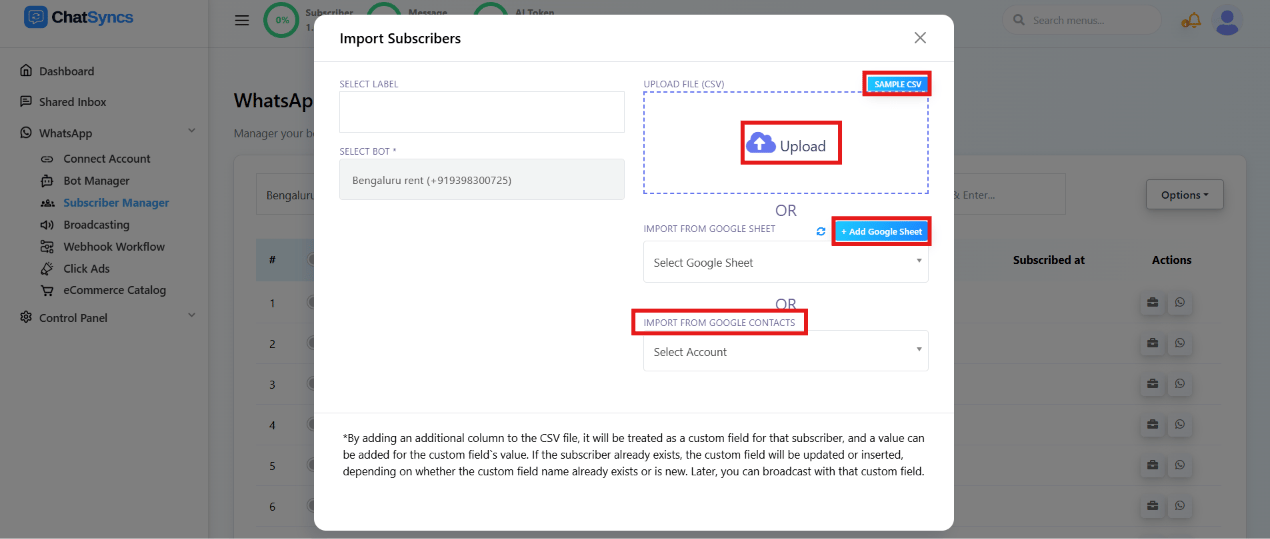
The Import Subscribers modal — Select Label, Select Bot, Upload File (CSV), or import from a Google Sheet or Google Contacts.
Import from a Google Sheet
1
Open Options → Import Subscribers
From the Subscriber Manager list, open Options, then Import Subscribers.
2
Choose Import from Google Sheet
Select the Google Sheet option in the modal shown above.
3
Connect the sheet
Use + Add Google Sheet to connect the specific spreadsheet you want to import from.
4
Map each column
Match the sheet’s columns to ChatSyncs fields, the same way as a CSV upload — see below.
5
Confirm the import
Confirm — the imported contacts appear in the Subscriber Manager list.
+, no
scientific notation); they apply to a Google Sheet import in exactly the same way, since the
underlying data still goes through the same Map the columns step.
Import from Google Contacts
1
Open Options → Import Subscribers
From the Subscriber Manager list, open Options, then Import Subscribers.
2
Choose Import from Google Contacts
Select the Google Contacts option in the modal shown above.
3
Connect your Google account
Authorize the connected Google account ChatSyncs should read contacts from, if not already connected.
4
Confirm the import
ChatSyncs maps each contact’s name and phone number to a subscriber automatically.
Frequently asked
What's the difference between Google Sheet import and Google Contacts import?
What's the difference between Google Sheet import and Google Contacts import?
Google Sheet import reads a spreadsheet you connect — good for structured lists with
extra columns you want as custom fields. Google Contacts import reads your connected
Google account’s saved contacts directly — good when there’s no spreadsheet at all.
Do the same phone number formatting rules apply as a CSV import?
Do the same phone number formatting rules apply as a CSV import?
Yes — country code mandatory, plain digits, no
+ or spaces. See
Import Using CSV for the full detail;
the same Map the columns step is used for both.Does importing from a Google Sheet update existing subscribers, or create duplicates?
Does importing from a Google Sheet update existing subscribers, or create duplicates?
It matches by phone number — an existing subscriber’s record (and its custom fields) gets
updated rather than duplicated.
Do I need to keep the Google Sheet connected after importing once?
Do I need to keep the Google Sheet connected after importing once?
The connection stays available for future imports from the same sheet, so you can re-run
the import later (e.g. after adding new rows) without reconnecting it from scratch.
Related Documentation
- Subscriber Manager — the subscriber list and full Options menu.
- Import Using CSV — the column format and phone-number rules shared by both import methods.
- Import Subscribers Manually — for adding one contact at a time instead.
- Custom Fields and Labels — how imported columns become custom fields.