

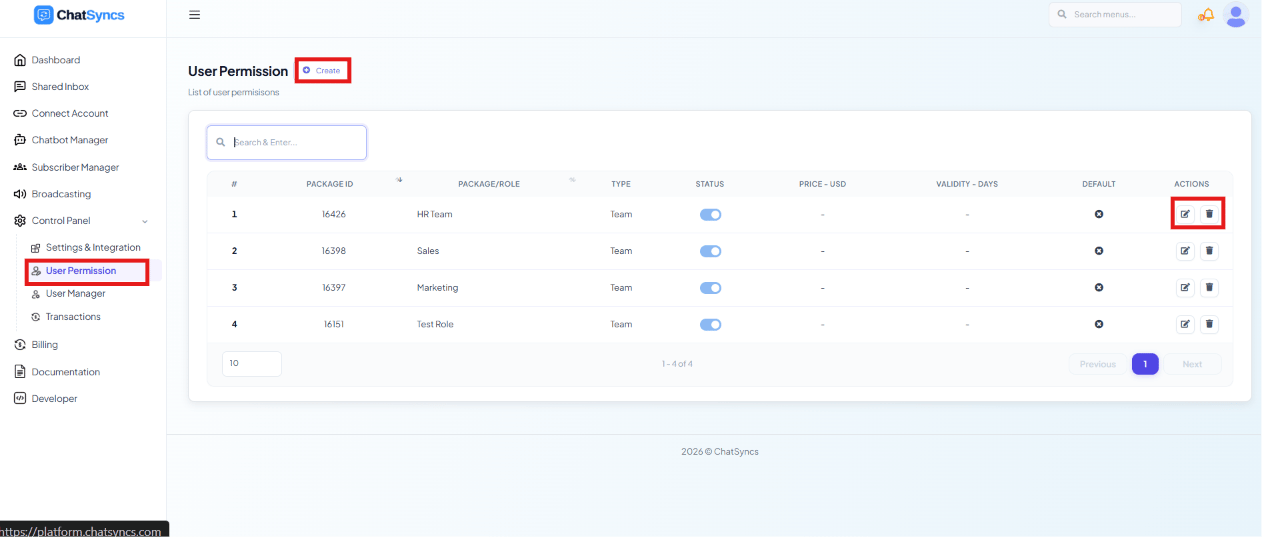
Control Panel → User Permission, with the Create button and a row's Edit/Delete action icons highlighted.
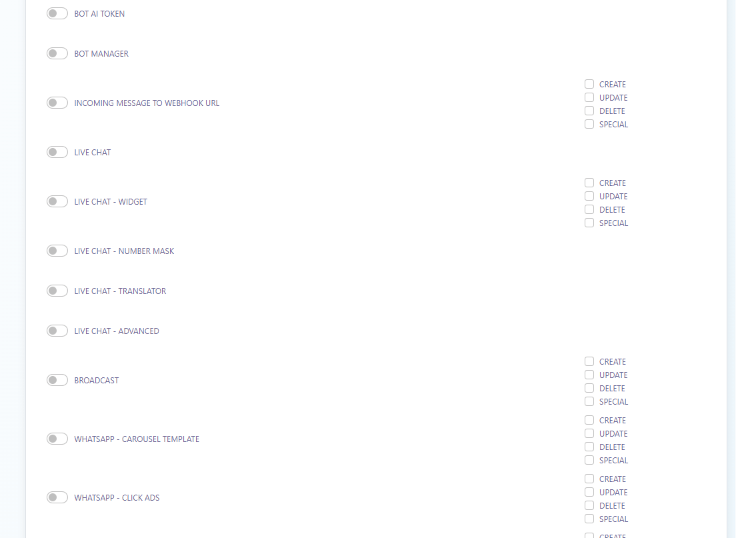
The permission matrix
Frequently asked
How do I stop a team member from sending broadcasts?
How do I stop a team member from sending broadcasts?
Edit their User Permission package and toggle Broadcast off (or leave its
Create/Update/Delete/Special boxes unchecked) — they’ll keep access to whatever else their
role allows.
What's the difference between toggling a feature off and unchecking its Create/Update/Delete/Special boxes?
What's the difference between toggling a feature off and unchecking its Create/Update/Delete/Special boxes?
The toggle controls whether the role can access the feature at all. The
Create/Update/Delete/Special checkboxes control which specific actions they can take within
it once access is granted.
Where do I assign a permission package to a team member?
Where do I assign a permission package to a team member?
Permission packages are created here, then assigned to a user from
User Manager.
Learn From a Use Case
- Availability-Based Conversation Assignment — defines the shared Team Role that groups the rotating agents together.