A WhatsApp number can only have Full access assigned to one partner at a time. If it was
previously connected to a different BSP or automation platform, Meta blocks ChatSyncs from
connecting until that old partner’s access is removed — this is the fix for the “you need to
unlink your number first” error mentioned in Connect Account
(Embedded).
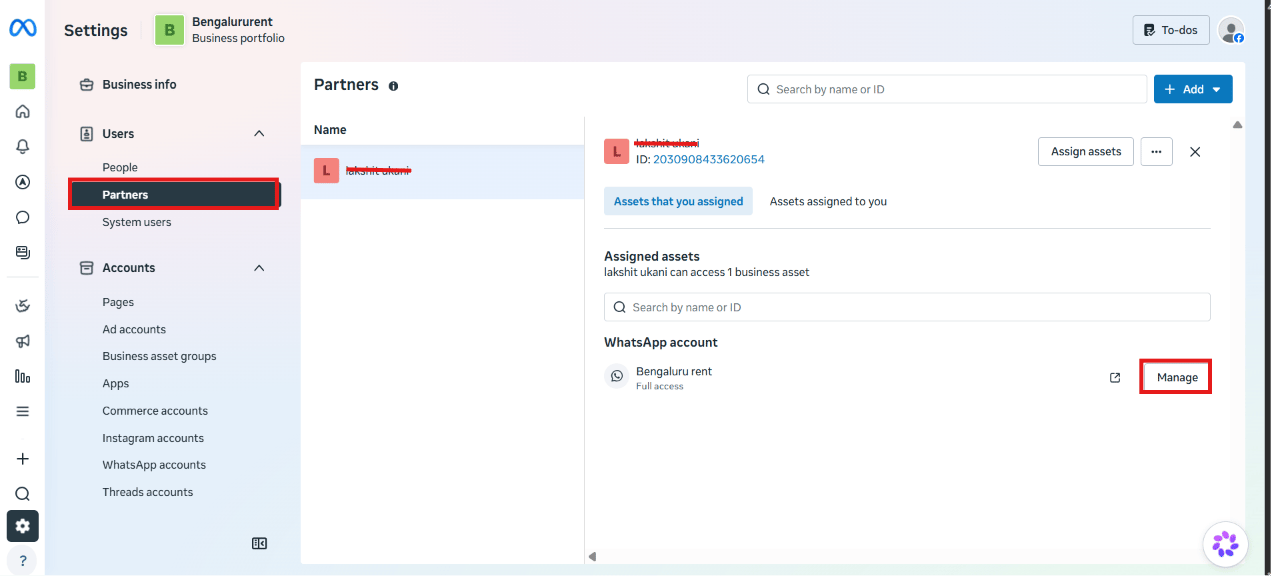
Open Partners
In Meta Business Suite Settings, go to Users →
Partners. Select the partner you want to disconnect — it shows which WhatsApp account
it currently has access to. Remove access
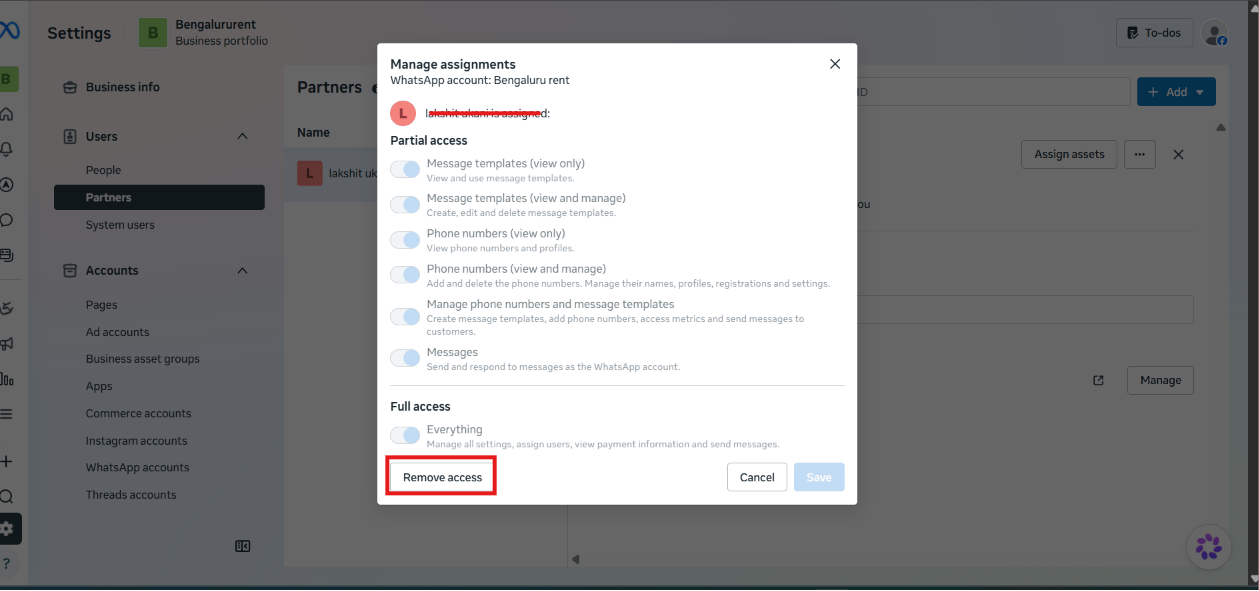
Click Manage next to the WhatsApp account. In the Manage assignments dialog, click
Remove access at the bottom. If the number was connected via Cloud API only (not Coexistence), this step alone is
usually enough — try connecting to ChatSyncs again. If it was connected via Coexistence
(the WhatsApp Business App stays active on a phone), continue to the next section — the app
itself also remembers the old connection.
If the number uses Coexistence: also disconnect from the phone
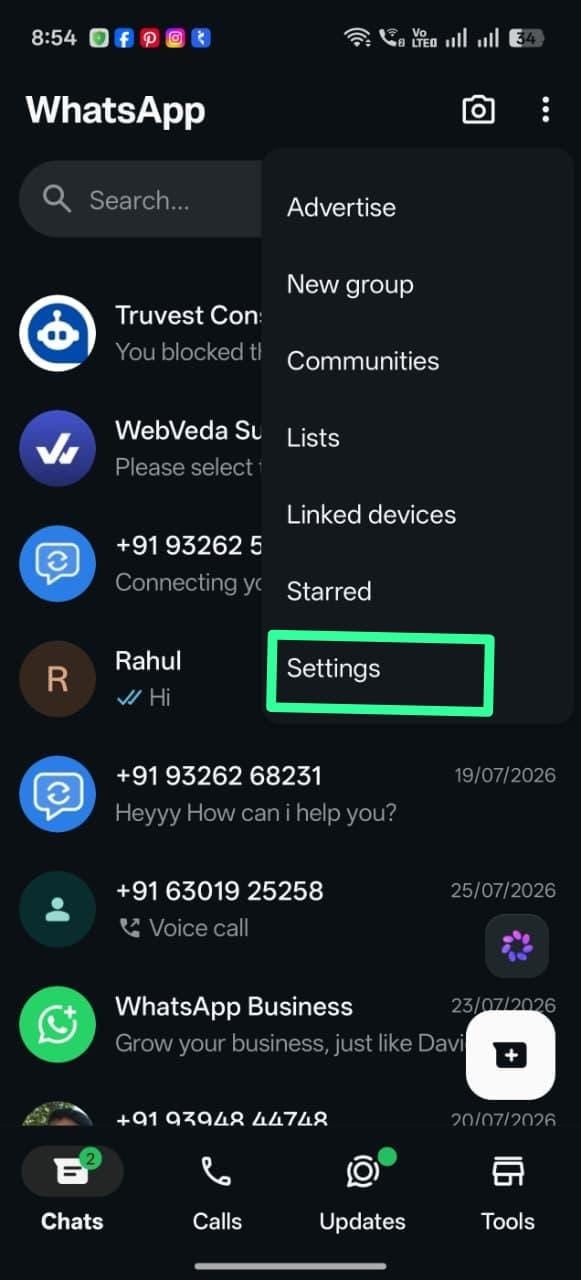
Open WhatsApp Business app settings
On the phone with the WhatsApp Business app, tap the ⋮ menu, then Settings. Open Account
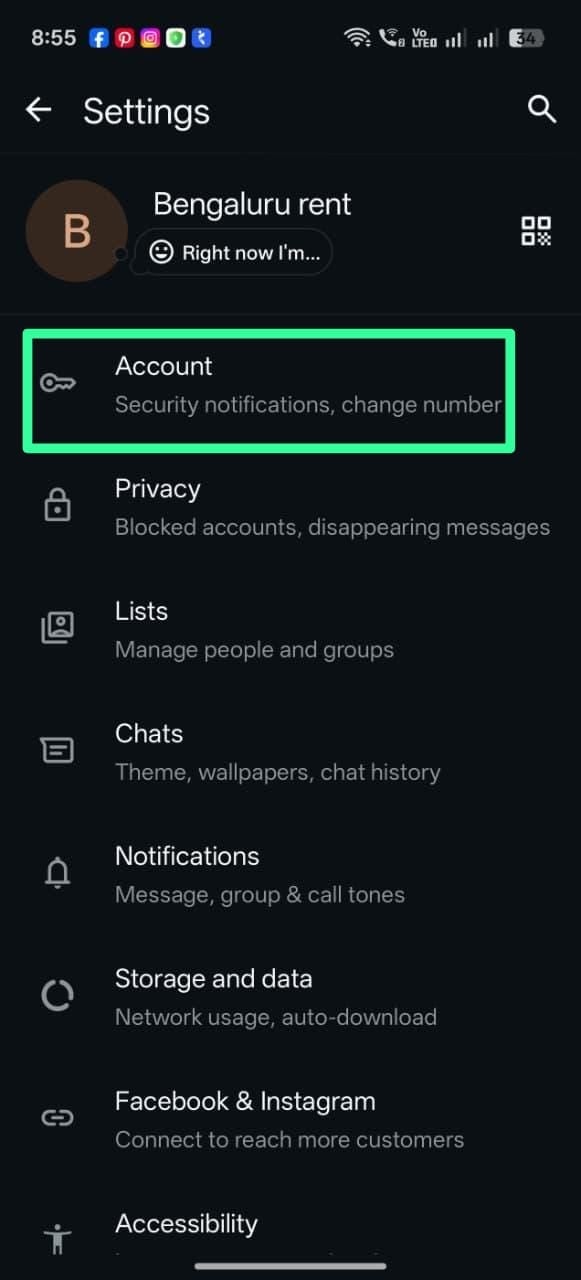
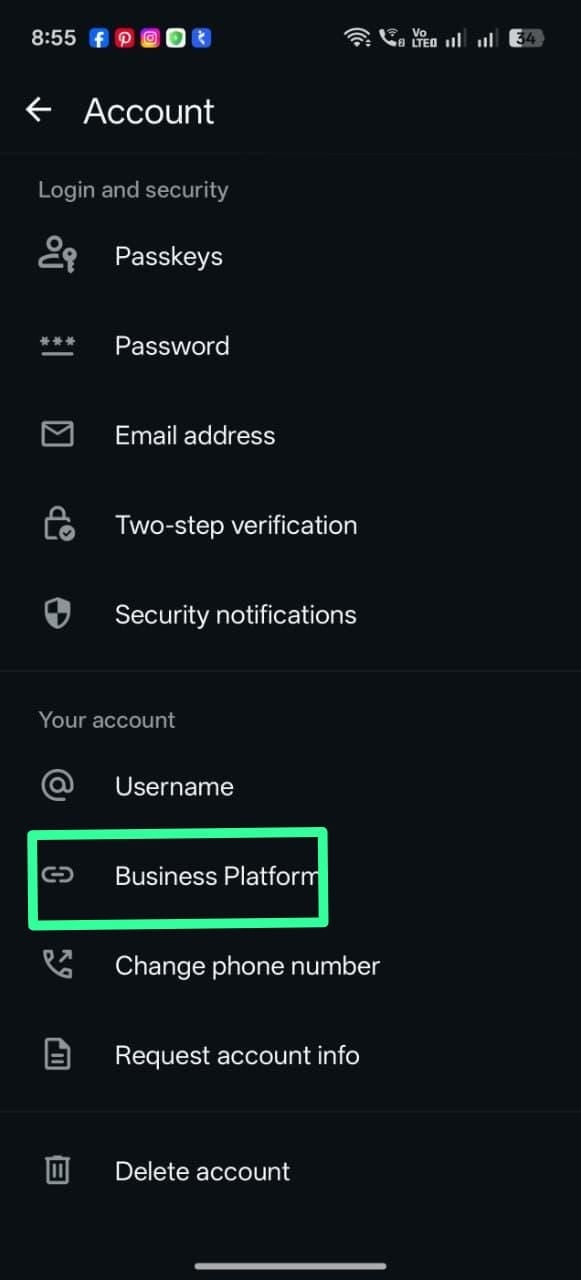
In Settings, tap Account. Open Business Platform
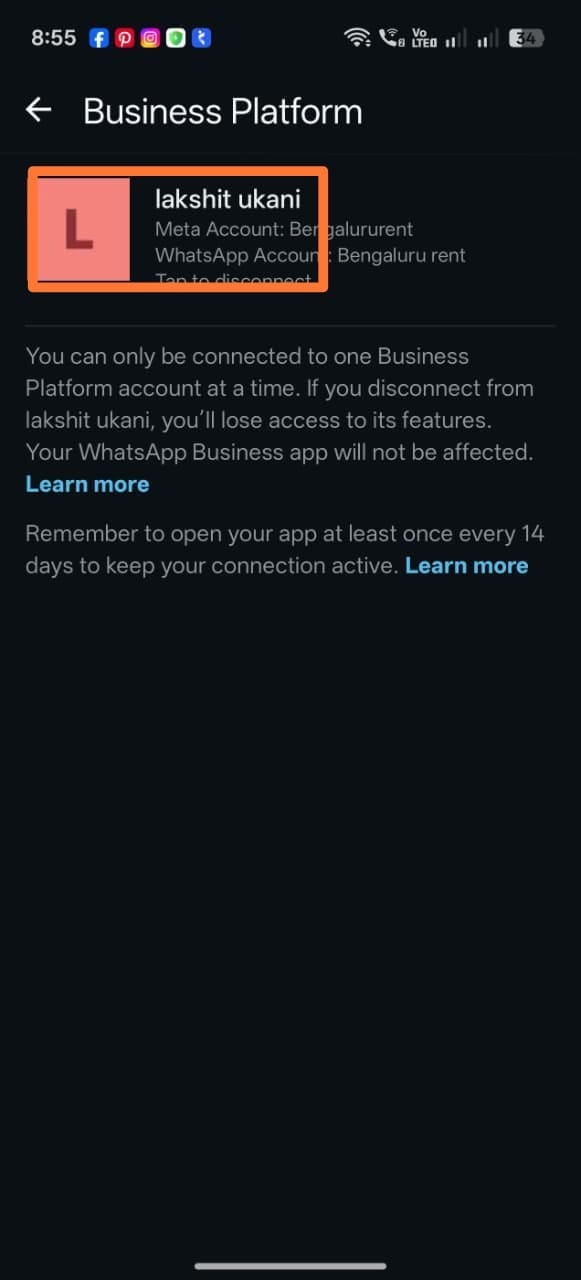
Under Your account, tap Business Platform. Tap the connected partner to disconnect
The currently connected partner is listed with “Tap to disconnect.” Tap it and confirm. Disconnecting here only removes the old partner’s API access — it doesn’t affect your chats,
contacts, or the WhatsApp Business app itself.
What’s next
Once the number shows no connected partner in both places, go back to connecting your
account and try again.