

What is Subscriber Manager?
Every person who has ever messaged your WhatsApp bot becomes a subscriber — a stored contact record with a phone number, name, and everything else ChatSyncs and your bot flows have learned about them since. Subscriber Manager is the one screen where you see that whole list, search and filter it, open a single subscriber’s full profile, and act on one or many subscribers at once — labeling them, enrolling them in a sequence, importing a batch from a spreadsheet, or removing them entirely. This page covers the subscriber list and the actions available from it. Two topics get their own, deeper pages in this section:Custom Fields and Labels
Import Subscribers
The subscriber list
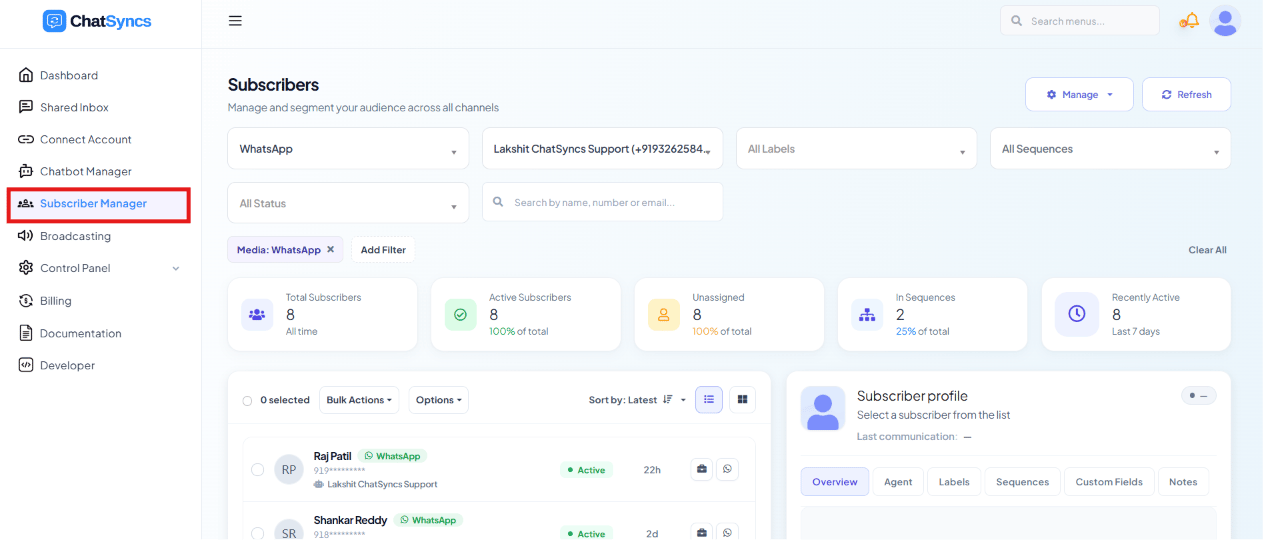
The Subscriber Manager list — total/active/unassigned/in-sequence/recently-active counts across the top, subscriber rows with filters, and a subscriber profile panel on the right.
The Options menu
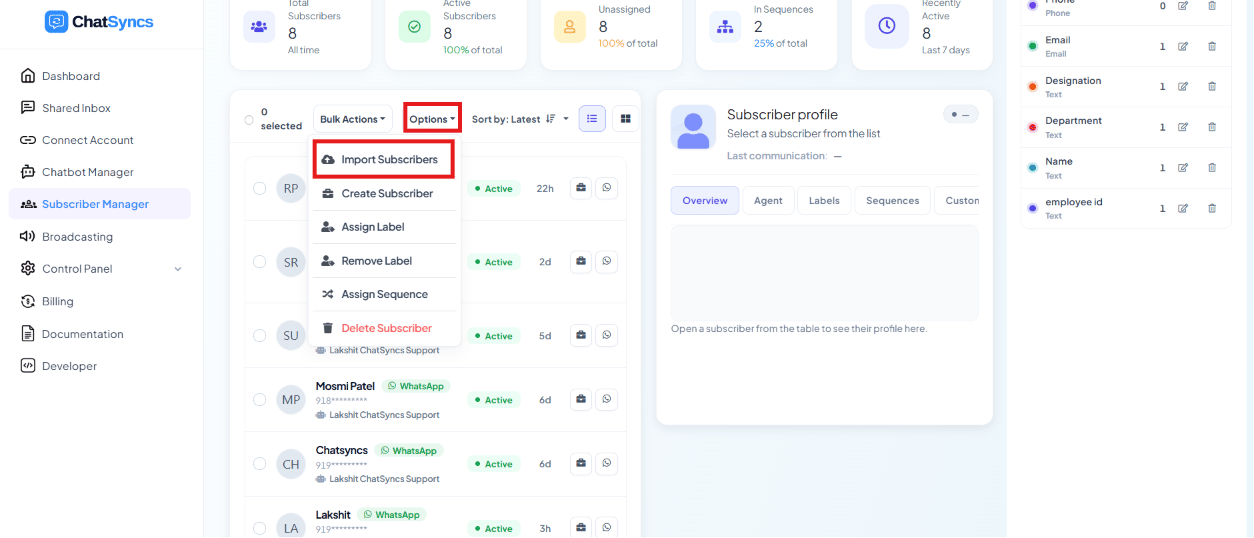
The Options dropdown on the Subscriber Manager list, with Import Subscribers highlighted.
Bulk actions on selected subscribers
Select subscribers with the checkboxes on the left of each row, then use the Options menu to act on all of them at once instead of one at a time.Assign or remove a label
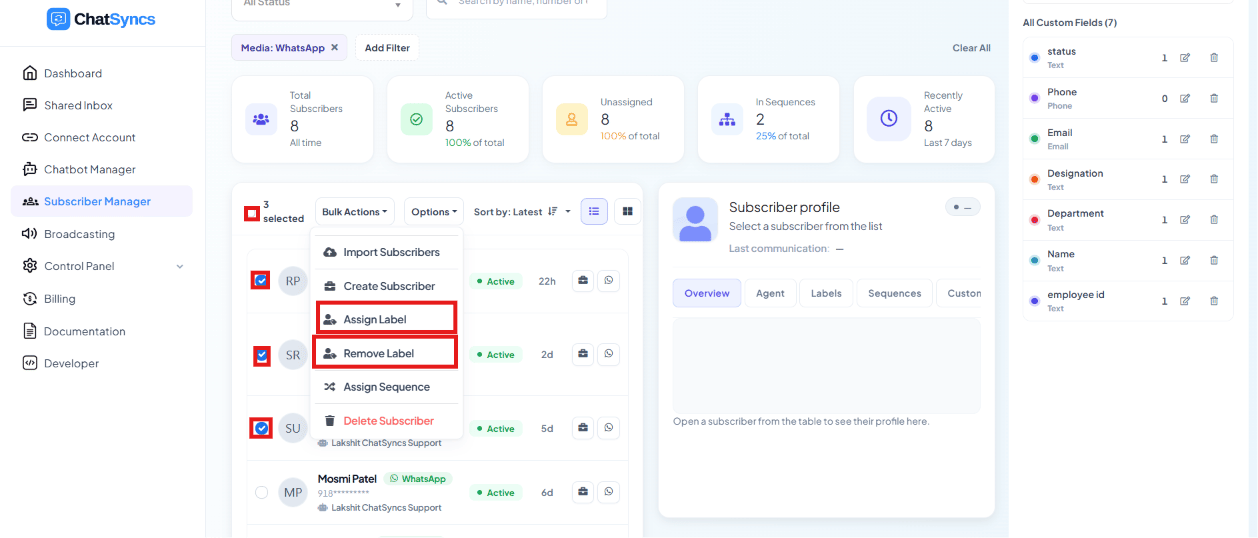
Subscriber rows selected via checkboxes, with Assign Label and Remove Label highlighted in the Options menu.
batch1
and the next 200 batch2. See Create a label
if the label doesn’t exist yet.
Assign a sequence
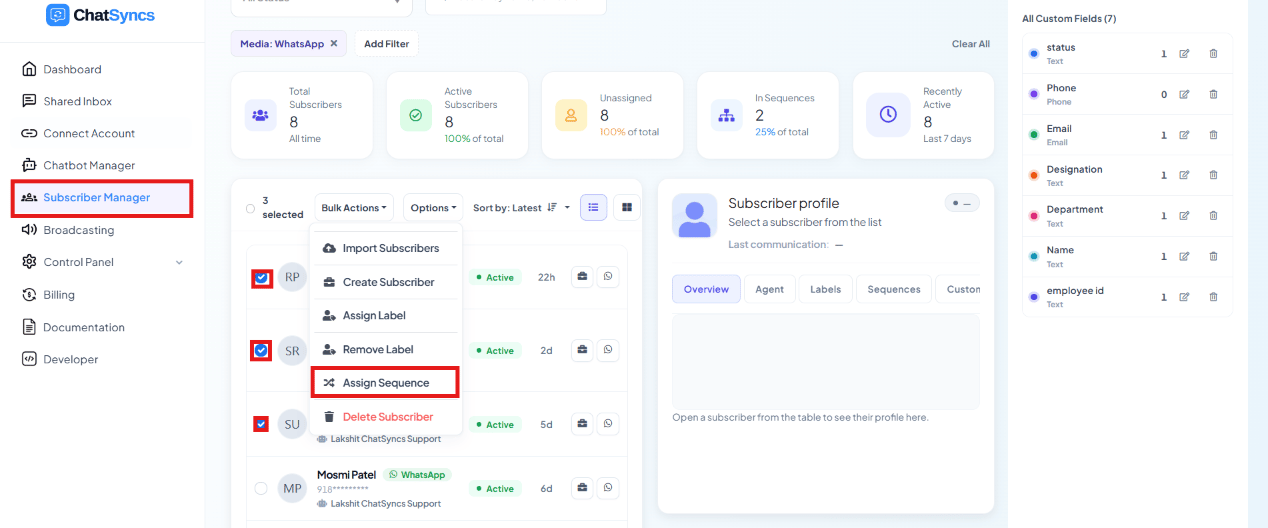
Subscriber rows selected via checkboxes, with Assign Sequence highlighted in the Options menu.
Page size
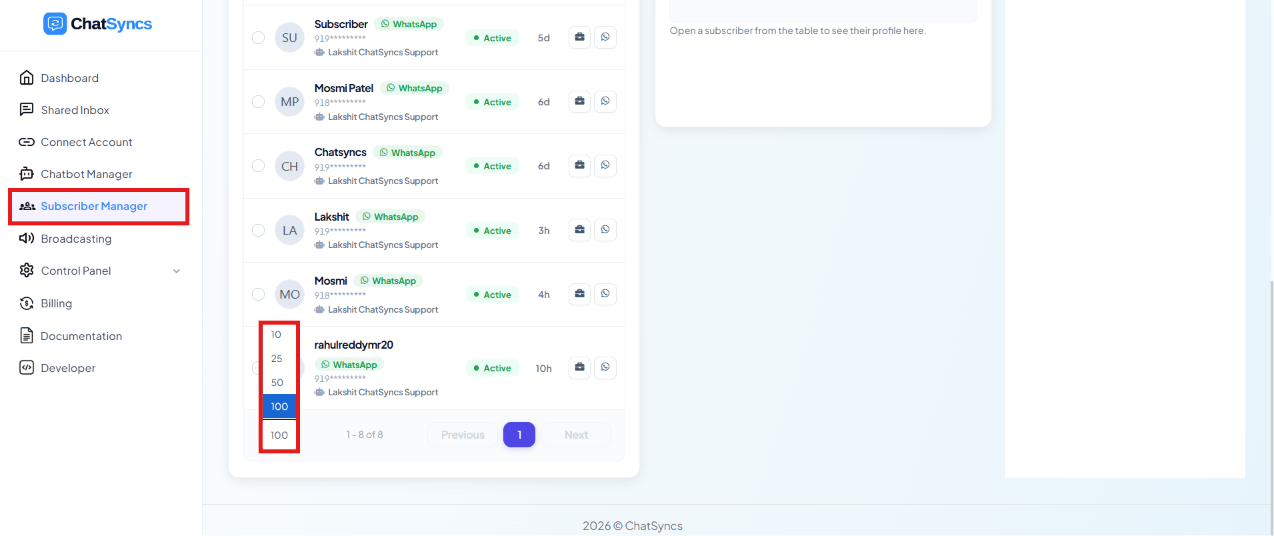
The page size dropdown open at the bottom of the list, with options 10, 25, 50, 100, and 200.
Frequently asked
Where can I see everyone who has messaged my WhatsApp bot?
Where can I see everyone who has messaged my WhatsApp bot?
What's the fastest way to get existing contacts into ChatSyncs?
What's the fastest way to get existing contacts into ChatSyncs?
Can I export my subscriber list back out of ChatSyncs?
Can I export my subscriber list back out of ChatSyncs?
How do I tag or segment my subscribers?
How do I tag or segment my subscribers?
Can I add a subscriber to a Sequence without them triggering it themselves?
Can I add a subscriber to a Sequence without them triggering it themselves?
Learn From a Use Case
- Clinic Appointment Booking Automation — Custom Fields store each answer submitted through the appointment form.