

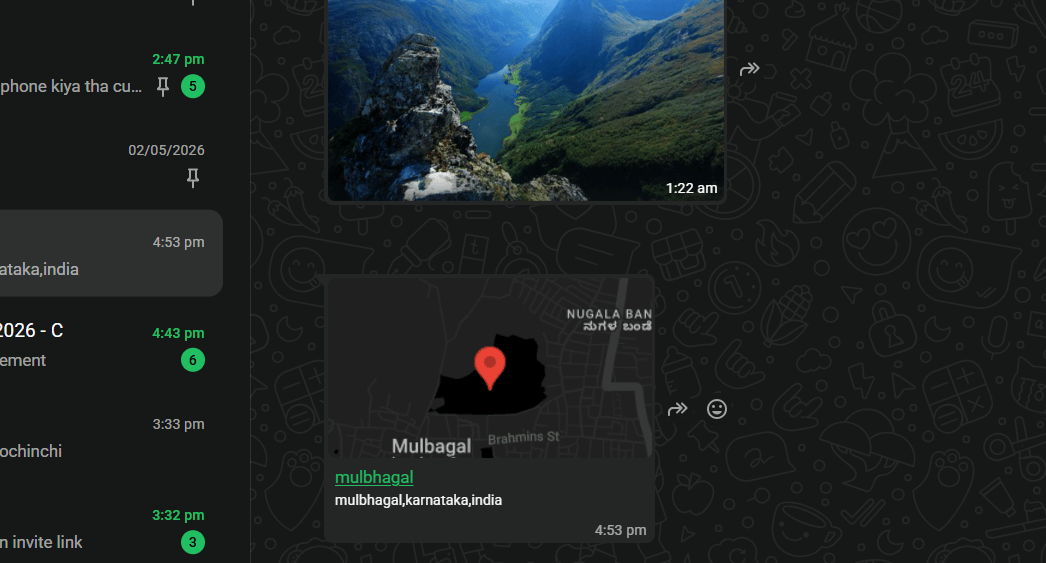
Sending a location
Fields
| Field | Required | Description |
|---|---|---|
latitude | yes | Latitude as a string (decimal degrees) |
longitude | yes | Longitude as a string (decimal degrees) |
name | no | Location name shown above the pin |
address | no | Address text shown below the name |
name and address fields are optional but always include them — without them the
recipient only sees a pin with no context.
How to get latitude and longitude
Open Google Maps, right-click any location, and copy the coordinates shown at the top of the context menu. Example:13.167466, 78.388695.
Reference image
Frequently asked
How do I send a location pin on WhatsApp API?
How do I send a location pin on WhatsApp API?
Set
type to "location" and provide latitude, longitude, and optionally name and
address in the location object. The recipient receives a tappable map pin.How do I find the latitude and longitude for my store?
How do I find the latitude and longitude for my store?
Open Google Maps, right-click your store location, and copy the coordinates at the top of
the menu. Use those values as strings in the
latitude and longitude fields.Can I send a live location (updates in real time)?
Can I send a live location (updates in real time)?
No. The WhatsApp Cloud API only supports sending a fixed location pin, not a live/real-time
location.