

Method 1 — Media by URL
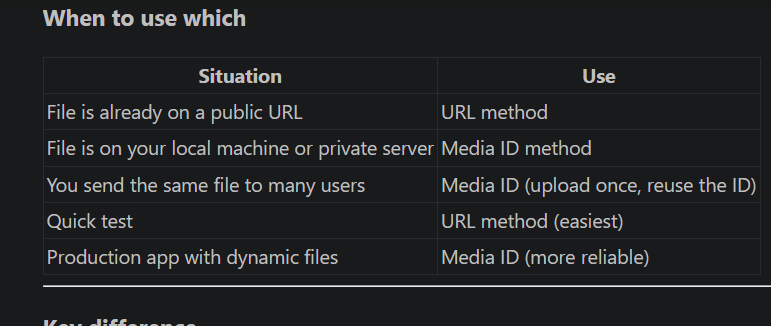
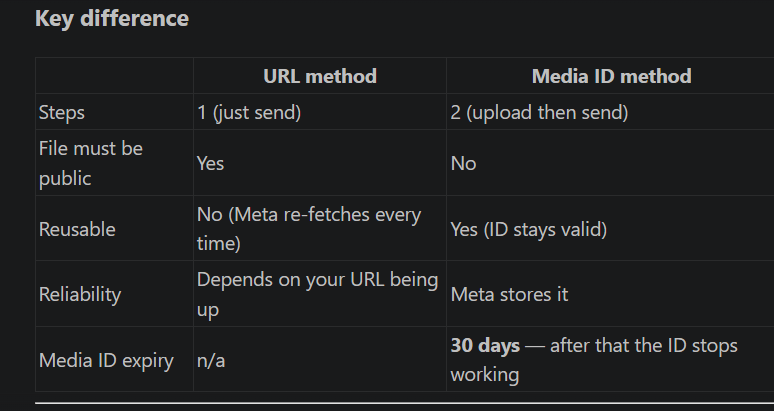
Give WhatsApp a public link. Meta fetches the file and delivers it.- Must be publicly accessible — no login, no password, no auth header
- Must be
https://— nothttp://. WhatsApp requires encrypted URLs - If your file is on
localhostor a private server, use ngrok or Cloudflare Tunnel to expose it temporarily as a publichttps://URL
Method 2 — Media by ID
Upload the file to Meta’s servers first, receive amedia_id, then use that ID in your
message.
Step 1 — Upload the file:
Side-by-side comparison
Reference images
Sending a media message using a public URL.
Uploading a file to Meta's servers to get a media ID.
Sending a media message using the media ID returned from the upload step.
Frequently asked
How do I send an image on WhatsApp API?
How do I send an image on WhatsApp API?
Two ways — provide a public
https:// URL to the image in the link field, or upload the
image to Meta first and use the returned ID in the id field. Both go in the image
object of your request body.Why is my image link not working even though the URL is correct?
Why is my image link not working even though the URL is correct?
The URL must be publicly accessible (no login required) and must use
https:// not
http://. If your file is on a local or private server, use ngrok or Cloudflare Tunnel to
create a public URL.How do I upload a file to WhatsApp before sending it?
How do I upload a file to WhatsApp before sending it?
Send a
multipart/form-data POST to
https://graph.facebook.com/v21.0/{phone-number-id}/media with your token,
messaging_product=whatsapp, the file bytes, and the MIME type. Meta returns a media_id
you then use in your message.Can I reuse the same media ID for multiple users?
Can I reuse the same media ID for multiple users?
Yes. Upload once and use the ID in as many messages as you want. Media IDs are valid for
30 days — after that you must re-upload.
Which method should I use — URL or media ID?
Which method should I use — URL or media ID?
URL is simpler if the file is already public online. Media ID is better for files on your
own server, large files you send repeatedly, or any file that is not publicly accessible.