

Open the builder
Bot Reply lives in the Bot Manager, alongside AI Agent, Broadcast Campaign, Chat Widget, Sequence, Input Flow, and WhatsApp Flows. Click Create on the Bot Reply list to open a blank canvas.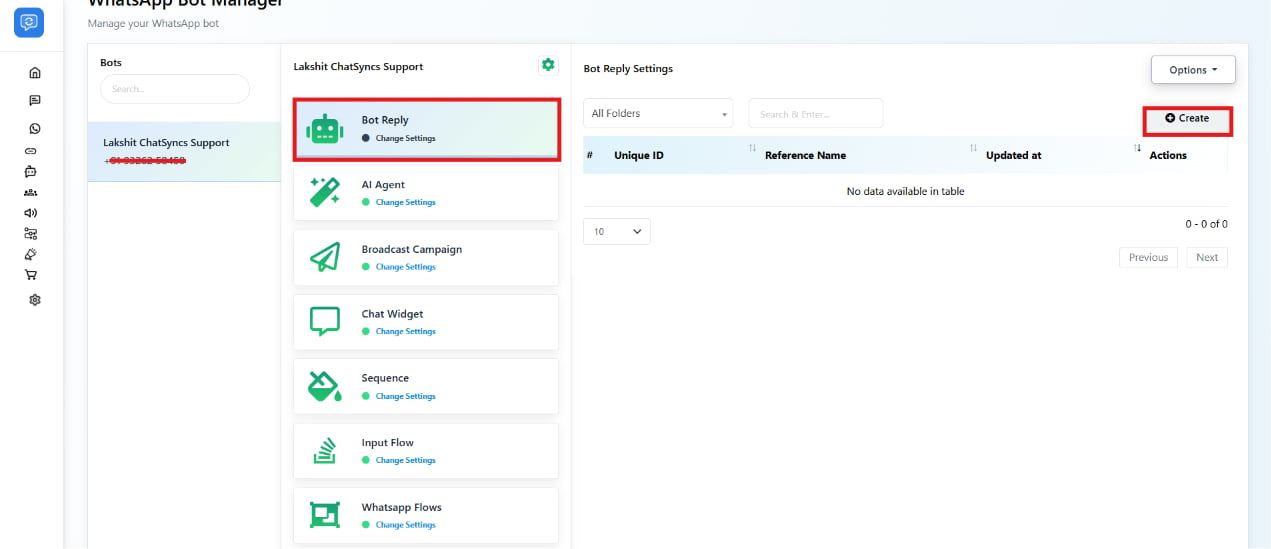
Configure the trigger
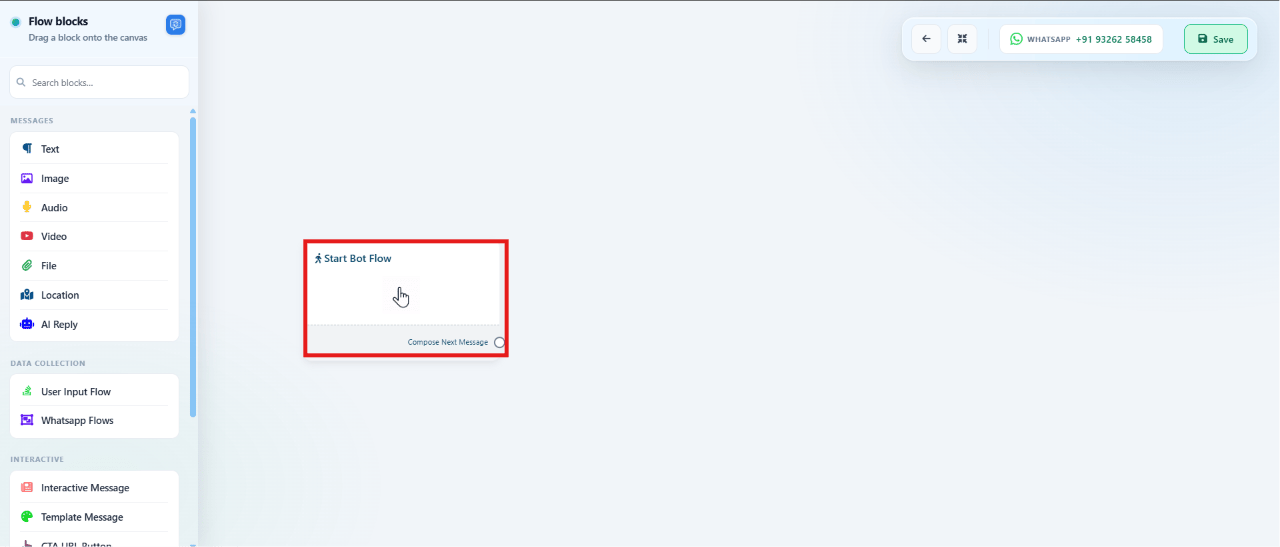
Double-click Start Bot Flow to open its configuration panel, then:Set Trigger Keywords
Enter the words or phrases that should start this flow, e.g.
hi, hello, hey, start, help.Choose a keyword matching type
Exact keyword match fires only on an exact word; String match also fires on
similar/partial keywords.
Give the flow a Title
Use a clear, descriptive title such as
welcome_bot, support_bot, or lead_capture_bot —
this is how you’ll find it later in the Bot Reply list.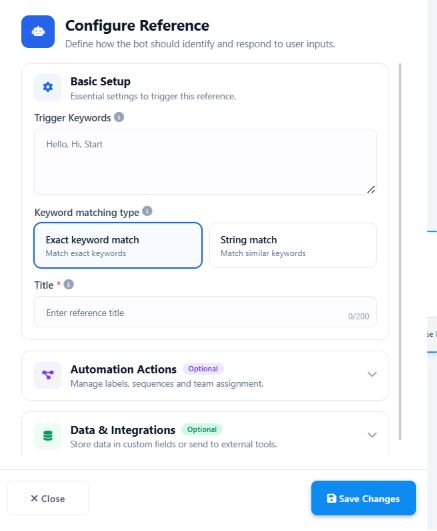
Automation Actions
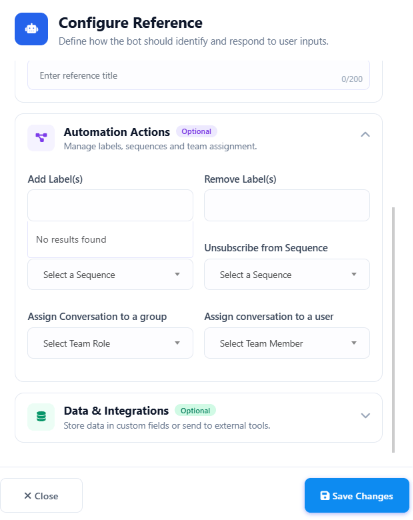
The same configuration panel has an Automation Actions section for managing the contact without sending a visible message:- Add / Remove Label(s) — tag contacts by demographic, interest, lead status, or purchase history so you can target them later with segmented campaigns.
- Unsubscribe from Sequence — stop an automated message sequence (onboarding, lead nurturing, promotions, re-engagement) for this contact.
- Assign Conversation to a group — hand the conversation to a team (e.g. Sales, Support, Executive) so any member of that team can pick it up.
- Assign conversation to a user — hand the conversation to one specific team member.
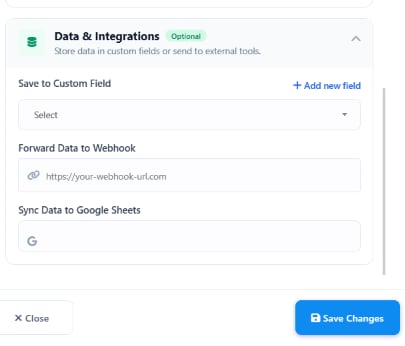
Data & Integrations
The Data & Integrations section collects what the bot learns from the conversation and sends it where you need it:- Save to Custom Field — store a user’s reply (name, email, phone, etc.) in a custom field you’ve created under Custom Fields.
- Forward Data to Webhook — POST the collected fields to an external URL (a CRM, database,
or custom app) as JSON, e.g.
{"name": "{{user_name}}", "email": "{{user_email}}"}. - Sync Data to Google Sheets — connect a Google account, pick a spreadsheet and worksheet, and map each custom field to a column; every new submission adds a row automatically.
Add flow components
After saving Start Bot Flow, hover the block and drag its connector dot onto the canvas to open the list of components you can chain after it.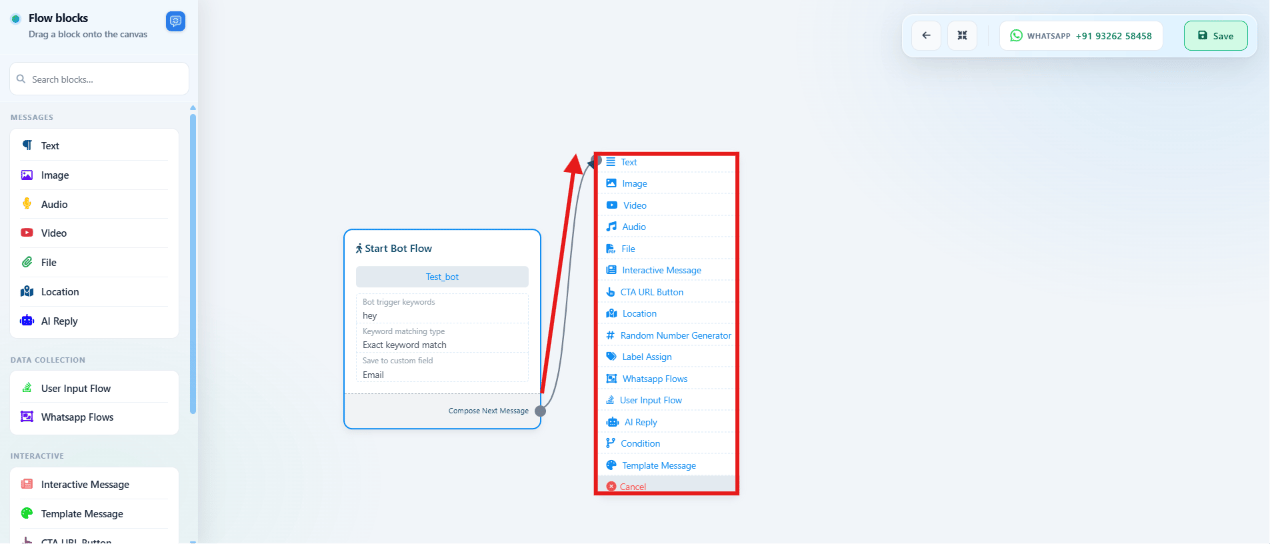
| Component | What it does |
|---|---|
| Text Message | Plain text — welcomes, instructions, FAQs, notifications. |
| Image Message | JPG/JPEG/PNG, up to 5 MB — product images, banners, promos. |
| Video Message | MP4/3GP, up to 16 MB — demos, tutorials, marketing. |
| Audio Message | AAC/MP3/AMR/OGG, up to 16 MB — voice greetings, announcements. |
| File / Document Message | PDF/DOC/DOCX/XLS/XLSX/PPT/PPTX/TXT, up to 100 MB — brochures, invoices, manuals. |
| Reply Buttons | Up to 3 tappable buttons for a quick predefined response. |
| List Messages | Up to 10 options in a structured list. |
| CTA URL Button | A button that opens a website — landing, payment, or booking pages. |
| Location Message | Share a map location — office, store, or event venue. |
| Random Number Generator | Generates a number in a range — token numbers, ticket IDs, lead references. |
| Label Assign | Auto-assigns a label to the contact for segmentation. |
| WhatsApp Flow | Launches a Meta WhatsApp Flow — lead forms, bookings, surveys, registration. |
| User Input Flow | Captures free-text input (name, email, phone, address) into custom fields. |
| AI Reply | AI-generated answers for FAQs, support, product questions, knowledge-base lookups. |
| Condition | Branches the flow based on a value, e.g. If User Interest = Sales → Sales Flow. |
| Template Messages | Sends an approved WhatsApp template — order updates, reminders, payment notices, campaigns. |
Personalize messages
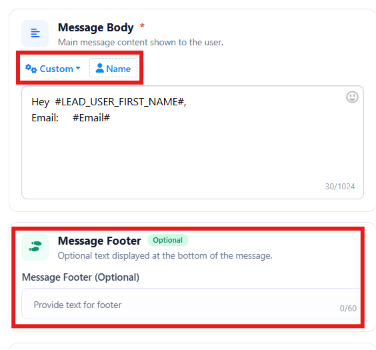
Inside a Text Message block, click Name to insert the user’s name, or type# to insert any
custom field as a variable — e.g. Hey #LEAD_USER_FIRST_NAME#, welcome back!. You can also add
optional Message Footer text, commonly used for branding or disclaimers (e.g.
Powered by ChatSyncs).
Delivery options
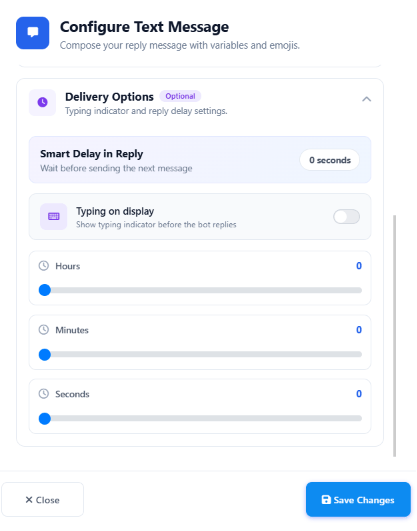
Each message block has Delivery Options for a more natural pacing:- Smart Delay in Reply — wait a set number of hours/minutes/seconds before sending.
- Typing on display — show WhatsApp’s typing indicator before the reply lands.
Clone or delete a component
Hover any block on the canvas to reveal two small icons above it: the first clones the block (handy for reusing a configured component without rebuilding it), the second deletes it permanently.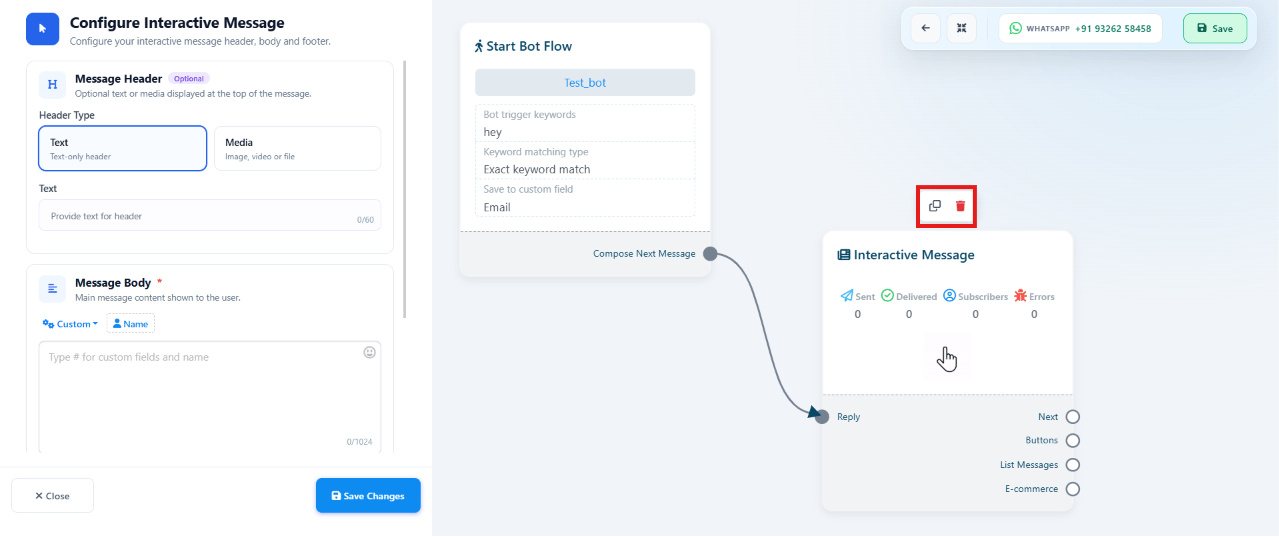
Save & validation
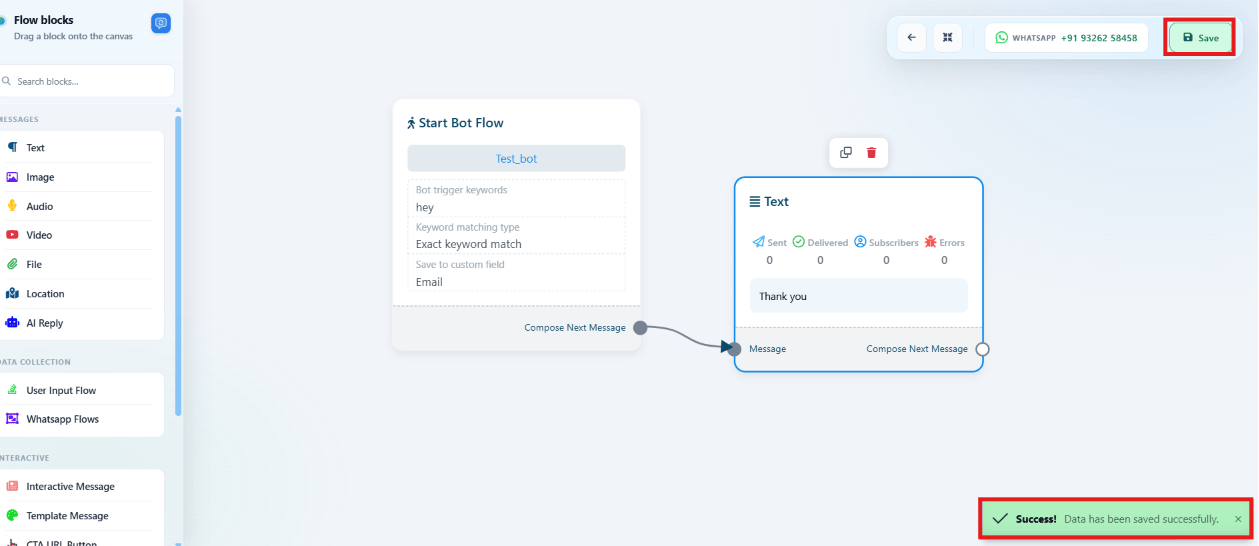
Before saving, every required field on every connected component must be filled in — a missing button text on an Interactive Message, or empty content on a Text Message, blocks the save and shows a validation warning.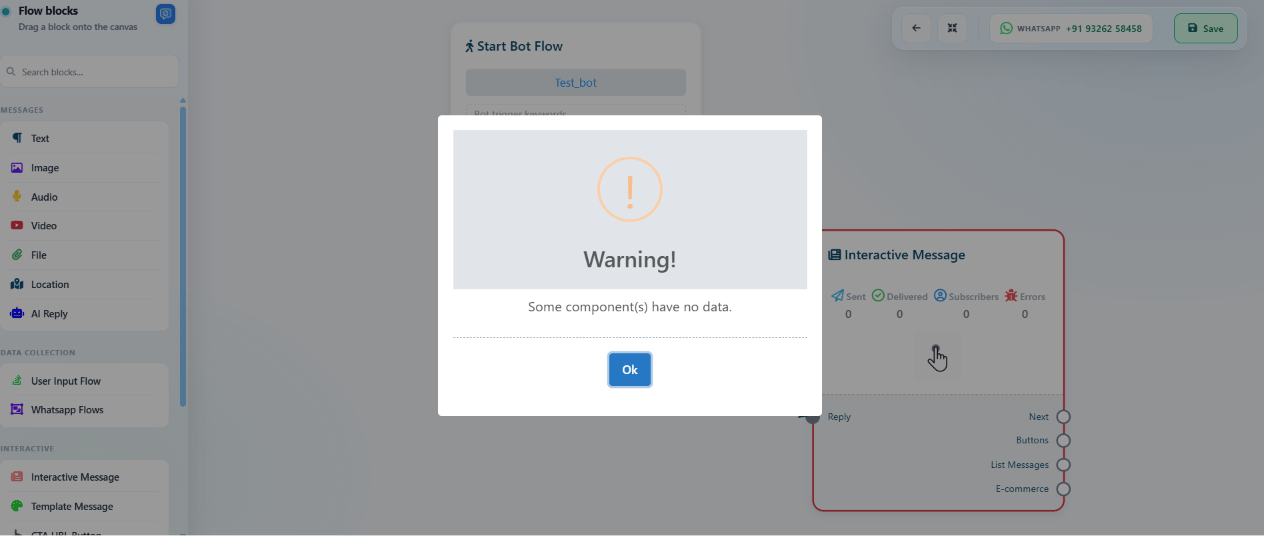
Frequently asked
How do I make my bot reply to a customer's first message automatically?
How do I make my bot reply to a customer's first message automatically?
Create a Bot Reply, set Trigger Keywords on the Start Bot Flow block (e.g.
hi, hello, hey, start), and connect a Text Message or Interactive Message block after it.
Save the flow — it fires whenever a customer’s message matches a trigger keyword.Can I collect a customer's name, email, and phone number through the bot?
Can I collect a customer's name, email, and phone number through the bot?
Yes — use User Input Flow blocks to ask for each value, and map each answer to a
Custom Field under Data & Integrations. You can then forward the data to a webhook or sync
it to Google Sheets automatically.
Why won't my flow save?
Why won't my flow save?
A connected component is missing required data — e.g. an Interactive Message with no
button text, or an empty Text Message. ChatSyncs shows a validation warning naming the
incomplete component; fill it in and save again.
What's the difference between Exact keyword match and String match?
What's the difference between Exact keyword match and String match?
Exact keyword match fires only when the customer’s message is exactly one of your
trigger keywords. String match also fires if a trigger keyword appears anywhere inside
a longer message. If your bot isn’t firing on messages you expected, check which matching
type the Start Bot Flow block is set to — Exact match is stricter and will miss typos or
extra words.