
The Chat Widget adds your chatbot to your website, so visitors can start a WhatsApp conversation directly from your web pages instead of having to know your business number.

Create a chat widget
1

Open Bot Manager

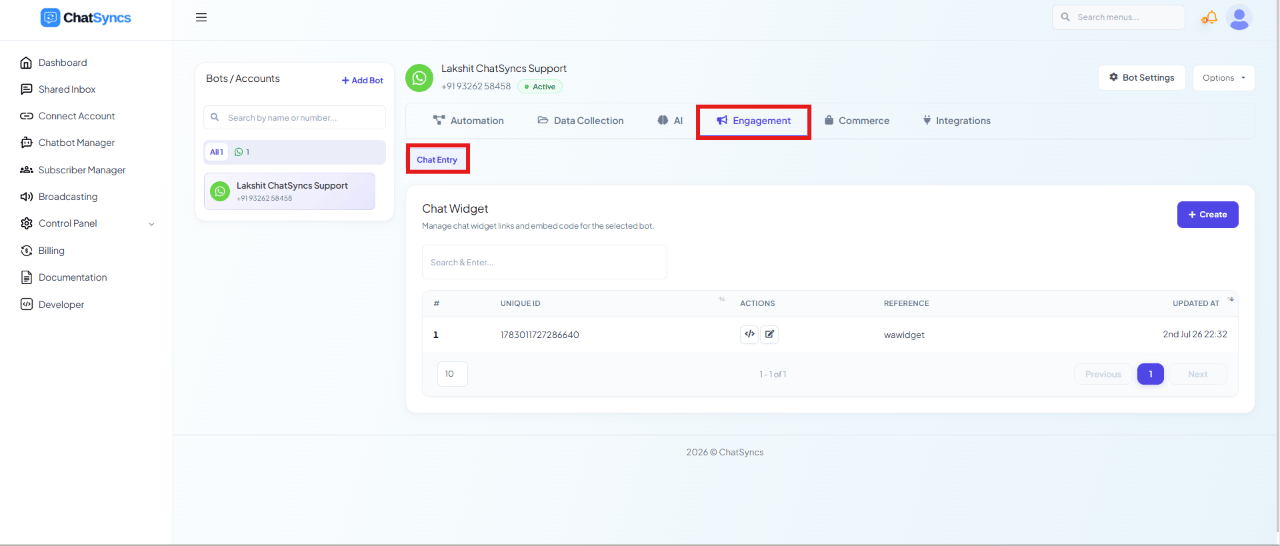
Go to Bot Manager.
2

Click Chat Widget

Select Chat Widget from the module list.
3

Click Create

Click Create to start a new widget.
Chat Widget Settings list with a Create button highlighted

Configure the widget

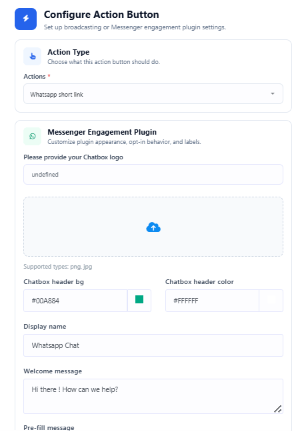
Clicking Create opens the widget’s configuration panel:
1

Action Type

Choose WhatsApp Short Link as the widget type.
2

Branding

Upload a Chatbox Logo (PNG or JPG) and set the Chatbox Header Background and Header Text Color to match your site.
3

Display Name & messages

Set the Display Name shown at the top of the widget (e.g. Whatsapp Chat), the Welcome Message visitors see when they open it (e.g. Hi there! How can we help?), and a Pre-fill Message that auto-fills the WhatsApp message box (e.g. Hi there, I need some information.).
4

Position on the page

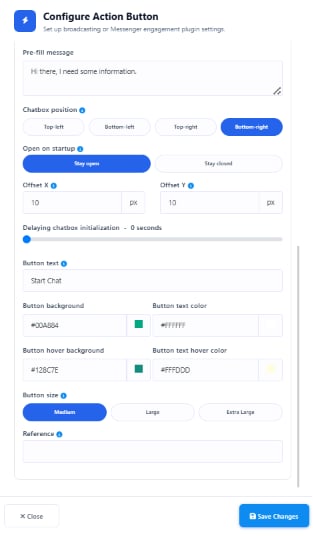
Set the Chatbox Position (Top-Left, Top-Right, Bottom-Left, or Bottom-Right), whether it should Open on Startup, its Offset X/Y in pixels, and a delay before it appears (Delaying Chatbox Initialization).
5

Button styling

Set the Button Text (e.g. Start Chat), Button Background, Button Text Color, Button Hover Background, Button Text Hover Color, and Button Size.
6

Reference

Give the widget a unique Reference name using alphanumeric characters only, e.g. whatsappwidget.
7

Save Changes

Click Save Changes to create and activate the widget.
Configure Action Button panel for a WhatsApp Short Link chat widget, showing branding, message, position, and button styling fields
Reference must be alphanumeric characters only — it identifies the widget internally, so spaces or special characters will be rejected.

Build the widget’s conversation flow

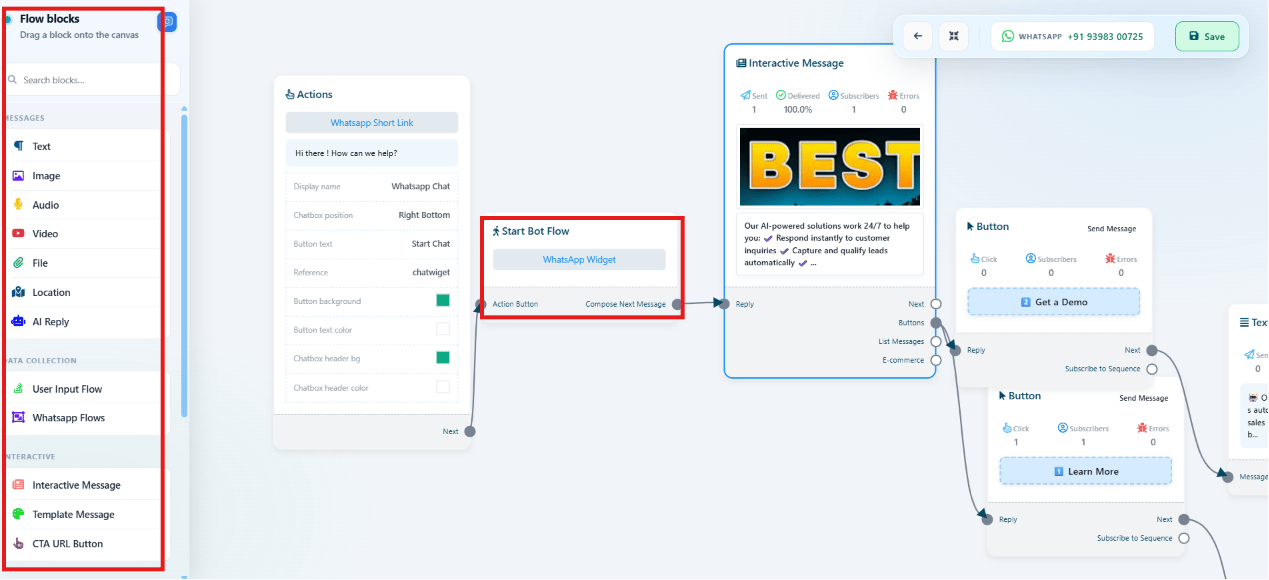
Once saved, build what happens when a visitor starts the chat — the canvas works the same way as the Bot Reply flow builder. Drag on components and connect them to design the conversation: Text, Image, Video, Audio, Files, Interactive Messages, User Input, and AI Reply.
Chat Widget flow canvas with an Interactive Message block offering Get a Demo and Learn More buttons
Click Save Flow once the conversation is complete.

Get the embed code

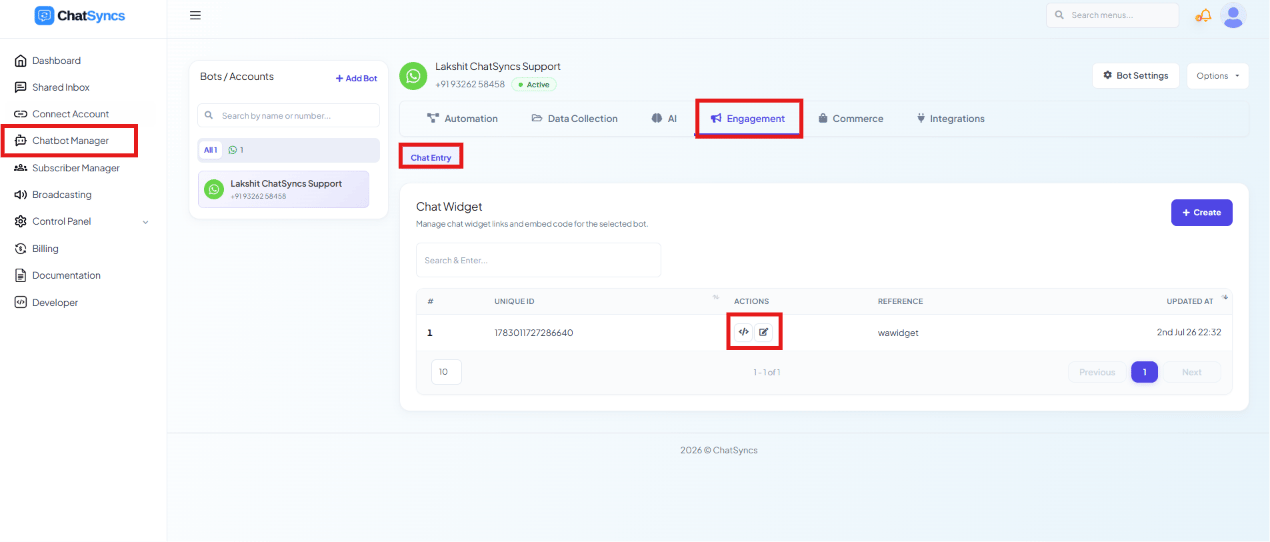
Back in the Chat Widget list, use the action icons on your widget’s row to open its Embed Code.
Chat Widget Settings list with the action icons highlighted on a widget row
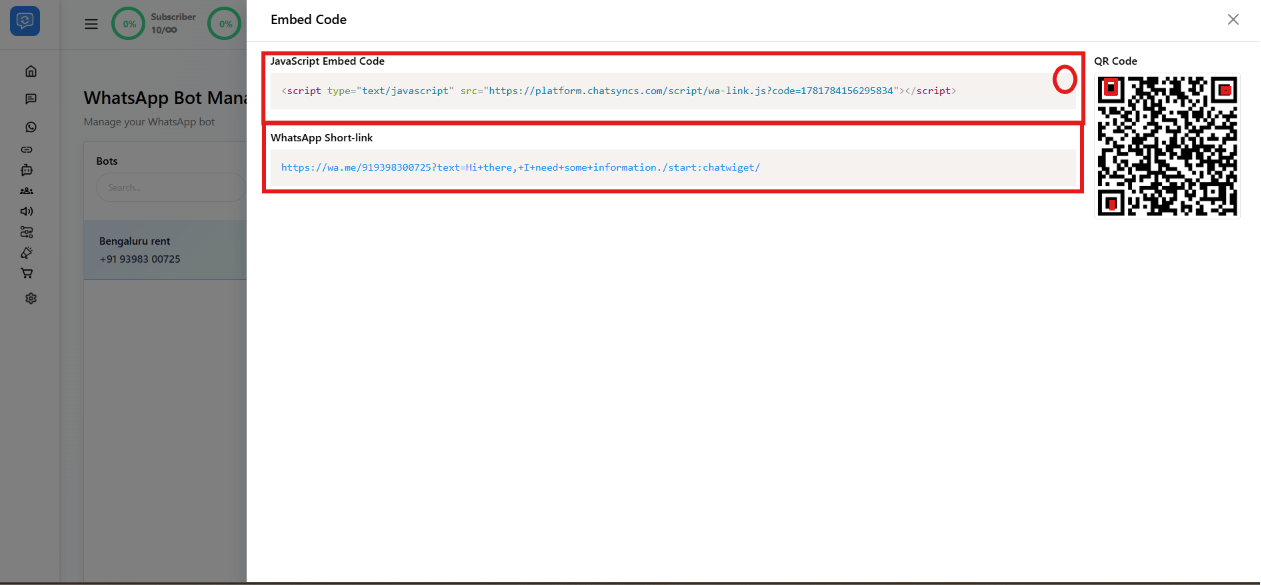
The Embed Code dialog gives you three ways to deploy the widget:
  • JavaScript Embed Code — a <script> tag to paste into your website’s HTML.
  • WhatsApp Short-link — a direct wa.me link you can use on landing pages, emails, or social media instead of embedding the widget.
  • QR Code — scannable, useful for print materials or in-person displays.
Embed Code dialog showing a JavaScript embed snippet, a WhatsApp short-link, and a QR code

How it looks on your website

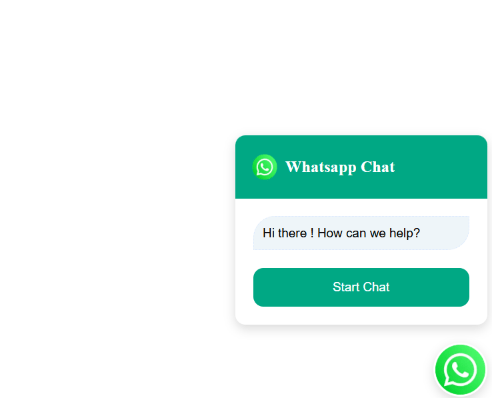
Once the JavaScript snippet is added, the widget appears as a floating button. Clicking it opens the chat card with your welcome message and Start Chat button; clicking Start Chat redirects the visitor to WhatsApp with your pre-fill message ready to send.
WhatsApp chat widget open on a website with a welcome message and a Start Chat button
Chat widget collapsed to a floating WhatsApp button in the corner of a website

Frequently asked

Create a Chat Widget in Bot Manager, configure its branding/position/button styling, build its conversation flow, then copy the JavaScript Embed Code from the widget’s Embed Code dialog into your website’s HTML.
Yes — the Embed Code dialog also gives you a WhatsApp Short-link and a QR Code. Use the short-link on landing pages, emails, or social posts, or the QR code on printed or in-person materials, without adding any code to a site.
It opens a chat card showing your Welcome Message and a Start Chat button. Clicking Start Chat opens WhatsApp with your Pre-fill Message already typed in, ready for the visitor to send.
Text, Image, Video, Audio, Files, Interactive Messages, User Input, and AI Reply — connected on a canvas the same way as a Bot Reply flow.