

Create a WhatsApp Flow
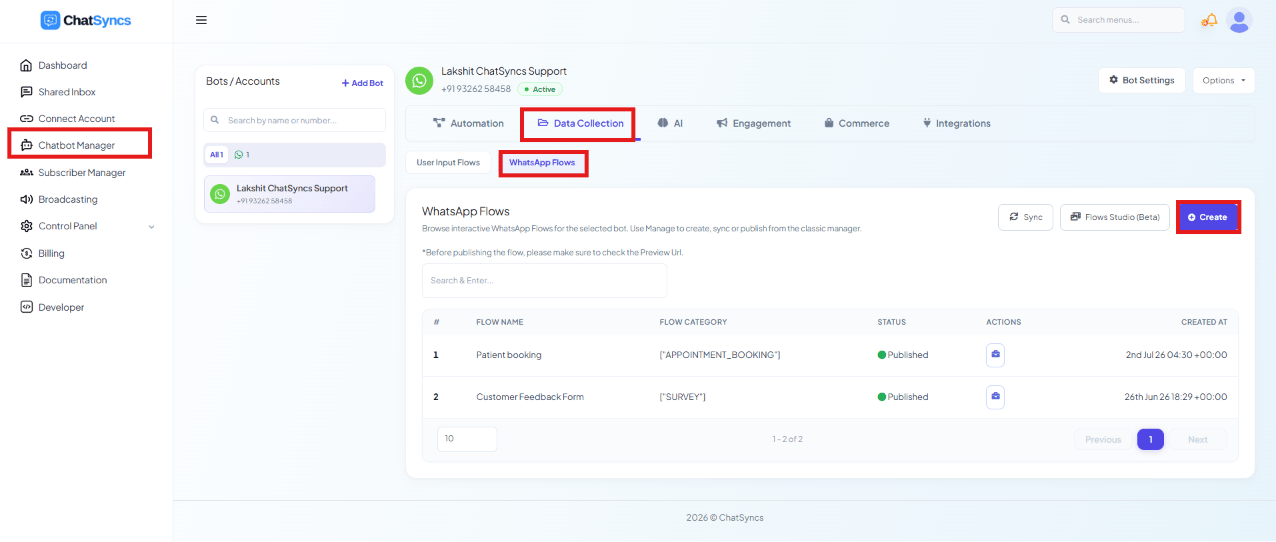
Chatbot Manager → Data Collection → WhatsApp Flows, with the Create button highlighted.
Open Chatbot Manager
Open the Data Collection tab
Click WhatsApp Flows
Click Create
Add form components
Configure each field
Save and publish
Flow configuration
Before designing screens and fields, configure the flow’s settings: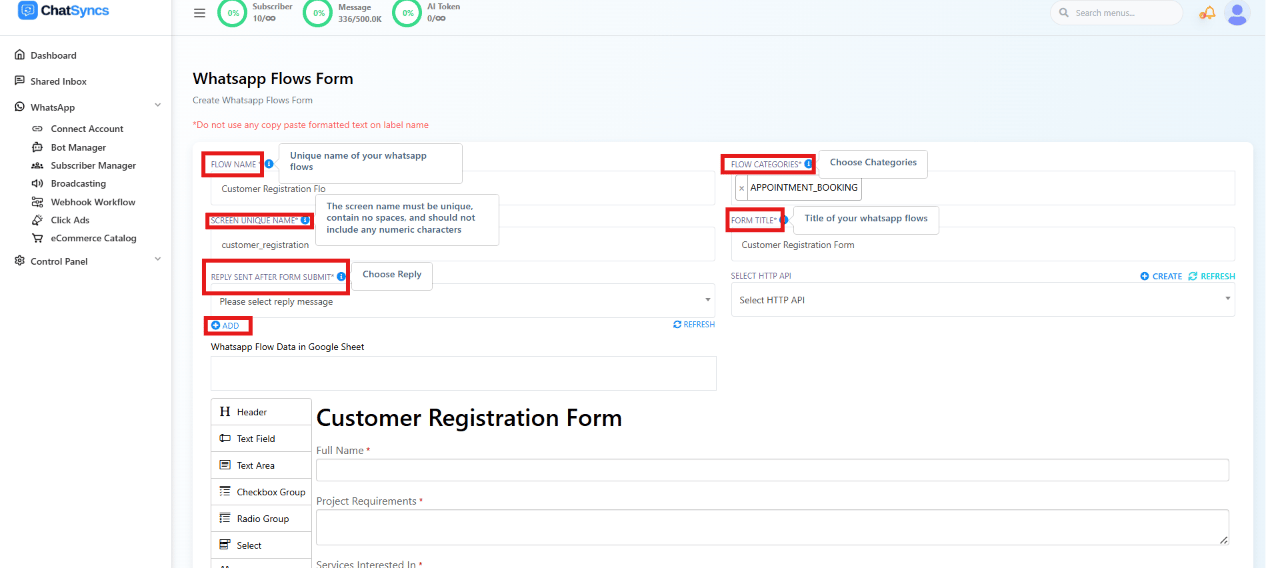
WhatsApp Flow configuration fields — Flow Name, Flow Category, Screen Unique Name, Form Title, Reply Sent After Form Submit, Select HTTP API, and Google Sheets, alongside the live form preview.
Form components
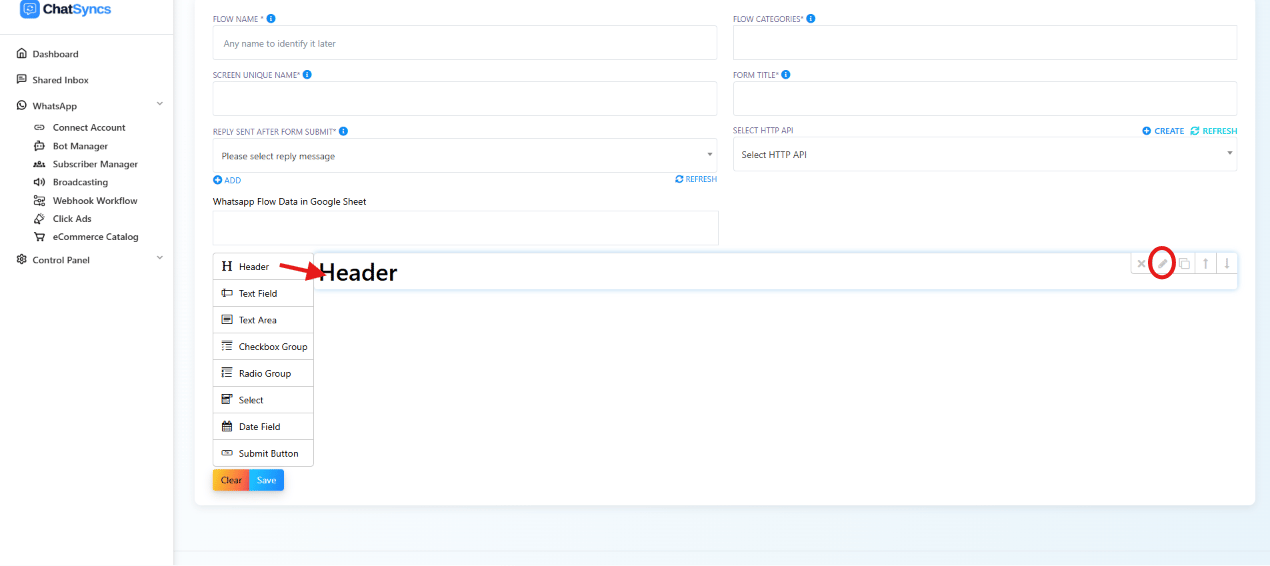
The form component palette — Header, Text Field, Text Area, Checkbox Group, Radio Group, Select, Date Field, and Submit Button.
Header
Displayed at the top of the flow — use a clear title so subscribers understand the form’s purpose, e.g.Customer Registration Form.
Text Field
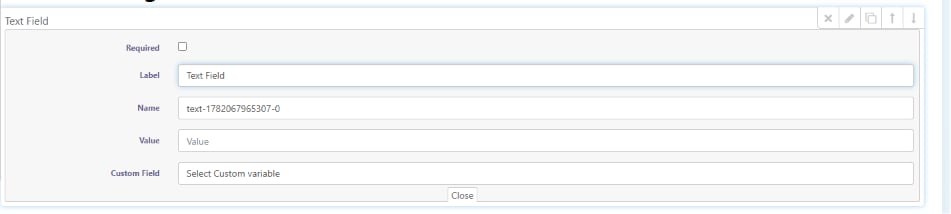
Text Field settings panel — Required, Label, Name, Value, and Custom Field.
- Required — the subscriber can’t submit the form without filling this field in.
- Label — the text shown to the subscriber as the field’s title, e.g.
Full Name. - Name — the internal identifier used when the form data is submitted (not shown to the
subscriber). ChatSyncs fills in a default like
text-1782067965307-0, but renaming it to something readable likefull_namemakes the submitted data far easier to work with — see Naming fields well below. - Value — a default value prefilled when the form opens. For example, if the field’s
Label is
Cityand Value is set toBangalore, the subscriber seesBangalorealready typed in — they can keep it as-is or edit it to something else before submitting. - Custom Field — connects the field to a custom variable or subscriber field, so a previously saved value (e.g. a name already on file) can prefill automatically.
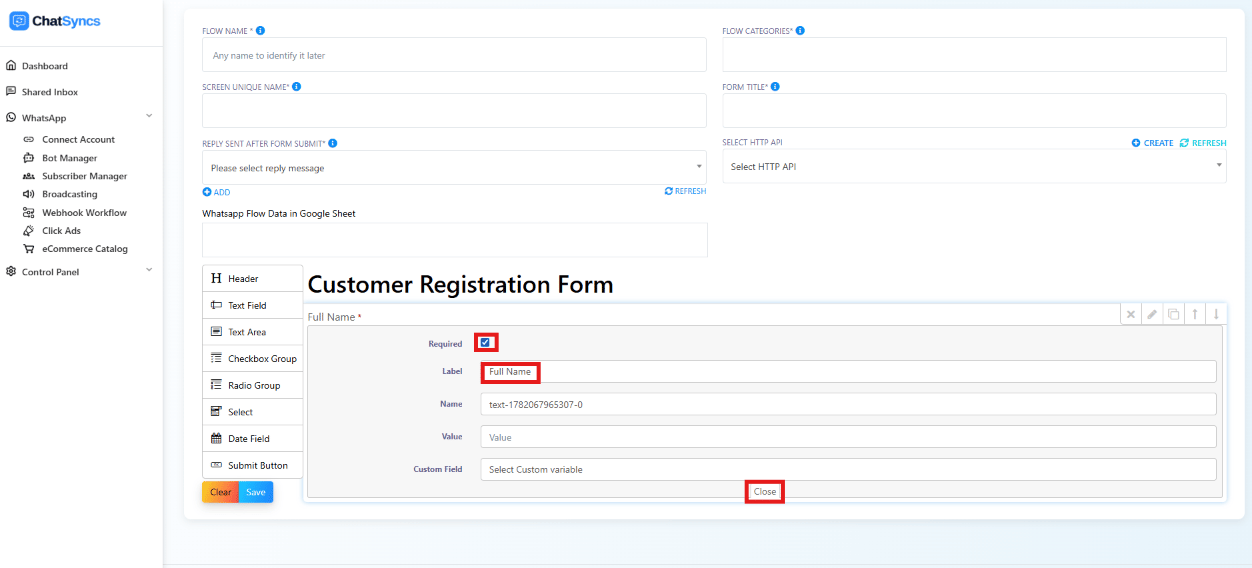
A Text Field labeled 'Full Name', marked Required, inside the Customer Registration Form preview.
Text Area
Allows longer free-text responses — common for feedback, comments, or project requirements.Checkbox Group
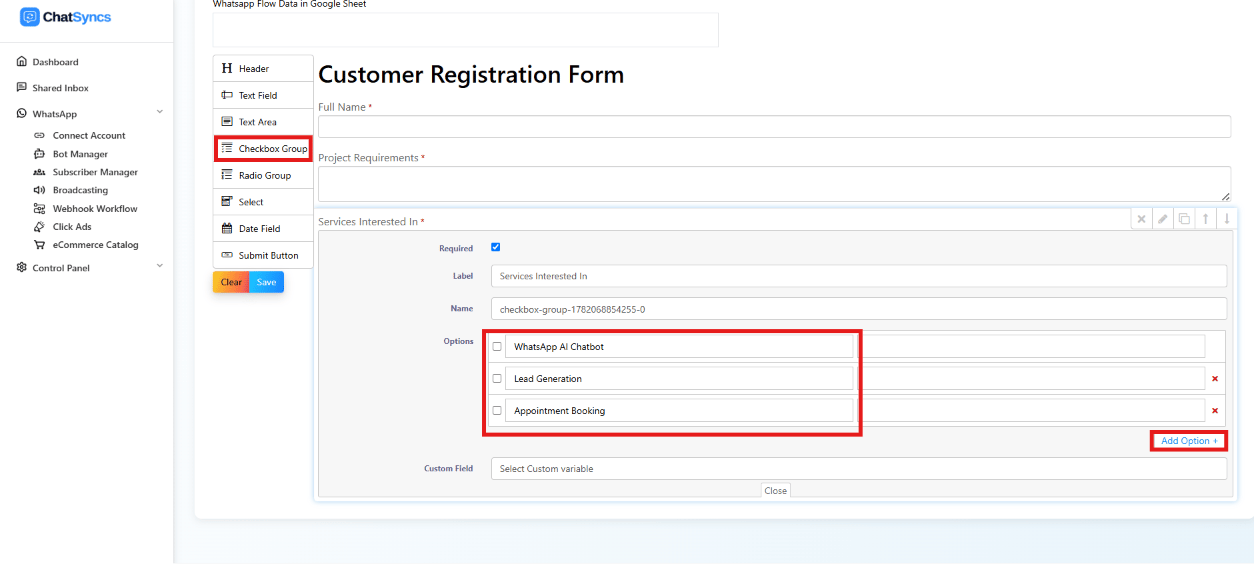
Checkbox Group settings — Label, Name, and a list of selectable Options.
Which services are you interested in?
with options like AI Automation, WhatsApp Marketing, Chatbot Development. Add options
with Add Option.
Radio Group
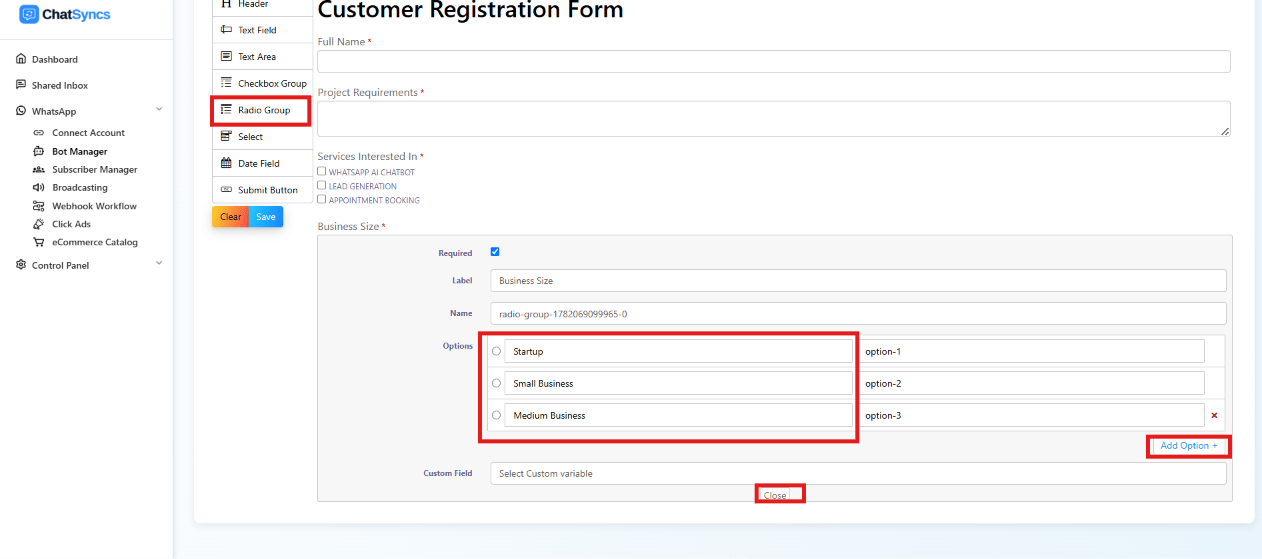
Radio Group settings — Label, Name, and single-select Options.
Business Size with options Startup,
Small Business, Medium Business, Enterprise.
Select
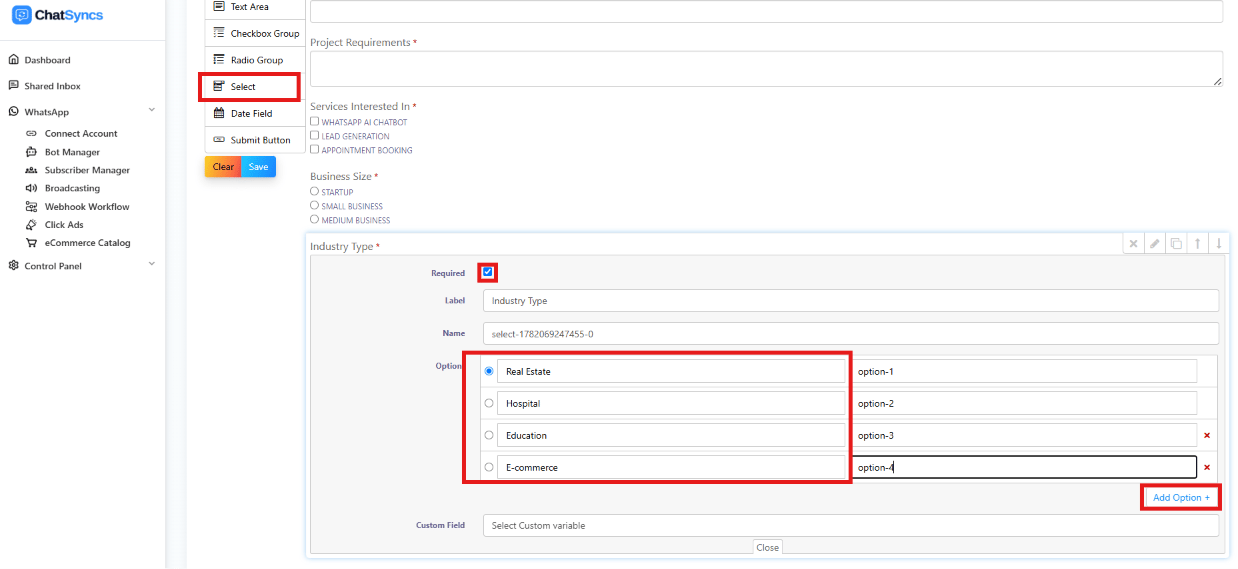
Select field settings — Label, Name, and dropdown Options.
Industry Type
with Real Estate, Hospital, Education, E-commerce.
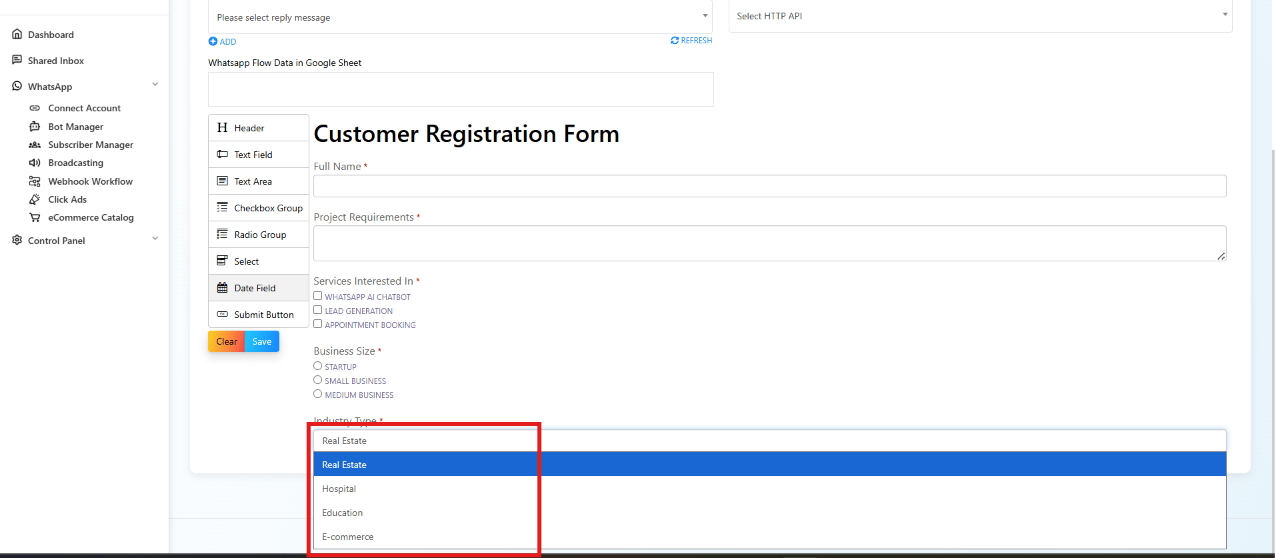
The Select field rendered as a dropdown in the form preview, with Real Estate highlighted.
Date Field
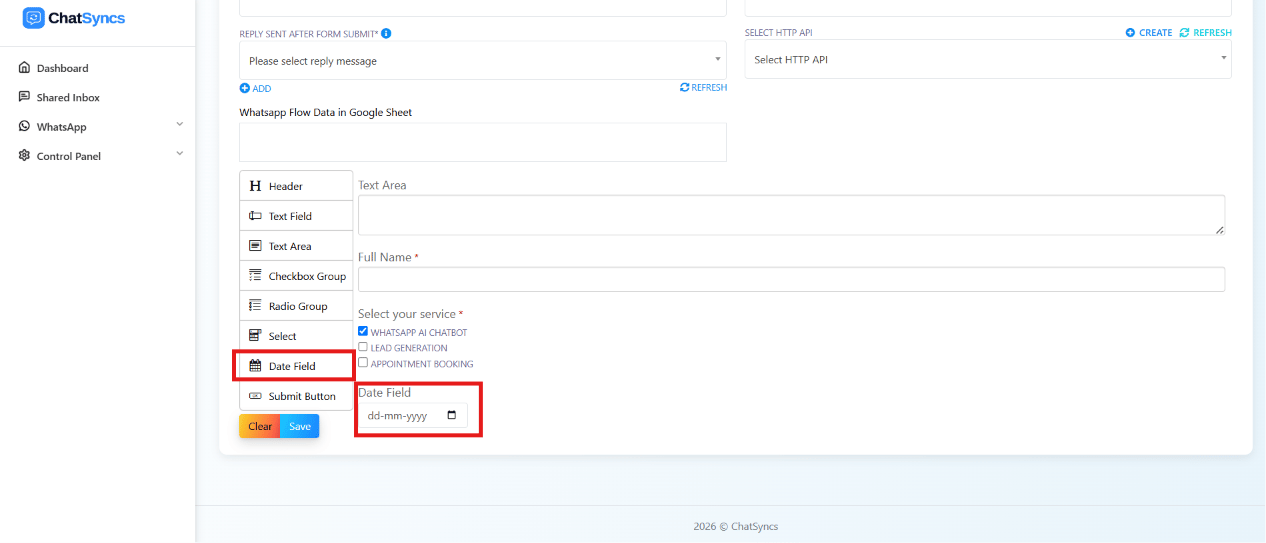
Date Field added to a form already containing a Text Area, a Text Field, and a Checkbox Group — it renders as a native date picker (dd-mm-yyyy).
Submit Button
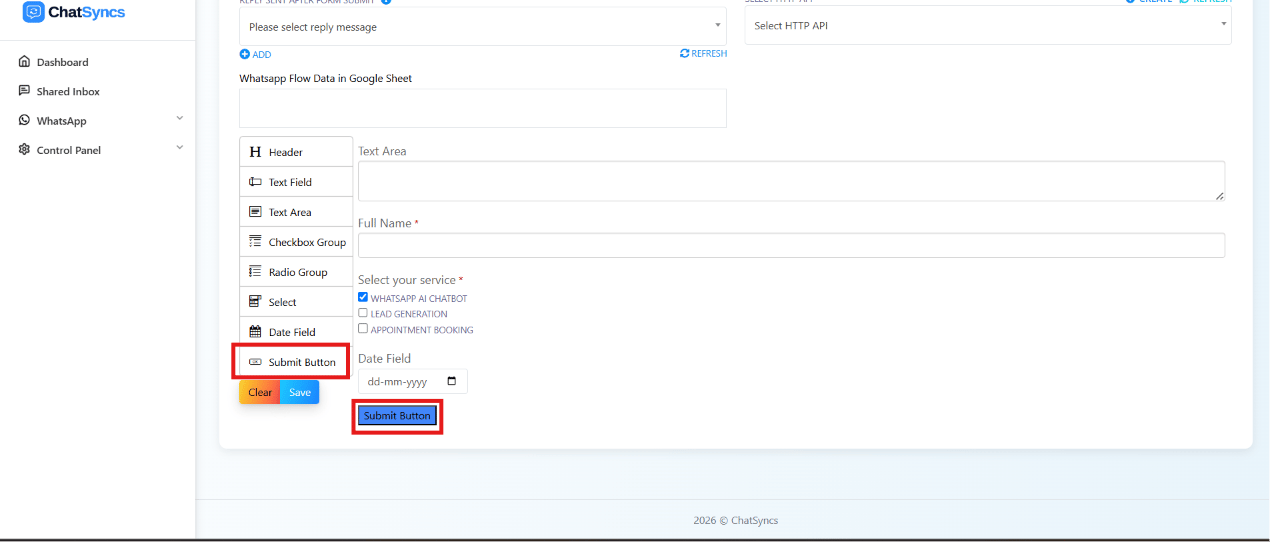
Submit Button added as the final component — it completes the form, shown here below the Date Field at the end of the same example form.
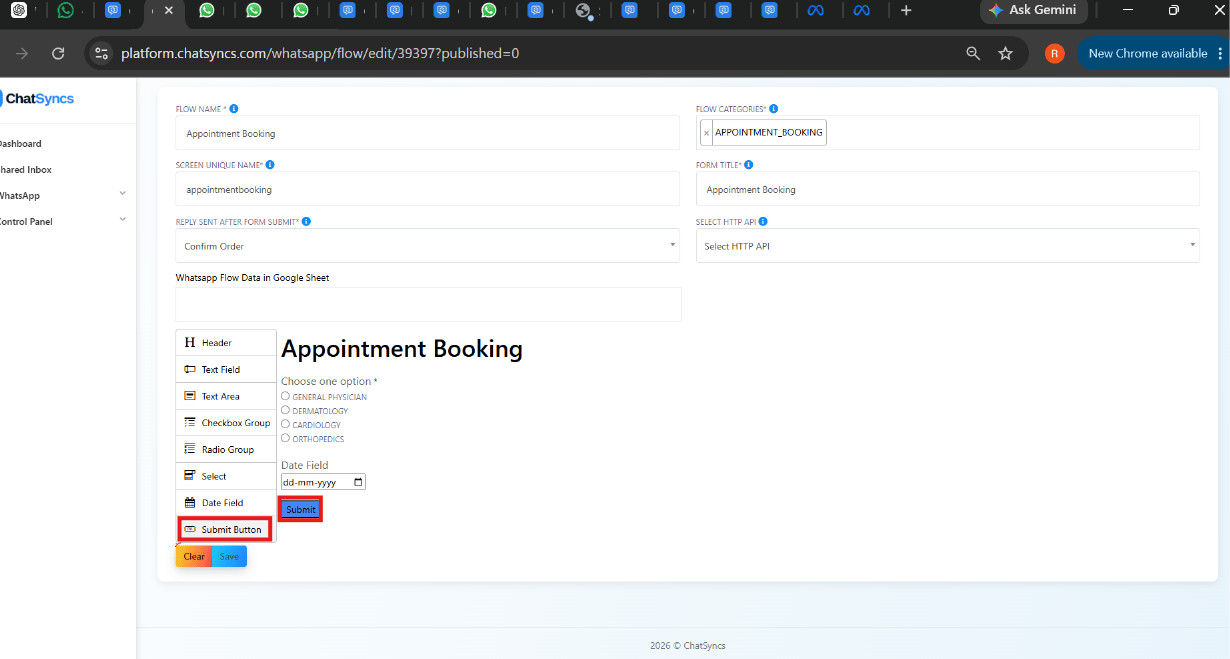
An Appointment Booking flow in the builder — Radio Group and Date Field above a highlighted Submit Button that completes the form.
Naming fields well
Every field has a Label (what the subscriber sees) and a Name (the internal key used when the data is submitted) — and fields with options (Checkbox Group, Radio Group, Select) also give each option its own Label and Value. Getting these right makes the data you collect much easier to work with later.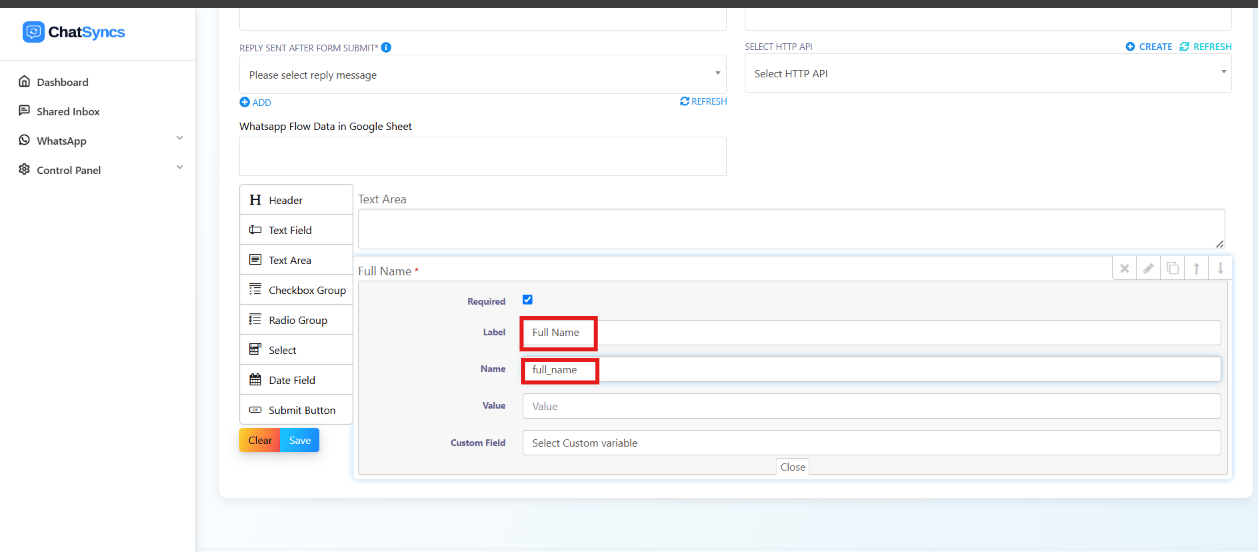
A Text Field with Label 'Full Name' and Name renamed to the readable full_name.
Name
ChatSyncs assigns a default Name liketext-1782067965307-0 or
checkbox-group-1782068854255-0 — technically valid, but unreadable in your submitted data.
Rename it to something meaningful instead:
Options (Checkbox Group, Radio Group, Select)
Each option has its own Label (shown to the subscriber) and Value (stored when selected) — give the Value a descriptive snake_case name too, not a number: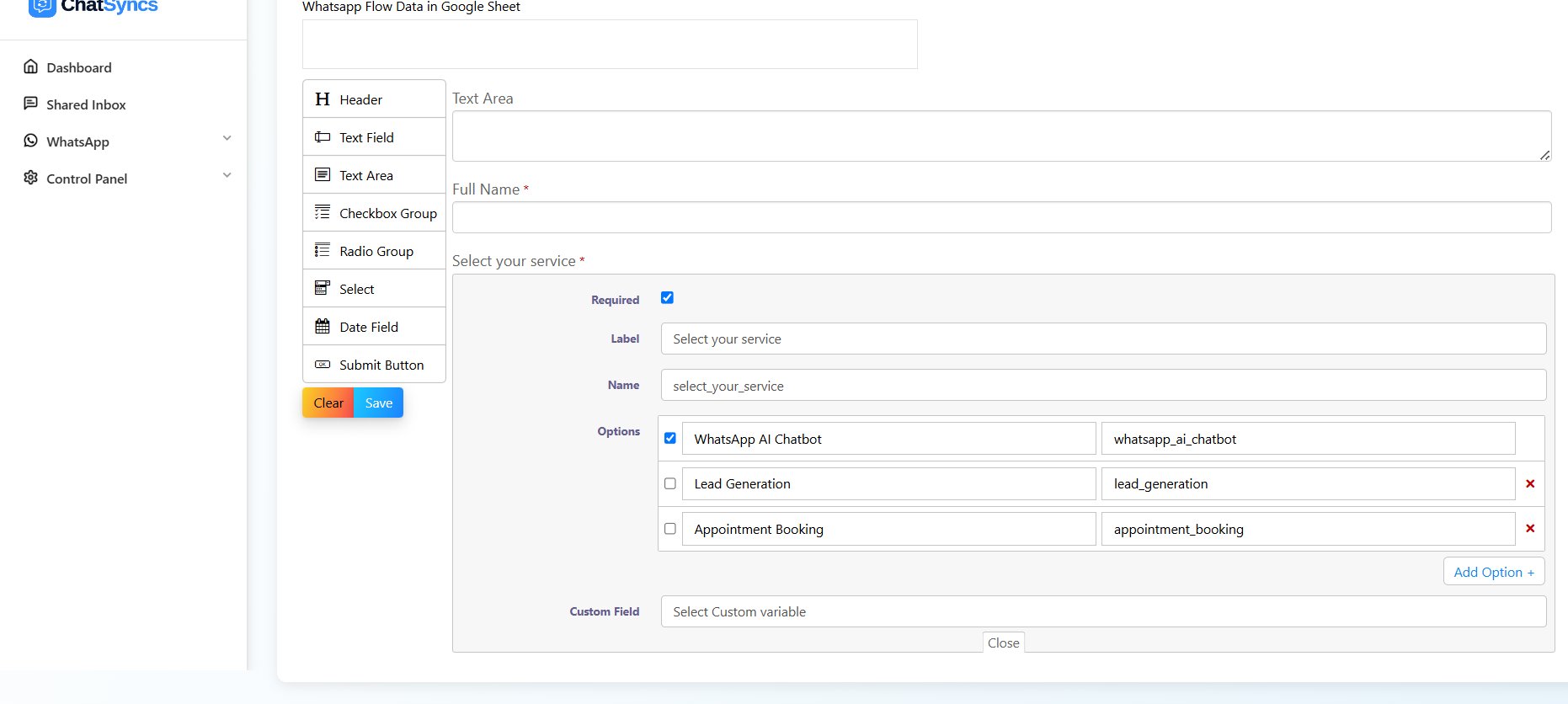
A Checkbox Group's Options list, each with a descriptive Label and a matching snake_case Value.
"services_interested": ["whatsapp_ai_chatbot", "lead_generation"] is
immediately understandable; "services_interested": [1, 2] is not.
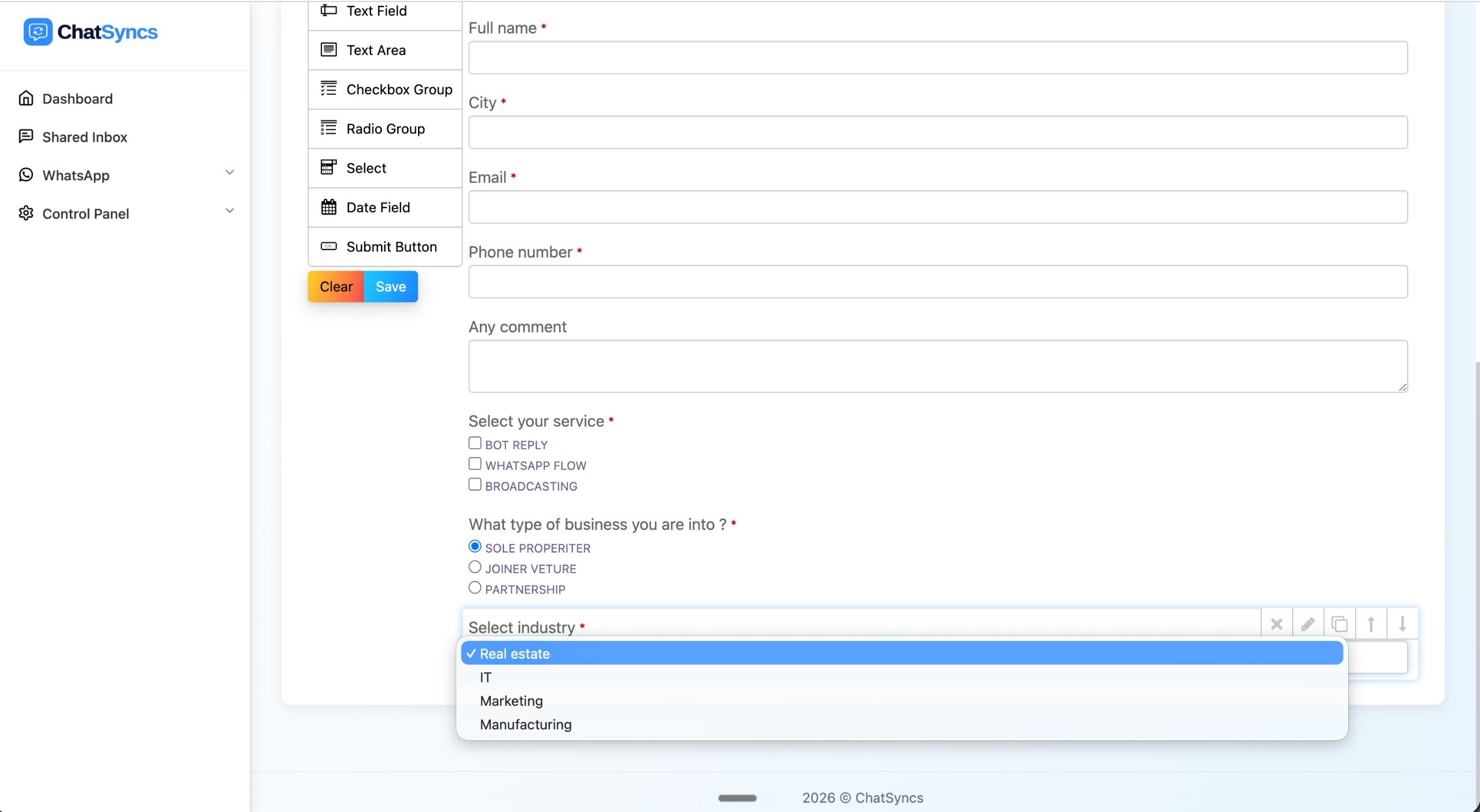
A fully filled-out example form, combining Text Field, Text Area, Checkbox Group, Radio Group, and Select.
Field label length limit
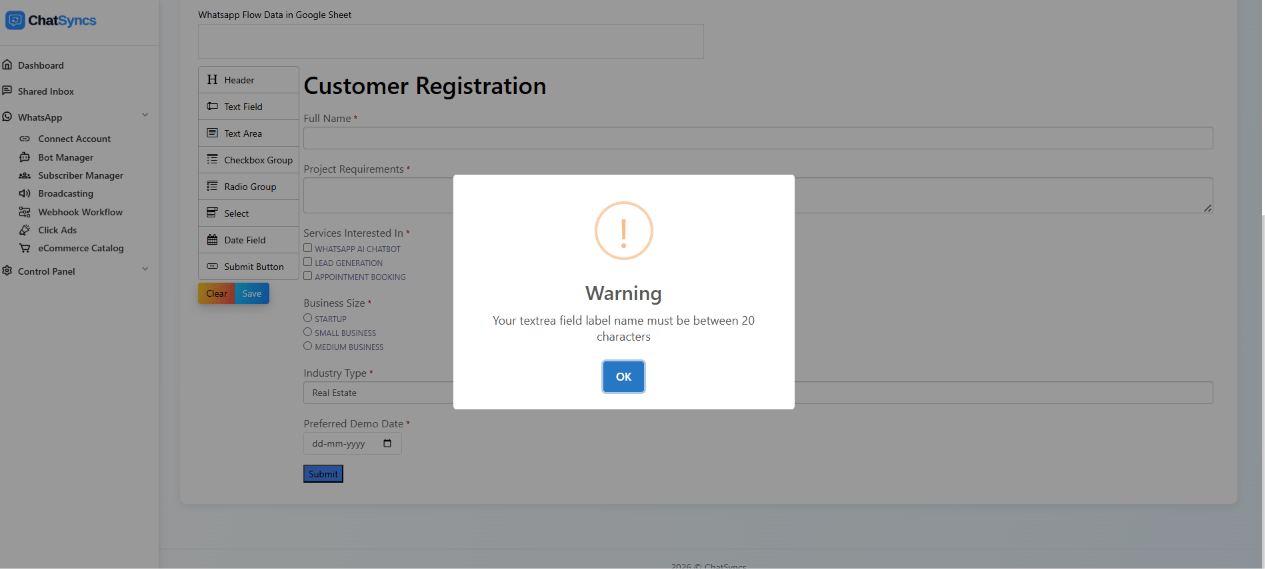
Warning shown when a field's label exceeds the character limit — 'Your textarea field label name must be between 20 characters.'
Example: a complete registration form
Manage WhatsApp Flows
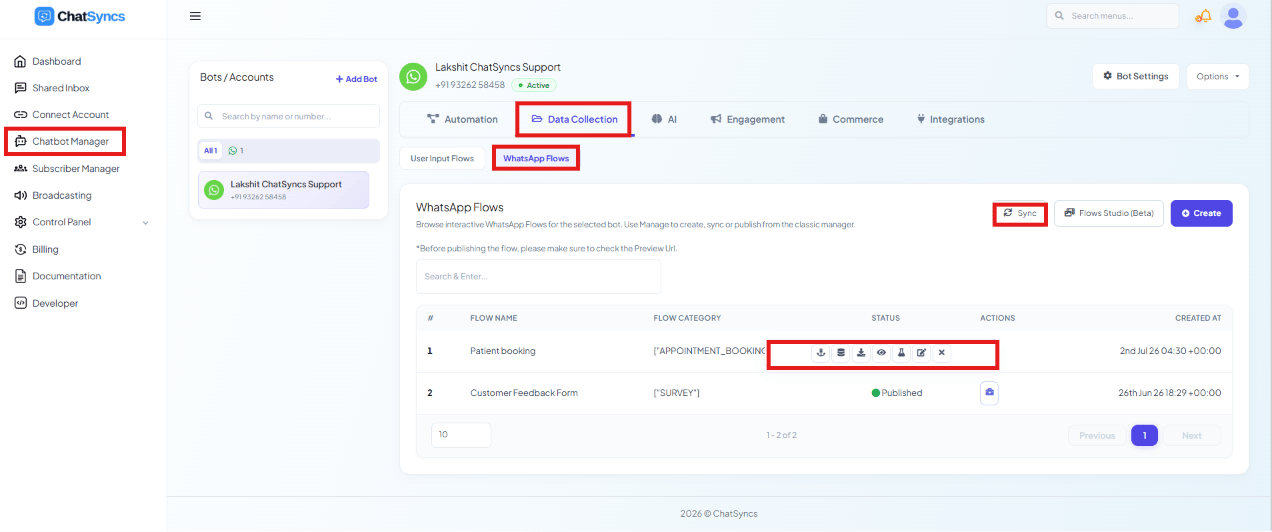
The WhatsApp Flows list with its row actions expanded — export, delete, webhook, preview, sync, and edit.
- Add Webhook — connect a webhook to send submitted data to a CRM, lead management tool, Google Sheets automation, or other third-party app.
- Report Data — view submitted responses: user submissions, form completion data, lead information, customer details.
- Preview Flow — test the form layout, field validations, and user experience before publishing.
- Open in Studio — open the flow builder to modify fields, labels, validation rules, buttons, or settings.
- Publish — push the flow to Meta so it can be used in WhatsApp templates and automations. Once approved, it’s available for production use.
- Edit — modify form content, questions, options, labels, or integrations.
- Delete — permanently remove the flow. Deleted flows cannot be recovered.
Publishing and Meta approval
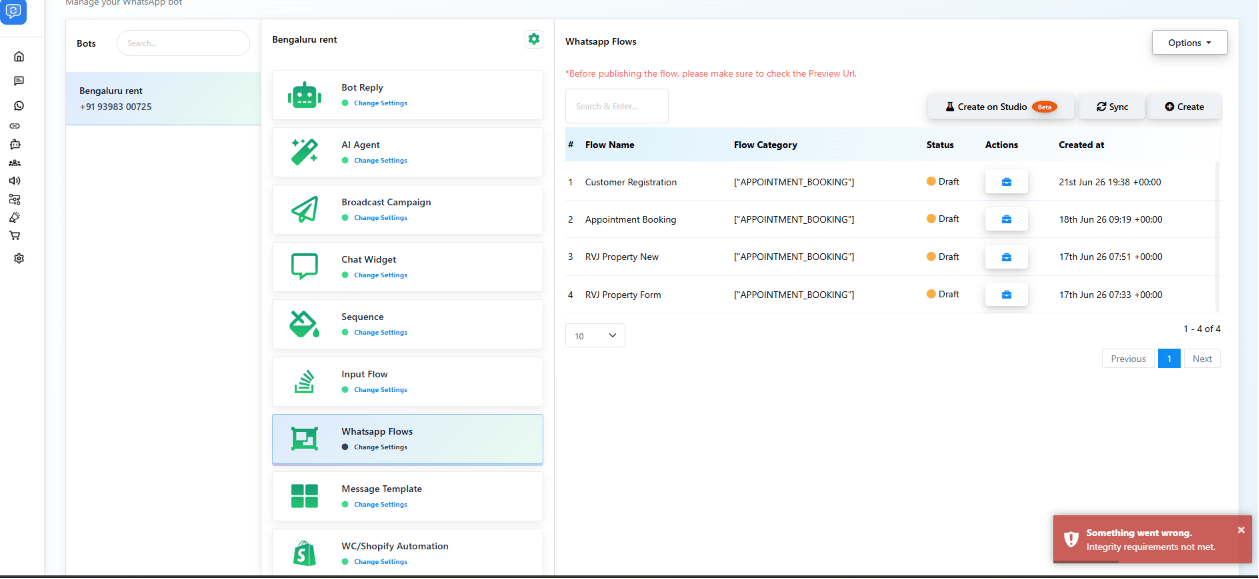
A 'Something went wrong — Integrity requirements not met' error after attempting to publish a flow.
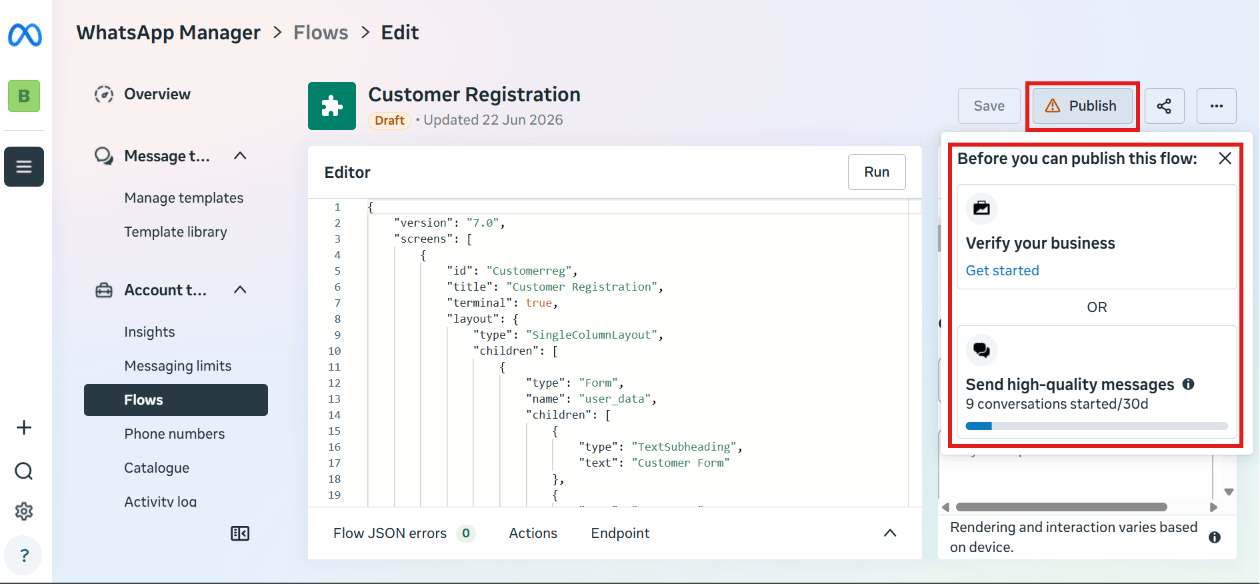
Meta's own Publish panel showing 'Verify your business' and 'Send high-quality messages' as requirements before a flow can be published.
- Business Verification not completed — your Meta Business Portfolio must be verified before Meta will approve a flow.
- Messaging quality requirements not met — some accounts need to establish messaging quality and compliance first.
Frequently asked
How do I build a multi-field form inside WhatsApp?
How do I build a multi-field form inside WhatsApp?
Why does it say my field label is too long when I try to save?
Why does it say my field label is too long when I try to save?
Where does submitted form data go?
Where does submitted form data go?
Why does publishing my WhatsApp Flow fail?
Why does publishing my WhatsApp Flow fail?
Should I let the subscriber edit prefilled values?
Should I let the subscriber edit prefilled values?
Learn From a Use Case
- Clinic Appointment Booking Automation — the structured, multi-field appointment form patients fill out.