

Create a User Input Flow
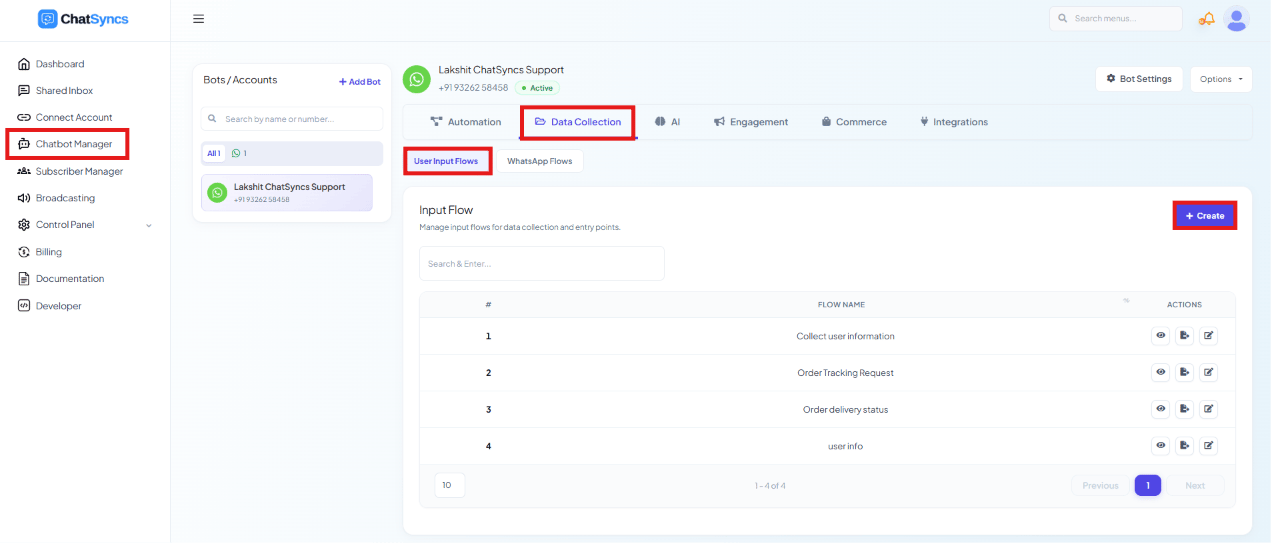
Chatbot Manager → Data Collection → User Input Flows, with the Create button highlighted.
Open Chatbot Manager
Open the Data Collection tab
Click User Input Flows
Click Create
Name the campaign
Customer Registration Form. A meaningful name makes the flow easier to find and manage
later.Configure labels and integrations (optional)
Add questions
Save
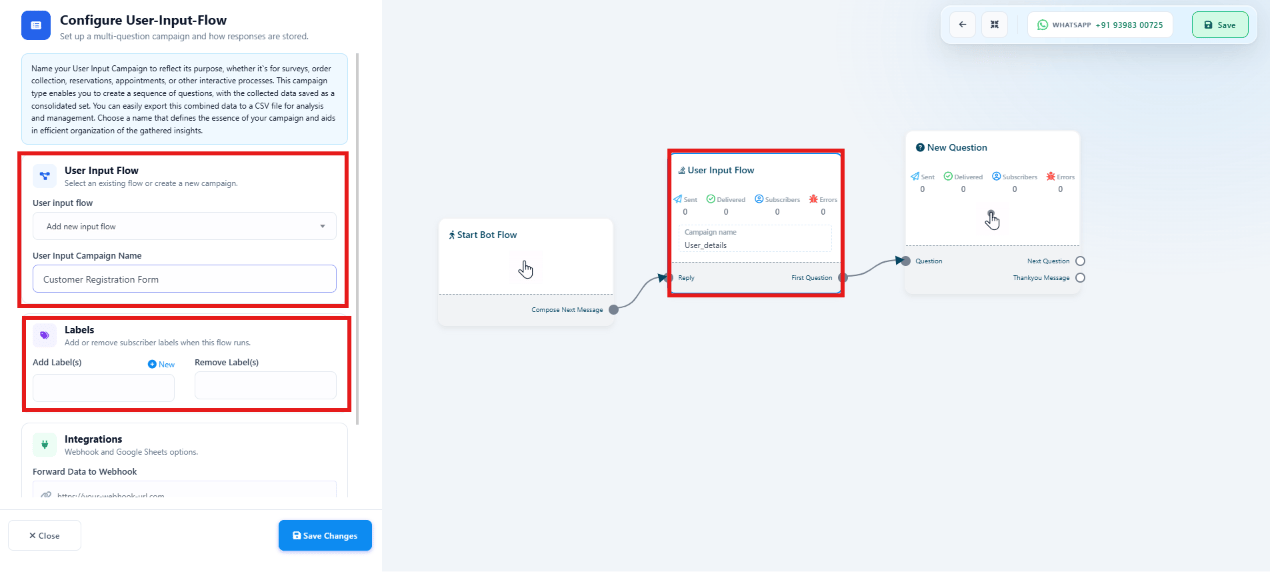
Configure User-Input-Flow panel (campaign name, labels, integrations) and its place on the bot flow canvas, connected to a New Question block.
Labels
- Add Label(s) — assign labels to a subscriber when the flow runs, e.g.
Lead,Interested Customer,Demo Requested. - Remove Label(s) — strip existing labels, e.g.
New Visitor,Unqualified Lead.
Integrations
Collected responses can be forwarded automatically:- Webhook — send responses to a CRM, lead management platform, internal application, or other third-party service.
- Google Sheets — save every submission to a sheet for reporting and analysis.
Configure a question
Inside the Input Flow, click New Question to add a question the subscriber must answer. Each question has a Question Type, the question text itself, optional Reply Validation, and where the answer is saved.Free Keyboard Input
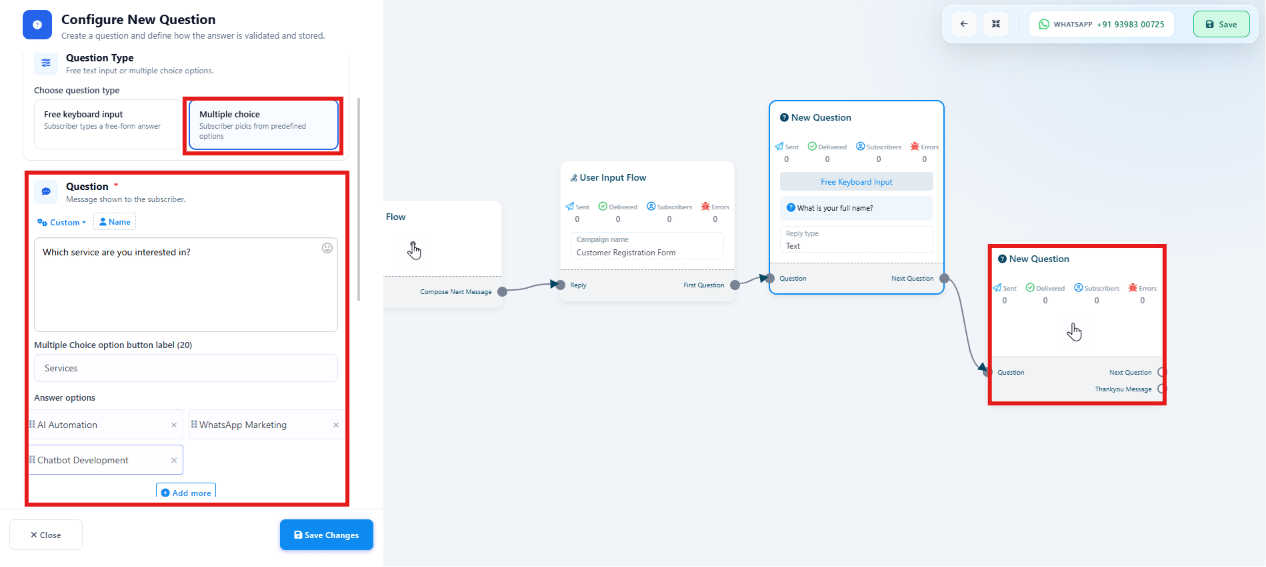
Configure New Question panel with Free Keyboard Input selected — question text 'What is your full name?' and Reply Validation set to Text.
Multiple Choice
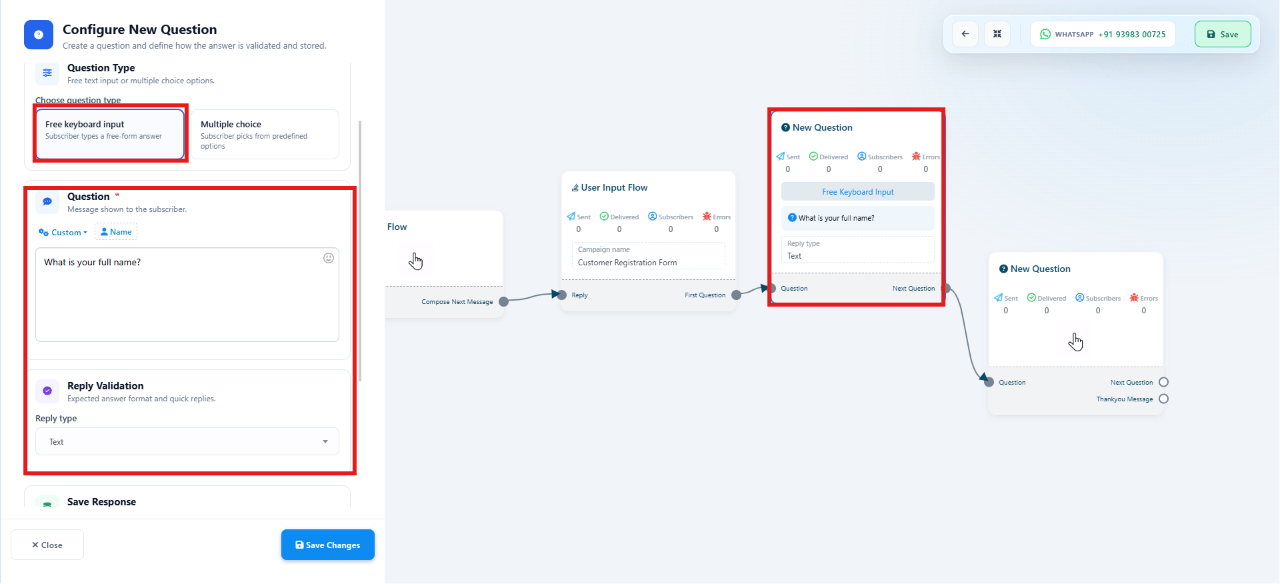
Configure New Question panel with Multiple Choice selected — question 'Which service are you interested in?' with three answer options configured.
AI Automation,
WhatsApp Marketing, Chatbot Development).
Reply Validation
Reply Validation ensures an answer matches the expected format before the subscriber can move to the next question. Supported types: Text, Email, Phone Number, Number, Date, URL. For example, setting validation to Email blocks the subscriber from continuing until they enter a valid email address.Save Response
Each answer is saved to a custom field (e.g. a question asking for a phone number can save to aPhone Number field), so it can be reused later in broadcasts, sequences, reports, and other
automations.
Thank You Message
After the last question, connect the Thank You Message output to send a closing message, e.g.Thank you for submitting your information. Our team will contact you shortly.
Example flow:
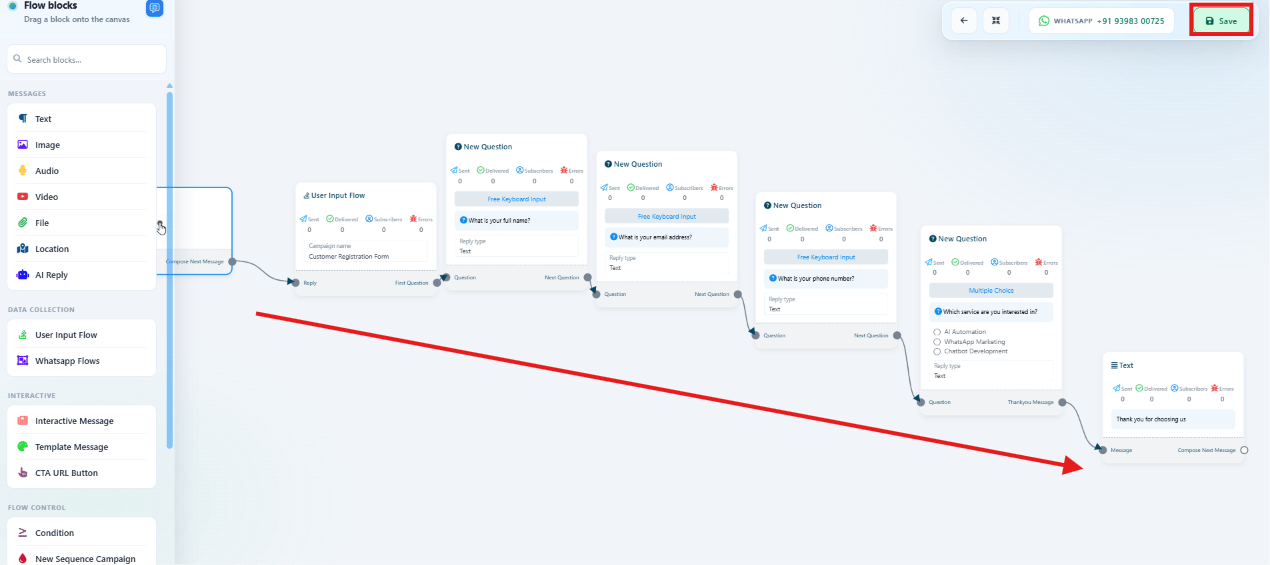
A complete Input Flow on the canvas — User Input Flow chained through four New Question blocks into a closing Text (Thank You) block.
Common use cases
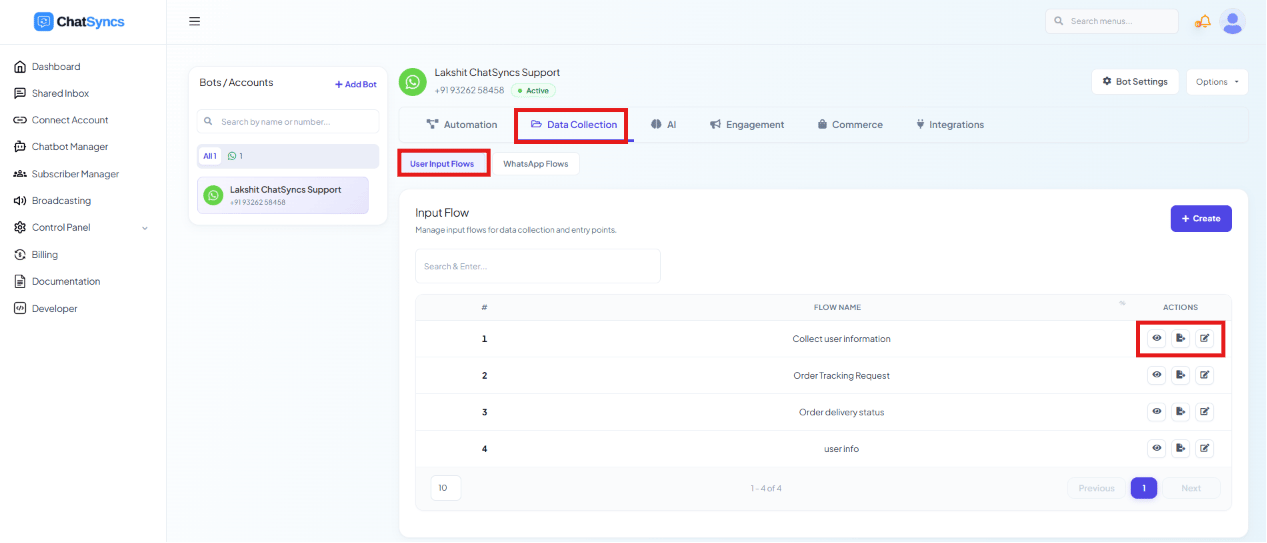
The Input Flow list with the View and Edit action icons highlighted on a flow row.
Manage User Input Flows
Every saved User Input Flow appears in Chatbot Manager → Data Collection → User Input Flows, with three actions per campaign:- Report — view all responses collected: submitted answers, subscriber information, form completion data, and campaign performance.
- Export — download collected responses, typically as CSV, for reporting, CRM imports, lead analysis, or backup.
- Edit — modify questions, multiple-choice options, reply validation, labels, integrations, or the Thank You message without creating a new campaign.
Frequently asked
How do I build a lead-gen or registration form inside WhatsApp?
How do I build a lead-gen or registration form inside WhatsApp?
What's the difference between Free Keyboard Input and Multiple Choice questions?
What's the difference between Free Keyboard Input and Multiple Choice questions?
Can I make sure a subscriber enters a valid email or phone number?
Can I make sure a subscriber enters a valid email or phone number?
Where do collected responses go?
Where do collected responses go?
Can I change the questions after the flow is already live?
Can I change the questions after the flow is already live?