

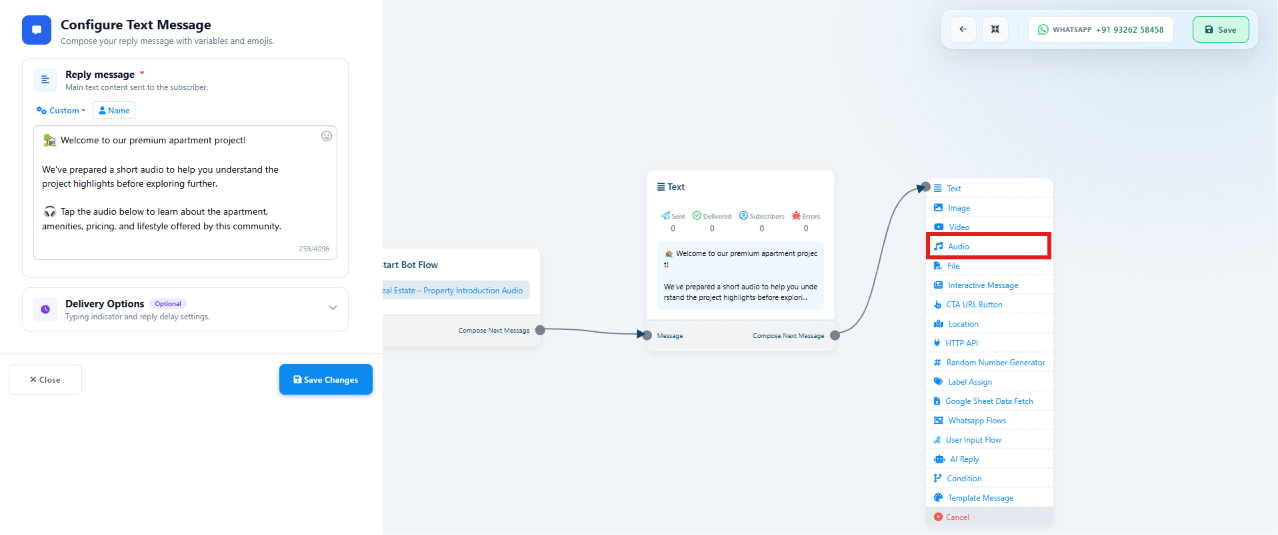
Where it can go in a flow
An Audio Message can connect after almost any other block, so it fits wherever a spoken explanation adds value:| Comes after | Typical reason to add audio |
|---|---|
| Text Message | Reinforce a written welcome or instruction in a natural voice |
| Image Message | Describe what’s in the photo — a property, product, or vehicle |
| Video Message | Add commentary the video itself doesn’t cover |
| Document Message | Explain how to read or use a brochure, invoice, or catalog |
| Interactive Message | Narrate the options before the customer taps a button |
| CTA URL Button | Explain what the link leads to before the customer opens it |
| User Input Flow | Guide the customer through what information is being collected |
| AI Reply | Turn a text answer into a spoken summary for a more human feel |
| Condition | Explain the branch the conversation just took |
| WhatsApp Flow | Introduce a form before the customer fills it in |
| HTTP API Response | Read out live data fetched from an external system |
| Template Message | Add a voice follow-up to an approved template send |
Common use cases
| Situation | Flow |
|---|---|
| Welcome greeting | Hi → Welcome Text → Welcome Audio |
| Property introduction | Apartment Image → Project Introduction Audio |
| Video explanation | Video → Audio Explanation |
| Document guide | PDF Brochure → Audio Guide |
| Product demonstration | Product Image → Product Demo Audio |
| AI assistant summary | AI Reply → Audio Summary |
| Appointment instructions | Appointment Confirmed → Instruction Audio |
| Course introduction | Course List → Course Introduction Audio |
| Vehicle showcase | Car Image → Vehicle Overview Audio |
| Restaurant special | Today's Menu → Chef Recommendation Audio |
| Travel package | Holiday Package → Travel Guide Audio |
| Customer support | Support Menu → Troubleshooting Audio |
| Announcements | New product launches, festival greetings, store openings, business updates, maintenance notices — sent as a standalone audio message |
Best practices
Frequently asked
What audio formats and file size does Audio Message support?
What audio formats and file size does Audio Message support?
AAC, MP3, AMR, or OGG, up to 16 MB — see the component table in
Keyword Replies. An OGG file encoded with the
Opus codec renders as a native WhatsApp voice note with a waveform; other formats play as a
regular audio file — see Audio Messages.
Which flow components can an Audio Message follow?
Which flow components can an Audio Message follow?
Almost any of them — Text, Image, Video, Document, Interactive Message, CTA URL Button, User
Input Flow, AI Reply, Condition, WhatsApp Flow, HTTP API, and Template Message — see
Where it can go in a flow above.
How long should an Audio Message be?
How long should an Audio Message be?
30–60 seconds is the sweet spot — long enough to explain one thing clearly, short enough
that customers actually listen to the end.
Can Audio Message be the very first message a customer receives?
Can Audio Message be the very first message a customer receives?
Yes, but the common pattern pairs it with a short lead-in Text or Image message first (e.g.
Hi → Welcome Text → Welcome Audio) so the customer has context before the recording plays.