
Business Problem
- A gym’s WhatsApp inbox fills up with the same questions all day — “What plans do you have?”, “How much is a monthly membership?”, “Can I try before I join?”
- Staff end up re-explaining the same three plans to every prospect, one conversation at a time.
- Inquiries that arrive outside business hours sit unanswered until someone gets back to the phone.
- By the time a reply goes out, the prospect may have already messaged a competing gym.
Solution
- A prospect messages “Hi” or “Join” and gets an instant reply — no waiting for staff.
- The gym’s three membership tiers appear as tappable buttons, so the prospect self-serves.
- Whichever plan they pick, they see that plan’s pricing immediately.
- A direct “Book a Free Trial” link follows, with no staff member involved until the prospect is ready to visit.
Business Benefits
- 24/7 instant replies to plan inquiries
- No staff time spent repeating the same plan explanations
- Consistent information — every prospect sees the same accurate pricing
- A direct path from “interested” to “trial booked”, with no manual handoff required
- Every inquiry ends the same way, so nothing falls through the cracks
Workflow Diagram
Prerequisites
- A WhatsApp number connected to ChatSyncs — see Connect WhatsApp.
- Read Keyword Replies first to understand how the whole flow builder works — this guide only covers what’s specific to this project, not Keyword Replies itself.
- A pricing image ready for each membership tier (Monthly, Quarterly, Annual).
- A booking page URL to link the Book a Free Trial button to.
Implementation Guide
Step 1 — Create the Keyword Replies flow
Objective: Set up the flow that will run this entire conversation. Explanation: Keyword Replies is the flow builder every block in this project connects through — the trigger, the buttons, and every message that follows all live on one canvas. Actions to perform:- Open Keyword Replies and click Create.
- Set the Trigger Keywords to
hi, join. - Give the flow a clear Title, e.g.
Gym Membership Plan Selector.
Step 2 — Add the welcome Interactive Message
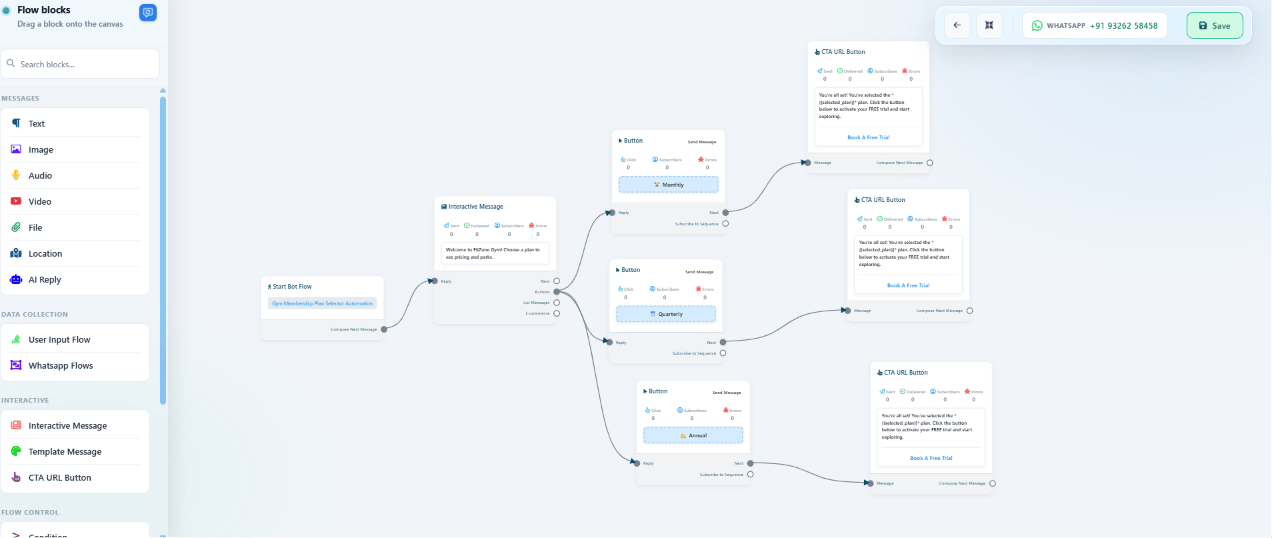
Objective: Greet the prospect and present the three plan options. Explanation: An Interactive Message can carry a welcome body and up to three Reply Buttons in a single message — no separate text message needed first. Actions to perform:- Drag an Interactive Message block onto the canvas, connected to Start Bot Flow.
- Body text:
Welcome to FitZone Gym! Choose a plan to see pricing and perks. - Add three Reply Buttons:
🏋️ Monthly,📅 Quarterly,💪 Annual.
Step 3 — Connect each plan to its pricing and trial link
Objective: Show the right pricing and a way to book a trial, for whichever plan the prospect taps. Explanation: Each Reply Button branches to its own Image Message (the plan’s pricing card), followed by a CTA URL Button that opens the trial booking page. Actions to perform:- For each of the 3 buttons, drag an Image Message block and upload that plan’s pricing image.
- After each Image Message, add a CTA URL Button labeled
Book a Free Trial, pointing to the gym’s booking page URL.
Step 4 — Save and test
Objective: Confirm the whole flow works end to end before sending it to real prospects. Explanation: An unsaved Keyword Replies flow won’t respond to any trigger keyword, even if it looks complete on the canvas. Actions to perform:- Click Save Changes, then confirm the flow appears active in the Keyword Replies list.
- From a real WhatsApp number, message “hi” and tap through all 3 plan buttons.
Features Used
| Feature | Purpose | Documentation |
|---|---|---|
| Keyword Replies | Runs the whole conversation flow | Keyword Replies |
| Interactive Message / Reply Buttons | Welcome message + plan selection | Keyword Replies |
| Image Message | Shows each plan’s pricing card | Keyword Replies |
| CTA URL Button | Opens the trial-booking page | Keyword Replies |
Expected Result
- Prospects get instant, accurate plan information at any hour, with no staff involved.
- Every prospect sees the exact same pricing and perks — no inconsistent answers.
- Every conversation ends at the same “Book a Free Trial” link, so no lead is left without a next step.
FAQs
Can I add more than 3 membership plans?
Can I add more than 3 membership plans?
Reply Buttons are limited to 3 per message. For more plans, replace that step with a List
Message, which supports up to 10 options — see the component table in
Keyword Replies.
Does this collect the prospect's name or phone number?
Does this collect the prospect's name or phone number?
Not in this base version — every step is a button tap, no data collection. Add a User
Input Flow after the CTA button if you want to capture a lead before they leave the chat.
Can staff be notified automatically when someone books a trial?
Can staff be notified automatically when someone books a trial?
Not directly from this flow, since the trial booking happens on an external page. Add a
Webhook or Email Integration on that booking page’s side, or extend this flow with a lead
capture step before the CTA link.
What happens if a prospect types something other than 'hi' or 'join'?
What happens if a prospect types something other than 'hi' or 'join'?
Nothing, unless another trigger is configured to catch it. Add more trigger keywords, or use
the No Match Action Button to catch anything
unrecognized.
Can this use a voice message instead of just images?
Can this use a voice message instead of just images?
Yes — add an Audio Message after the welcome message for a
short trainer voice intro, or after each plan’s pricing image for a spoken walkthrough.
Can I follow up with prospects who don't book a trial right away?
Can I follow up with prospects who don't book a trial right away?
Yes — enroll them into a Follow-up Sequences after they tap a plan button,
so they get a reminder a few days later if they haven’t booked yet.
Does this require any coding?
Does this require any coding?
No — the entire flow is built by dragging blocks onto the Keyword Replies canvas and filling in
text, images, and links.
Can this same pattern work for a business that isn't a gym?
Can this same pattern work for a business that isn't a gym?
Yes — any business offering a small set of fixed plans or packages (a salon, a coworking
space, a subscription box) can use the same welcome → plan buttons → pricing → CTA pattern.