

Project overview
Imagine a customer, say Rahul, messages a real estate company’s WhatsApp number to ask about apartments. Instead of a person typing a reply, this bot answers instantly:- Rahul sends “Hi”.
- The bot greets him with a property banner and three buttons: View Apartments, Project Location, Contact Sales.
- Rahul taps View Apartments, then picks 1 BHK, 2 BHK, or 3 BHK.
- The bot sends a photo or walkthrough video of that apartment type, followed by a button that opens the project’s location on Google Maps.
- If Rahul instead taps Contact Sales, the bot shares the sales team’s name and number, plus the same map button.
How the pieces fit together
| Feature | Purpose | SkyView Properties example |
|---|---|---|
| Keyword Replies | Builds the whole conversation flow | Property Showcase Bot |
| Interactive Message | Sends the welcome banner + buttons | ”Welcome to SkyView Properties!” |
| Reply Buttons | Let the customer navigate | View Apartments, Project Location, Contact Sales |
| Image Message | Shows an apartment photo | 1 BHK apartment image |
| Video Message | Shows a walkthrough | 2 BHK / 3 BHK walkthrough videos |
| CTA URL Button | Opens an external link | Google Maps project location |
Option 1 — Keyword Replies
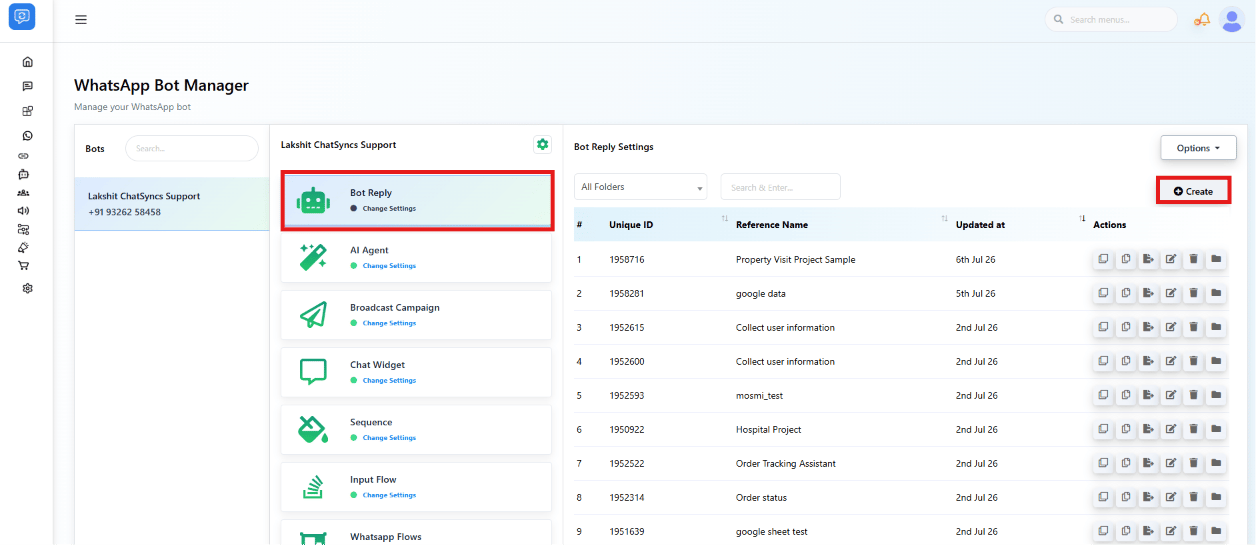
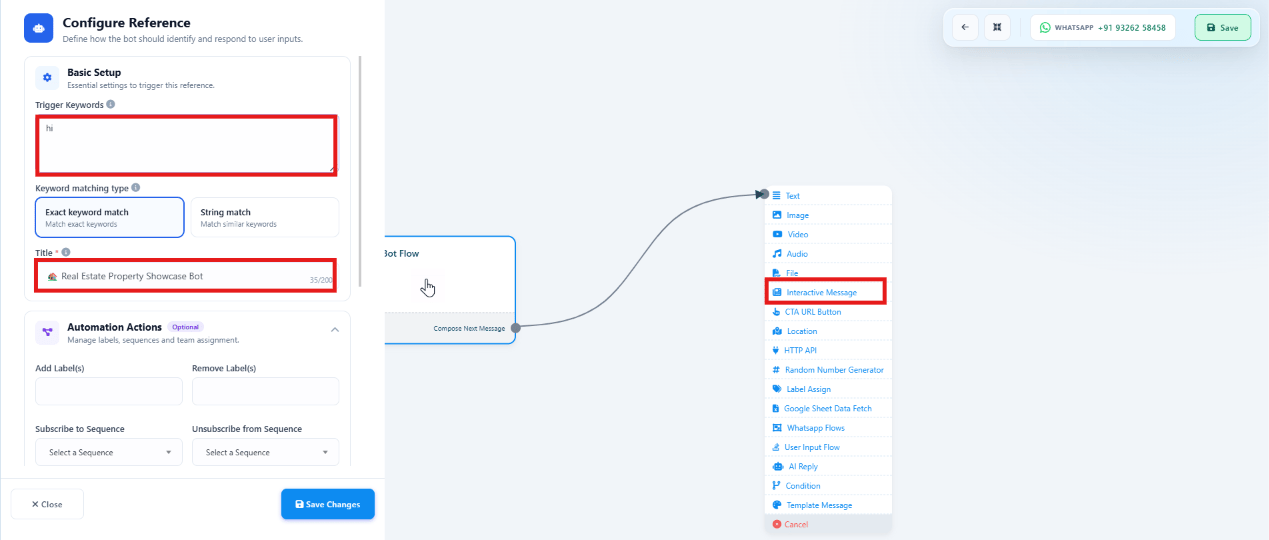
| Setting | Value |
|---|---|
| Title | Real Estate Property Showcase Bot |
| Trigger Keyword | hi |
| Keyword matching type | Exact keyword match |
Option 2 — Interactive Message
The Interactive Message block sends the welcome banner together with up to three Reply Buttons in one message — no separate text message needed first.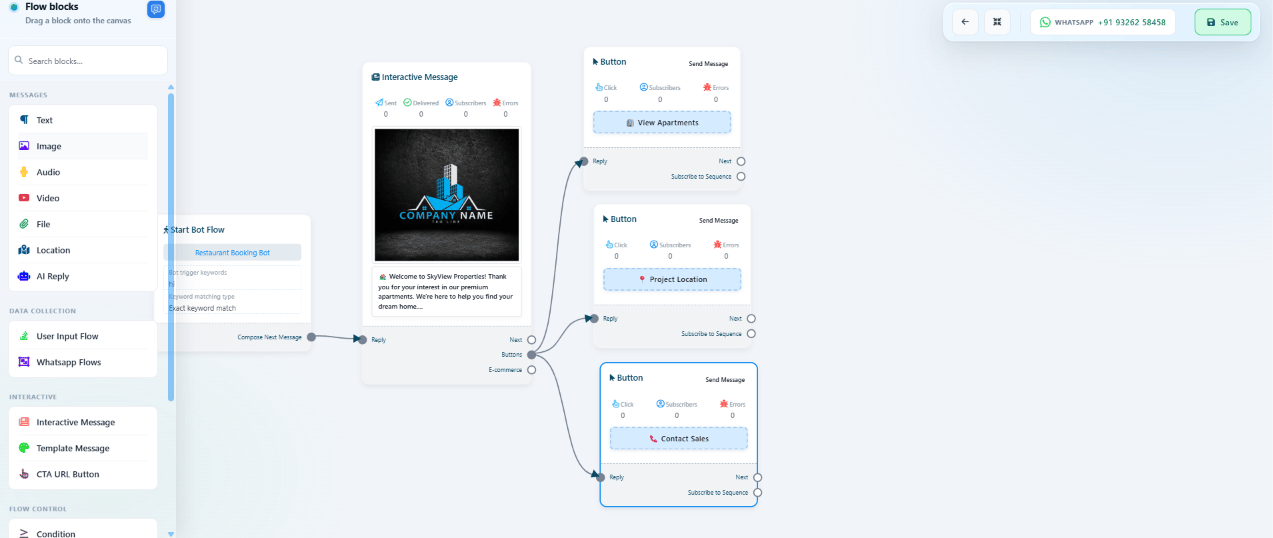
Option 3 — CTA URL Button
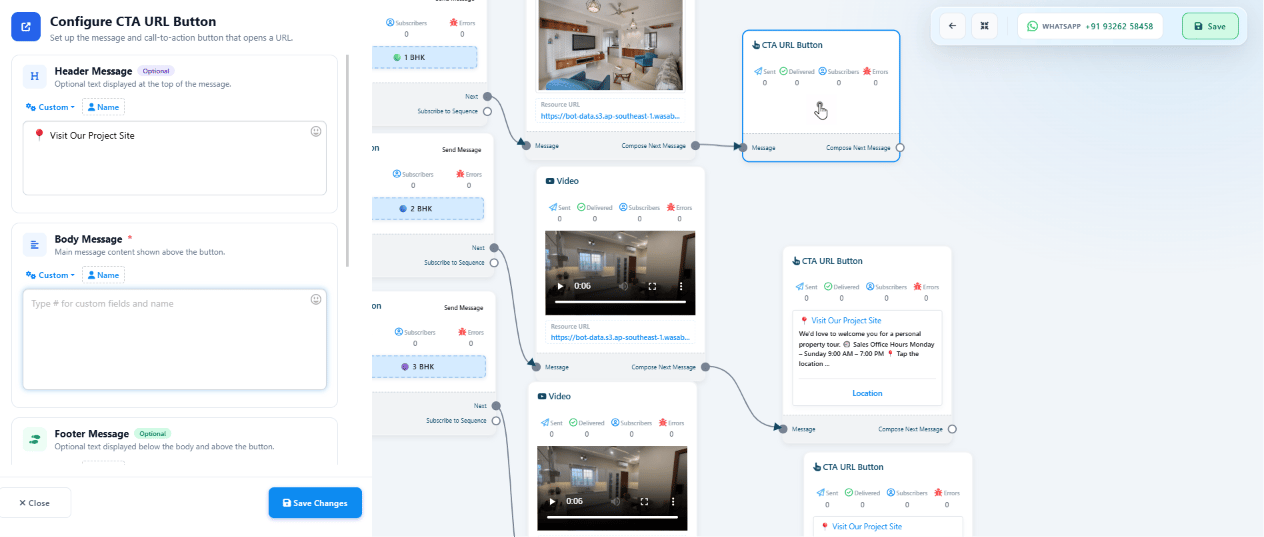
| Apartment | Message sent | Then |
|---|---|---|
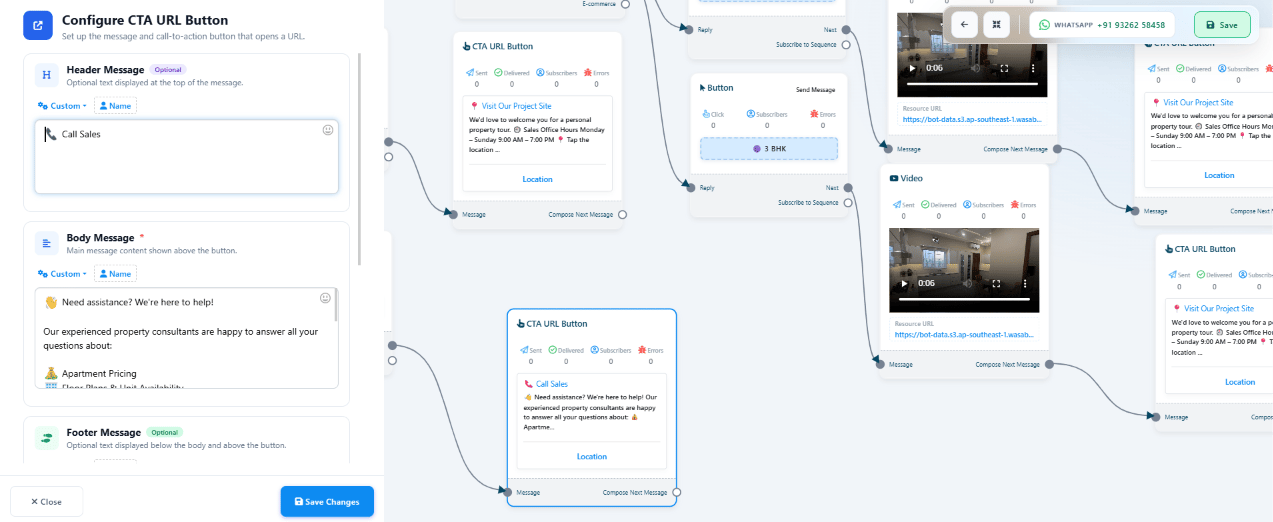
| 1 BHK | Image Message — apartment photo | CTA URL Button → Google Maps |
| 2 BHK | Video Message — walkthrough | CTA URL Button → Google Maps |
| 3 BHK | Video Message — walkthrough (premium) | CTA URL Button → Google Maps |
A complete conversation
Adapting this to other industries
The same Keyword Replies structure — Interactive Message, Reply Buttons, Image/Video Message, CTA URL Button — works for any business that wants to showcase items and route customers to more information:| Business | Bot shows |
|---|---|
| Real Estate | Apartment types, photos/videos, project location |
| Automobile | Car models, images/videos, showroom location |
| Healthcare | Departments, doctor info, hospital location |
| Education | Courses, campus tour videos, admissions office location |
| Restaurants | Menu highlights, ambience videos, restaurant location |
| Hotels | Room types, photos/videos, hotel location |
| E-commerce | Product categories, images/videos, store location |
| Travel Agencies | Holiday packages, destination videos, office location |
Feature combinations
Keyword Replies rarely runs alone in production — these are the features that pair naturally with this exact project:- Keyword Replies + Quick Actions — the No Match and Get Started
Quick Actions catch anything outside the
hitrigger, so a mistyped first message or unrecognized reply doesn’t dead-end the conversation. - Keyword Replies + Audio Message — a short voice intro after the welcome banner adds a personal touch before the customer picks a button — see Audio Message.
- Keyword Replies + Sequence — once a customer picks an apartment type, enroll them in a short follow-up Follow-up Sequences instead of the conversation ending at the CTA button.
Difficulty
- Beginner — single trigger → welcome message → 3 Reply Buttons → static info per button, no apartment-type branching.
- Intermediate — this project as built: multi-level navigation into Image/Video/CTA URL Button chains per apartment type.
- Advanced — add a User Input Flow to collect lead details and branch with Condition blocks based on the answer.
- Enterprise — Condition-based routing plus Webhook Workflow pushing every lead into a CRM in real time.
Next steps
This project intentionally stays inside Keyword Replies so a beginner can see how the components connect. Once comfortable, extend it with:- Document Message — a property brochure PDF (see the component table in Keyword Replies).
- Audio Message — a short voice introduction to the project.
- AI Agent — answer open-ended property FAQs instead of fixed buttons; see AI Agent and the full worked example in AI Agent: Travel Agency for how the same “pick an industry, swap the content” pattern applies there too.
- WhatsApp Flow — a structured site-visit booking form (see WhatsApp Flows).
- User Input Flow — collect the customer as a lead: Name, Phone Number, and Preferred Apartment Type (pre-filled from whichever button they tapped) as Custom Fields (see Keyword Replies).
- Google Sheet Integration — once a User Input Flow is capturing leads, sync each submission to a Google Sheet the sales team already uses (see Google Sheet Integration).
- Email Integration — notify the sales team by email the moment a customer taps Contact Sales, so follow-up doesn’t depend on someone checking the ChatSyncs inbox (see Email Integration).
- Webhook Workflow — send new leads into a CRM or spreadsheet automatically (see Webhook Workflow).
Frequently asked
Can I show more than 3 apartment types?
Can I show more than 3 apartment types?
Reply Buttons are capped at 3 per message. For more options, replace that step with a
List Message, which supports up to 10 — see the component table in
Keyword Replies.
What happens if a customer types something other than Hi?
What happens if a customer types something other than Hi?
Nothing, unless another Keyword Replies is configured to trigger on that keyword. Add more trigger
keywords (e.g.
hello, hey, start) on the same flow, or use the No Match
Action Button to catch anything unrecognized.Can this same setup work for a business that isn't real estate?
Can this same setup work for a business that isn't real estate?
Yes — the structure (Keyword Replies + Interactive Message + Reply Buttons + Image/Video +
CTA URL Button) stays identical. Only the products and messages change — see
Adapting this to other industries above.