

Step 1: Generate your Mailchimp API key
In Mailchimp, click your profile icon in the top-right corner and choose Profile.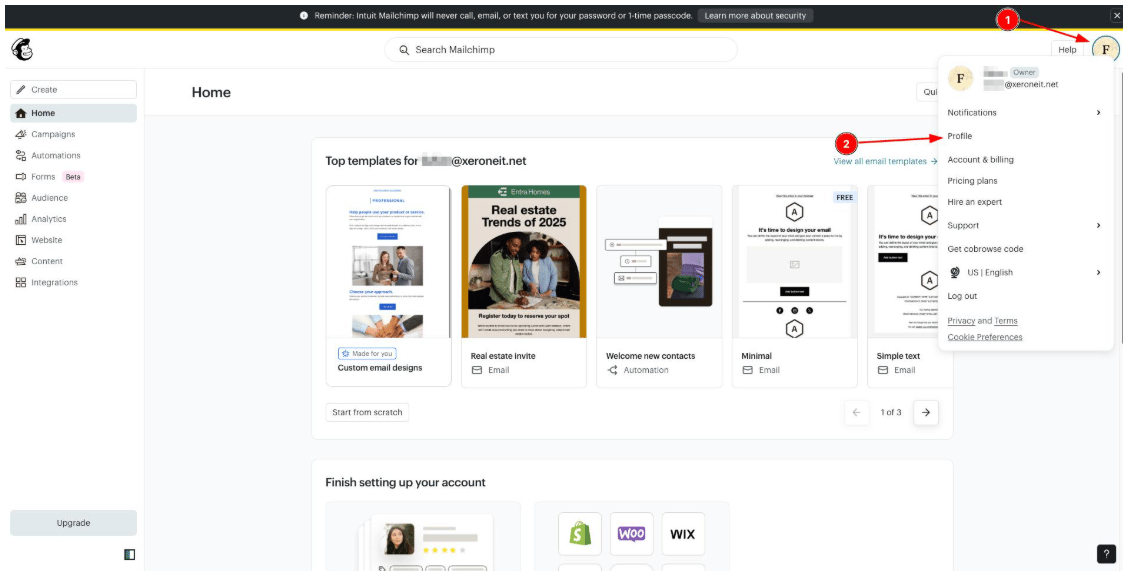
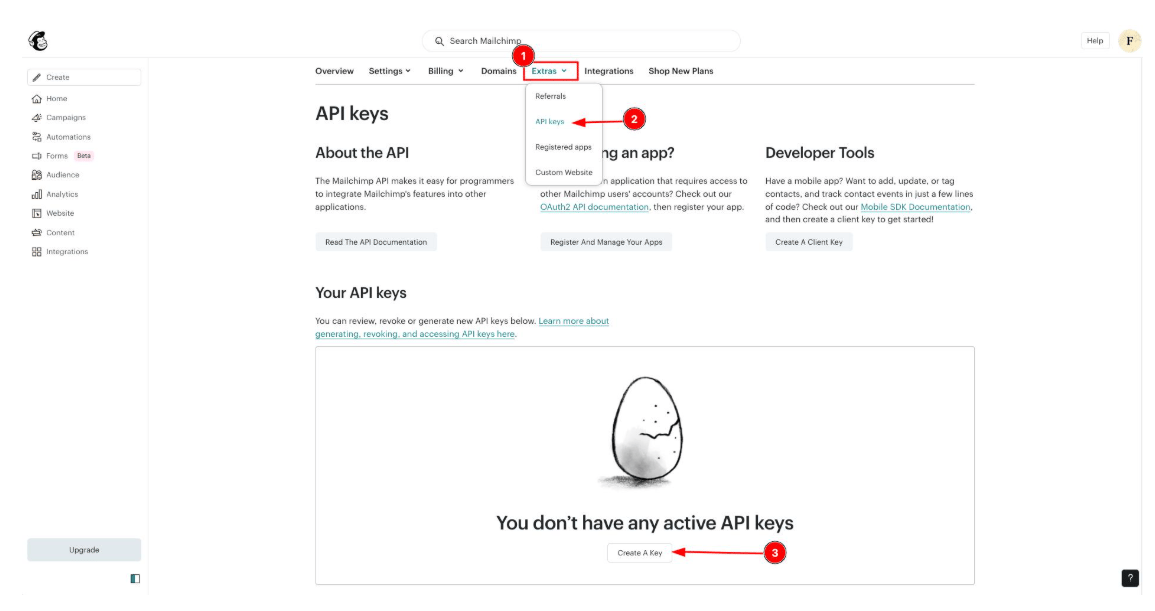
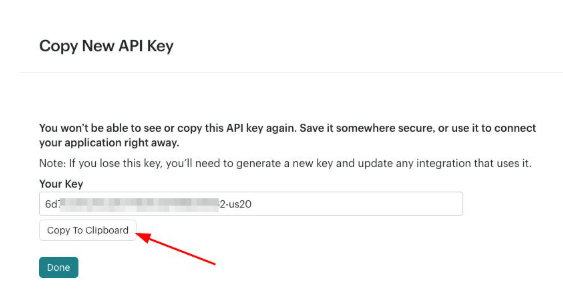
Step 2: Add the Mailchimp profile in ChatSyncs
Switch to ChatSyncs. From Auto Responder Integration, click New, select Mailchimp from the provider list, enter a Profile Name, and paste in the API key you copied in Step 1.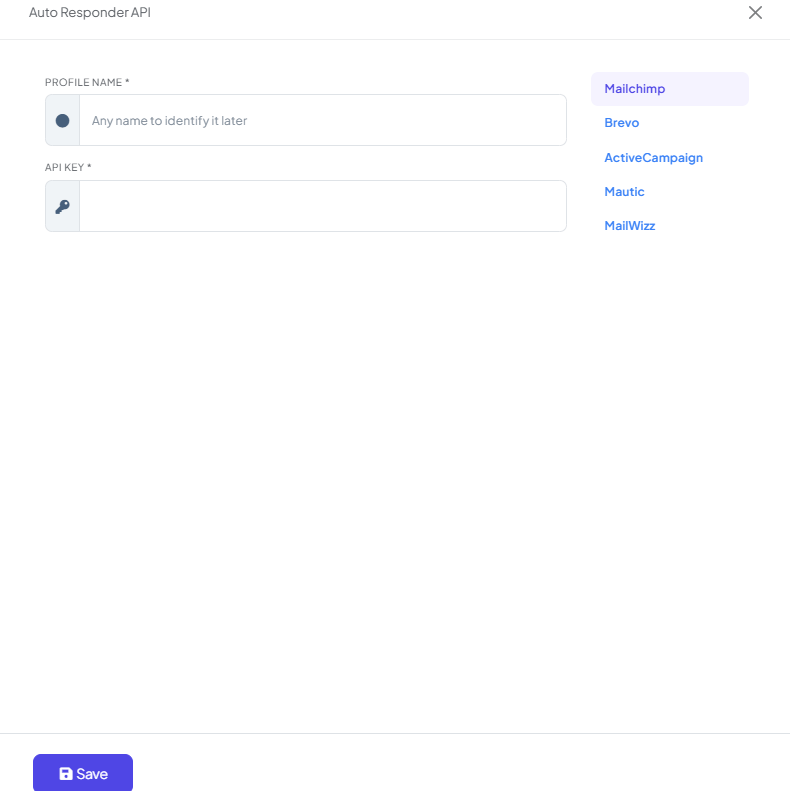
Step 3: Point a specific bot at your Mailchimp audience
Connecting the API key only tells ChatSyncs how to reach your Mailchimp account — you still need to tell each individual bot which audience (list) to add subscribers to. Open Bot Manager → [your bot] → Configuration → Settings → Auto Responder, and paste your Mailchimp audience’s list ID into the Mailchimp List field. The same screen has a field for each connected platform, so you can wire up Brevo or Mautic here too.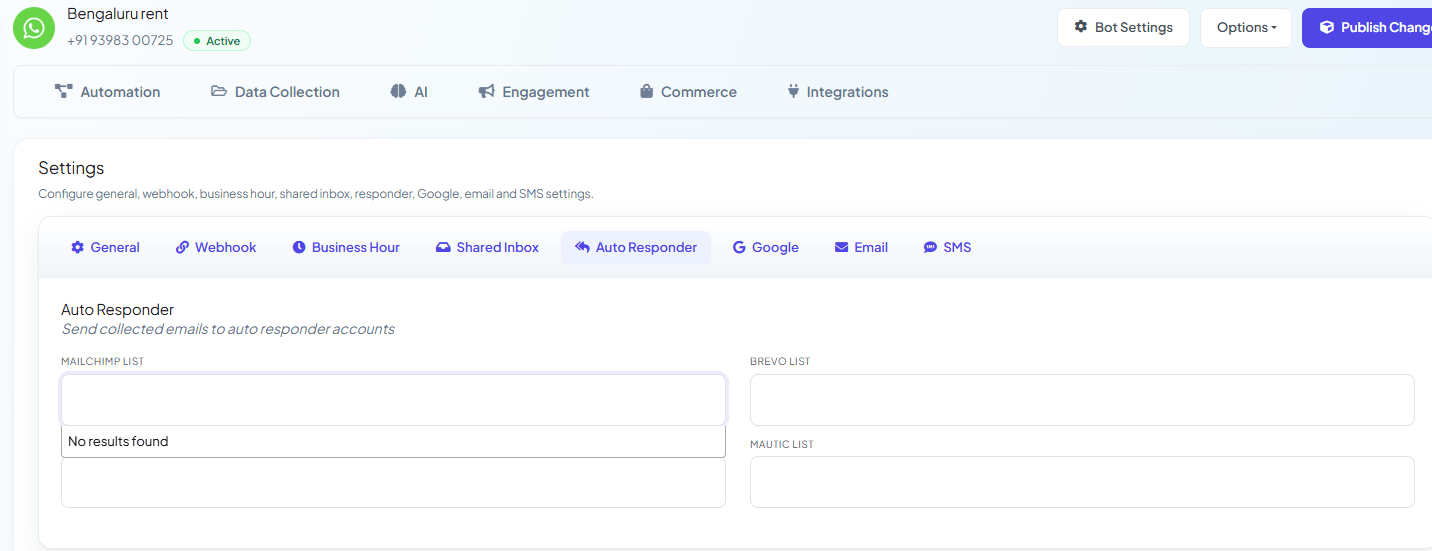
Step 4: Collect the customer’s email in a bot flow
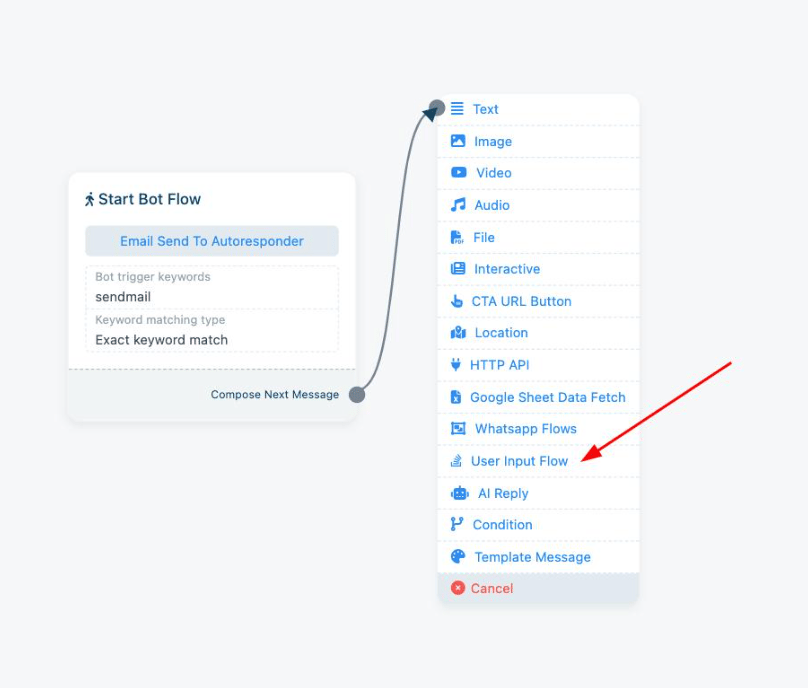
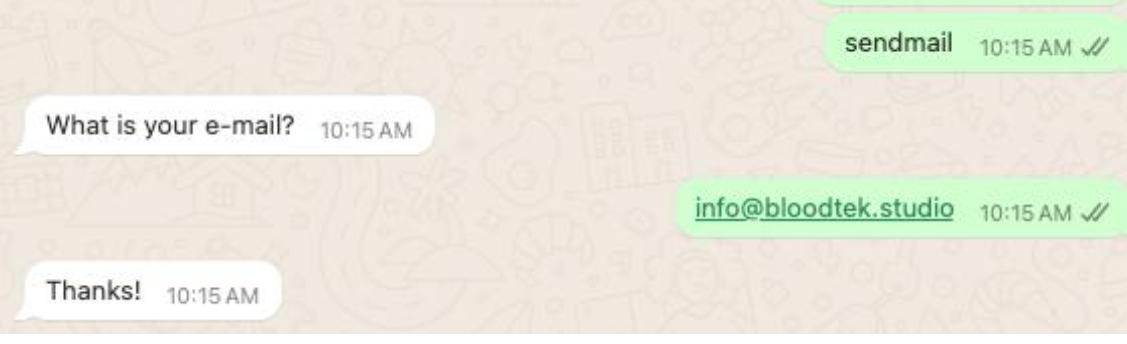
The list ID alone doesn’t push anyone into Mailchimp — something in the conversation has to actually collect an email and hand it off. The usual way is a Keyword Replies flow: a trigger keyword (e.g.sendmail)
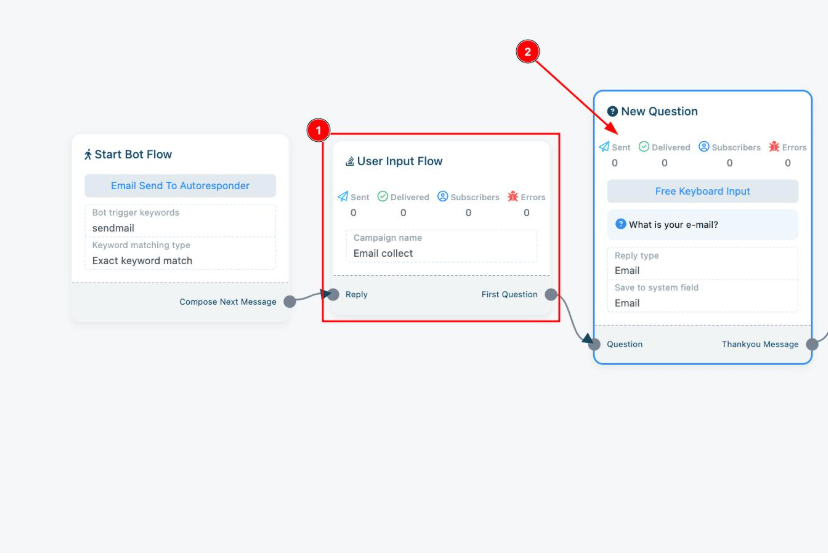
starts the flow, and you add a User Input Flow block to ask for the email.
Email system field.
Frequently asked
How do I connect Mailchimp to ChatSyncs?
How do I connect Mailchimp to ChatSyncs?
Generate an API key in Mailchimp under Extras → API keys, then add it as a new
Mailchimp profile under Auto Responder Integration.
Where do I set which Mailchimp audience a bot syncs to?
Where do I set which Mailchimp audience a bot syncs to?
In Bot Manager → [your bot] → Configuration, under the Auto Responder section — paste
the audience’s list ID into the Mailchimp List field.
Is this available on the free Mailchimp plan?
Is this available on the free Mailchimp plan?
Yes — Mailchimp API access is available even on its free plan.
What happens if a subscriber unsubscribes in Mailchimp?
What happens if a subscriber unsubscribes in Mailchimp?
That doesn’t sync back to ChatSyncs automatically — ChatSyncs only pushes new subscriber data
forward; handle unsubscribes on the Mailchimp side.
Related Documentation
- Auto Responder Integration — connecting any email marketing platform and what it’s used for.
- User Input Flow — collecting the customer’s email with validation.