

Step 1: Create a Twilio account
Go to Twilio’s sign-up page and fill in your first name, last name, email address, and a password. Twilio also asks you to prove you’re human (a CAPTCHA) and to agree to its terms of service before you can continue.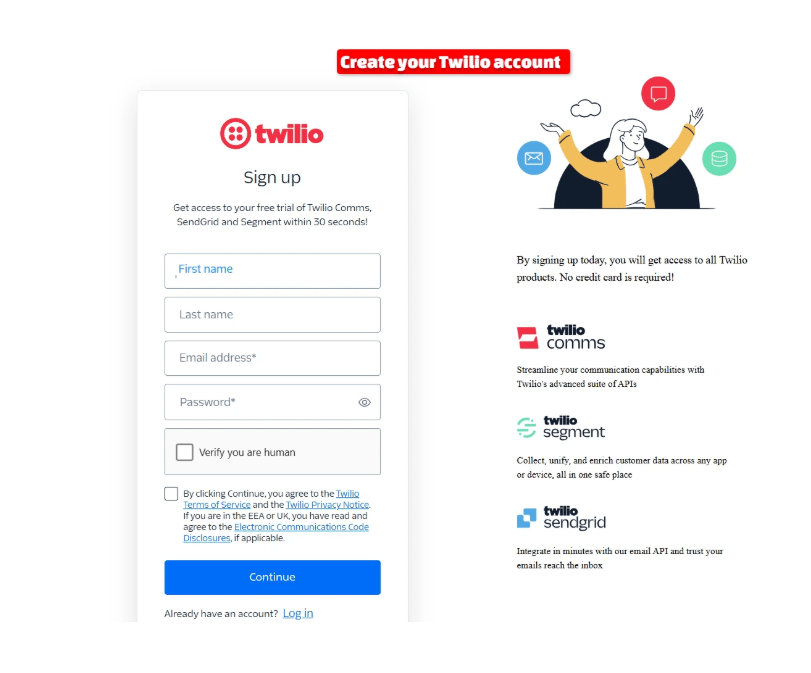
Step 2: Verify your phone number
Twilio then asks for your phone number, so it can confirm a real person is signing up. Pick your country from the dropdown, type in your number, and choose Send code via SMS (or Send code via voice call if you’d rather get a call). Enter the code Twilio sends you to finish verification.Step 3: Get your Twilio credentials
Once you’re in, Twilio drops you on its Account Dashboard. Scroll down to the Account Info box — this is the only part of the whole Twilio site you actually need for ChatSyncs. Copy down three things: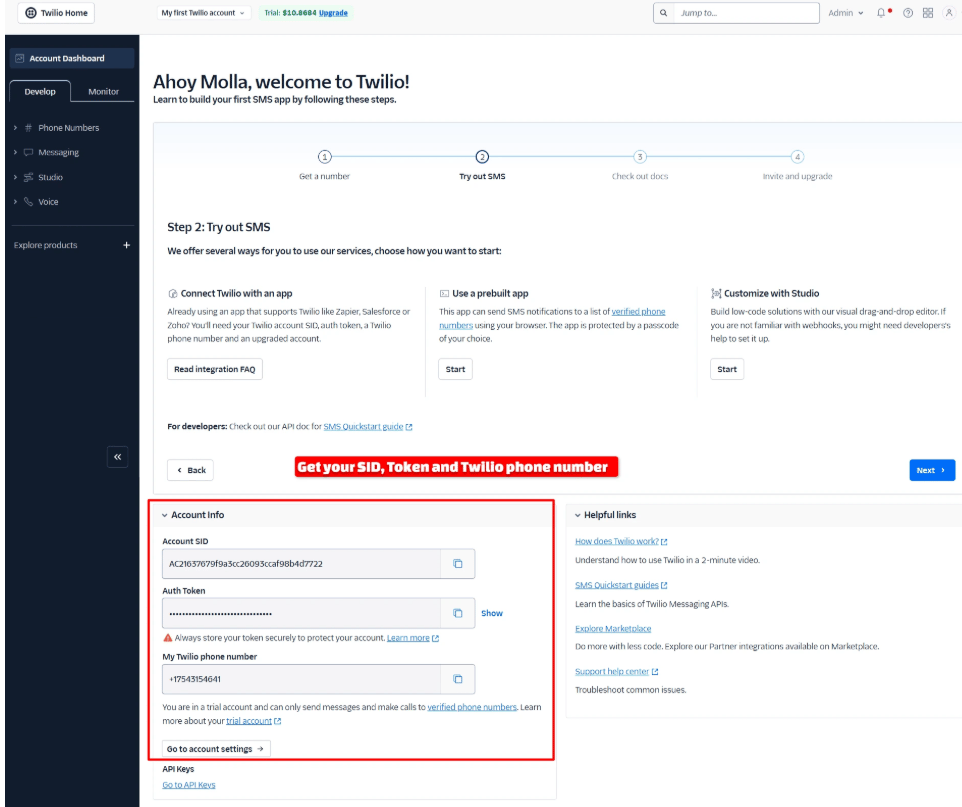
Step 4: Add the SMS profile in ChatSyncs
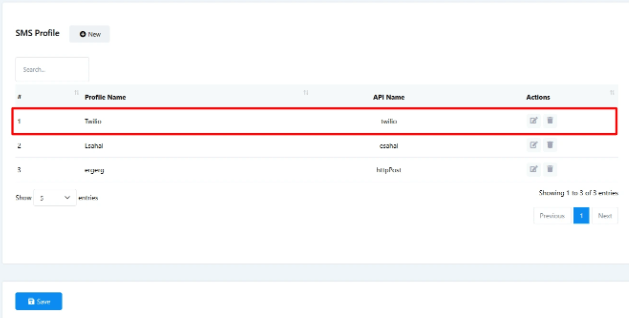
Now switch over to ChatSyncs. From SMS Integration, click New to open the SMS API form, and pick Twilio from the provider list on the right.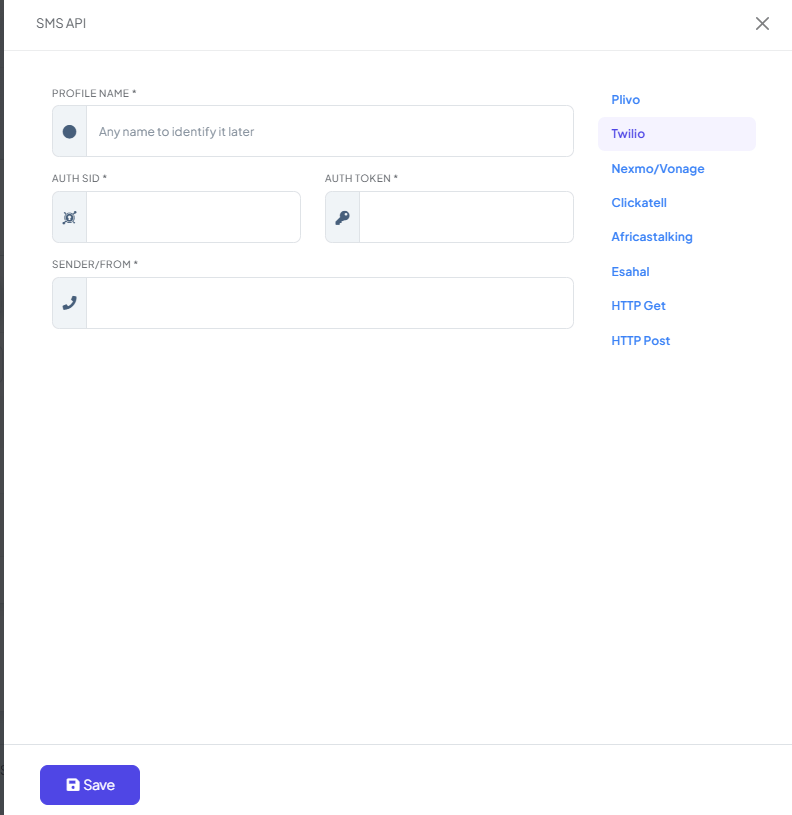
Frequently asked
How do I connect Twilio to ChatSyncs for SMS?
How do I connect Twilio to ChatSyncs for SMS?
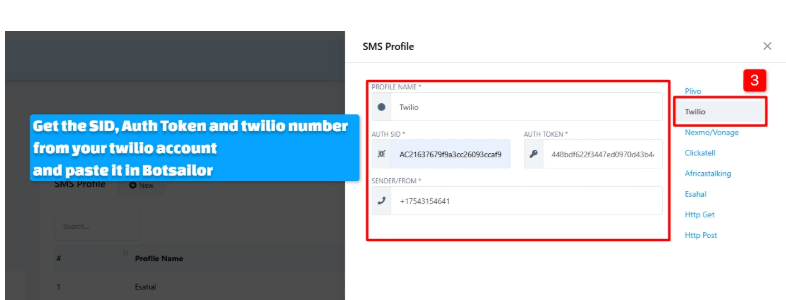
Create a Twilio account, verify your phone number, then copy the Account SID, Auth Token, and
Twilio Phone Number from your Twilio Dashboard into a new Twilio profile under SMS
Integration.
Where do I find my Twilio Account SID and Auth Token?
Where do I find my Twilio Account SID and Auth Token?
In the Twilio Dashboard’s Account Info section, right after you finish registration and
phone verification.
What number will my SMS messages appear to come from?
What number will my SMS messages appear to come from?
The Twilio Phone Number you enter as Sender/From when adding the profile.
Related Documentation
- SMS Integration — connecting any SMS gateway and what it’s used for.