

Step 1: Add a new SMS profile
From SMS Integration, click New.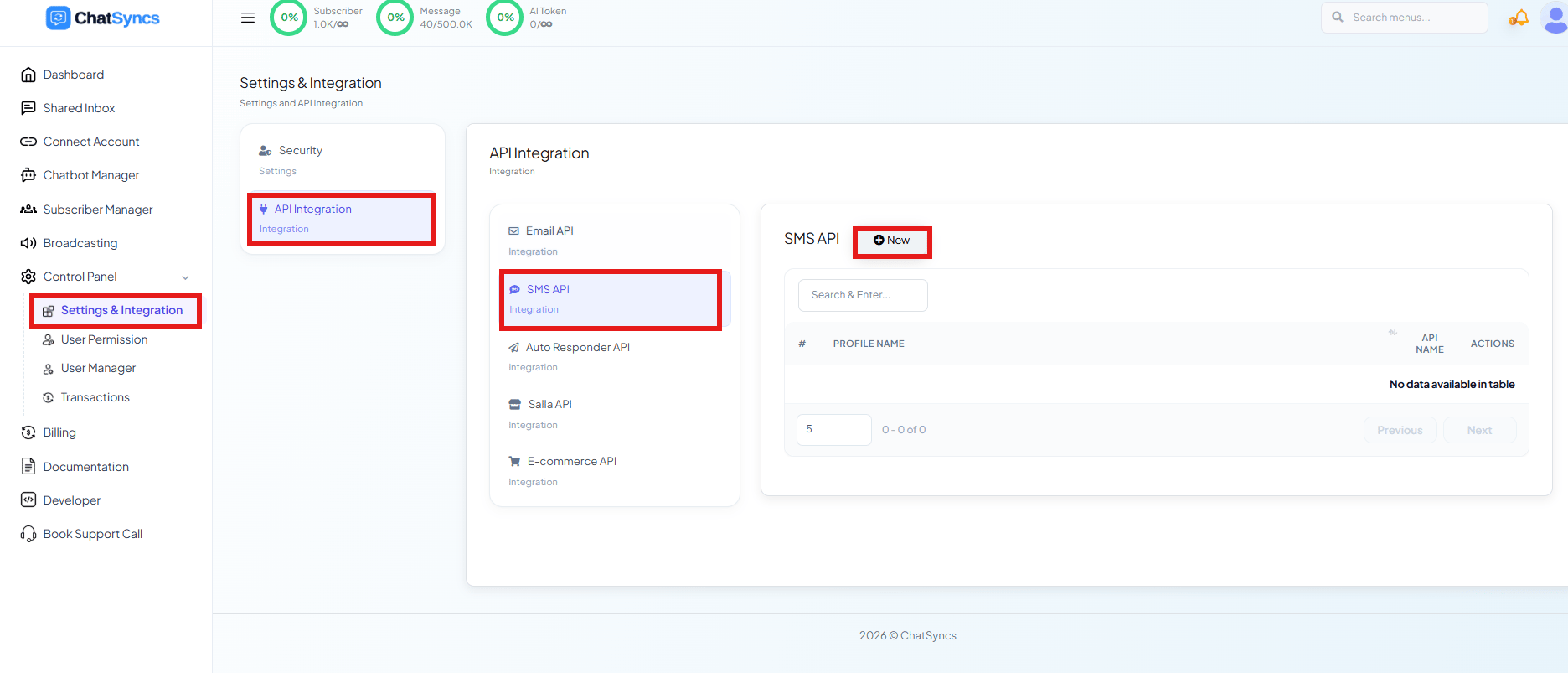
Step 2: Choose HTTP GET and provide the API details
Select Http Get from the provider list on the right. You’ll see a small notice confirming this option “only supports HTTP GET request” — that just means the gateway you’re connecting must let you send an SMS by visiting a URL, the same way opening a link in your browser works. Enter a custom API Name for your own reference (it’s just a label so you can find this profile again later), and paste your gateway’s HTTP GET request URL into the URL field — a fully functional URL that already includes the query parameters your provider requires (phone number, message, API key, etc.).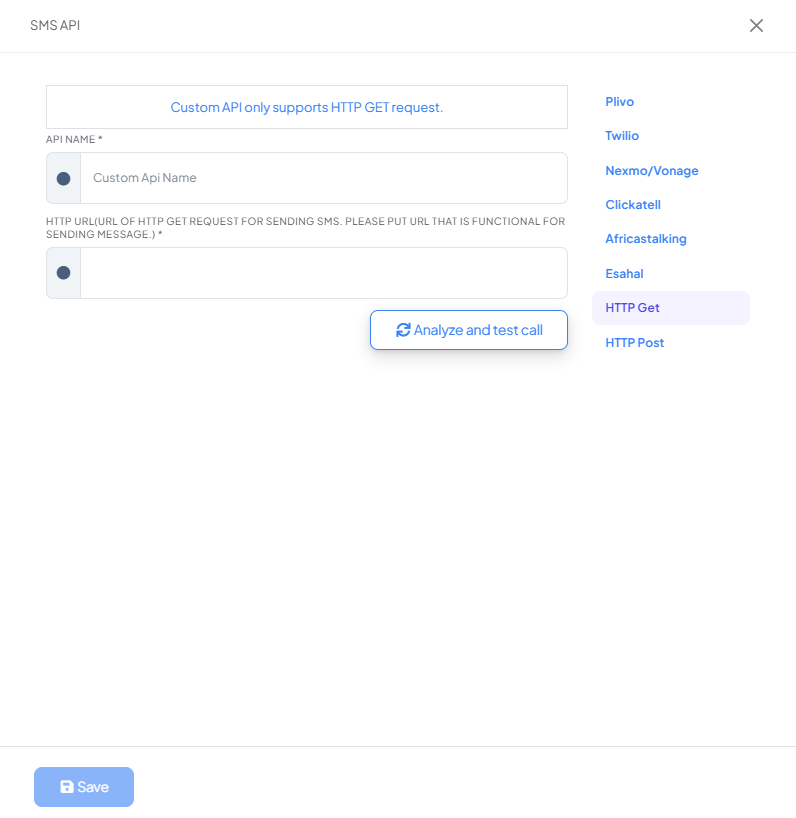
PHONE and MESSAGE for the real recipient number and message text every time
it actually sends a message through this profile — you never edit the URL again after saving it.
Step 3: Test and save
Click Analyze and test call to confirm the URL works, then click Save to store the profile.Frequently asked
How do I connect an SMS gateway that isn't in the SMS Integration list?
How do I connect an SMS gateway that isn't in the SMS Integration list?
Add a new SMS profile, choose Http Get as the provider, and paste your gateway’s HTTP GET
URL — including the
PHONE and MESSAGE placeholders — into the URL field.What do the PHONE and MESSAGE placeholders do?
What do the PHONE and MESSAGE placeholders do?
They mark where the recipient’s number and the message text belong in your gateway’s URL.
ChatSyncs replaces them with the real values every time it sends an SMS through that profile.
How do I know if my custom gateway URL is working before I save it?
How do I know if my custom gateway URL is working before I save it?
Use the Analyze and test call button after entering the URL — it verifies ChatSyncs can
actually reach and use your gateway before you save the profile.
Related Documentation
- SMS Integration — connecting any SMS gateway and what it’s used for.