

Step 1: Get your ActiveCampaign API credentials
Log into your ActiveCampaign account — you’ll land on its dashboard.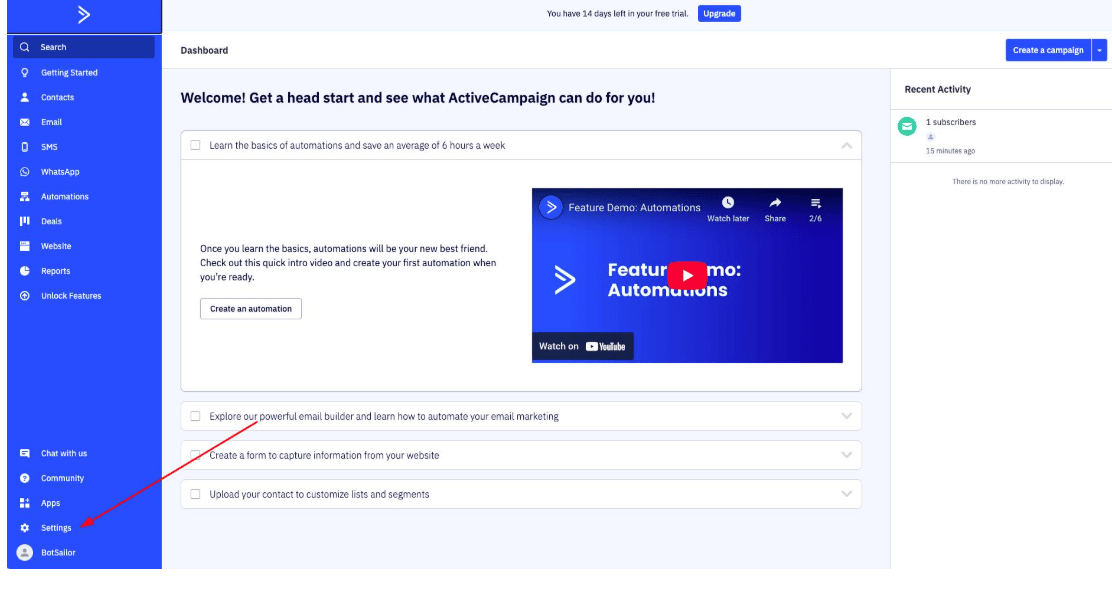
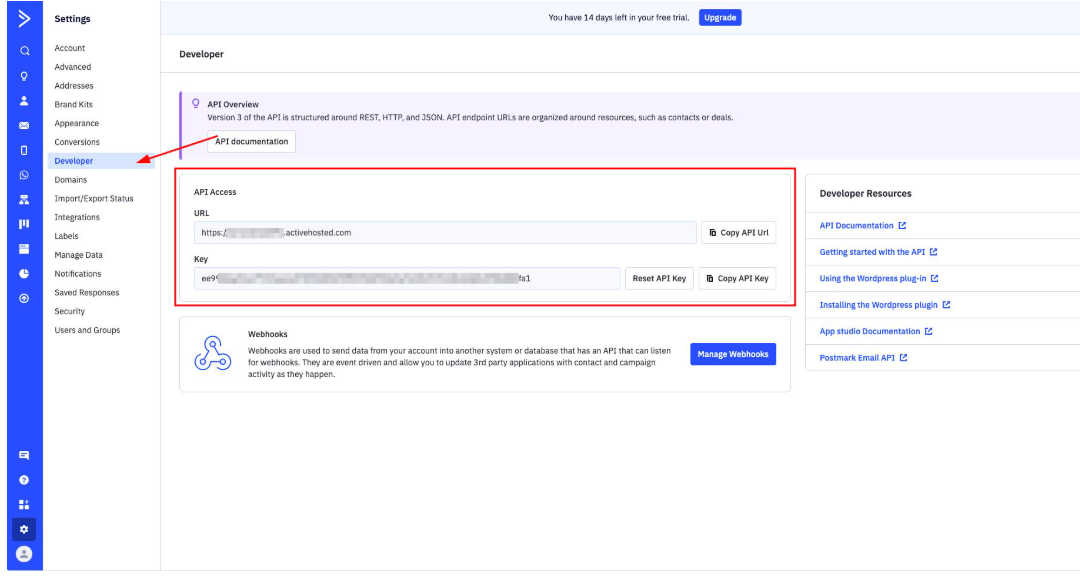
The API Key is only available on paid ActiveCampaign plans, though a trial plan works for
testing.
Step 2: Add the ActiveCampaign profile in ChatSyncs
Switch to ChatSyncs. From Auto Responder Integration, click New, select ActiveCampaign from the provider list, and enter: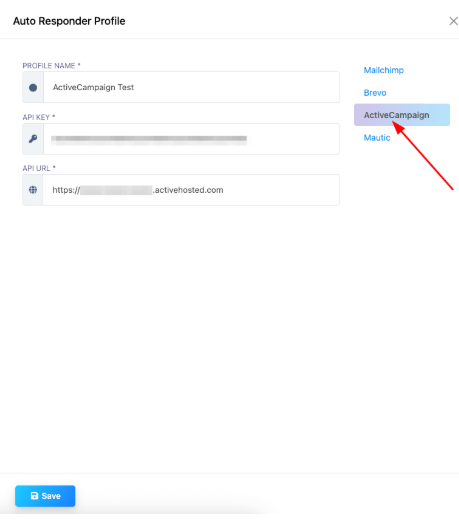
Frequently asked
How do I connect ActiveCampaign to ChatSyncs?
How do I connect ActiveCampaign to ChatSyncs?
Copy your API URL and API Key from ActiveCampaign’s Settings → Developer page, then add
them as a new ActiveCampaign profile under Auto Responder
Integration.
What happens if my API key or URL is wrong?
What happens if my API key or URL is wrong?
ChatSyncs shows an error and can’t sync data — double-check both values against
ActiveCampaign’s Developer settings.
Can I connect multiple ActiveCampaign accounts?
Can I connect multiple ActiveCampaign accounts?
Yes — add multiple profiles, which is useful if you’re managing several client accounts.
Related Documentation
- Auto Responder Integration — connecting any email marketing platform and what it’s used for.