

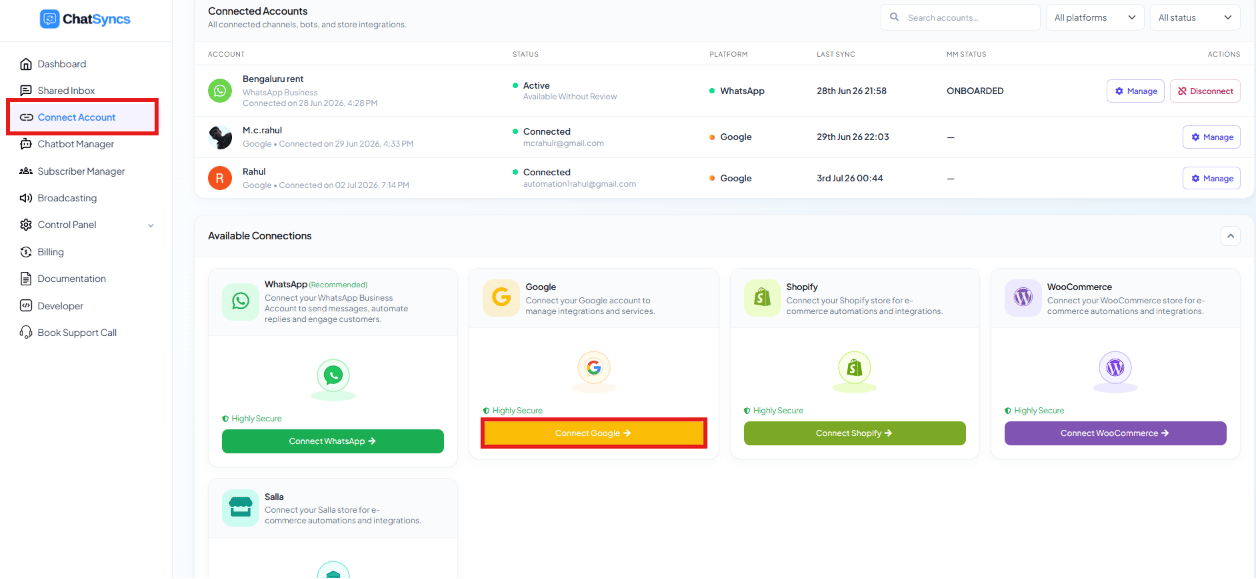
- Write data into Google Sheets.
- (Once connected) also be used for Google Calendar and Google Contacts.
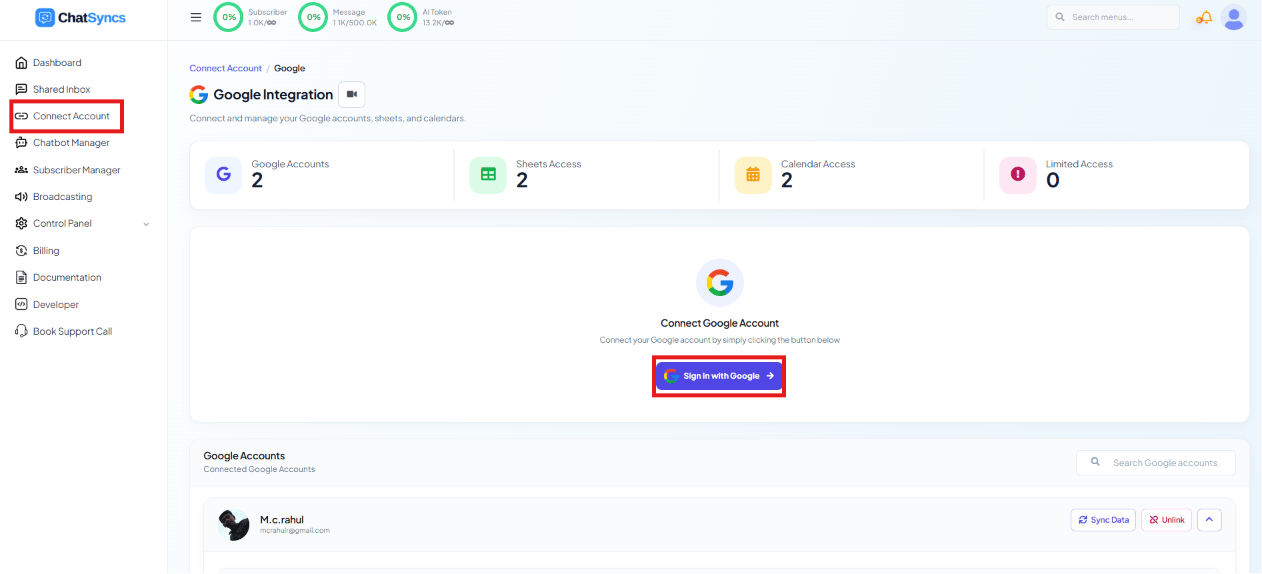
Connecting an account
1
Sign in with Google
Click Sign in with Google, then pick the Google account to connect from the account
picker: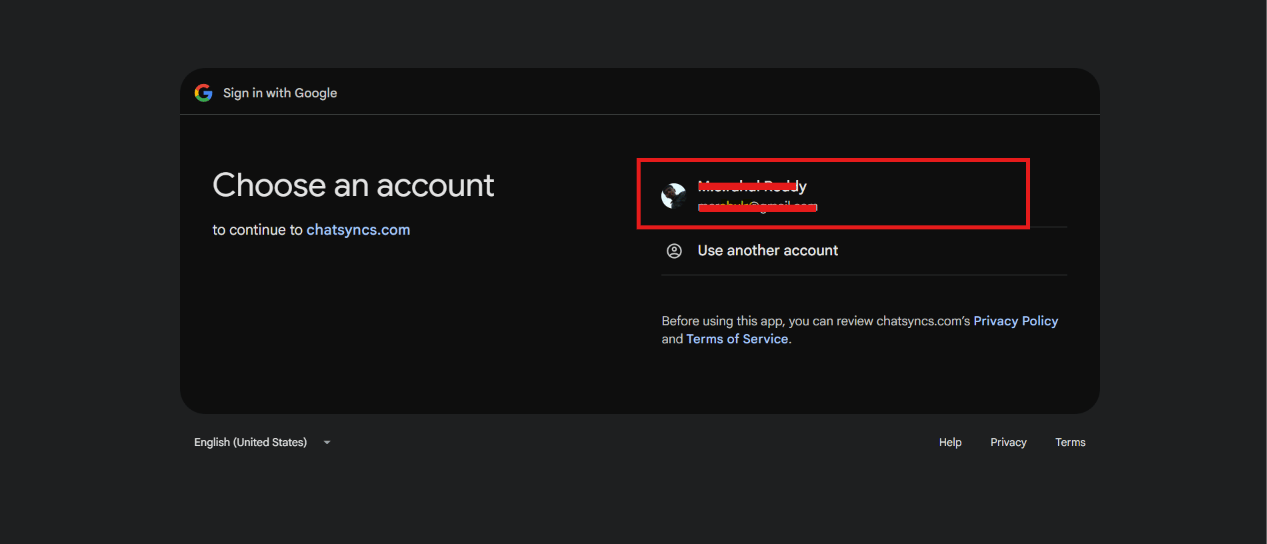
2
Grant the requested permissions
Review and check what ChatSyncs can access, then click Continue. ChatSyncs requests: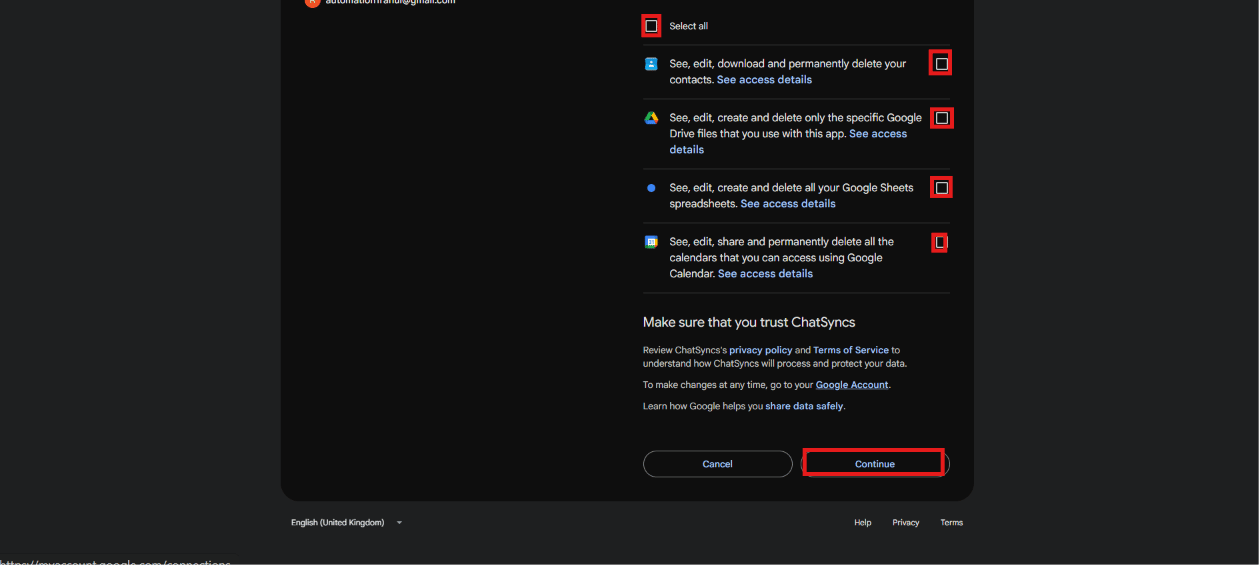
- Contacts — see, edit, download, and permanently delete your Google contacts
- Google Drive — see, edit, create, and delete only the specific files ChatSyncs creates
- Google Sheets — see, edit, create, and delete your Google Sheets spreadsheets
- Google Calendar — see, edit, share, and permanently delete calendars you can access
3
Confirm on reconnect
If the account was connected before and you’re reconnecting (e.g. after re-authorizing),
Google shows a shorter “You’re signing back in to ChatSyncs” screen — click Continue.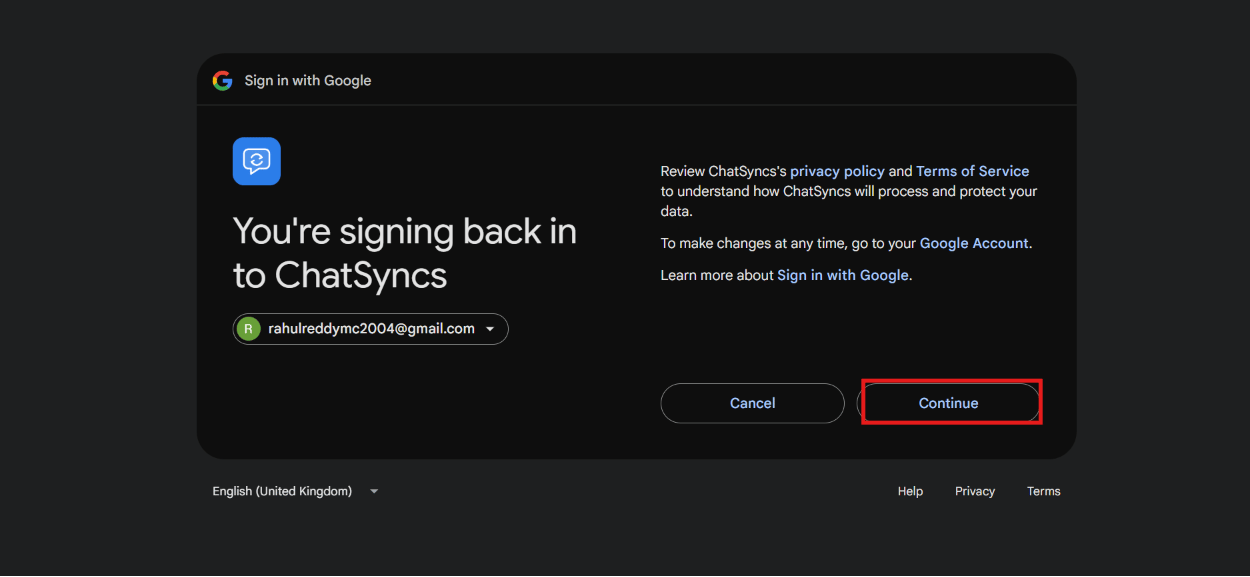
Using the connected account
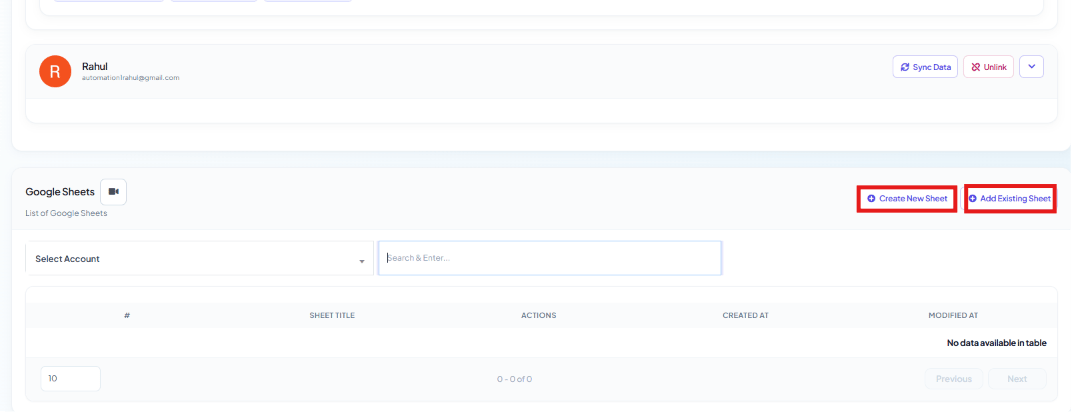
From the Integrations sidebar, the connected account can create or attach sheets, and manage calendars.Google Sheets
-
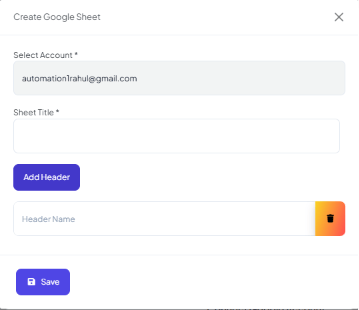
Create New Sheet — pick the connected account, name the Sheet Title, and optionally
Add Header to define column headers up front, then Save. ChatSyncs creates a brand-new
spreadsheet in the connected Drive with those headers already in place.
-
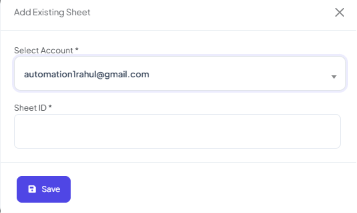
Add Existing Sheet — point ChatSyncs at a spreadsheet you already have by picking the
account and pasting its Sheet ID.
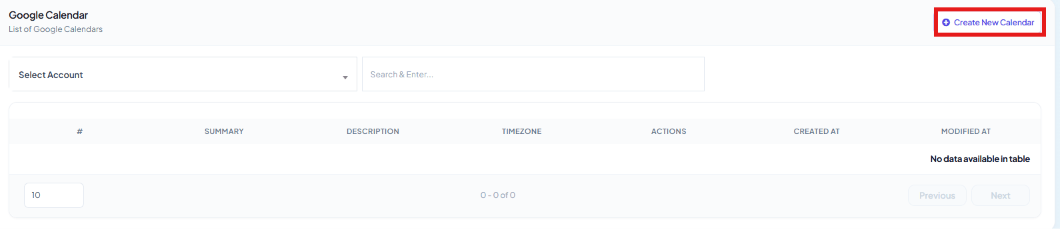
Google Calendar
-
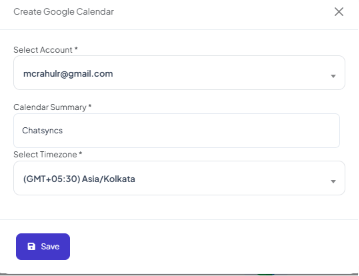
Create New Calendar — pick the connected account, name the Calendar Summary, and
choose a Timezone, then Save — for flows that book appointments via Google Calendar.
Use cases
- Save subscriber information collected during a WhatsApp conversation.
- Store form responses from an input flow.
- Export customer data for reporting.
- Keep records automatically without manual data entry.
Frequently asked
Why does Google say 'This app hasn't been verified' when I connect my account?
Why does Google say 'This app hasn't been verified' when I connect my account?
Because ChatSyncs hasn’t gone through Google’s app-verification review yet. It’s expected —
click Advanced, then Go to chatsyncs.com (unsafe) to continue safely.
Can I save bot-collected data straight into a Google Sheet?
Can I save bot-collected data straight into a Google Sheet?
Yes — connect a Google account here, then use Create New Sheet or Add Existing Sheet
as the destination for a flow step that saves subscriber info or form responses.
I connected Google Sheets but contact syncing isn't working — why?
I connected Google Sheets but contact syncing isn't working — why?
Check that you granted the Contacts permission during the Google consent step, not just
Sheets/Drive — some features need both scopes.
What's the difference between Google Sheet Integration and Google Sheet Fetch?
What's the difference between Google Sheet Integration and Google Sheet Fetch?
Google Sheet Integration writes data into a sheet. Google Sheet
Fetch reads data from a sheet — for example
looking up a customer record the bot then uses in a reply.
Learn From a Use Case
- Clinic Appointment Booking Automation — syncs every appointment to a spreadsheet the front desk uses.