

Quick Actions
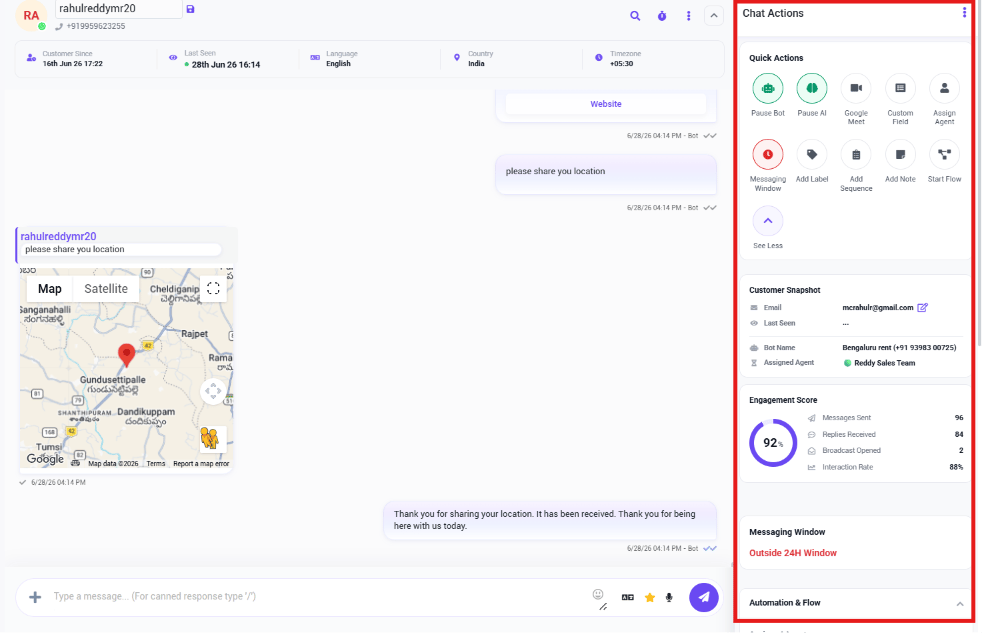
Customer Snapshot
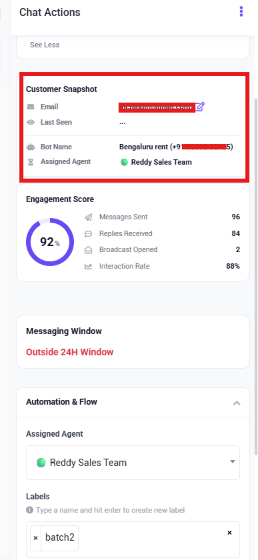
Engagement Score
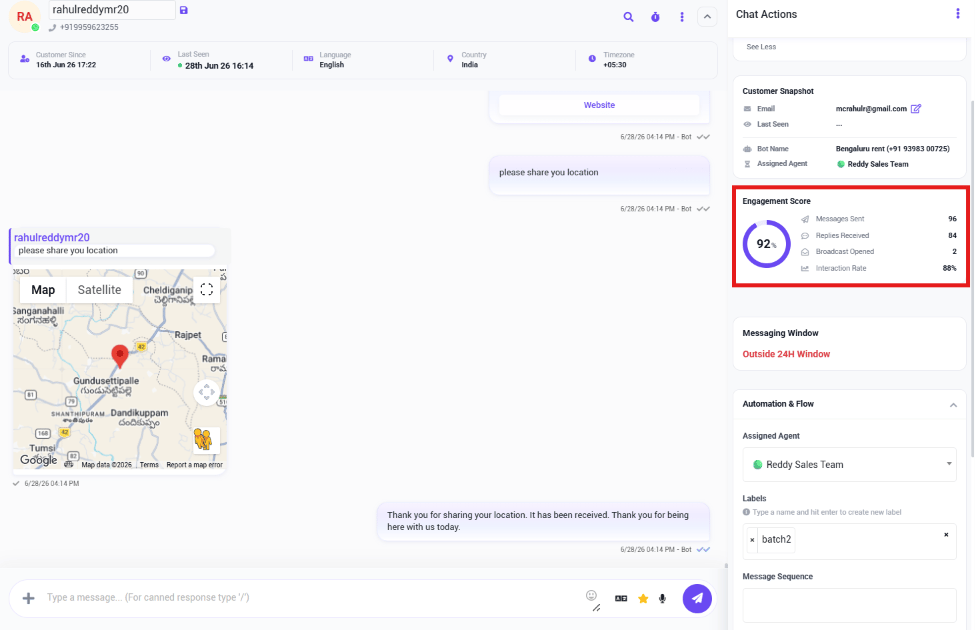
Messaging Window
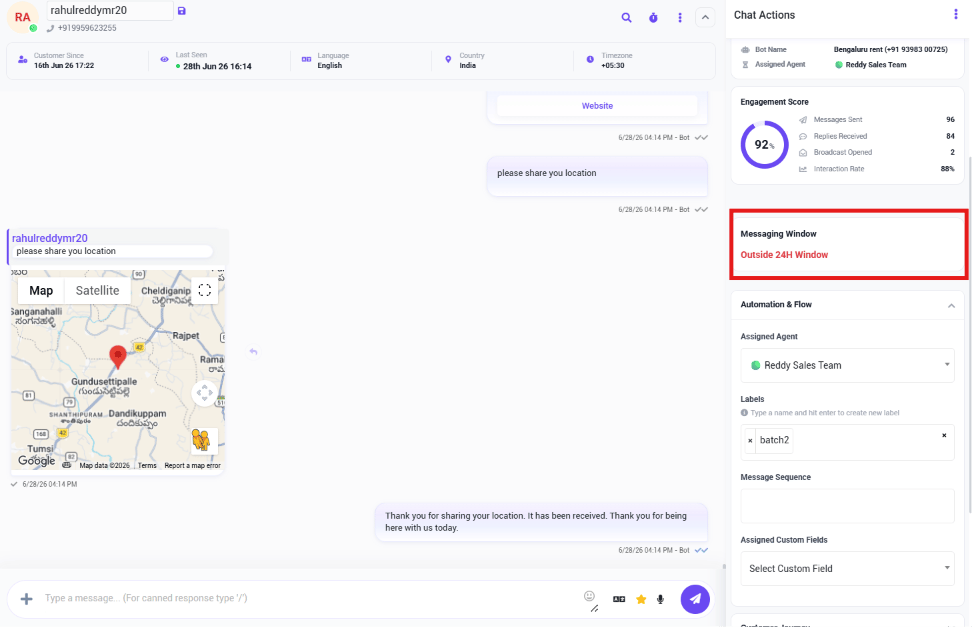
Custom Fields and Customer Journey
- Assigned Custom Fields / Custom Fields — attach predefined fields (e.g. Product Interest, Budget, Preferred Language) or other customer-specific data (Company Name, Order Number, Lead Source) to this conversation.
- Customer Journey — the customer’s subscription status and opt-in source.
- View Full Profile — opens the complete customer profile with full interaction history.
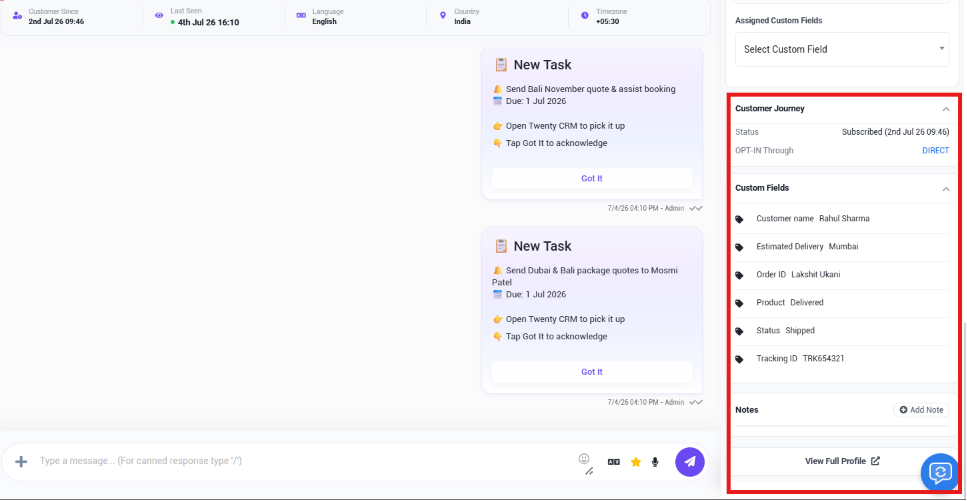
- Customer Journey —
Status: Subscribed (2nd Jul 26 09:46),OPT-IN Through: DIRECT. - Custom Fields —
Customer name: Rahul Sharma,Estimated Delivery: Mumbai,Order ID: Lakshit Ukani,Product: Delivered,Status: Shipped,Tracking ID: TRK654321.
Frequently asked
A customer's chat hasn't replied in a while — why can't I just send a text?
A customer's chat hasn't replied in a while — why can't I just send a text?
Check the Messaging Window in the Chat Actions panel. If it shows Outside 24H
Window, WhatsApp requires an approved Message Template
before you can message the customer again.
Where do I see a customer's order details or other saved data during a chat?
Where do I see a customer's order details or other saved data during a chat?
Under Custom Fields / Assigned Custom Fields in the Chat Actions panel — any
predefined field (order ID, budget, product interest) shows right there.
How do I tell how engaged a customer is before replying?
How do I tell how engaged a customer is before replying?
Check the Engagement Score in the Chat Actions panel — it summarizes messages sent,
replies received, and interaction rate.