

1
Open ChatSyncs in Chrome
On your Android device, open Google Chrome and log in to your ChatSyncs account.
2
Go to Shared Inbox
From the dashboard, open Shared Inbox from the sidebar.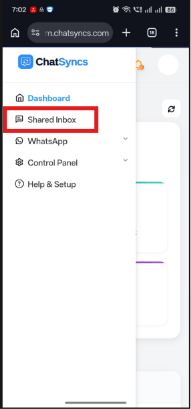
3
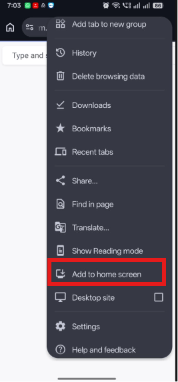
Open the Chrome menu
Tap the ⋮ (three-dot) menu in the top-right corner of Chrome.
4
Select "Add to Home screen"
5
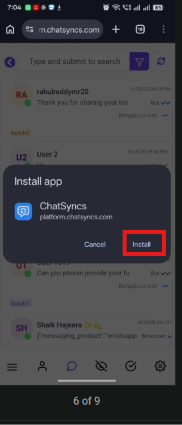
Install
6
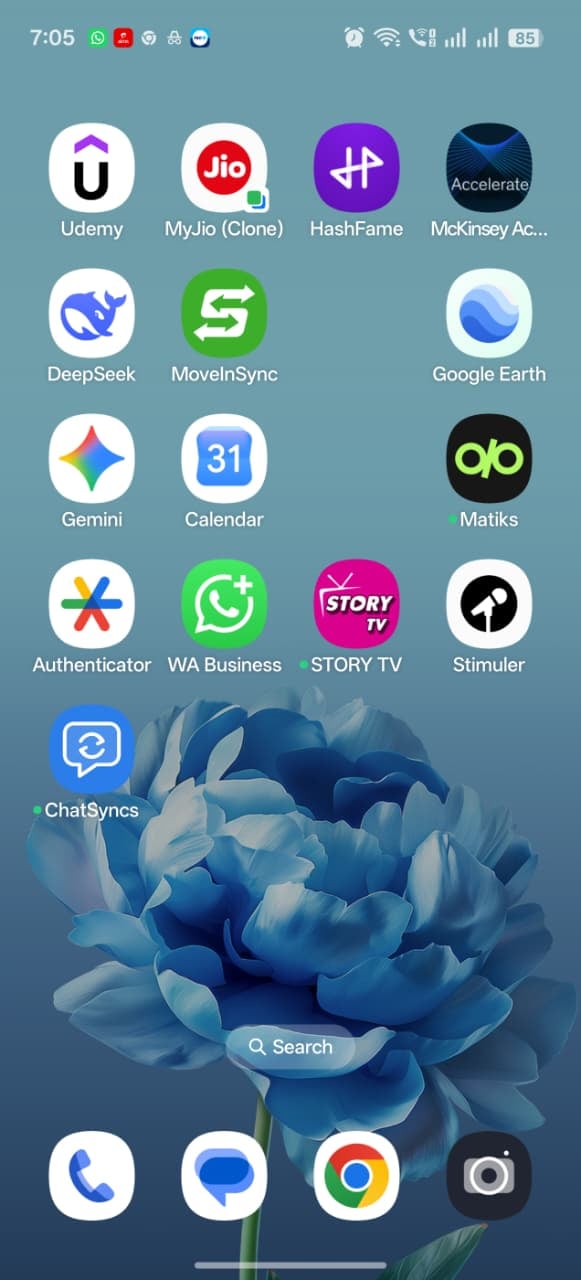
Launch from your home screen
Frequently asked
Install is greyed out when I open Add to Home screen — what do I do?
Install is greyed out when I open Add to Home screen — what do I do?
Close the menu, wait for the page to finish loading completely, then try again.
Do I need to install anything from the Play Store?
Do I need to install anything from the Play Store?
No — this is a Progressive Web App install through Chrome, not a Play Store download.