

- Multiple team members can work from it at the same time.
- Every conversation can be filtered, assigned, labeled, and tracked.
- Nothing gets answered twice, and nothing gets missed.
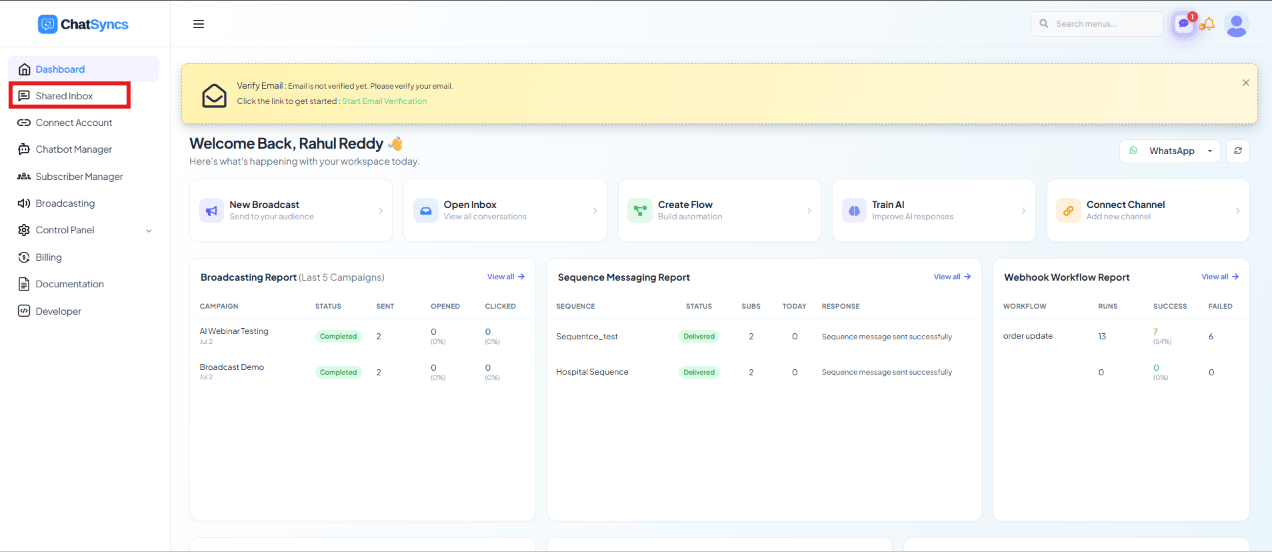
The three panels
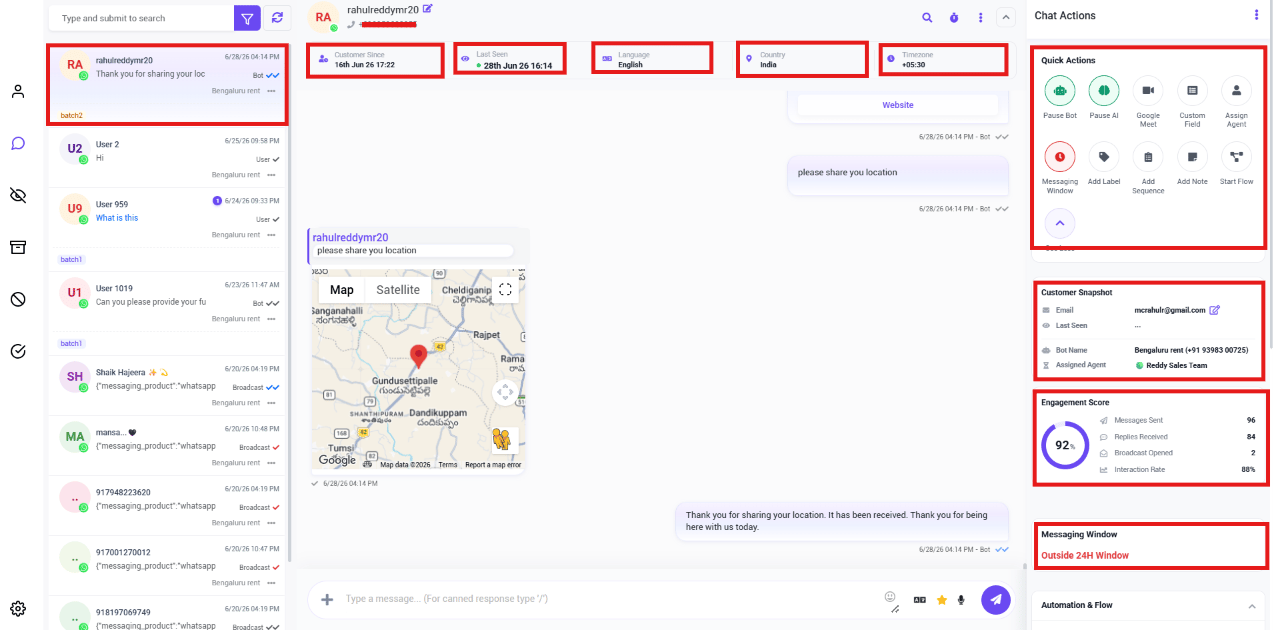
- Left — the conversation list. Every conversation matching your current filter. Each row shows the customer’s name, profile picture, last message, message status, any labels, the date/time, and which bot or team member it’s assigned to.
- Center — the chat window. The full conversation: message history, delivery/read status, and the composer for replying.
- Right — the Chat Actions panel. Everything for managing the customer behind the open conversation — quick actions, labels, sequences, custom fields, notes.
What’s covered in this section
Filter Conversations by Channel & Account
Narrow the inbox down to one number, one status, or your own chats.
Organize Conversations with Labels, Views & Search
Tag, sort, and find conversations fast.
AI Translation & Message Rewrite
AI help while replying to a customer.
Team Collaboration & Agent Assignment
Hand conversations between teammates cleanly.
Messaging Tools: Canned Responses, Templates & Attachments
Reply faster with saved responses and files.
Follow-up Reminders & Message Sequences
Never forget to circle back to a customer.
Managing Customer Data with Custom Fields
Keep customer context right inside the conversation.