

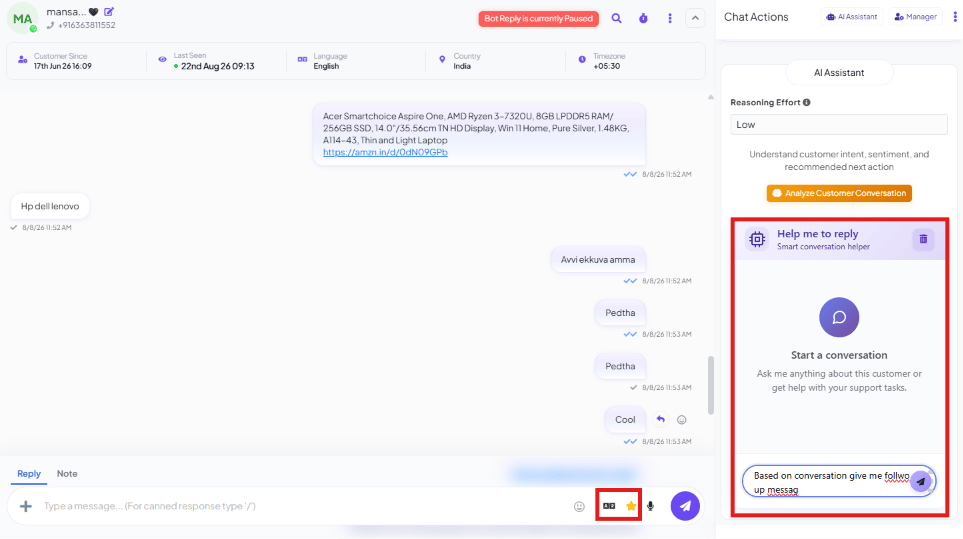
The two composer icons
AI Assistant (Chat Actions panel)
The AI Assistant tab in the Chat Actions panel is a separate capability from the composer icons above — a chat-based helper for the agent, not the customer: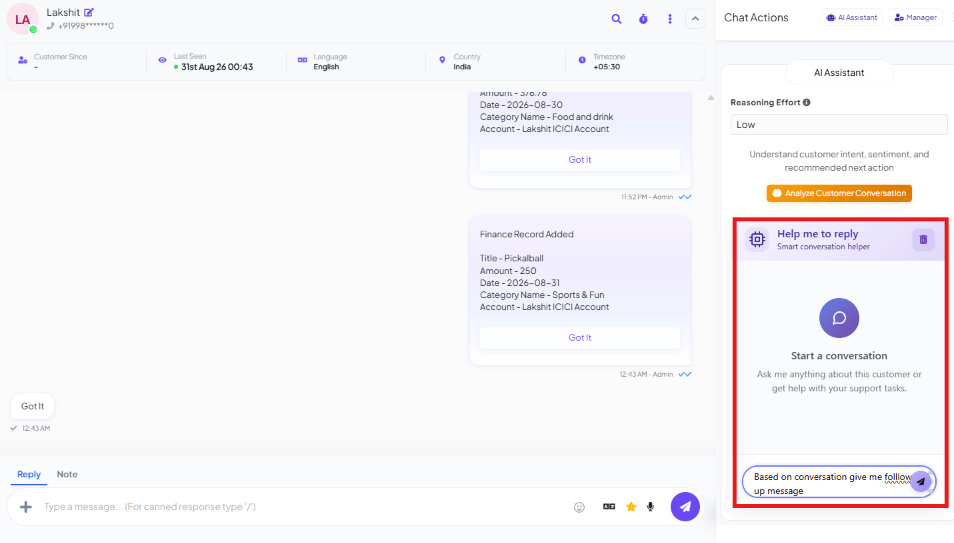
- Analyze Customer Conversation — a button that reads the conversation and summarizes intent, sentiment, and a recommended next action.
- Help me to reply — a “Start a conversation” chat box where the agent can ask the AI
anything about this customer (e.g.
Based on conversation give me a follow-up message) or get help with support tasks, with a Reasoning Effort setting (e.g. Low).
Frequently asked
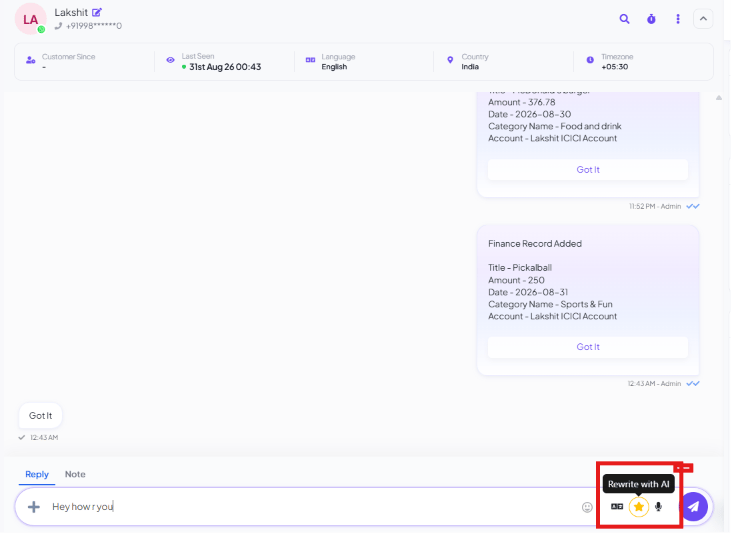
What does the star icon in the composer do?
What does the star icon in the composer do?
It’s Rewrite with AI — rewrites your draft message with AI before you send it.
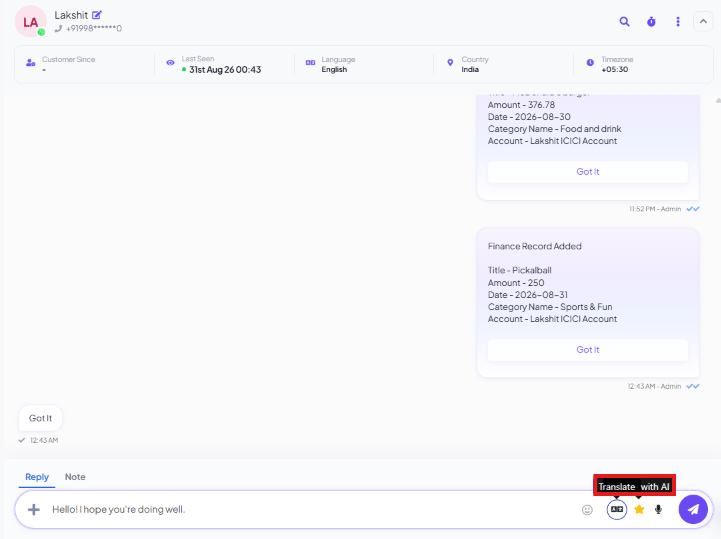
Does Translate with AI translate my draft, or the customer's message?
Does Translate with AI translate my draft, or the customer's message?
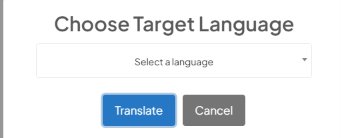
Your draft. Type your reply, click the globe icon, pick a target language, and click
Translate — the composer replaces your typed text with the translated version, ready to
send.
What's the difference between the composer's AI icons and the AI Assistant panel?
What's the difference between the composer's AI icons and the AI Assistant panel?
The composer icons (translate, AI Rewrite) act on the message you’re about to send. The AI
Assistant panel is a separate chat-based helper — it analyzes the conversation or answers
questions about the customer, rather than editing your draft.