

Inbox filters
Example: Priya is a support agent with 20 assigned customers. When she selects Mine,
she only sees those 20 conversations — not the rest of the team’s chats.
Two separate filters
The Shared Inbox has two independent filter tools, opened from two different places.Conversation list filters
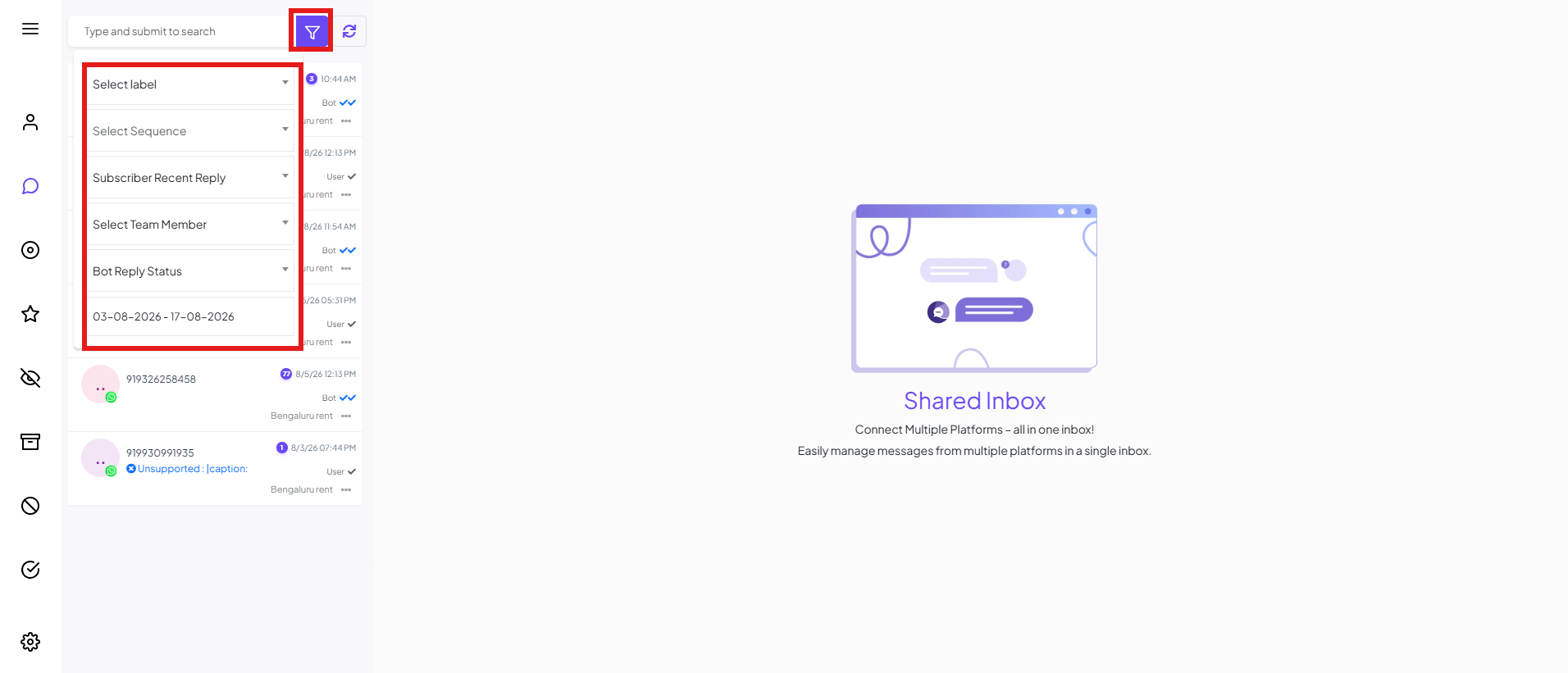
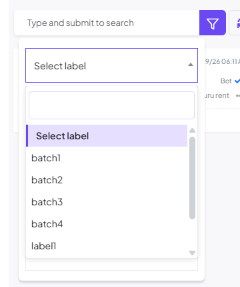
batch2 or VIP.
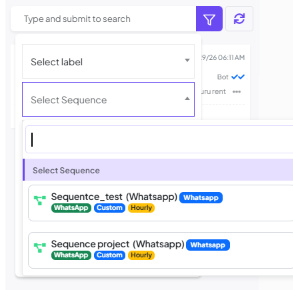
Sequence project.
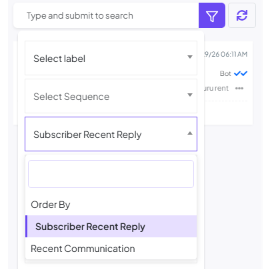
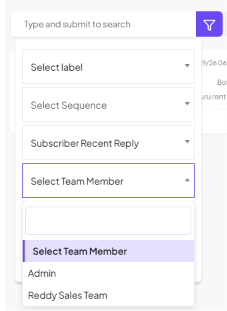
Reddy Sales Team.
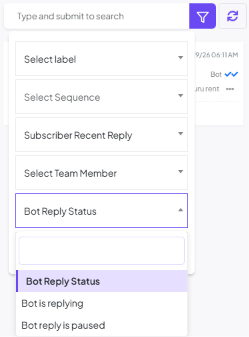
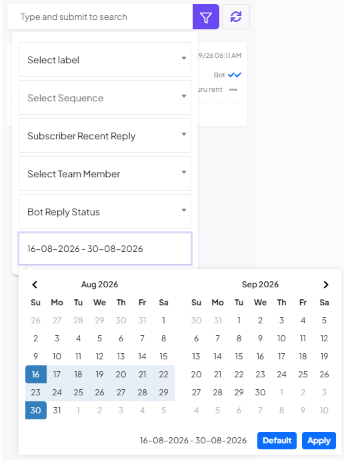
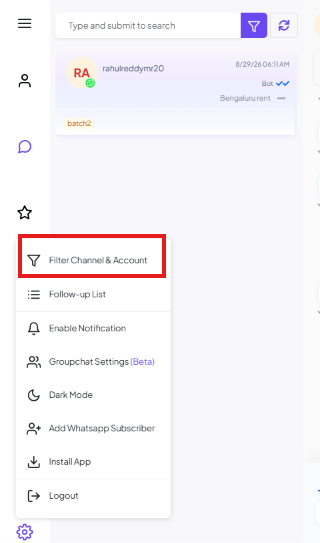
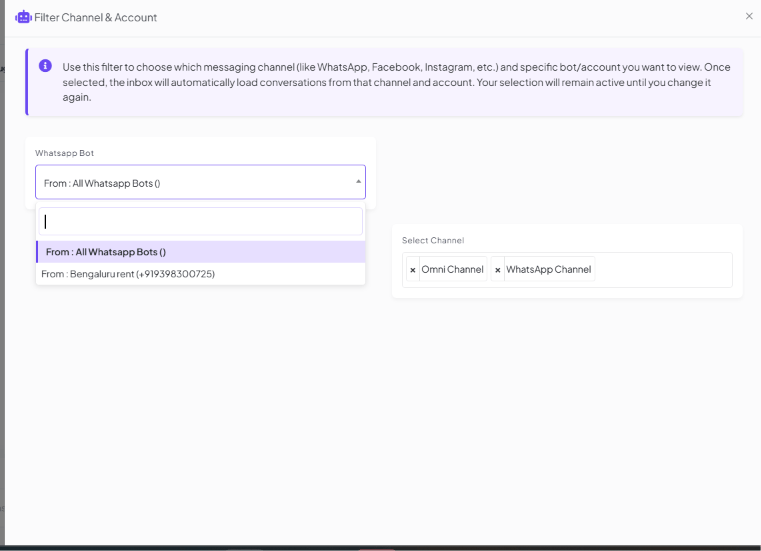
Filter Channel & Account
Frequently asked
How do I see only the conversations assigned to me?
How do I see only the conversations assigned to me?
Select the Mine filter at the top of the Shared Inbox.
I run multiple WhatsApp numbers — can I see just one number's chats?
I run multiple WhatsApp numbers — can I see just one number's chats?
Yes — Settings → Filter Channel & Account, then pick the number/account you want.
Where do I see conversations I've archived or resolved?
Where do I see conversations I've archived or resolved?
Use the Archived or Resolved filter at the top of the Shared Inbox.