How to Create a Facebook Business Manager Account for ChatSyncs
How to create a Meta Business Manager account (the account that owns your WhatsApp setup) so you can unlock full WhatsApp Business API access in ChatSyncs.
A Meta Business Manager account (also called a Business Portfolio) is like the master folder your whole WhatsApp setup lives inside — your WhatsApp number, and everything else you connect to ChatSyncs, hangs off this one account.If a customer doesn’t have one yet, this is the very first thing to set up — before connecting a phone number at all.
Embedded signup can also create a Business Portfolio for you inline, asking only for a portfolio name, your first/last name, and a website — see How to Connect Your Number to ChatSyncs. Use this guide instead if you’d rather set the account up ahead of time, or need the fuller sign-up flow with email verification.
Access to unlimited messaging tiers, once verified (see Messaging Limits & Quality Rating) — an unverified account is capped at 250 unique customers per day.
One account that everything else attaches to: your WhatsApp number, ad accounts, and any future Meta app all live inside this same portfolio.
A single place to manage team access, billing, and business documents.
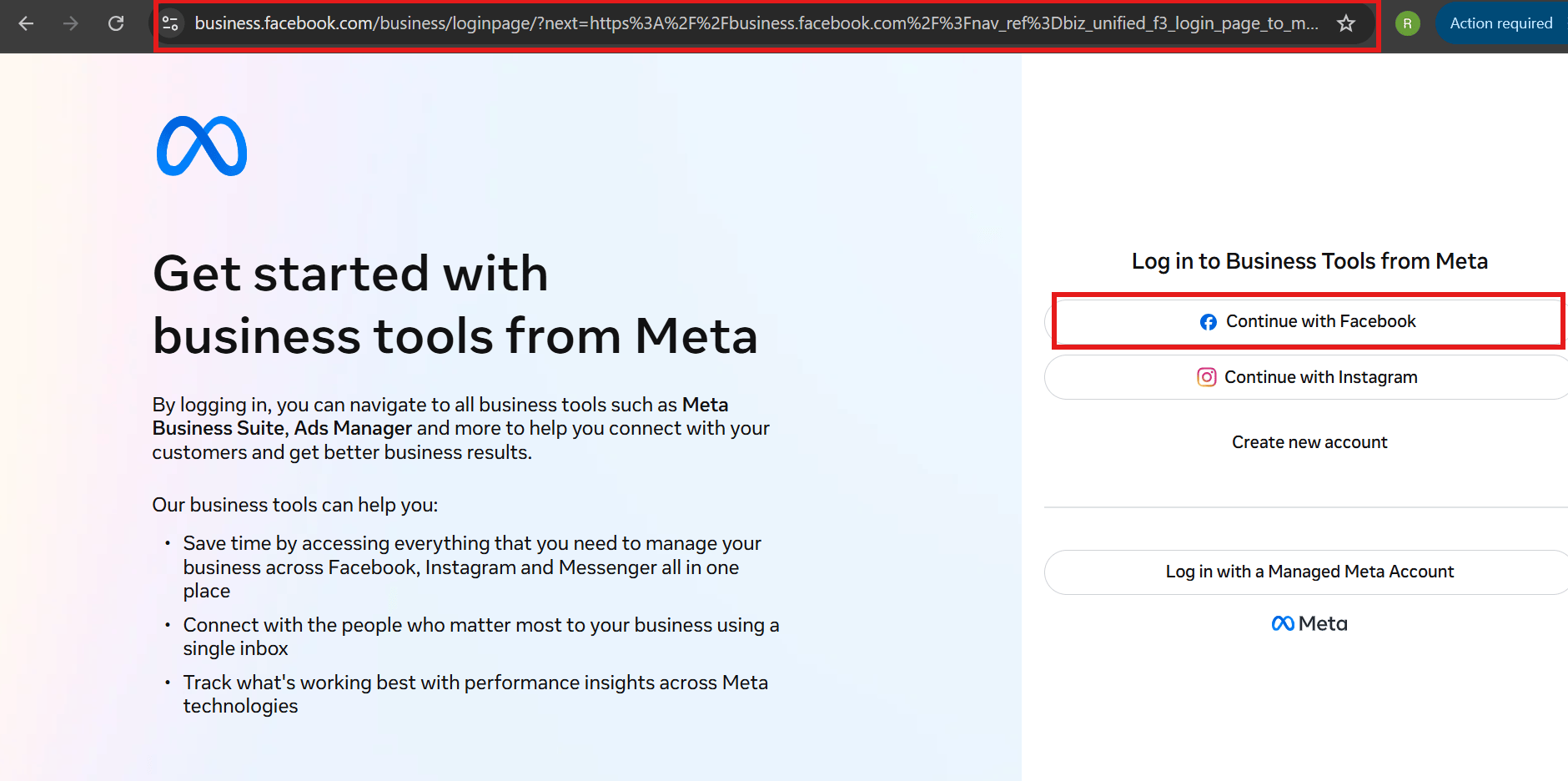
business.facebook.com's Get started page, with Continue with Facebook highlighted.
2
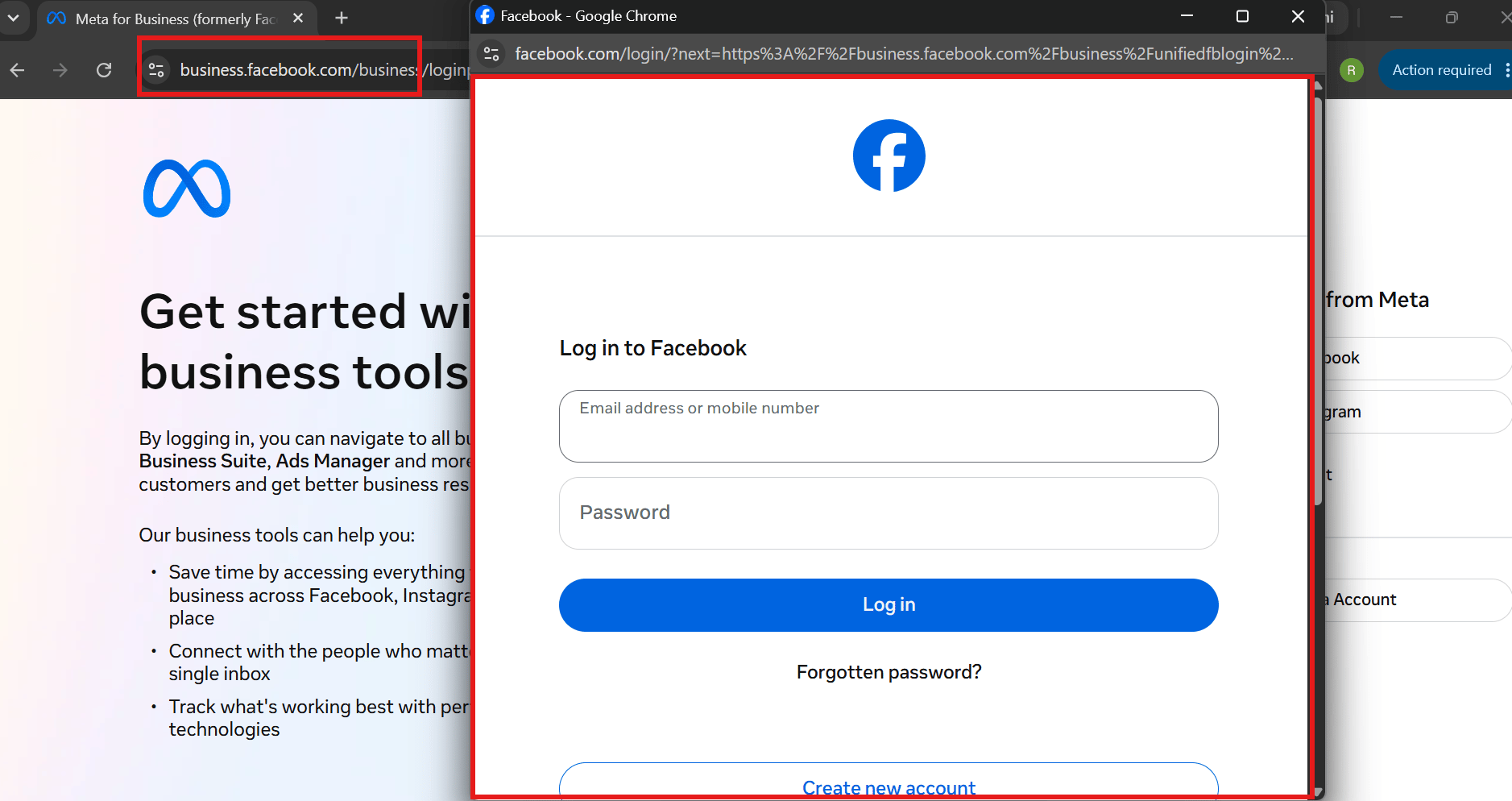
Log in with your credentials
Use the personal Facebook account you want to manage the business with — this becomes the account’s first admin.
The standard Facebook login form.
3
Enter your business details
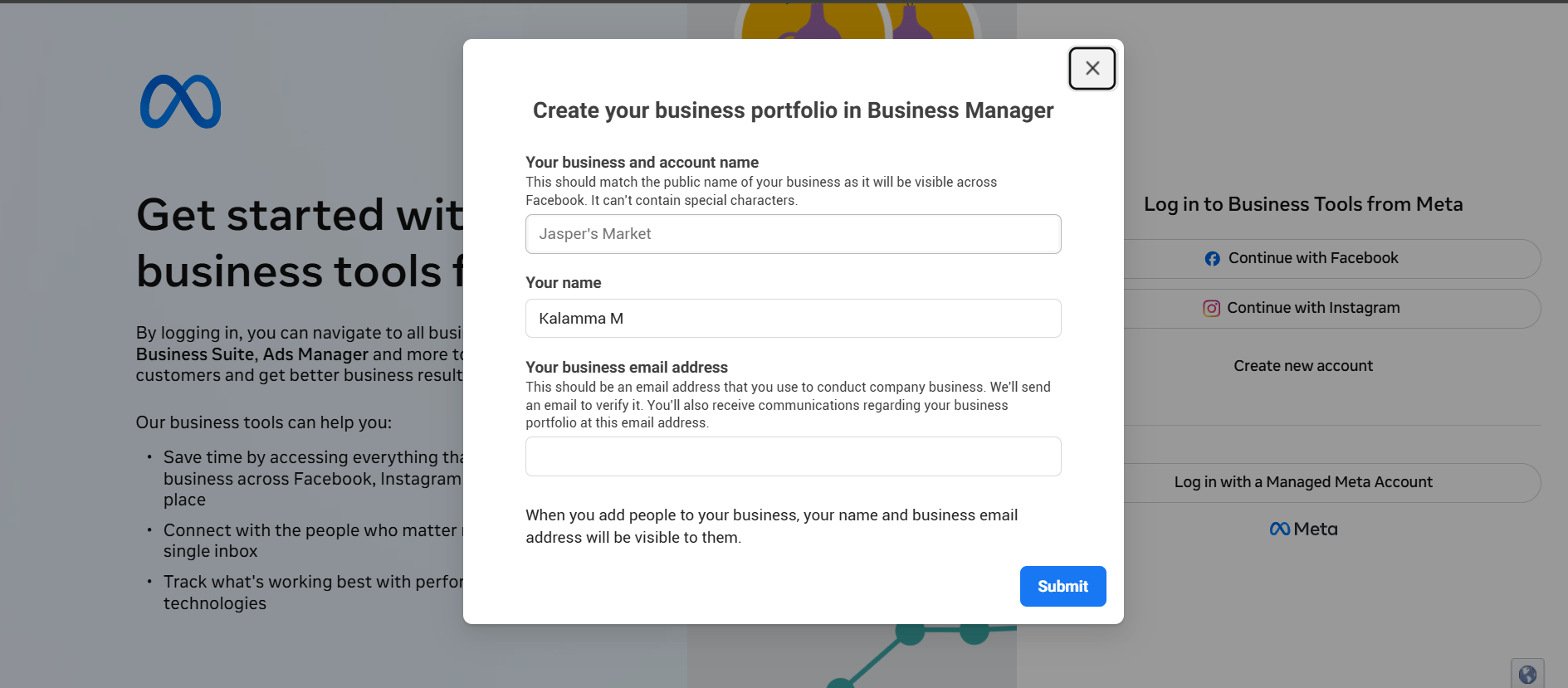
In the Create your business portfolio in Business Manager dialog, fill in Your business and account name, Your name, and Your business email address, then click Submit. Use the business’s actual legal name here if possible — it’s the detail most likely to cause a mismatch later during Business Verification.
Create your business portfolio in Business Manager — name, your name, and business email fields.
4
Verify your email
Check the inbox for the email address just entered and click Confirm Now in the verification email Meta sends.
5
Open Business Settings
Once confirmed, the portfolio is created — Business Settings is where you’ll come back to add team members, connect a WhatsApp number, and eventually apply for verification.
Using a personal email instead of a business one — a business email is recommended so account and billing notices don’t get lost in a personal inbox.
Entering incomplete or inconsistent business information — double-check the business name and address before submitting; small mismatches (like “Pvt Ltd” vs “Private Limited”) are the most common cause of a rejected verification later.
Creating a second Business Portfolio for the same company — this just splits assets and verification history across two places. Reuse the existing one if your business already has one from running ads or another integration.
Can I use my personal email for the Business Manager account?
You can, but a business email is recommended — Meta sends verification and account notices there, and it’s easy to miss them in a personal inbox.
I made a mistake in the business details — can I fix it?
Yes, most information can be edited later in Business Settings. Fix it there before applying for Business Verification, since mismatches against your uploaded documents are the most common rejection reason.
Do I need to verify my business right away?
No — you can connect a WhatsApp number and start sending messages at the starter tier (250 unique customers/day) before verifying. Verify later to raise that limit.
I already have a Business Portfolio from running ads — do I need a new one?
No — reuse the existing one. Creating a second portfolio for the same company just splits your assets and verification history across two places.