• A WhatsApp number can get disconnected from ChatSyncs — usually because a free trial ended, or a subscription payment was missed for a while.
  • Good news: nothing on Meta’s side gets deleted when this happens.
  • ChatSyncs only unlinks itself to free up space — the Business Portfolio, WABA, and phone number all stay exactly where they were.

Why this happens

ChatSyncs automatically disconnects an account from Meta in two situations:
  • Free trial expired — if the account wasn’t upgraded to a paid plan before the trial ended, it’s disconnected to free up capacity for active subscriptions.
  • Missed billing — if a subscription payment failed and stayed unresolved for an extended period, the account is disconnected to stay within Meta’s limits on how many WhatsApp accounts ChatSyncs can keep onboarded.

What’s preserved

Everything carries over, because none of it was ever deleted:
  • Phone number
  • Messaging limit tier
  • Quality rating
  • Display name
  • Business profile
  • Approved message templates
  • Green Tick verification (if you had one)
It all lives on Meta’s side, not ChatSyncs’ — so unlinking ChatSyncs never touches it.

How to reconnect

1

Make sure the ChatSyncs subscription is active

If the trial expired, upgrade to a paid plan first. If billing lapsed, update the payment method. Reconnecting only works once the account itself is active again.
2

Go to Connect Account and start Connect WhatsApp
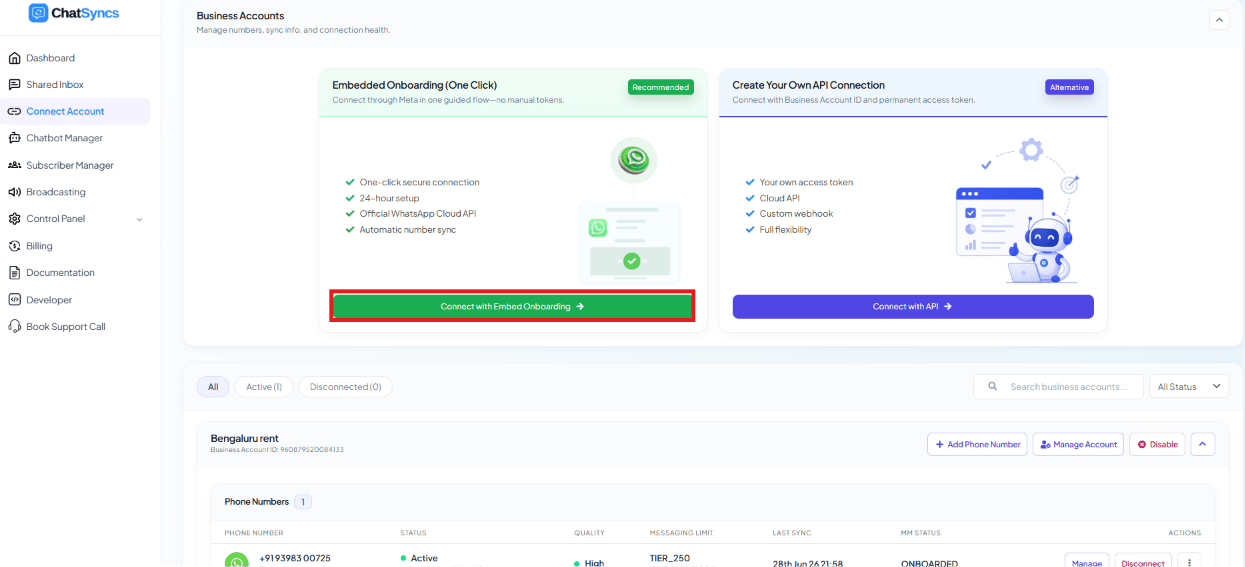
Follow the same steps as How to Connect Your Number to ChatSyncs used for a first-time connection — Connect Account → Connect WhatsApp, then pick Embedded Onboarding (One Click).
Business Accounts page with Embedded Onboarding (One Click) card and Create Your Own API Connection card side by side

Business Accounts — start from the same Embedded Onboarding card used for a first-time connection.

3

Log in with Facebook using the same account
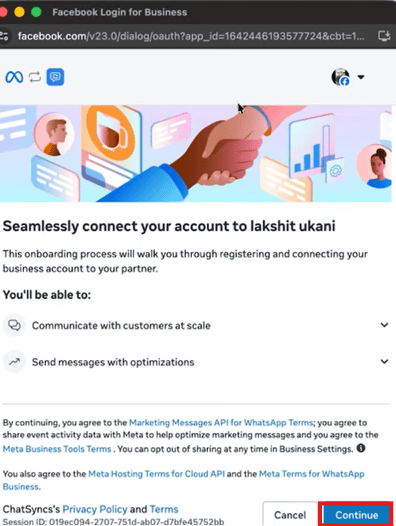
Meta’s popup opens. Log in with the same Facebook account used before, then click Continue.
Facebook Login for Business popup: Seamlessly connect your account to ChatSyncs, with a Continue button

Meta's embedded signup consent screen.

4

Select the existing Business Portfolio
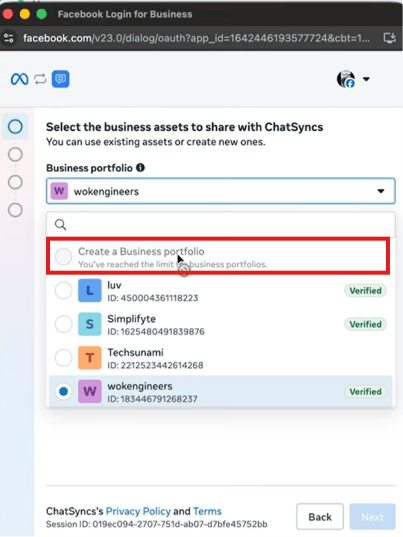
It will already be there in the Business portfolio dropdown — pick it instead of creating a new one. If it was verified before, it still shows the green “Verified” badge.
Select the business assets to share with ChatSyncs, with the Business portfolio dropdown open

Pick the existing portfolio from the Business portfolio dropdown, rather than creating a new one.

5

Select the existing WhatsApp Business Account and number
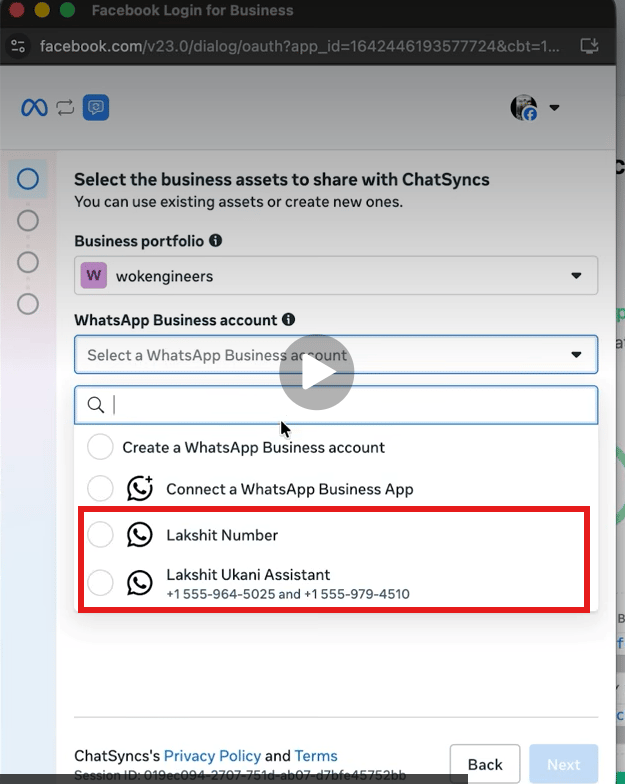
Open the WhatsApp Business account dropdown. Instead of Create a WhatsApp Business account, pick the existing WABA — it shows the account and number used before.
Select the business assets to share with ChatSyncs, WhatsApp Business account dropdown showing existing WABA options highlighted instead of Create a WhatsApp Business account

Existing WABAs appear in the dropdown, showing the account name and phone number used before.

6

Complete the permissions step

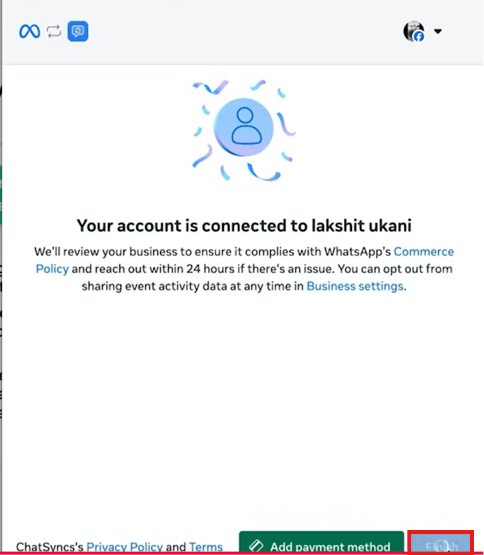
Click through the permissions review to finish. The number is reconnected to ChatSyncs.
Your account is connected confirmation screen with a Finish button

Meta's final confirmation once the account is reconnected.

Always select the existing Business Portfolio, WABA, and phone number during this flow — never create new ones. Creating new assets instead of reselecting the old ones is what actually risks losing the messaging tier, quality rating, and templates that reconnecting is meant to preserve.

Frequently asked

No — ChatSyncs only unlinks itself from Meta. Your phone number, WABA, and everything else stay exactly where they were on Meta’s side.
No. Both are tied to the WhatsApp Business Account on Meta, not to ChatSyncs’ connection to it, so they carry over as long as you reselect the same existing WABA and number.
Either the free trial ended without upgrading to a paid plan, or a subscription payment failed and stayed unresolved for an extended period. Both free up onboarding capacity on ChatSyncs’ side without touching anything on Meta’s.
No — Business Verification status lives on the Meta Business Portfolio, not on the ChatSyncs connection, so it’s still intact. See Business Verification & the Green Tick if it wasn’t verified before and you want to raise limits now.
  • Make the ChatSyncs subscription active first — reconnecting before upgrading a trial or fixing billing will fail or immediately disconnect again.
  • Select the existing Portfolio/WABA/number at every step — picking “Create a WhatsApp Business account” or “Add a new number” instead creates a separate asset rather than restoring the original one, losing the preserved tier and history in the process.