How to Connect Your WhatsApp Business App to ChatSyncs
Use the same WhatsApp number on the WhatsApp Business App and ChatSyncs at the same time — how Meta’s Coexistence feature works, and what changes on the Business App.
Coexistence is a Meta feature that lets one WhatsApp number work in two places at once — the WhatsApp Business App on your phone, and ChatSyncs.
If you’re already using the WhatsApp Business App, you don’t need to delete your account to start using ChatSyncs.
No migration, no downtime, no risk of losing your number or conversations.
Messages are mirrored — a customer’s message shows up in both the Business App on your phone and ChatSyncs’ inbox, and a reply from either side shows up on the other.
Your last 6 months of chat history copies over automatically the first time you link, so ChatSyncs doesn’t start empty.
On your phone (Business App) — send quick personal replies, make voice and video calls, check messages on the go, manage your business profile.On ChatSyncs (API) — build automated chatbots, send bulk broadcasts, use a multi-agent team inbox, send message templates, integrate with CRMs, and track analytics.A few Business App features are turned off to avoid conflicts once Coexistence is active:
Broadcast lists are disabled in the Business App — send broadcasts from ChatSyncs instead.
Disappearing messages and view-once media are turned off for all chats.
Message throughput drops from 80 to 20 messages per second while both platforms are active — rarely noticeable unless you’re sending very high volumes from both at once.
Everything else on the Business App — calls, status updates, profile management, direct messaging — keeps working as before.
Video walkthrough: connecting via WhatsApp Coexistence.
1
Open Connect WhatsApp
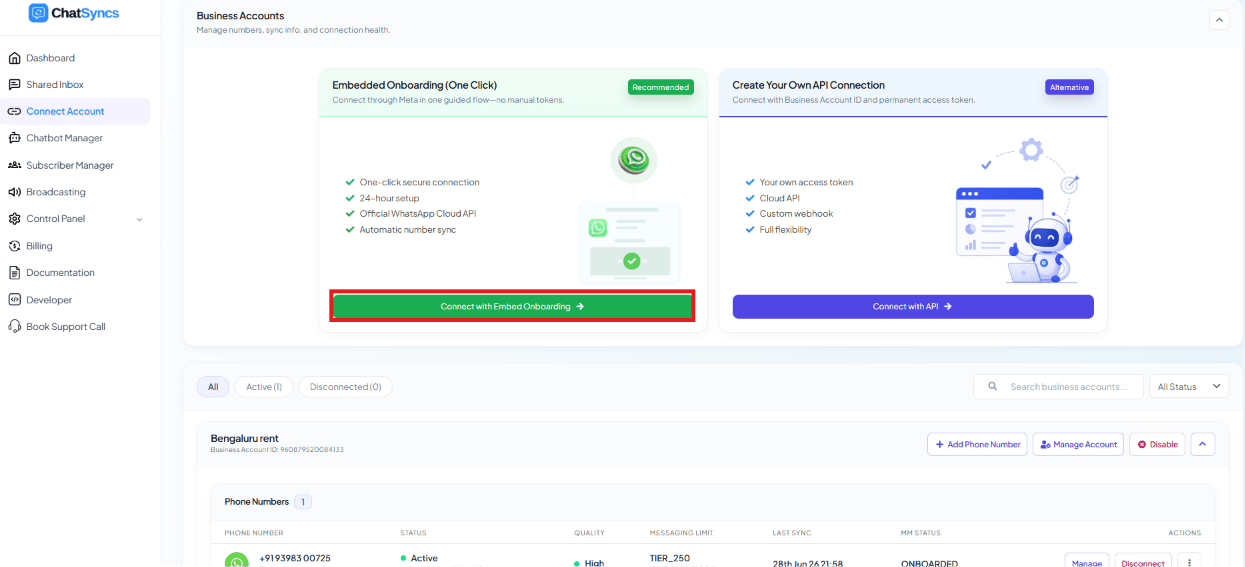
Go to Connect Account, under Business Accounts click Connect WhatsApp, then pick the green Embedded Onboarding (One Click) card and click Connect with Embed Onboarding — same starting point as How to Connect Your Number to ChatSyncs.
Business Accounts — Embedded Onboarding (recommended) vs. Create Your Own API Connection.
2
Choose catalog permissions
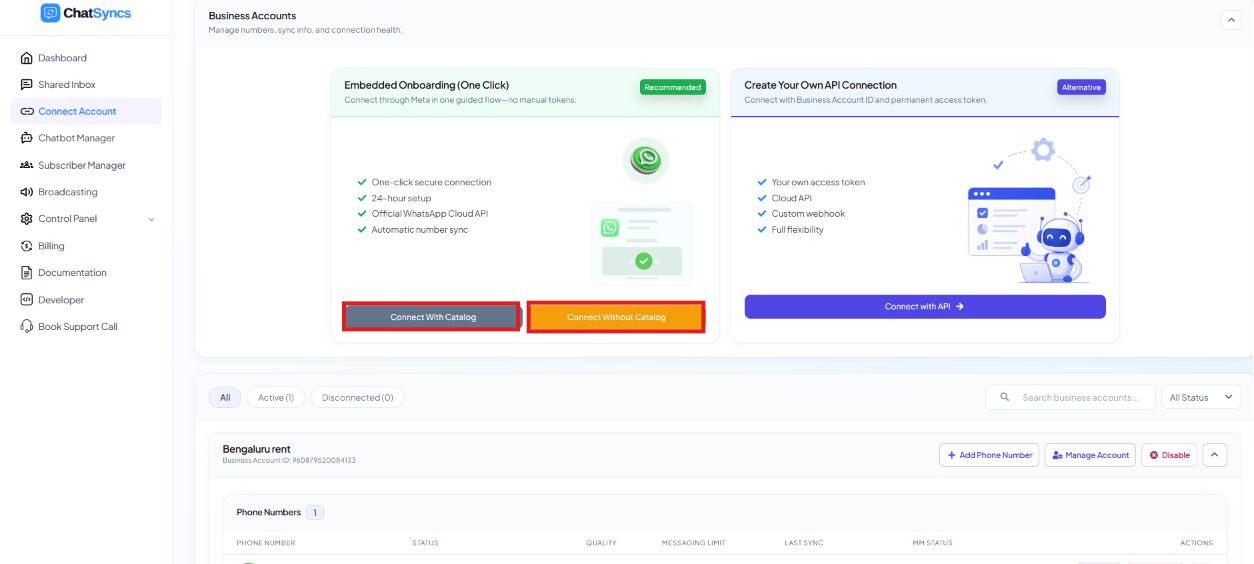
If you’ve already set up a product catalog and want to share its permissions, click Connect With Catalog — otherwise click Connect Without Catalog. Either opens Meta’s popup.
Connect With Catalog vs. Connect Without Catalog.
3
Log in with Facebook
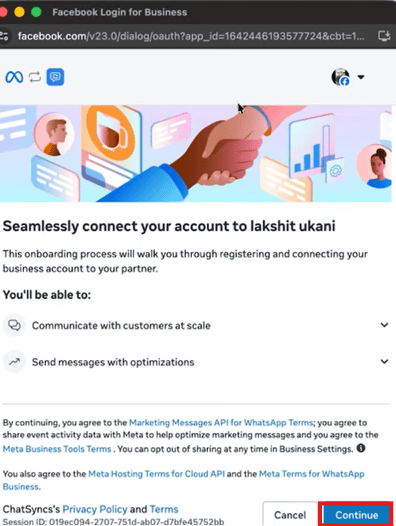
Meta’s popup opens. Log in if you aren’t already, then click Continue.
Meta's embedded signup consent screen — click Continue to proceed.
4
Select or create a Business Portfolio
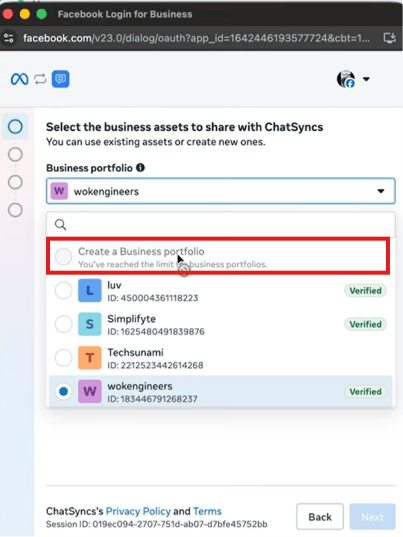
Pick an existing portfolio from the dropdown, or click Create a Business Portfolio if you don’t have one — it only asks for a portfolio name, your first/last name, and a website.
Select the business portfolio to share with ChatSyncs.
5
Choose Connect a WhatsApp Business App
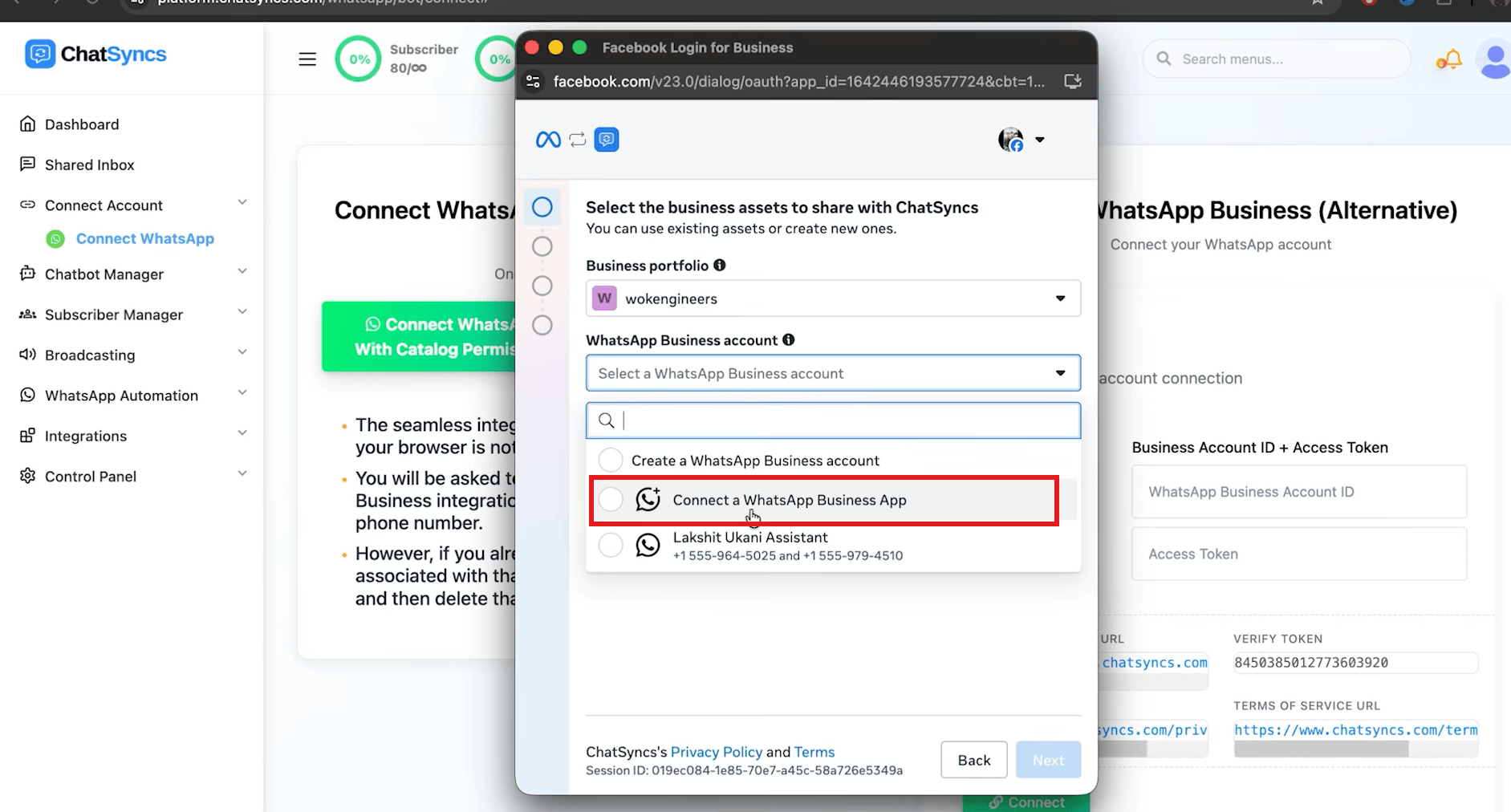
In the WhatsApp Business account dropdown, pick Connect a WhatsApp Business App — not Create a WhatsApp Business account, which is the separate Cloud API path.
Pick Connect a WhatsApp Business App from the dropdown to start Coexistence.
6
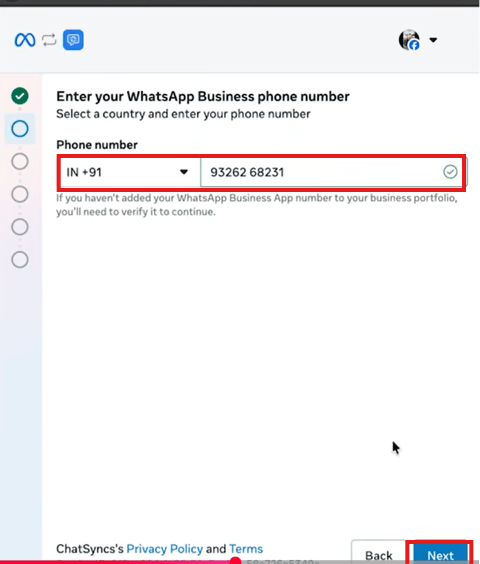
Enter your existing number
Enter the phone number already connected to your WhatsApp Business App — not a new one.
Enter the WhatsApp Business App number you already use.
7
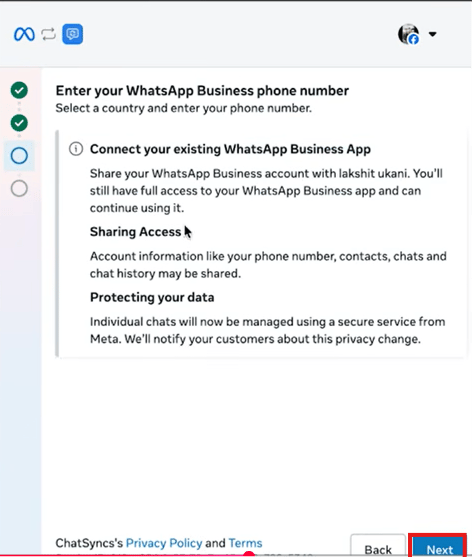
Review what gets shared
Read the Connect your existing WhatsApp Business App notice — your account information (phone number, contacts, chats, chat history) may be shared, and individual chats start being managed through a secure Meta service. Click Next.
What sharing your WhatsApp Business App involves.
“Unlink your number first” error? This means the number is already linked to a different platform/partner. Fix it in two places:
At business.facebook.com, select your business portfolio → WhatsApp account → select the account → Partners tab → find the connected partner → Manage → remove access.
On your phone, open WhatsApp Business app → Settings → Account → Business Platform → find the same partner → tap to disconnect.
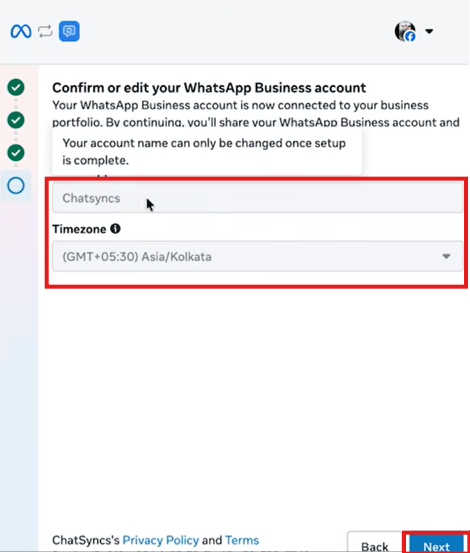
The account name is pulled from your phone and can’t be changed once setup is complete — only the time zone is editable here. Click Next.
Confirm the WhatsApp Business account name (locked) and time zone.
9
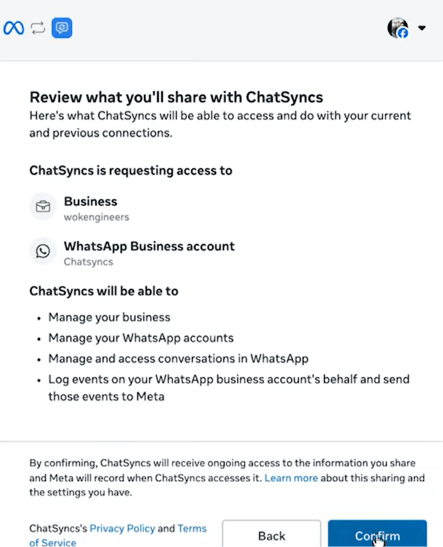
Review permissions and confirm
Review what ChatSyncs will be able to do — manage your business, manage your WhatsApp accounts, manage/access conversations, and log events for that account to Meta — then click Confirm.
Final permissions review before confirming the connection.
10
Connect from your phone
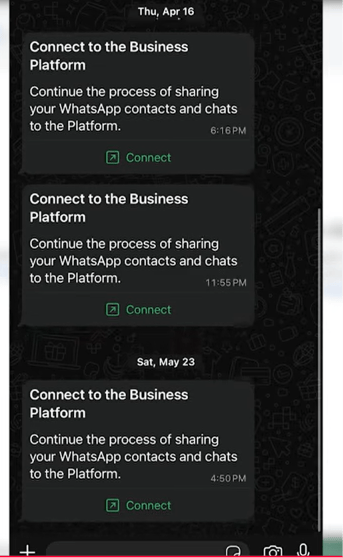
Open WhatsApp Business app on your phone — you’ll get a message from Meta titled Connect to the Business Platform. Tap Connect.
The Business Platform connection request that arrives inside WhatsApp Business.
11
Scan the QR code and finish
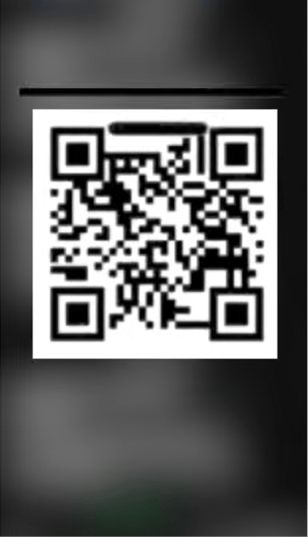
A QR code appears — scan it with the same WhatsApp Business app to complete the link, then click Finish.
Scan this QR code from WhatsApp Business app to finish linking.
Coexistence lets you keep using the WhatsApp Business app on your phone exactly as before — ChatSyncs runs alongside it rather than replacing it, unlike a plain Cloud API connection which locks the number out of the regular app.
What's the difference between Coexistence and a regular Cloud API connection?
A Cloud API connection dedicates a number entirely to ChatSyncs — it can no longer be used in the regular WhatsApp app. Coexistence links your existing WhatsApp Business App number instead, so you keep using the app on your phone while ChatSyncs automates on the same number.
Can I still use the WhatsApp Business app on my phone after connecting via Coexistence?
Yes — that’s the whole point of Coexistence. Calls, status updates, profile management, and direct messaging all keep working; only broadcast lists, disappearing messages, and message editing/revoking are turned off in the app.
Can I change the account name after connecting via Coexistence?
No — the account name is set from your phone at connection time and can’t be edited afterward. Only the time zone stays editable on that screen.
Will I lose my chat history when I switch on Coexistence?
No — your last 6 months of chat history syncs over automatically the first time you link, so ChatSyncs doesn’t start empty.
I got an error saying I need to unlink my number first — what do I do?