

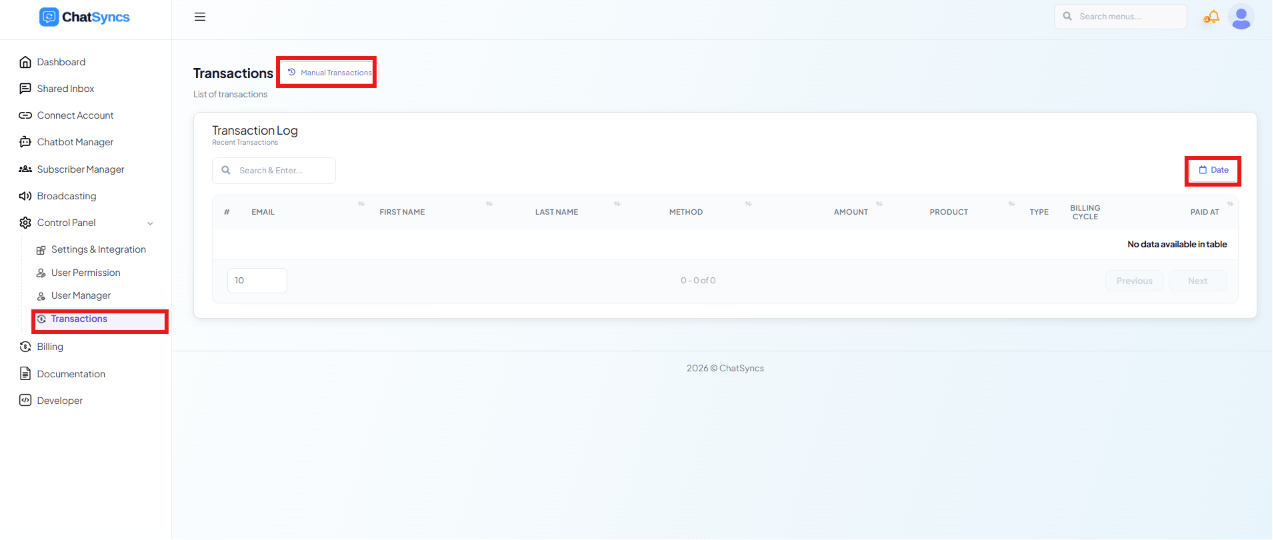
Control Panel → Transactions, showing the default Transaction Log with the Manual Transactions button and Date filter highlighted.
Transaction Log (automatic payments)
Use the search box to find a transaction, or the Date filter to narrow the log to a range.
Manual Transactions
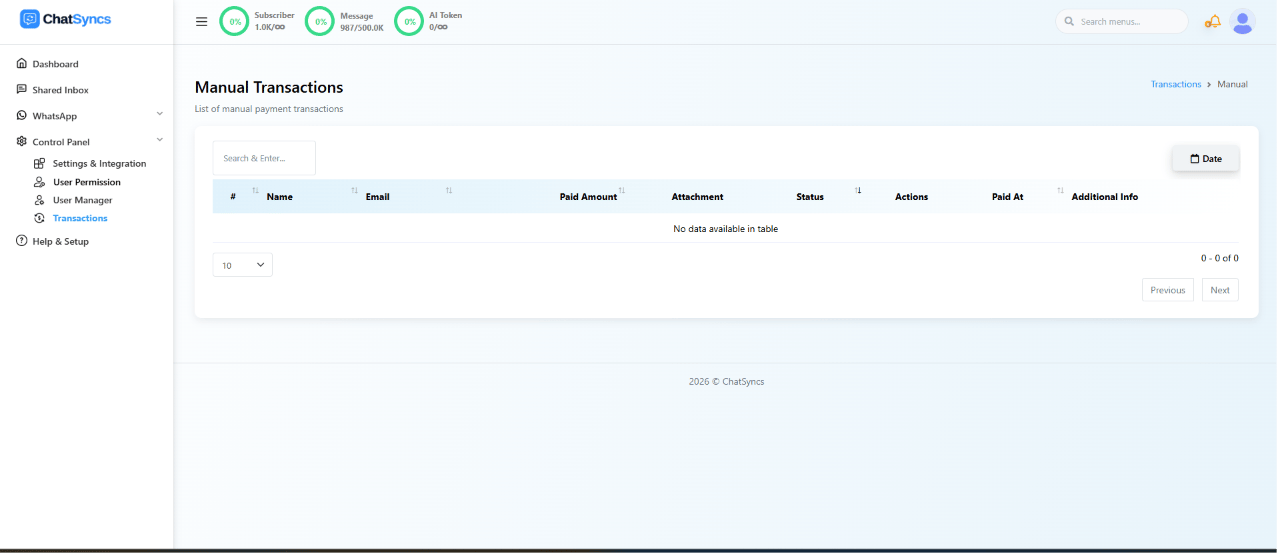
The Manual Transactions review queue, reached via the Manual Transactions button on the Transactions page.
Use the search box to find a transaction by customer name or email, or filter by date.
Reviewing a transaction
A customer buys a subscription and pays via bank transfer, then uploads the receipt through the app. The admin opens Transactions → Manual Transactions, reviews the uploaded attachment to verify the payment, and updates the Status to Approved. Once approved, the customer’s subscription activates.Frequently asked
A customer says they paid by bank transfer but their plan isn't active — what do I check?
A customer says they paid by bank transfer but their plan isn't active — what do I check?
Go to Control Panel → Transactions → Manual Transactions and search for the customer by
name or email. Check whether their submission is still pending review, and verify the
uploaded payment Attachment before approving it.
Where do manual (non-gateway) payments show up?
Where do manual (non-gateway) payments show up?
Control Panel → Transactions → Manual Transactions — only payments submitted manually
(e.g. bank transfer with an uploaded receipt) appear here. Automated, gateway-processed
payments appear in the default Transaction Log instead.
What happens when I approve a manual transaction?
What happens when I approve a manual transaction?
Approving the transaction activates the customer’s subscription for the plan they paid for.