

- When a customer messages you and your team doesn’t reply within 24 hours, the service window closes.
- After that, you can’t send a free-form message — you need an approved Utility template to re-open the conversation.
- This commonly happens when someone messages outside working hours, on a weekend, or during a holiday.
Reduce how often this happens: Special Bot for off-hours
Before you need a re-engagement template at all, ChatSyncs can acknowledge an off-hours message the moment it arrives, using Bot Settings → Business Hour: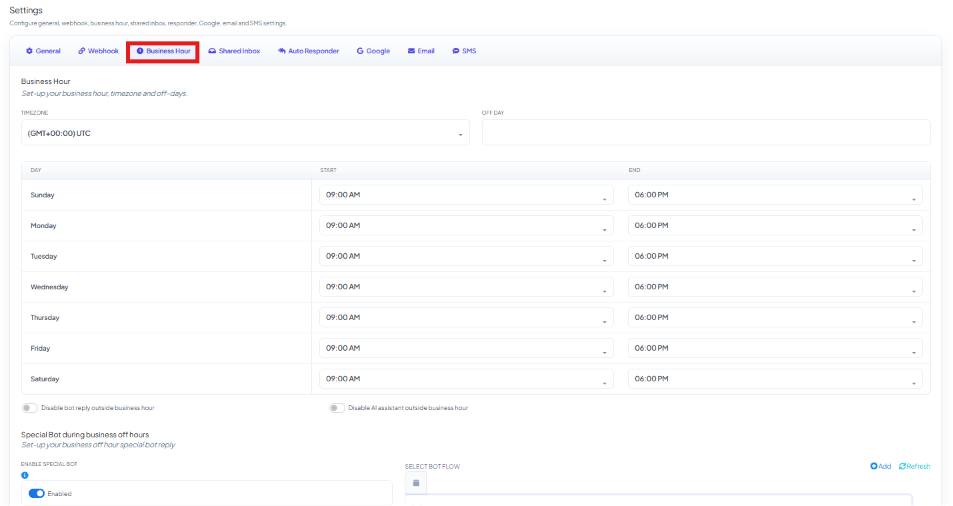
1
Set your Timezone
Open Chatbot Manager → [your bot] → Bot Settings → Business Hour and select the timezone your support team works in.
2
Set your Off Day
Mark any day your business is fully closed.
3
Set your Business Hours Schedule
Enter your working hours for each day of the week.
4
Enable Special Bot during business off hours
Turn this on and write an automatic reply for anyone who messages outside those hours.
Ready-to-use re-engagement templates
Build these as Utility templates (see Utility vs. Marketing Templates) — they’re service-related follow-ups, not marketing, so submit them under that category to keep both the approval odds and the cost lower.Simple follow-up
Sorry we missed your message — our team was unavailable when you reached out. If you still need help, tap Continue and an agent will assist you shortly.Quick reply buttons:
Continue | No thanks
Best for: general support teams with standard working hours.
Personalized follow-up
Hi #name#, you contacted us outside our working hours and we couldn’t respond in time. If you still need assistance, tap Yes and we’ll connect you with an agent right away.Quick reply buttons:
Yes, I need help | Issue resolved
Best for: businesses that want a personal touch — insert the customer’s name with a
variable, see Template Variables vs Custom Variables — What’s the Difference?.
Multi-option follow-up
Apologies for not responding to your message sooner. If your issue still needs attention, choose how you’d like to connect with us:Quick reply buttons:
Chat with agent | Call me back
Best for: businesses offering both chat and phone support.
After-hours acknowledgment with business hours
Thanks for reaching out! Our team is available #businesshours#. We saw your message and want to make sure we help you. Tap Connect to continue the conversation with an agent.Quick reply buttons:
Connect | Not needed
Best for: setting expectations about availability — insert your hours (e.g. Mon–Fri, 9 AM – 6 PM IST) with a Variable or Custom Field.
Tips for re-engagement templates
- Submit as Utility, not Marketing — these are transactional follow-ups to a customer’s own inquiry, so Utility gets better approval odds and a lower cost.
- Keep it short and apologetic. Acknowledge the delay briefly — don’t over-explain.
- Always include a quick reply button. A one-tap “Continue” or “Yes” gets far higher response rates than asking someone to type a reply.
- Include an opt-out option, like “No thanks” or “Issue resolved,” so customers who no longer need help have an easy way to say so — a customer who blocks you instead hurts your quality rating more than one who taps opt-out.
- Don’t send it if too much time has passed. A follow-up to a message from 3+ days ago can feel irrelevant — consider skipping re-engagement for anything older than 48 hours.
- Send it once. Repeating the same re-engagement template annoys customers and hurts your quality rating.
Frequently asked
A customer messaged me and I didn't reply in time — what now?
A customer messaged me and I didn't reply in time — what now?
The free service window has closed, so you need to send an approved Utility template to
reopen the conversation — use one of the templates above as a starting point.
Can ChatSyncs send the re-engagement template automatically when the window is about to close?
Can ChatSyncs send the re-engagement template automatically when the window is about to close?
Not automatically — ChatSyncs can send an instant Special Bot reply the moment an
off-hours message arrives (see Bot Settings → Business Hour), but once the 24-hour
window fully closes without a reply, sending the Utility template is a manual (or
Broadcast) send.
Should these templates be Marketing or Utility?
Should these templates be Marketing or Utility?
Utility. They’re a direct follow-up to something the customer already did (messaged you),
with no promotional content — see
Utility vs. Marketing Templates.
How old is too old for a re-engagement message?
How old is too old for a re-engagement message?
As a rule of thumb, skip it once the original message is more than about 48 hours old — by
then the customer’s context has usually moved on.