

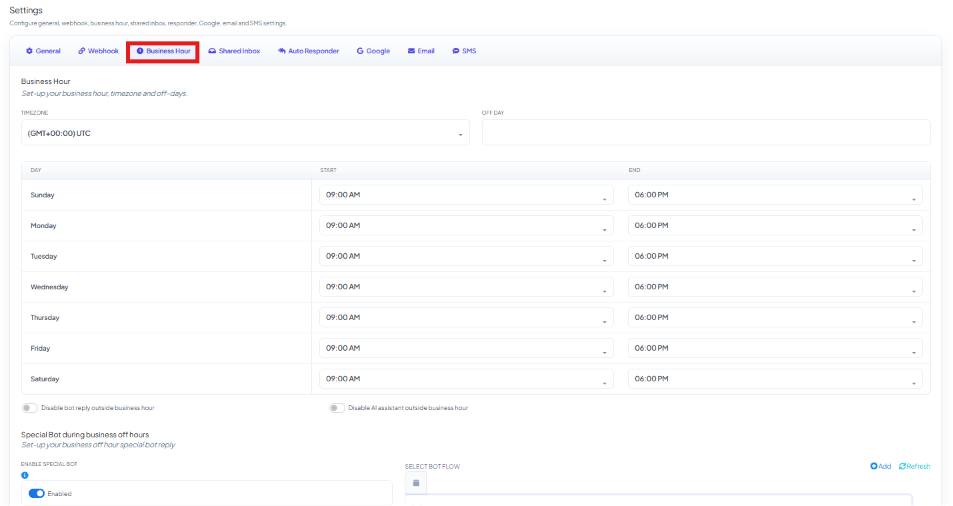
Timezone and Off Day

Business Hours Schedule
Set the working hours for each day of the week.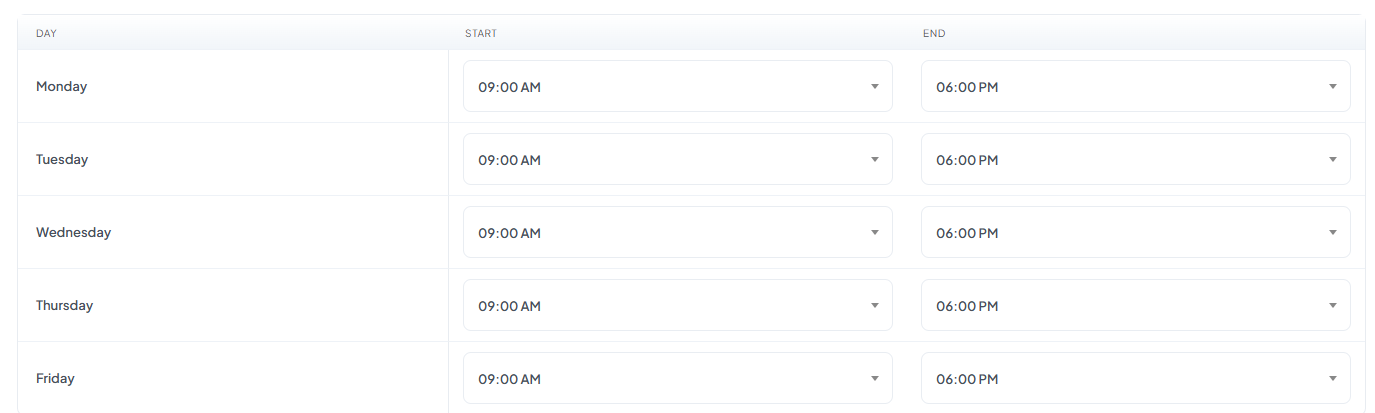
If a customer sends a message at:
- 11:00 AM (Monday) → business is open.
- 08:30 PM (Monday) → business is closed.
- Saturday or Sunday, any time → business is closed (Off Day).
Disable bot reply outside business hour / Disable AI assistant outside business hour
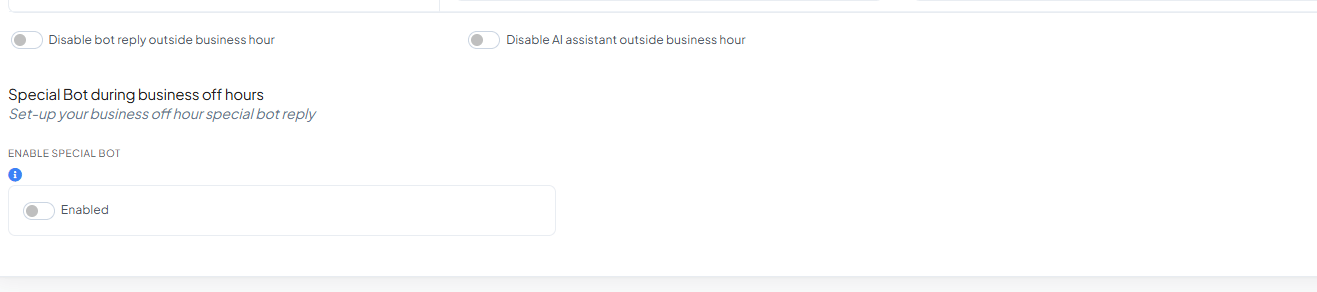
- Disable bot reply outside business hour — turn this on to stop the automated bot (Keyword Replies flows) from replying once your business hours end, leaving it to a human agent or the Special Bot below instead.
- Disable AI assistant outside business hour — turn this on to stop the AI Agent from replying once your business hours end.
Special Bot During Business Off Hours
Turn on Enable Special Bot to run a specific bot flow for customers who message outside business hours, instead of your normal flows.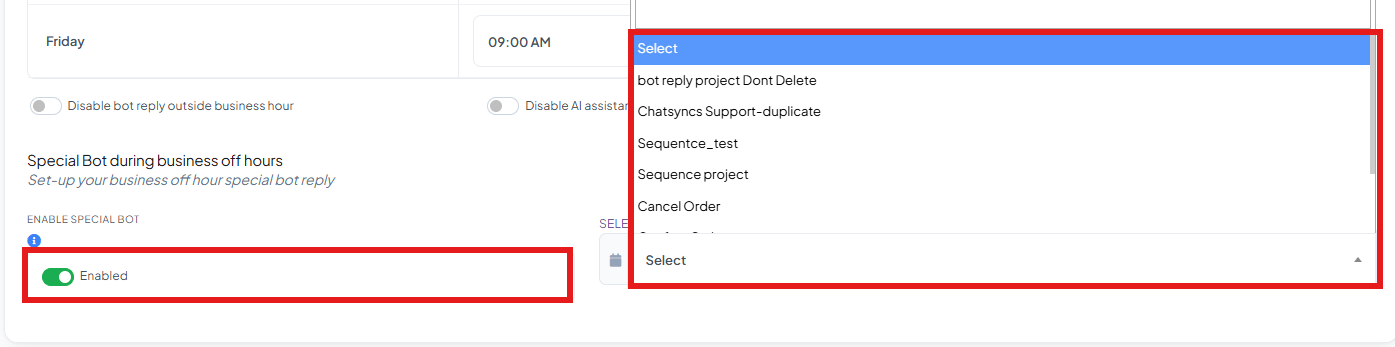
Business Hour settings summary
Save your changes

Frequently asked
How do I stop the bot from replying outside business hours, or send a different message instead?
How do I stop the bot from replying outside business hours, or send a different message instead?
Set your hours, timezone, and off days above, then either turn on Disable bot reply
outside business hour to go fully silent, or enable Special Bot and pick a flow to run
instead — e.g. one that tells the customer your hours and that you’ll respond once you
reopen.
What's the difference between Disable bot reply outside business hour and Disable AI assistant outside business hour?
What's the difference between Disable bot reply outside business hour and Disable AI assistant outside business hour?
Disable bot reply outside business hour stops the whole automated Keyword Replies bot
once hours end. Disable AI assistant outside business hour only stops the AI Agent
specifically — your configured bot flows can still run.
Do these toggles apply during business hours too?
Do these toggles apply during business hours too?
No — both only apply outside business hours. During business hours, the bot and AI Agent
keep replying normally unless you’ve turned them off elsewhere (e.g. in How Do I Configure
General Bot Behavior?).
Can I close on more than one day a week?
Can I close on more than one day a week?
Yes — Off Day is a multi-select field, so you can pick several days (e.g. both Saturday
and Sunday) as fully closed.
What actually happens when Special Bot is enabled — does it just send a text message?
What actually happens when Special Bot is enabled — does it just send a text message?
It runs a full bot flow you pick from a dropdown of your existing Keyword Replies flows —
see How to Create a Keyword-Based WhatsApp Chatbot
— build that flow to send a text
reply, collect details, or do anything else a normal flow can do.
Whose timezone should I select — mine or the customer's?
Whose timezone should I select — mine or the customer's?
Yours (or your support team’s) — business-hours checks compare the message time against the
timezone you select here, not each customer’s local timezone.
Related Documentation
- Bot Settings — all eight tabs at a glance.
- How Do I Configure General Bot Behavior? — the always-on No Match Reply, separate from off-hours behavior.
- Templates to Restart Conversations After Non-Working Hours — re-engaging a customer who messaged outside business hours.