

- Most people build templates directly inside Message Templates.
- You can also create one in Meta’s own WhatsApp Manager dashboard instead, then pull it into ChatSyncs with Sync Templates.
- Useful if your team already manages templates centrally in Meta’s tools, or someone made one outside ChatSyncs.
Carousel templates are the one exception. WhatsApp Manager doesn’t support building carousel
templates — those have to be created in ChatSyncs. See
How to Create and Use Carousel Media Templates.
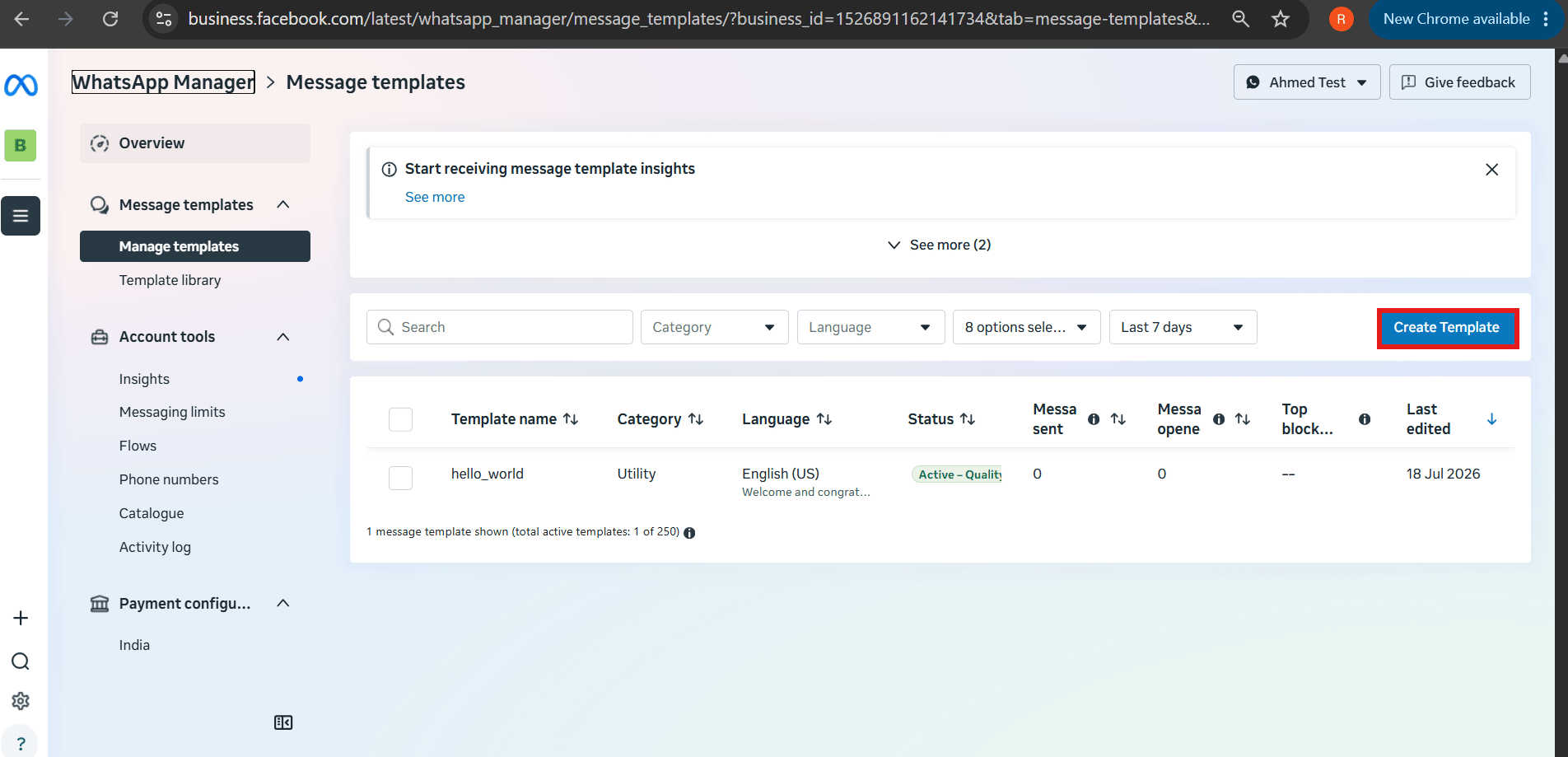
Create a template in WhatsApp Manager
1
Log in to Meta Business Manager
Go to business.facebook.com and select your business account.
2
Open WhatsApp Manager
Click All Tools, then WhatsApp Manager.
3
Open Manage Message Templates
Click the three-dot menu and select Manage Message Templates.
4
Click Create Template
Choose a template category (Marketing, Utility, Authentication), name the template, and select a language.
5
Add a header (optional)
Text, or media like an image.
6
Write the body
Insert variables where the message needs to change per customer.
7
Add a footer and buttons (optional)
Quick Reply or Call-to-Action buttons.
8
Add sample data and submit
Provide sample values for testing, then submit for Meta’s approval.
Sync it into ChatSyncs
Once the template is approved in WhatsApp Manager, pull it into ChatSyncs so it’s usable in Broadcasts, Keyword Replies, and Sequences: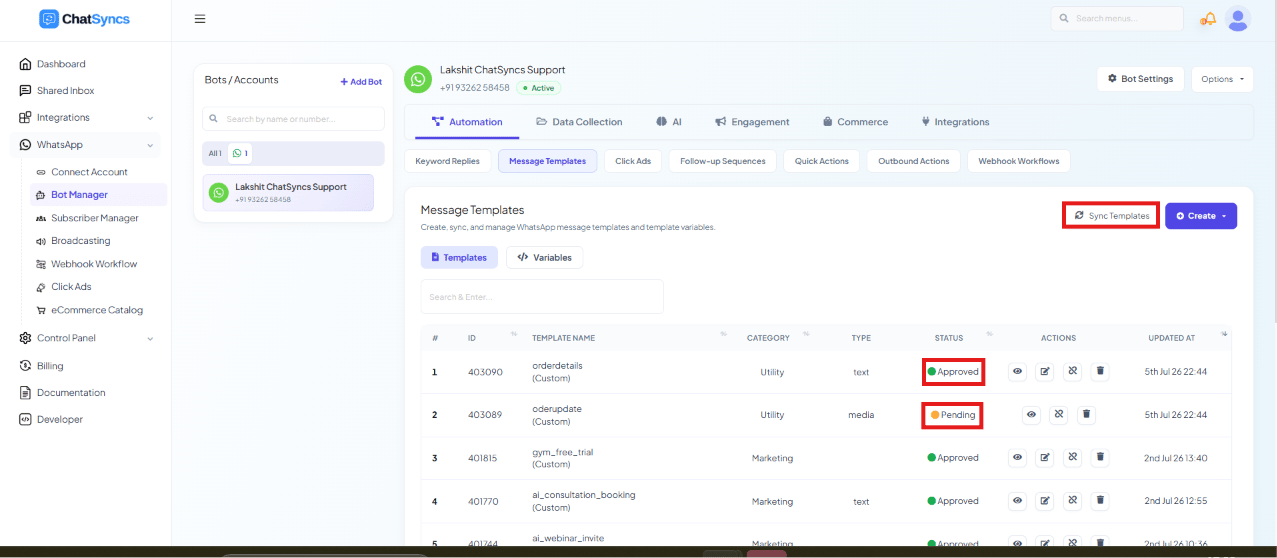
1
Open Message Templates
Go to Chatbot Manager → Automation → Message Templates in ChatSyncs.
2
Click Sync Templates
This fetches your approved template from the WhatsApp Cloud API.
3
Map the variables
Match each
{{1}}, {{2}} placeholder to a ChatSyncs Variable or Custom Field
(see Template Variables vs Custom Variables — What’s the Difference?), or create new ones on the spot.4
Save
The template is now ready to use inside ChatSyncs, exactly like one built there directly.
Frequently asked
I created a template in Meta's WhatsApp Manager — why isn't it in ChatSyncs?
I created a template in Meta's WhatsApp Manager — why isn't it in ChatSyncs?
It won’t appear automatically. Go to Message Templates in ChatSyncs and click
Sync Templates to pull it in, then map its variables.
Can I build a carousel template in WhatsApp Manager?
Can I build a carousel template in WhatsApp Manager?
No — WhatsApp Manager doesn’t support carousel templates. Build those directly in ChatSyncs
instead; see How to Create and Use Carousel Media Templates.
Do I still need to map variables after syncing?
Do I still need to map variables after syncing?
Yes. Sync pulls in the template’s structure and approval status, but you still need to map
each
{{n}} placeholder to a ChatSyncs Variable or Custom Field before it can send real
values.Should I build templates in ChatSyncs or in WhatsApp Manager?
Should I build templates in ChatSyncs or in WhatsApp Manager?
Either works for standard templates — use whichever is more convenient for your workflow.
Carousel templates are the one case where you must use ChatSyncs, since WhatsApp Manager
doesn’t support them.