

#fieldname#. That’s exactly why
they confuse people: #price# and #name# look like the same kind of thing, but where each one
gets its value from is completely different.
One example, both types
Imagine an order confirmation template with this body:#name# and #city# almost never change for a given subscriber, so they’re stored once and
reused automatically. #product_name#, #price#, #orderid#, and #delivery_date# are
different on every single order — nobody would want to permanently store “₹499” on a
subscriber’s profile, so those get typed in fresh each time you send.
Quick comparison
Template Variables
A Template Variable is a placeholder that changes with every message — it isn’t stored anywhere, so you type the real value in fresh each time you send. Use it for anything unique to that one message: a price, an order number, a delivery date, an OTP code. Create one from Chatbot Manager → Automation → Message Templates → Template Variables: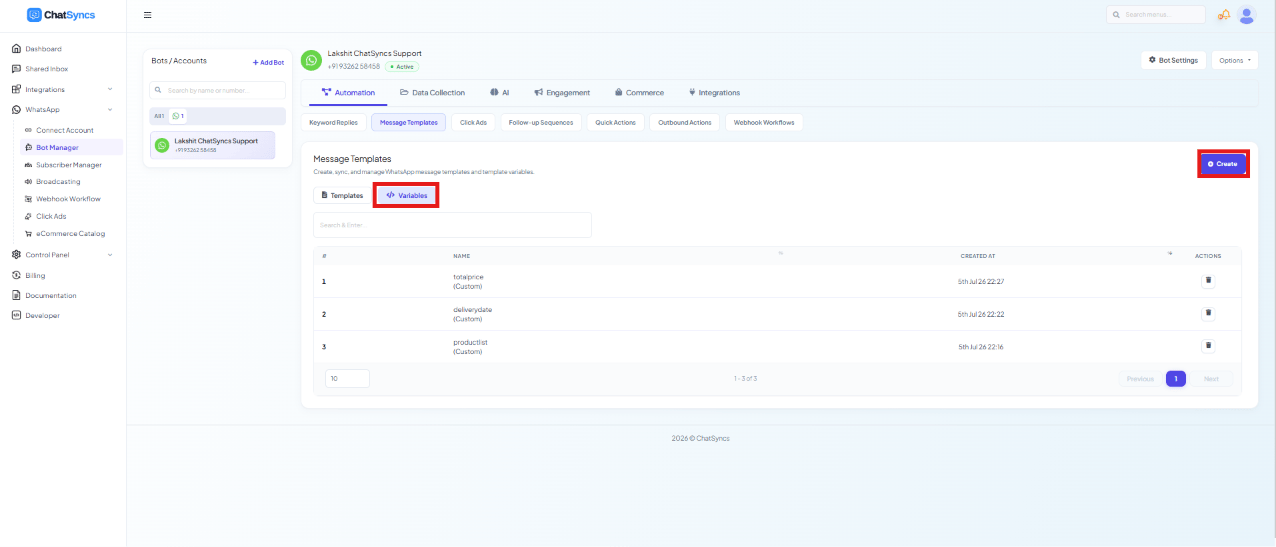
1
Click Create
Open the Template Variables list and click Create.
2
Name it
Give it a plain name with no spaces or special characters, e.g.
price, orderid, delivery_date, product_name.3
Save
It now appears in the list and can be inserted into any template’s Message Body from the Variables picker.
Custom Fields
A Custom Field (see How Do I Manage Custom Fields and Labels?) stores one persistent piece of data per subscriber — their name, city, email, or company — that stays on their profile until it’s changed.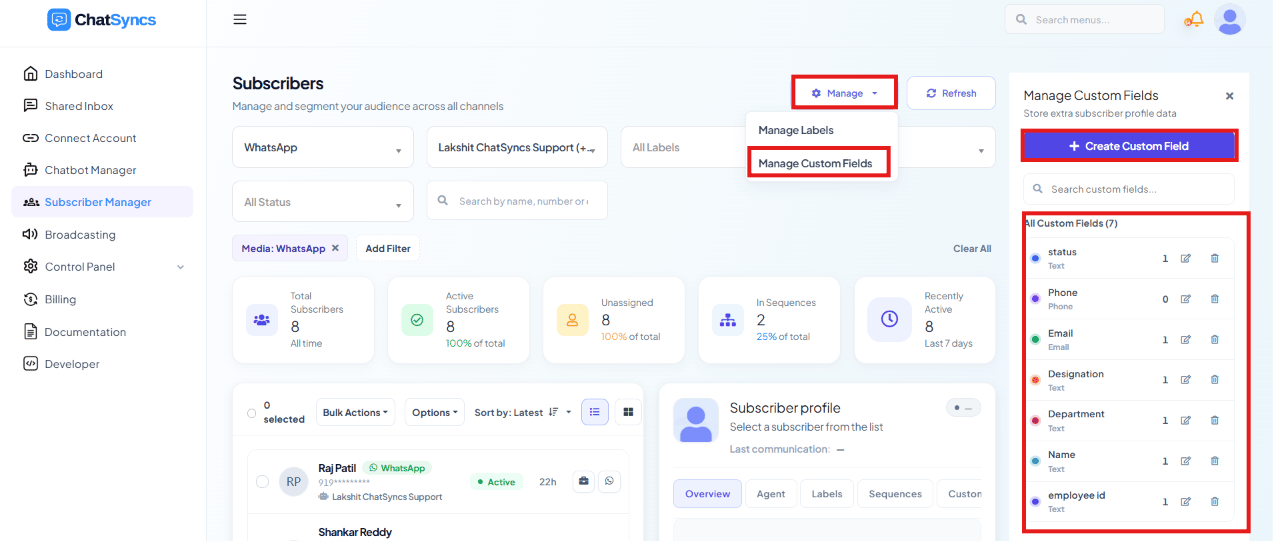
Which should you use?
Ask: “Will this value change every time I message this person?”- Yes → Template Variable —
#price#,#orderid#,#delivery_date#, an OTP code - No → Custom Field —
#name#,#company_name#,#city#, an email address
Frequently asked
My API call sent a template with blank values — why?
My API call sent a template with blank values — why?
If you used a Custom Field, check that the subscriber actually has a value stored for it —
an empty Custom Field sends blank. If you used a Template Variable, make sure you supplied a
value for it in that specific send; Template Variables aren’t stored anywhere and need a
fresh value every time.
Do I need to pass Custom Field values in my API call?
Do I need to pass Custom Field values in my API call?
No — ChatSyncs pulls Custom Field values automatically from the subscriber’s stored profile.
Only Template Variables need to be supplied on every send.
I want to personalize a template with a price or order number that's different every time — Variable or Custom Field?
I want to personalize a template with a price or order number that's different every time — Variable or Custom Field?
Template Variable — a price or order number changes on every send, so it shouldn’t be stored
permanently on the subscriber.
Can I combine a Custom Field and a Template Variable in the same message?
Can I combine a Custom Field and a Template Variable in the same message?
Yes — see the order confirmation example above.
#name# and #city# are Custom Fields;
#product_name#, #price#, #orderid#, and #delivery_date# are Template Variables, all
in the same template body.Why do Template Variables and Custom Fields look identical in the message body?
Why do Template Variables and Custom Fields look identical in the message body?
Both are written as
#fieldname# — the difference isn’t in how they look, it’s in which
picker you inserted them from (Variables vs Custom Fields) and where ChatSyncs pulls
the value from when it actually sends.