

Open Bot Settings
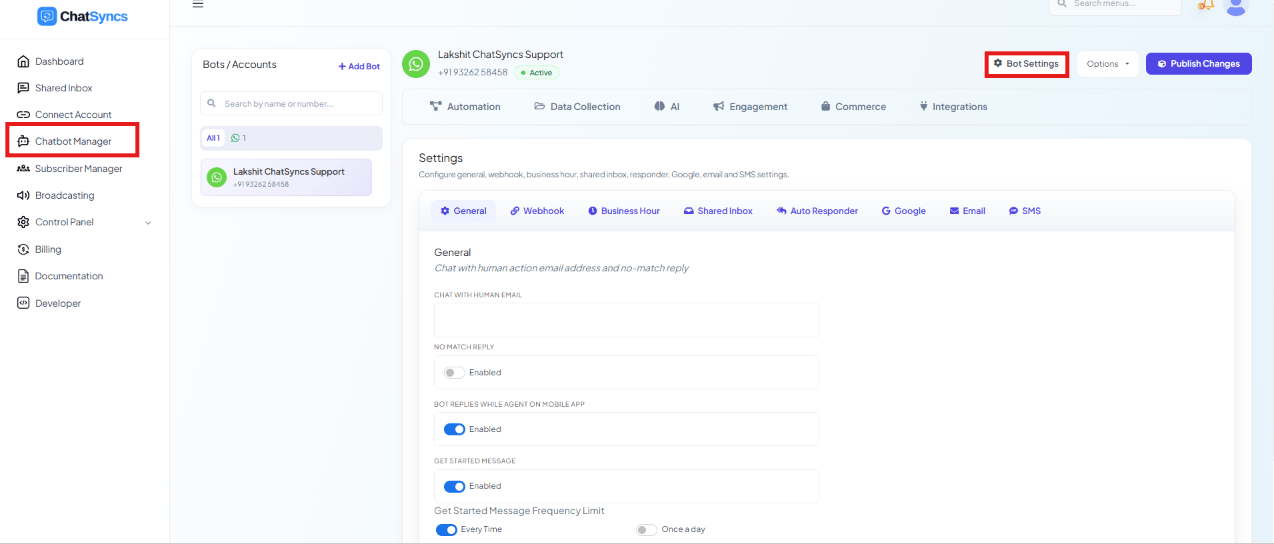
1
Go to Chatbot Manager
Select Chatbot Manager.
2
Select your bot
Pick the bot from the Bots / Accounts list.
3
Open Bot Settings
Click the Bot Settings button in the top-right corner.
1. How Do I Configure General Bot Behavior?
Chat with Human Email, No Match Reply, replying while an agent is active, and the Get
Started Message.
2. How Do I Turn On Webhook Triggers for My Bot?
Send incoming messages, outgoing messages, and status changes to your own server.
3. How Do I Set Up Business Hours for My Bot?
Timezone, off days, a weekly schedule, and a special off-hours auto-reply.
4. How Do I Configure Shared Inbox Settings for My Bot?
Agent signature messages, session expiry, and failed-delivery labeling.
5. How Do I Automatically Add Subscribers to My Email Marketing List?
Send a subscriber’s email straight to Mailchimp, Brevo, ActiveCampaign, or Mautic.
6. How Do I Save Subscriber Details to Google from My Bot?
Write subscriber details to a connected Google Sheet or Google Contacts automatically.
7. How Do I Send an Automatic Email from My Bot?
Send a custom email the moment a subscriber shares their email address.
8. How Do I Send an Automatic SMS from My Bot?
Send a custom SMS the moment a subscriber shares their phone number.
All Bot Settings tabs at a glance
Frequently asked
How do I make the bot send a welcome message to new customers?
How do I make the bot send a welcome message to new customers?
Turn on Get Started Message in the General tab — see How Do I Configure General Bot
Behavior?
How do I stop the bot from replying outside business hours, or send a different message instead?
How do I stop the bot from replying outside business hours, or send a different message instead?
Set your hours, timezone, and off days, then enable Special Bot during business off
hours — see How Do I Set Up Business Hours for My
Bot?
How do I forward incoming WhatsApp messages to my own CRM or server?
How do I forward incoming WhatsApp messages to my own CRM or server?
Use the Incoming Webhook — see How Do I Turn On Webhook Triggers for My
Bot?