

1
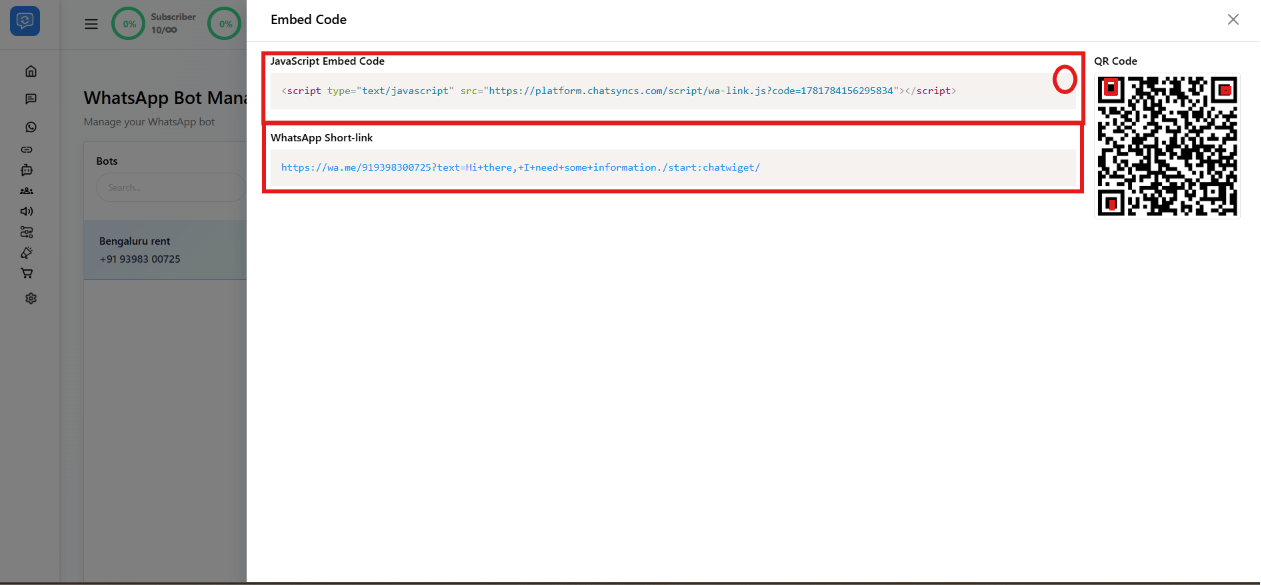
Build and get your widget's embed code
Follow Chat Widget to create the widget and copy its
JavaScript Embed Code.
2
Open WordPress and add the code
Pick whichever fits your site:
- Theme editor — Appearance → Theme File Editor →
header.php, paste the code just before</head>. Best if you’re comfortable editing theme files, since a typo can break the page. - A header/footer plugin — install a plugin like Insert Headers and Footers, paste the code into its header field, and save. Safer than editing theme files directly.
- A Custom HTML block — in the block editor (Gutenberg), add a Custom HTML block to the page or template and paste the code in. Simplest if you only want the widget on one page.
3
Save and check your site
Reload the page and confirm the floating WhatsApp button appears.
Frequently asked
Where do I get the embed code to paste into WordPress?
Where do I get the embed code to paste into WordPress?
Build the widget first — see Chat Widget for creating it and
opening its Embed Code dialog.
I don't want to edit my theme files — is there a safer way?
I don't want to edit my theme files — is there a safer way?
Yes — use a header/footer plugin (e.g. Insert Headers and Footers) or a Custom HTML
block instead of editing
header.php directly.Can I show the widget on just one page instead of the whole site?
Can I show the widget on just one page instead of the whole site?
Yes — add the embed code as a Custom HTML block on that specific page or template,
instead of pasting it site-wide in the header.