

Add one in a Keyword Replies flow
1
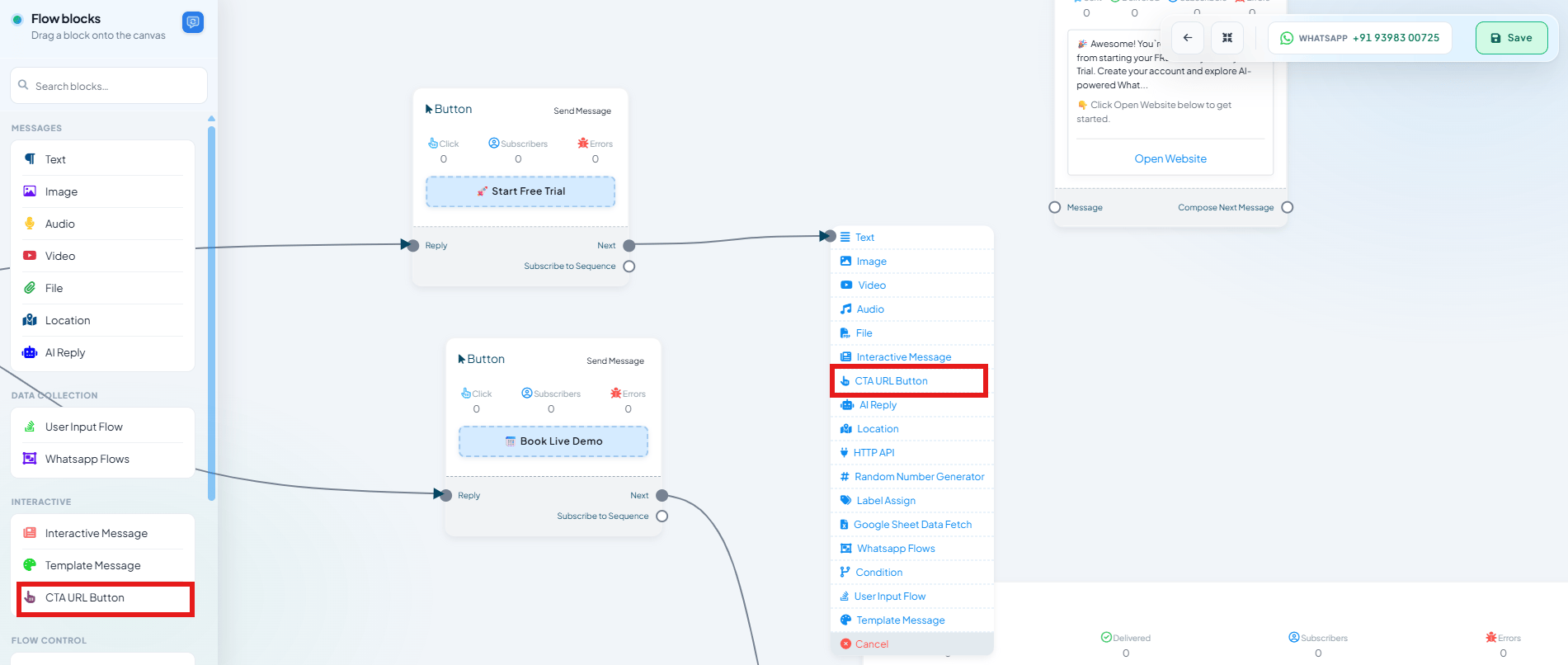
Open the flow blocks panel
On the flow canvas, drag a connector out from wherever the button should appear (e.g. after
a Button or Reply node) to open the list of components you can chain next.
2
Choose CTA URL Button
Select CTA URL Button under the Interactive section.
3
Configure the button
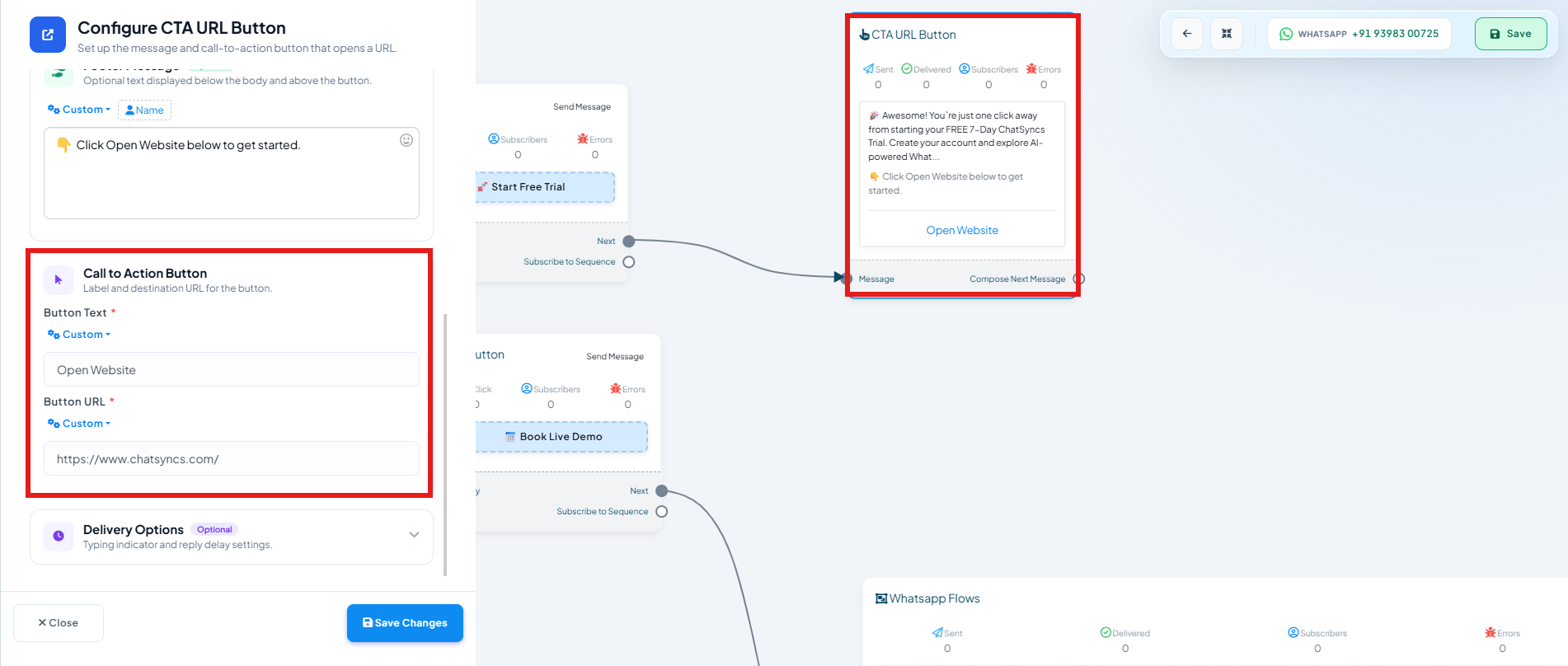
- Button Text — what the button says, e.g.
Open Website. - Button URL — the page it opens, e.g.
https://www.chatsyncs.com/.
4
Save
The button appears in the message preview, and the flow’s CTA URL Button node tracks
Sent, Delivered, Subscribers, and Errors once it’s live.
Add one in a Message Template
The Message Template builder has a Call To Action button type (e.g.Visit Website, Call Now, Book Demo) for adding the same kind of button to an approved
template message.