

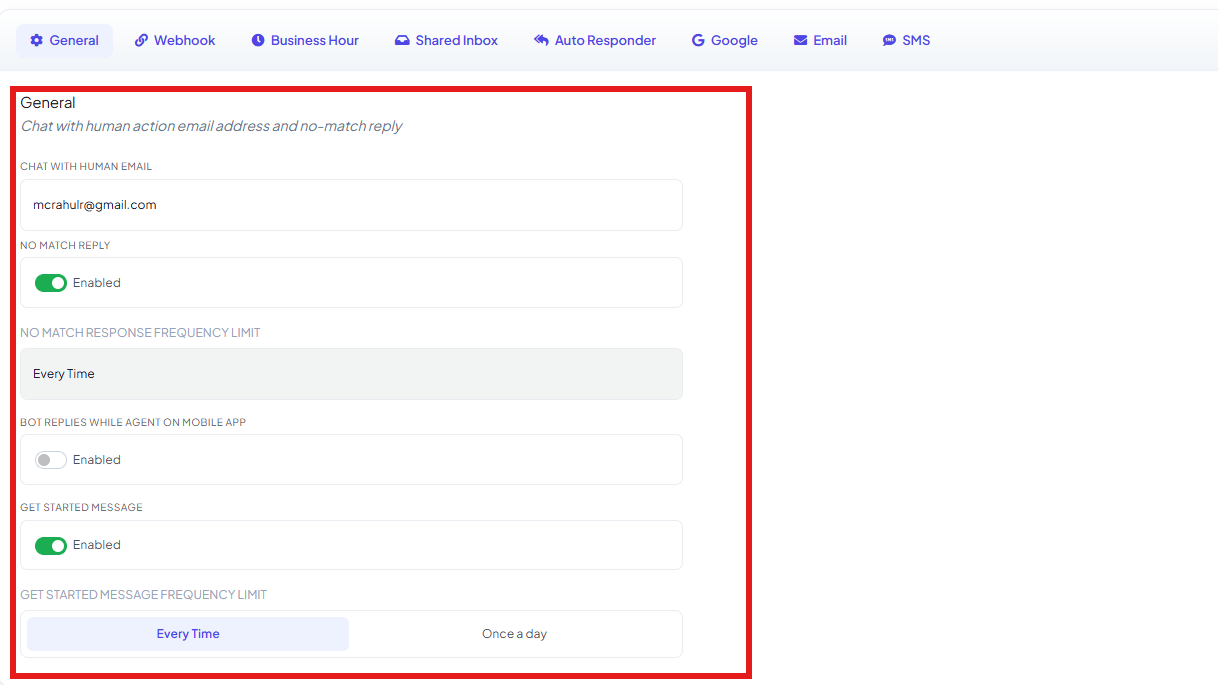
Chat with Human Email
Enter the email address that should receive a notification whenever a customer clicks Chat with Human. The button itself is set up as one of the System Default Action Buttons — see Chat with Human in Quick Actions for how to wire it into a flow.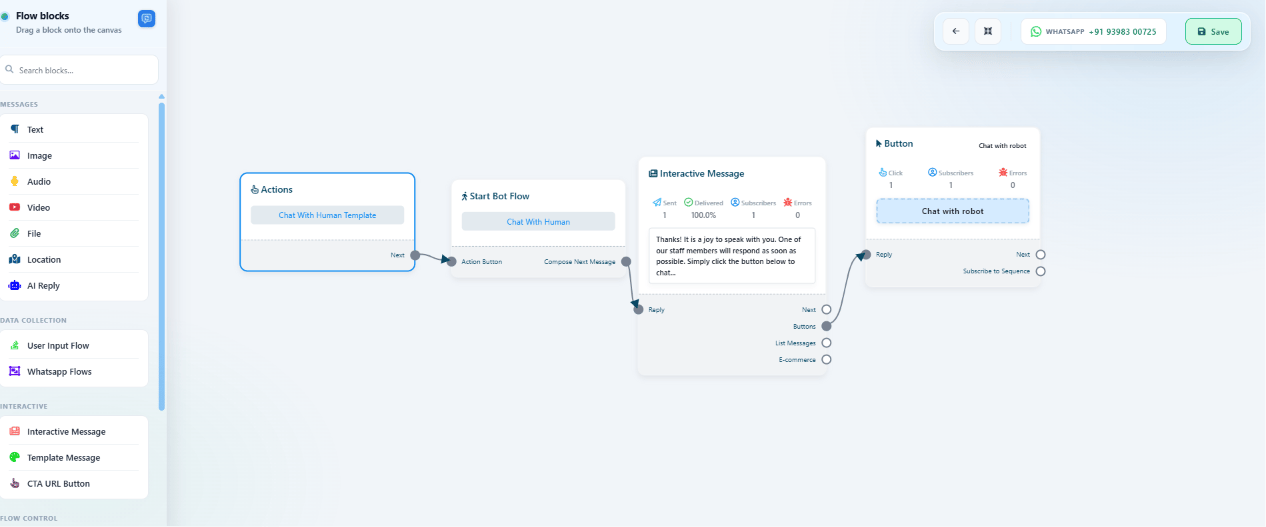
support@company.com
support@company.com.
No Match Reply
Enable this to send a default reply when the bot can’t find a matching response to a customer’s message. The fallback message itself is built as a flow — see No Match in Quick Actions for how to build it.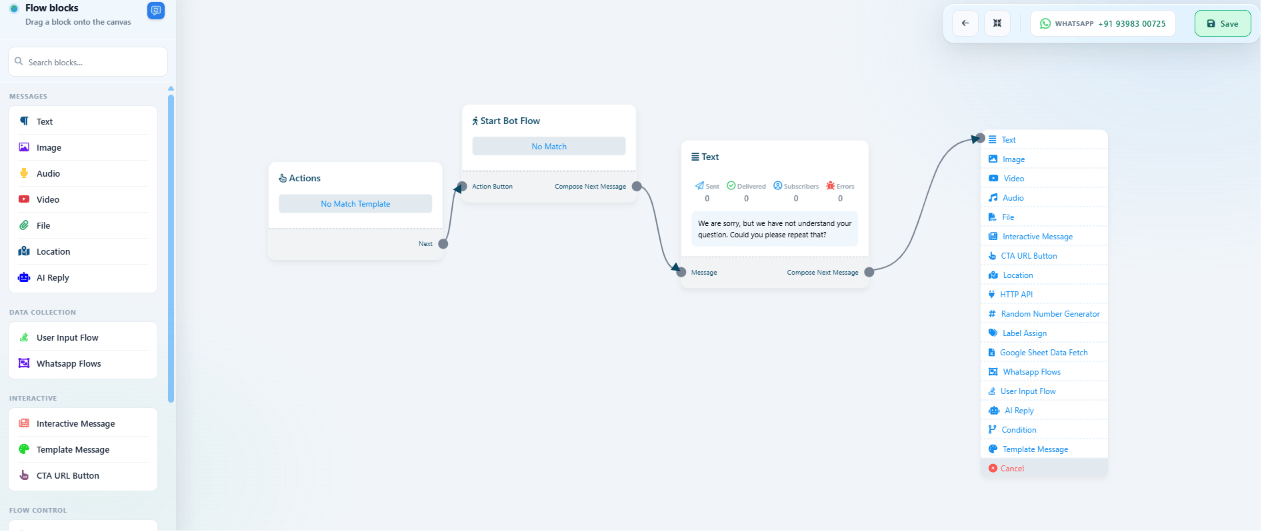
Bot Replies While Agent on Mobile App
Enable this if the bot should keep replying automatically even while a human agent is already chatting with that customer from the ChatSyncs mobile app. ExampleGet Started Message
Shows a welcome message when a customer starts a brand-new conversation with the bot. Turning this on here only unlocks the button — the welcome message itself is built as a flow, see Get-started in Quick Actions for how to build it.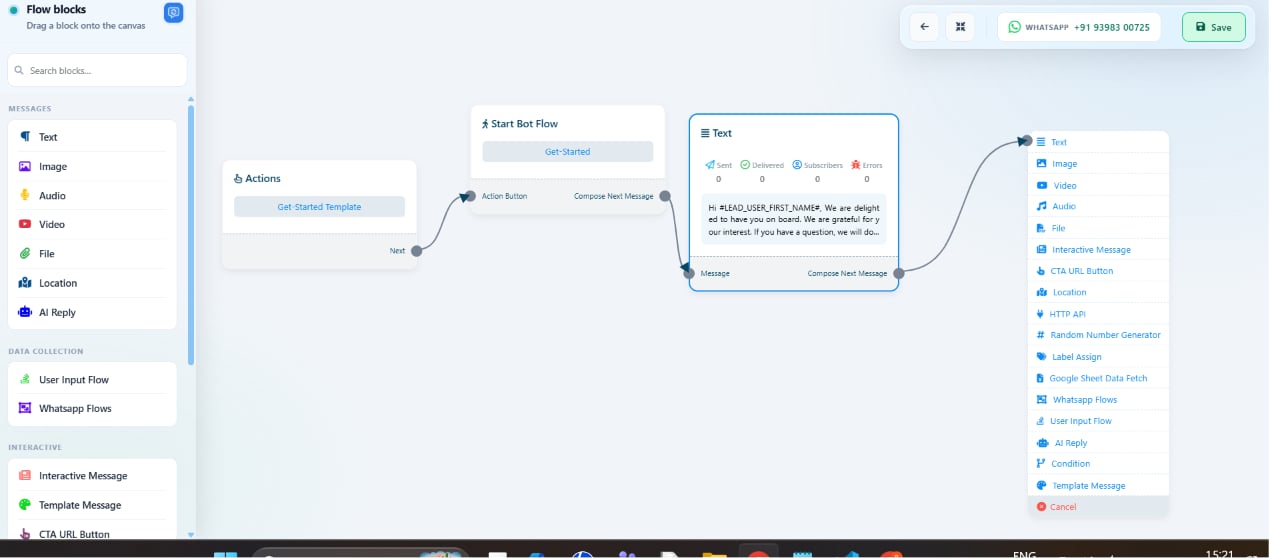
Save your changes

Frequently asked
How do I make the bot send a welcome message to new customers?
How do I make the bot send a welcome message to new customers?
Turn on Get Started Message and set its frequency to Every Time or Once a Day, e.g.
👋 Welcome to ABC Store! Click Get Started to explore our products.Who gets notified when a customer asks for a human agent?
Who gets notified when a customer asks for a human agent?
Whoever’s email is entered under Chat with Human Email — every click of the Chat with
Human button sends that address a notification.
Does the bot stop replying once a human agent takes over a chat?
Does the bot stop replying once a human agent takes over a chat?
By default, yes. Turn on Bot Replies While Agent on Mobile App if you want the bot to
keep responding to matched keywords even while an agent is also chatting with that customer
from the ChatSyncs mobile app.
How do I stop the No Match reply from repeating every time a customer sends an unmatched message?
How do I stop the No Match reply from repeating every time a customer sends an unmatched message?
Set No Match Response Frequency Limit to Once a Day, Once a Month, or Once a
Year instead of Every Time.
Related Documentation
- Bot Settings — all eight tabs at a glance.
- How to Set Up Quick Actions (No Match, Get Started, and More) — the System Default Action Buttons, including Chat with Human.
- How Do I Set Up Business Hours for My Bot? — a separate, time-based No Match / off-hours behavior.