

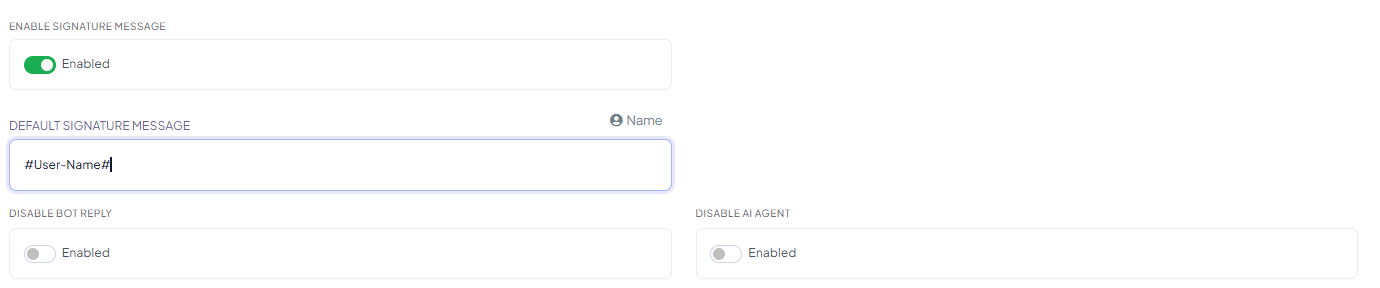
Enable Signature Message and Default Signature Message
Enable Signature Message adds a signature to the end of an agent’s replies. Default Signature Message is the text used — it supports the same Name variable as anywhere else in ChatSyncs. Example Default Signature Message:Disable Bot Reply and Disable AI Agent
Two independent toggles that stop the automated bot or AI Agent from replying once a conversation is being handled in Shared Inbox:- Disable Bot Reply — turns off the Keyword Replies bot for conversations in Shared Inbox.
- Disable AI Agent — turns off the AI Agent for conversations in Shared Inbox.
Session Expiry Time
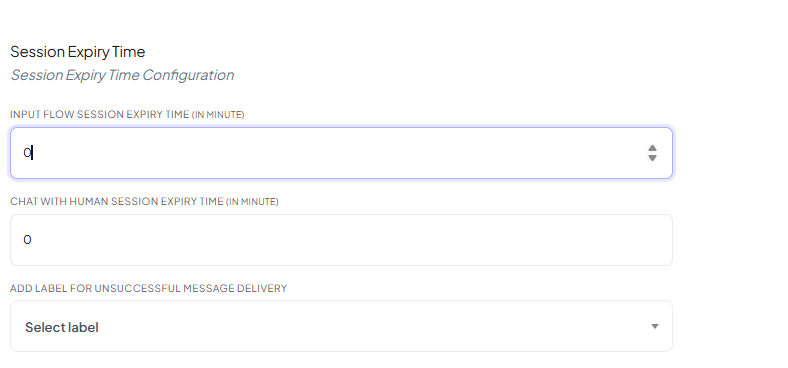
- Input Flow Session Expiry Time — how long a subscriber’s Input Flow session stays active before it resets.
- Chat with Human Session Expiry Time — how long a Shared Inbox chat session stays open after the customer goes quiet, before it’s treated as inactive.
60
If a customer doesn’t reply for 60 minutes, that chat session closes automatically — their next
message starts a fresh session. A value of 0 means no automatic expiry.
Add Label for Unsuccessful Message Delivery
Pick an existing label from Select label — ChatSyncs automatically tags a contact with it whenever a message sent to them fails to deliver, so you can spot invalid numbers or blocked accounts without manually checking every conversation. Example A message to919876543210 fails to deliver → that subscriber is automatically tagged with the
label you selected (e.g. delivery_failed), so you can filter and follow up on them later in
Subscriber Manager.
Save your changes

Frequently asked
How do I show which agent replied to a customer?
How do I show which agent replied to a customer?
Turn on Enable Signature Message and set Default Signature Message — it supports the
Name variable (
#User-Name#) to show the agent’s name automatically.What's the difference between Input Flow Session Expiry Time and Chat with Human Session Expiry Time?
What's the difference between Input Flow Session Expiry Time and Chat with Human Session Expiry Time?
Input Flow Session Expiry Time resets an Input Flow
session. Chat with Human Session Expiry Time closes a Shared Inbox conversation session
after inactivity. They’re independent and can be set to different values.
How do I find subscribers whose messages failed to deliver?
How do I find subscribers whose messages failed to deliver?
Pick a label under Add Label for Unsuccessful Message Delivery, then filter Subscriber
Manager by that label. The label must already exist —
create it first if needed.
What happens when a chat session expires?
What happens when a chat session expires?
Nothing is lost — the conversation history stays intact. The customer’s next message simply
starts a new session rather than continuing the old one.
Related Documentation
- Bot Settings — all eight tabs at a glance.
- Shared Inbox — using the inbox itself: filtering, organizing, and team collaboration.
- Subscriber Manager — filtering subscribers by label.
- How Do I Manage Custom Fields and Labels? — creating a label before selecting it here.