

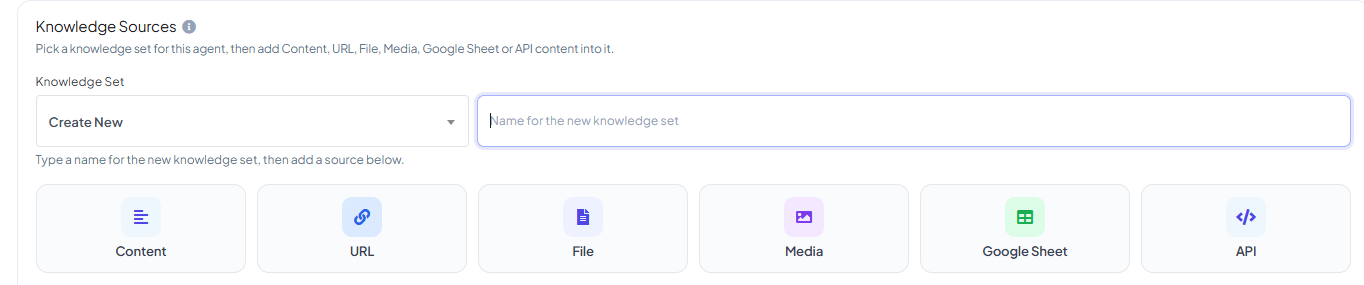
1
Pick or create a Knowledge Set
Under Knowledge Sources on the agent’s form, open Knowledge Set and either select an
existing one or create a new one. A Knowledge Set is the container multiple pieces of
content get added into.
2
Add content from one or more types
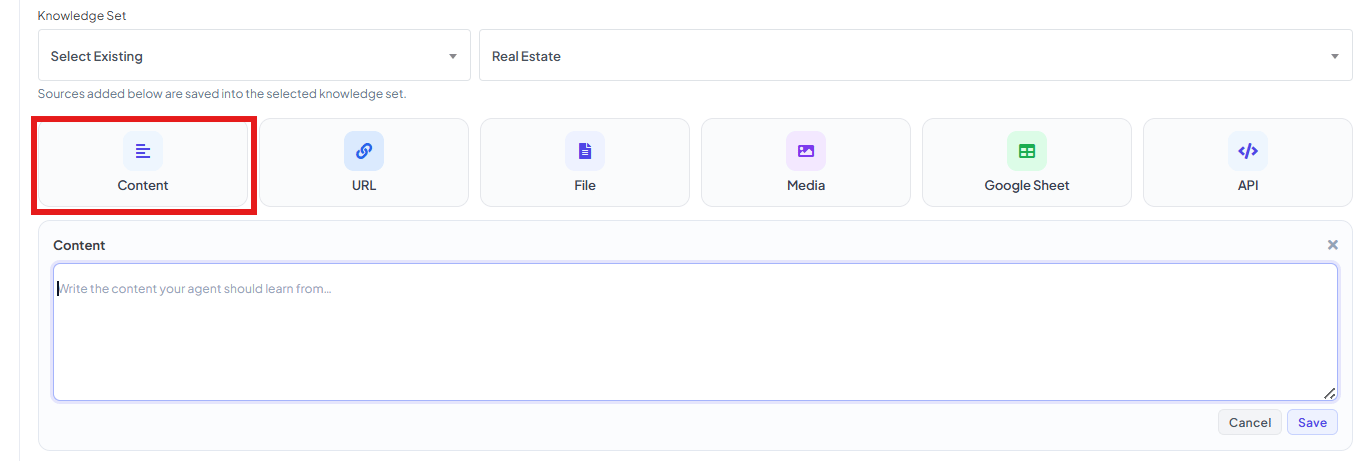
Click a type button to add content into the Knowledge Set: Content, URL, File,
Media, Google Sheet, or API. Unlike an agent’s System Prompt, a Knowledge Set can
hold multiple sources together — the agent uses all of them to answer.
3
Check Attached Knowledge
Everything you’ve added shows up in the Attached Knowledge list on the same panel, with a
count next to the section title.
Content
URL
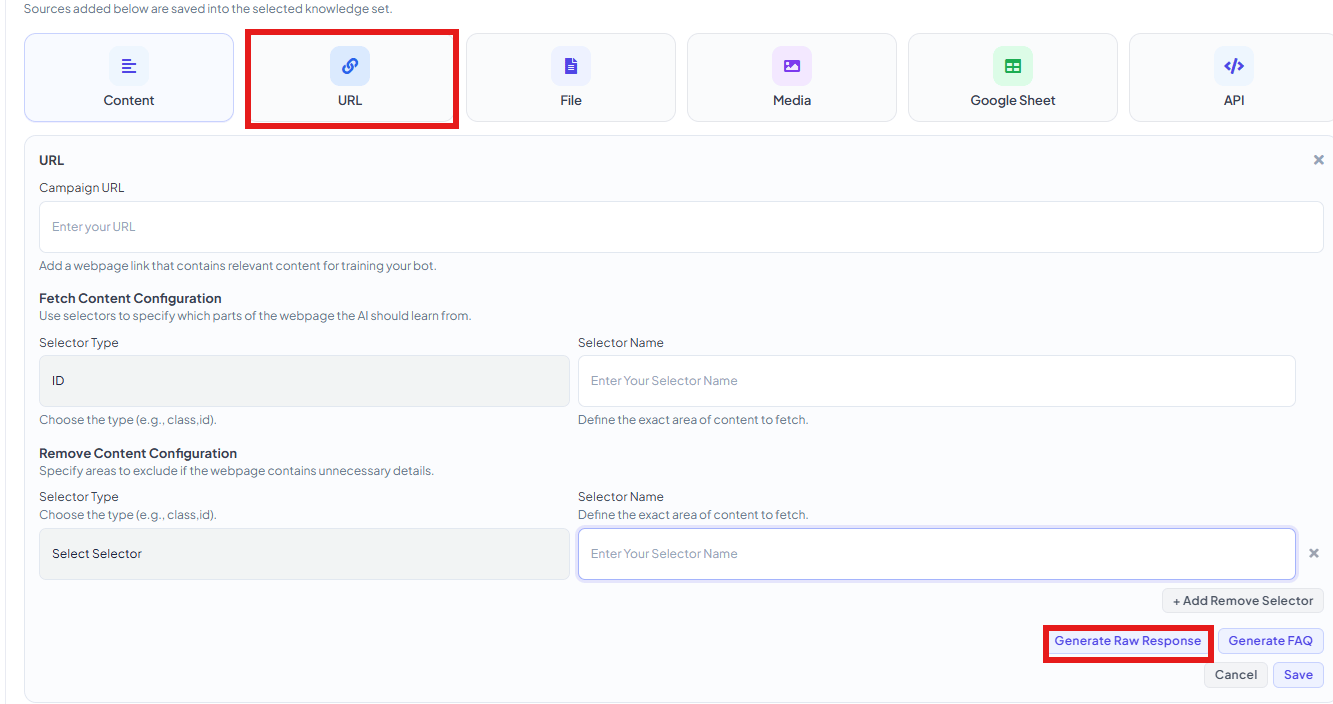
https://mystore.com/faq and the agent can now answer questions straight
from that page, without you copying anything into ChatSyncs by hand.
The two optional sections below the URL field let you fine-tune exactly what gets read:
-
Fetch Content Configuration — only pull content from one specific part of the page,
instead of the whole thing. Pick a Selector Type (
IDorClass) and enter the Selector Name — the exact ID or class name from the page’s HTML for the section you want.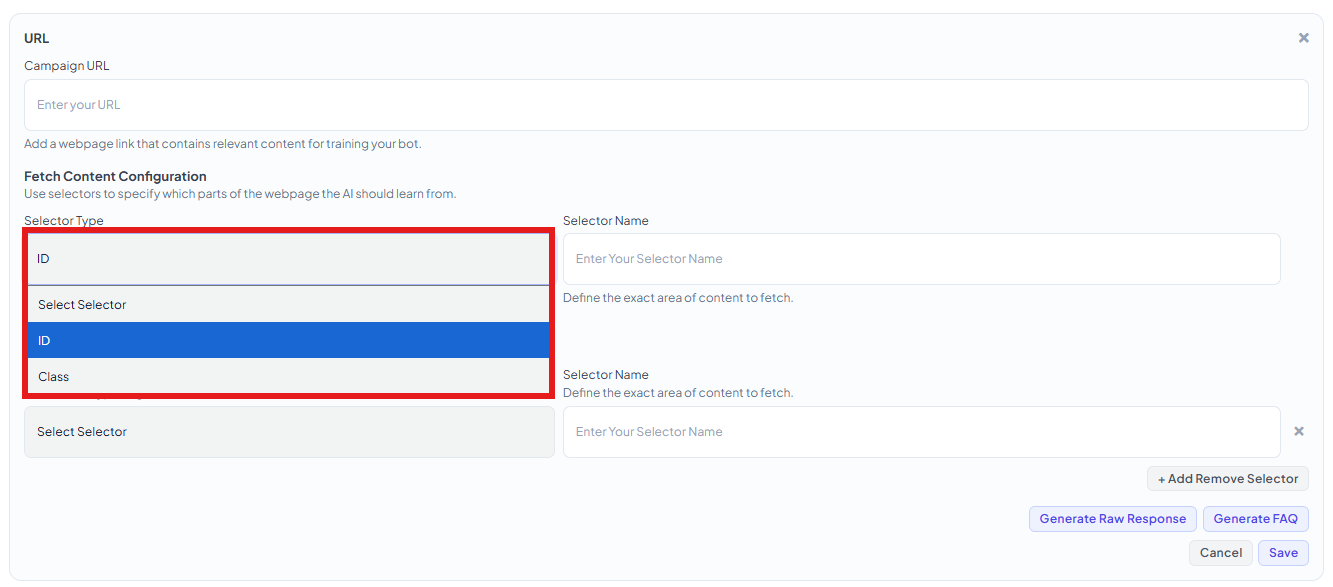
-
Remove Content Configuration — the opposite: exclude specific sections (like a header,
footer, or navigation menu) that would otherwise clutter the training data. Click + Add
Remove Selector to exclude more than one section.
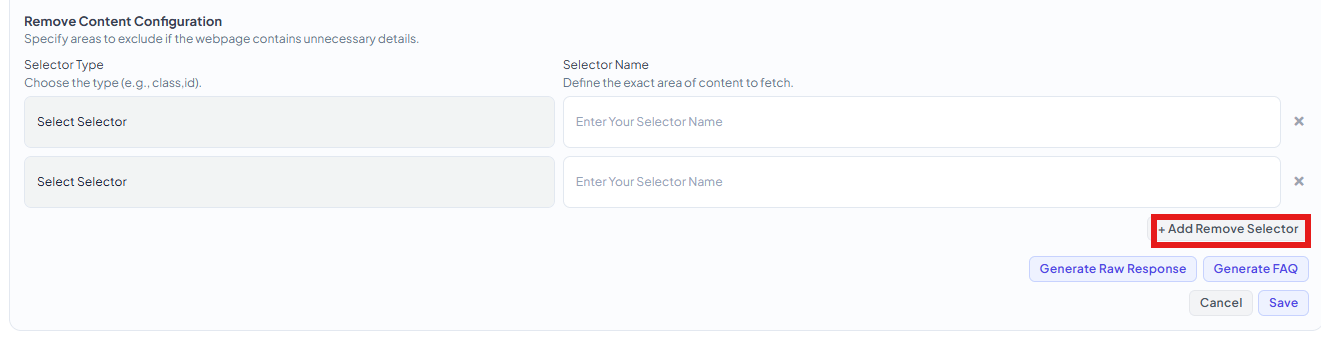
- Generate Raw Response — keeps it as one detailed block of content. More thorough, but uses more tokens per reply.
- Generate FAQ — automatically breaks the page into short Question/Answer pairs instead. More efficient, since the agent only pulls in the exact pair it needs.
File
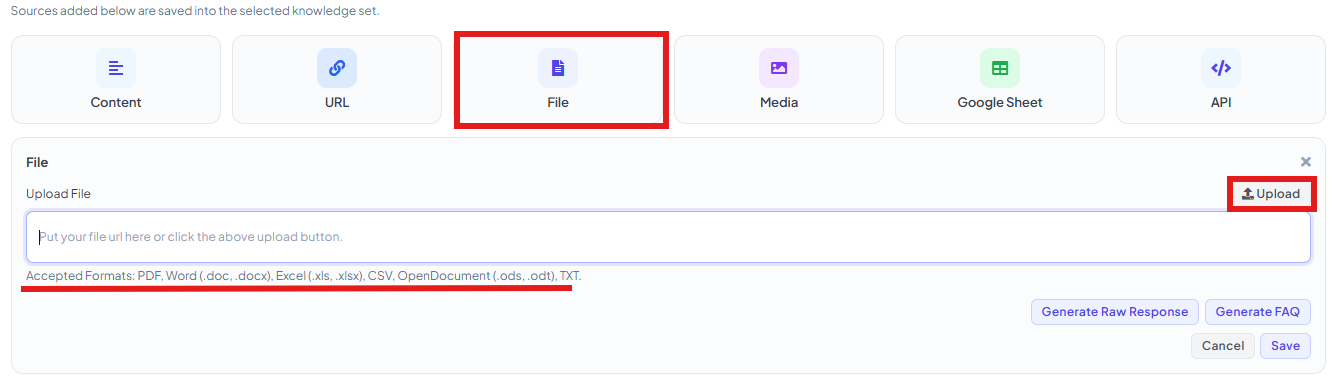
.doc/.docx), Excel
(.xls/.xlsx), CSV, OpenDocument (.ods/.odt), or TXT. The same Generate Raw
Response / Generate FAQ choice from URL applies here too, once the file is uploaded.
Media
Google Sheet

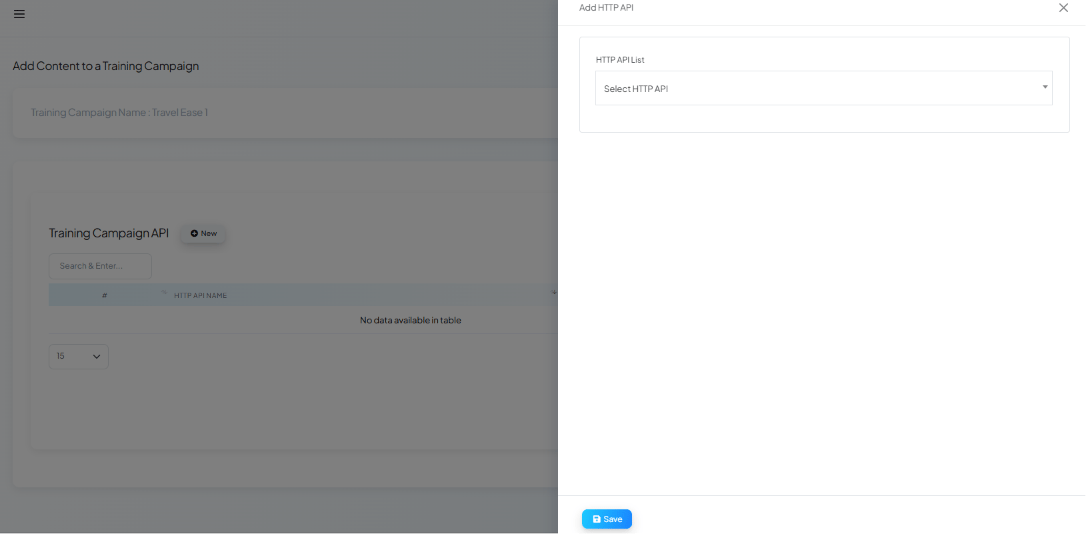
API
Google account permissions this needs
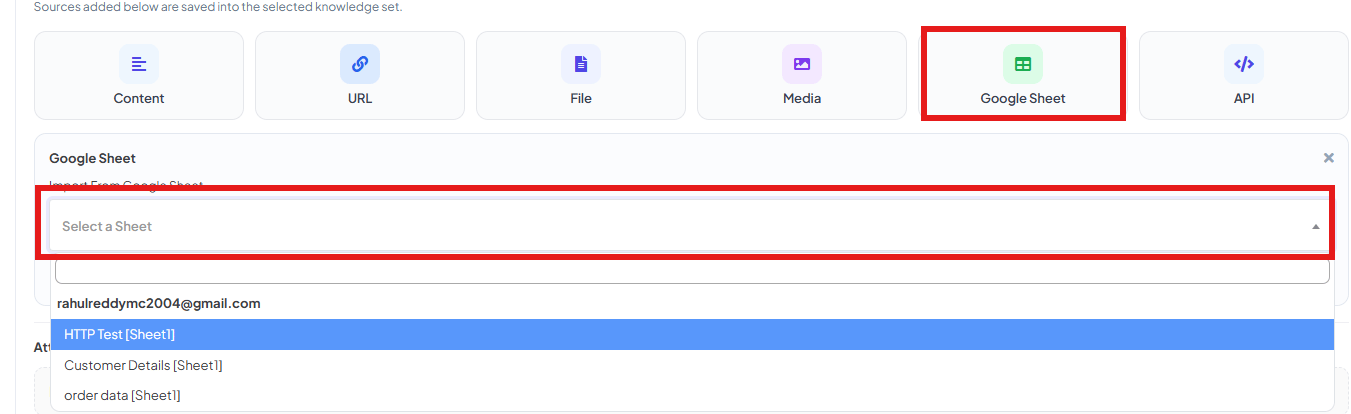
If you plan to use Google Sheet as a training source, or want subscriber contacts synced alongside it, make sure the Google account connected via How to Connect Google to ChatSyncs granted both the Sheets and Contacts permissions during sign-in — granting only Sheets access leaves contact-dependent features without data.Use cases
- Customer support — answer common questions the way a trained support agent would, in the business’s own voice.
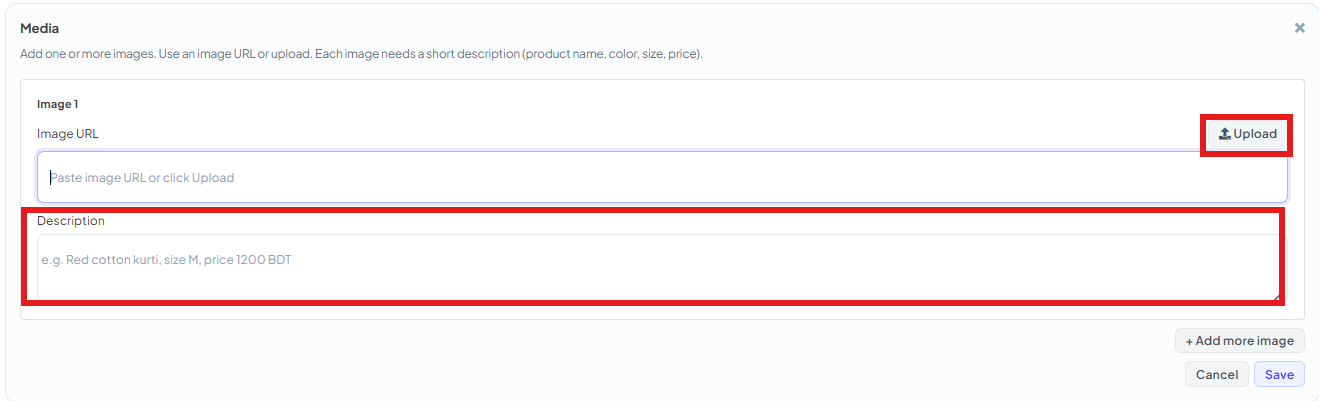
- Product information — ground answers in the business’s actual catalog or specs instead of generic AI guesses, with real product photos via Media.
- Internal documentation — let staff-facing agents answer from internal wikis or SOPs.
- Business FAQs — turn an existing FAQ page or document directly into training content.
Frequently asked
How do I make an agent answer based on my own business info instead of generic answers?
How do I make an agent answer based on my own business info instead of generic answers?
Open the agent under Chatbot Manager → AI → Agents, go to its Knowledge Sources, pick
or create a Knowledge Set, and add content — Content, URL, File, Media, Google Sheet, or
API.
Can I combine a URL and a Google Sheet in the same Knowledge Set?
Can I combine a URL and a Google Sheet in the same Knowledge Set?
Yes — unlike the old single-source-per-campaign model, a Knowledge Set can hold multiple
sources together, and the agent uses all of them to answer.
How do I get the agent to send a product photo?
How do I get the agent to send a product photo?
Add it under Media in Knowledge Sources — not as a URL pasted into the System Prompt. The
agent can then send it when a customer asks for photos.
My agent shows no useful answers — why?
My agent shows no useful answers — why?
Check that its Knowledge Set actually has content added — an empty Knowledge Set (or an agent
with none selected) has nothing to answer from beyond its System Prompt.
Learn From a Use Case
- Travel Assistant — stores the business’s company info, destinations, pricing, and FAQs the AI Agent answers from.