

1
Open the agent's settings
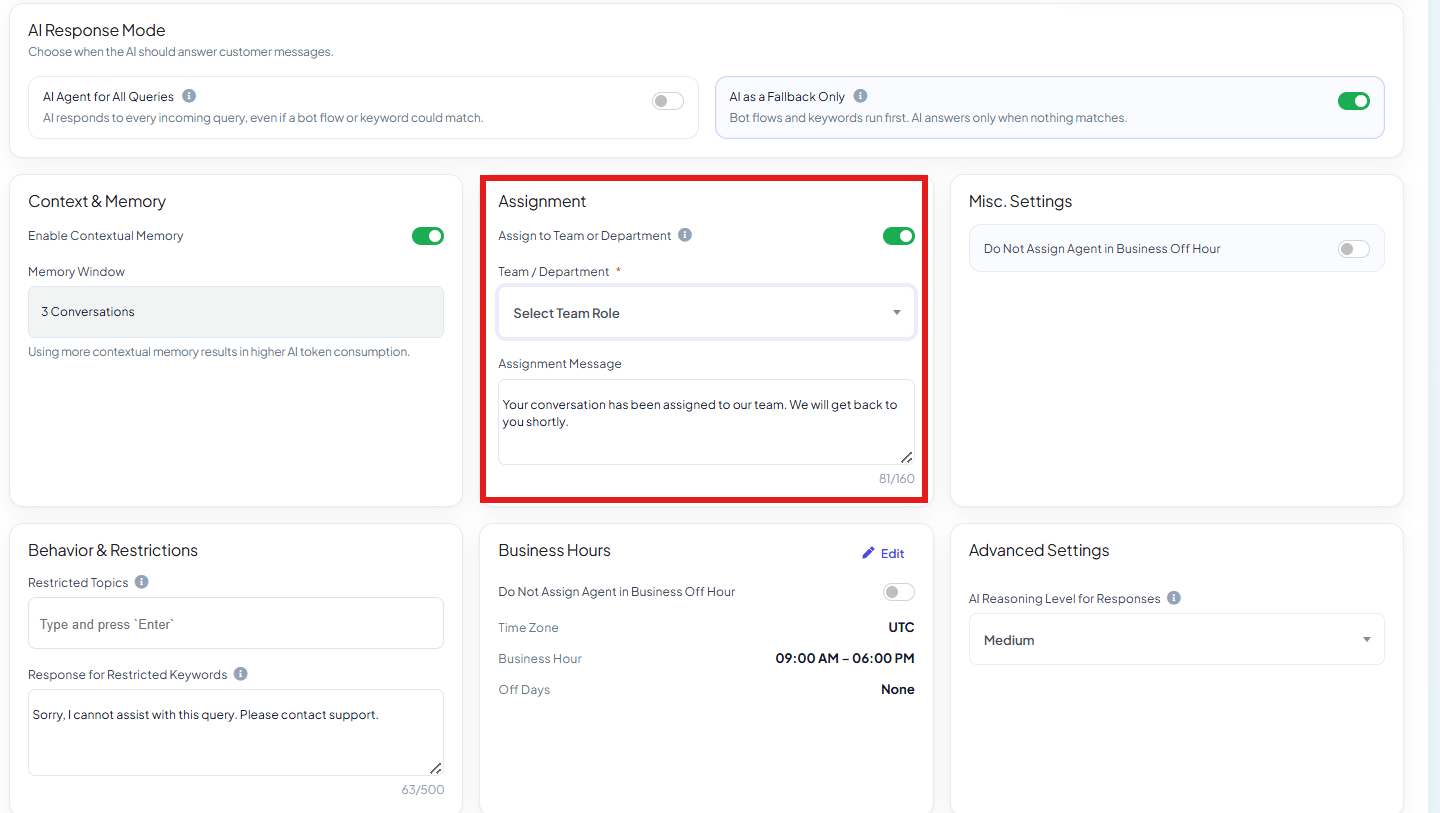
Go to Chatbot Manager → AI → Agents, open the agent, and find the Assignment card.
2
Turn on Assign to Team or Department
Enable the toggle.
3
Pick the team or department
Select which team (e.g. Sales, Support, Billing) should receive conversations this agent
handles.
WhatsApp Marketing Agent handles broadcast replies but shouldn’t field detailed
support questions itself — with Assign to Team or Department set to Support, every
conversation it touches lands with the Support team, ready for a human to pick up.
Frequently asked
What's the difference between this and the assign_human_member / assign_human_role actions?
What's the difference between this and the assign_human_member / assign_human_role actions?
This Assignment setting hands off every conversation the agent handles, unconditionally.
The
##assign_human_member## / ##assign_human_role## System Prompt
actions let you route only specific situations — written into the
prompt logic instead of applying to the whole agent.Can I route different agents to different teams?
Can I route different agents to different teams?
Yes — Assignment is set per agent, so a support-focused agent can route to Support while a
sales-focused agent routes to Sales.
Does the AI still reply before handing off?
Does the AI still reply before handing off?
That depends on how you’ve built the agent’s System Prompt and any
##assign_human_member##
/ ##assign_human_role## actions — the whole-agent Assignment setting itself is about which
team ends up with the conversation, not whether the AI speaks first.