

1
Open the agent's settings
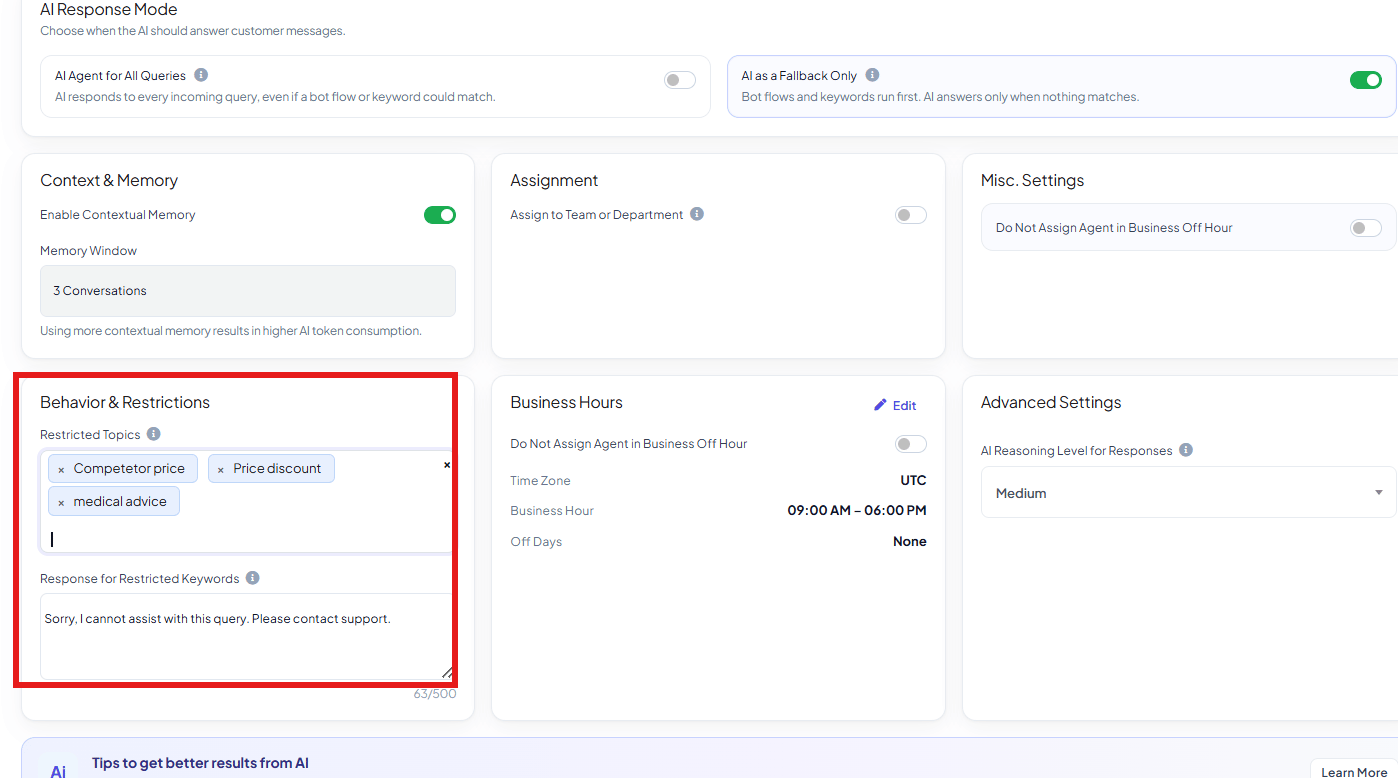
Go to Chatbot Manager → AI → Agents, open the agent, and find Behavior &
Restrictions.
2
Add Restricted Topics
List the subjects this agent should never answer, e.g.
competitor comparisons,
unrelated services, pricing negotiations, medical advice — whatever’s off-limits for
this specific agent.3
Write the Response for Restricted Keywords
Set the fixed reply sent whenever a message touches a restricted topic, e.g. “Sorry, I
cannot assist with this query. Please contact support.” (limited to 500 characters).
4
Save
The agent now declines those topics with your fixed response instead of attempting an
answer.
Sales Advisor Agent has competitor comparisons as a Restricted Topic. A
customer asks “How do you compare to [competitor]?” — instead of the AI improvising an answer
about a competitor, it replies with the fixed message and the conversation can be escalated to a
human if needed.
Frequently asked
How do I stop the AI from answering about competitors or off-topic subjects?
How do I stop the AI from answering about competitors or off-topic subjects?
Add the subject to Restricted Topics in the agent’s Behavior & Restrictions settings,
and set a Response for Restricted Keywords to send instead of an AI-generated answer.
Can different agents have different restricted topics?
Can different agents have different restricted topics?
Yes — Restricted Topics are set per agent, not account-wide.
Is there a length limit on the restricted-keyword response?
Is there a length limit on the restricted-keyword response?
Yes — 500 characters.
What happens if I don't set a Response for Restricted Keywords?
What happens if I don't set a Response for Restricted Keywords?
Set one before relying on Restricted Topics — without a fixed response configured, there’s
nothing controlled to fall back on when a restricted topic comes up.