

1
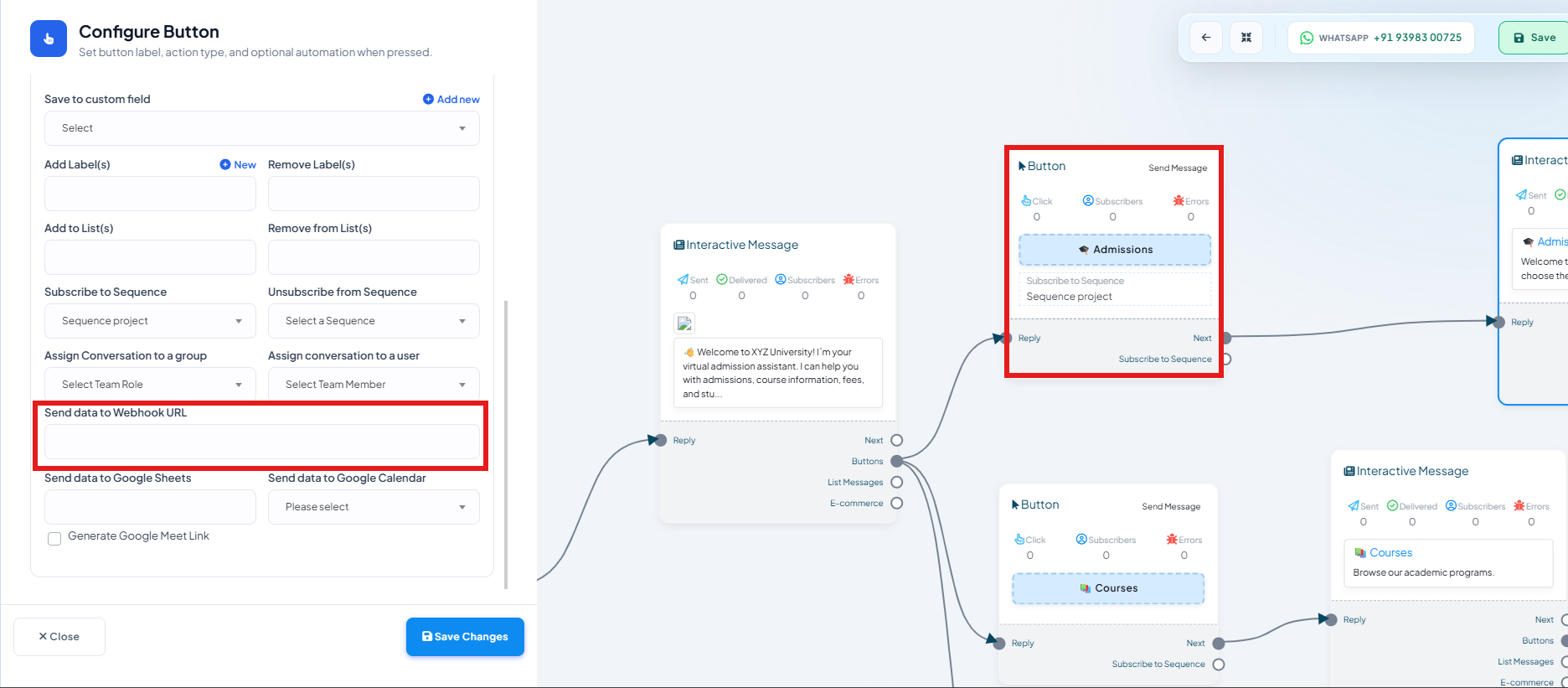
Open a button's settings
In your bot flow, click a Button component (inside an Interactive Message) to open
Configure Button.
2
Find Send data to Webhook URL
Scroll down past Assign Conversation to a group/user.
3
Enter the webhook URL
Paste your webhook endpoint URL. Every time a customer taps this specific button, ChatSyncs
POSTs the subscriber’s data to that URL.
4
Save Changes
Click Save Changes.
Frequently asked
What data does the webhook receive?
What data does the webhook receive?
The subscriber’s data at the moment of the click, the same way a Keyword Trigger
webhook sends subscriber data on a keyword match.
Is this different from the keyword-level webhook on Start Bot Flow?
Is this different from the keyword-level webhook on Start Bot Flow?
Yes — Webhook on Keyword Trigger fires when the flow’s
trigger keyword matches. This one fires later, only when a specific button inside that flow
is actually clicked.