

1
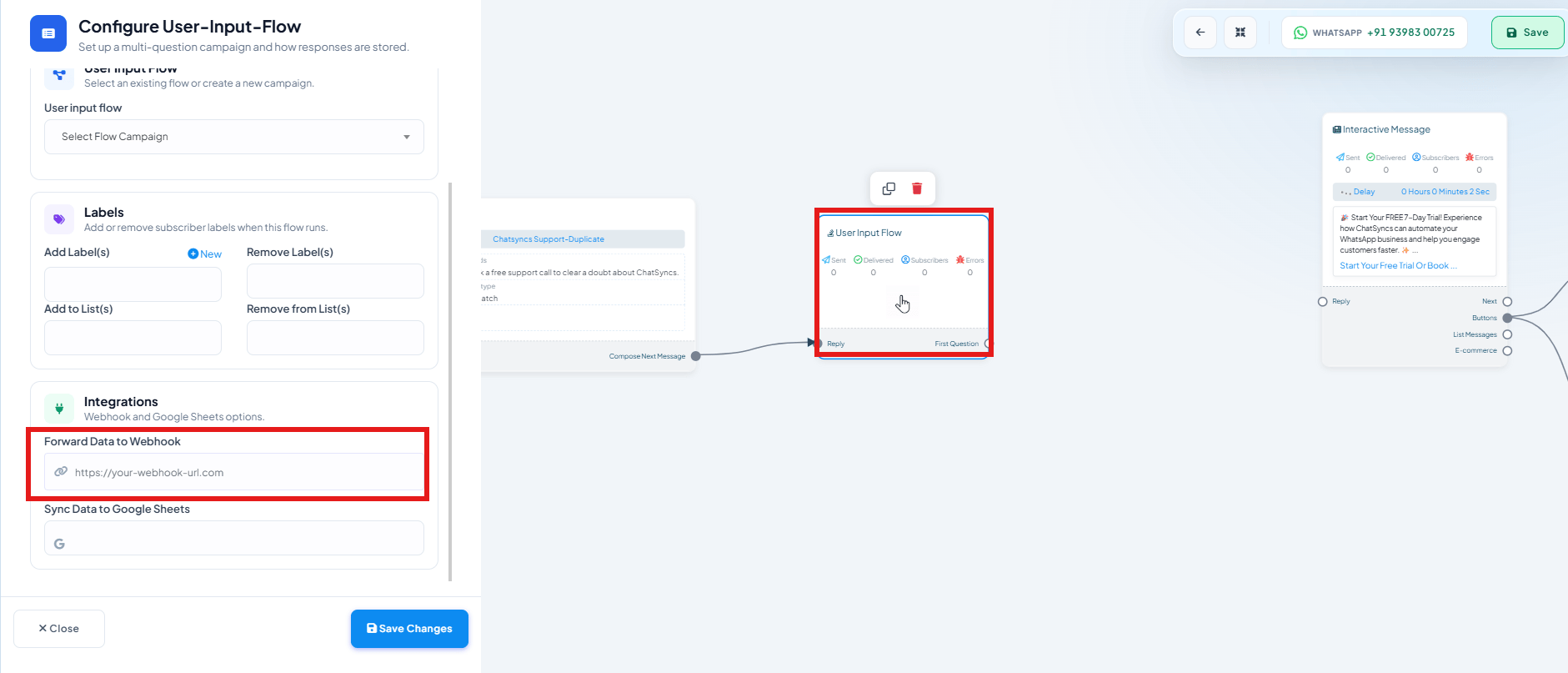
Open the Input Flow's settings
In Chatbot Manager → Data Collection → User Input Flows, open
the flow you want to configure.
2
Open Integrations
Find the Integrations section — it covers Webhook and Google Sheets.
3
Set Forward Data to Webhook
Paste your webhook endpoint URL. When a customer completes every question in the flow,
ChatSyncs POSTs all the collected answers to that URL as JSON.
4
Save Changes
Click Save Changes.
- Collecting lead information (name, email, requirements) and pushing it straight to a CRM.
- Gathering survey responses into an analytics platform.
- Creating a support ticket from collected details in a helpdesk.
Frequently asked
When does this webhook fire?
When does this webhook fire?
Once the customer has answered every question in the Input Flow — not after each individual
answer.
What data does the webhook receive?
What data does the webhook receive?
All of the flow’s collected answers as JSON, keyed by each question’s saved custom field.
Is this the same as forwarding data from a Keyword Replies flow?
Is this the same as forwarding data from a Keyword Replies flow?
Related but separate — Webhook on Keyword Trigger fires on
a keyword match at the start of a flow. This one fires specifically when a User Input Flow
embedded inside a flow is fully completed.