

When to use it
- A customer books an appointment and you want to send a WhatsApp confirmation.
- An order is placed in your store or CRM and you want to notify the customer.
- A form is submitted and you want to send an instant follow-up message.
- Any third-party app that supports outgoing webhooks (Cal.com, Shopify, a booking system, a payment provider, a form plugin) needs to trigger a WhatsApp message.
The dashboard
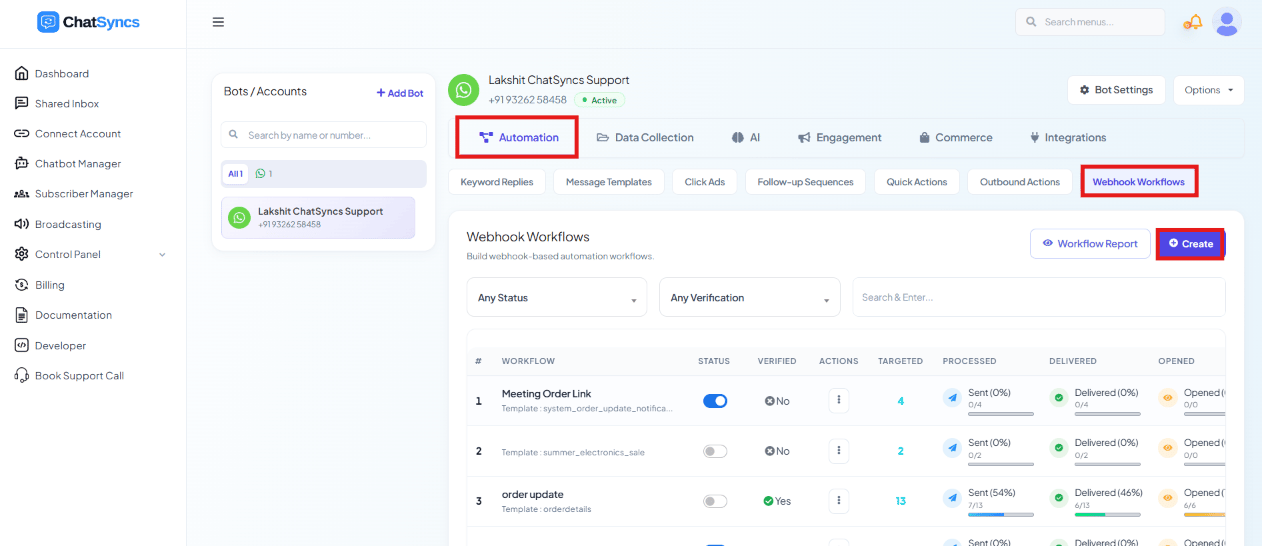
What’s covered in this section
1. Create a Webhook Workflow
Set up the callback URL, capture a test response, and map JSON data to template variables.
2. Webhook Automation Settings
Add a delay, conditional rules, and actions that run after a successful call.
3. Webhook Workflow Reporting
Monitor delivery stats and troubleshoot a workflow that isn’t sending.
4. WordPress Form Submissions
A worked example: wiring a WordPress form’s plugin to trigger a Webhook Workflow.
Frequently asked
Do I need Zapier or Make.com to connect a third-party app to ChatSyncs?
Do I need Zapier or Make.com to connect a third-party app to ChatSyncs?
No — a Webhook Workflow receives the webhook directly. Zapier/Make.com are only useful if the
third-party app can’t send a webhook on its own and needs a middle step to create one.
What do I need before creating a workflow?
What do I need before creating a workflow?
A Message Template with variables (e.g.
{{1}}, {{2}}) already approved — the webhook
data fills those variables automatically. See Creating a WhatsApp Message
Template.Where do I go to create or manage workflows?
Where do I go to create or manage workflows?
Chatbot Manager → Automation → Webhook Workflows.