

Viewing the stats
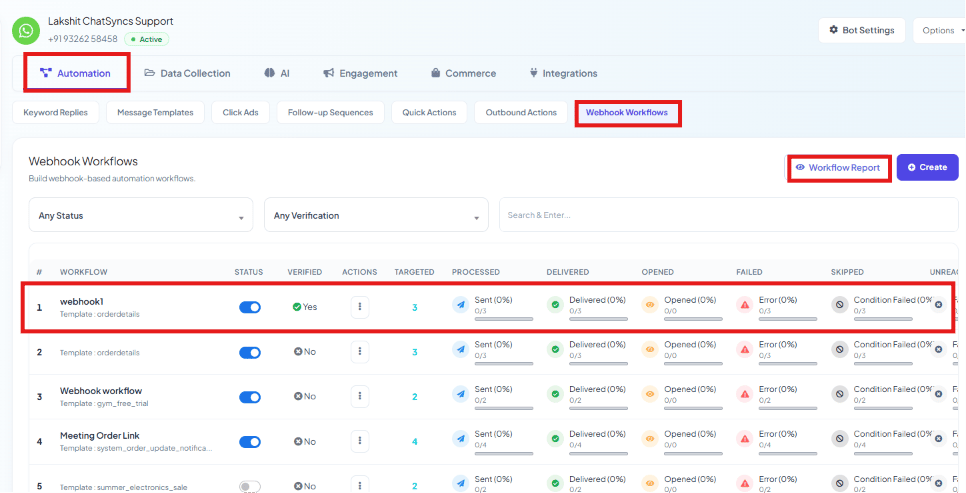
The full report
Click Workflow Report on any workflow for a call-by-call breakdown: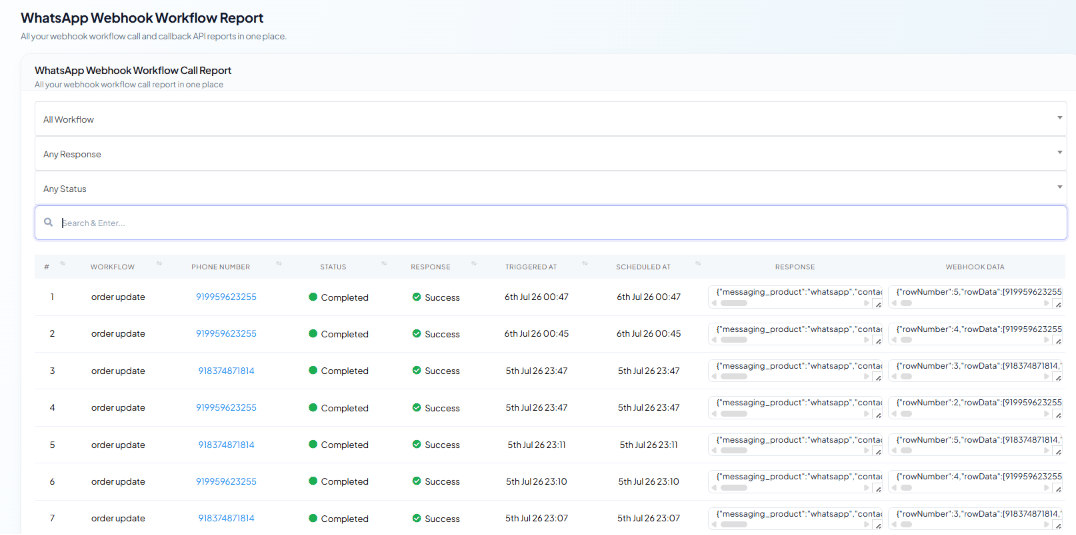
Troubleshooting common issues
Frequently asked
How do I know if a Webhook Workflow is actually working, not just saved?
How do I know if a Webhook Workflow is actually working, not just saved?
Check its row in Chatbot Manager → Automation → Webhook Workflows — a rising Sent /
Delivered count confirms real calls are coming through and messages are going out.
A workflow shows a lot of Skipped calls — why?
A workflow shows a lot of Skipped calls — why?
Its conditional rules are filtering most calls out. Open Webhook Automation
Settings on that workflow and check whether the rule’s field/operator/value actually
matches what the third-party app sends.
Where can I see exactly what data a specific call sent?
Where can I see exactly what data a specific call sent?
Open Workflow Report and check the Webhook Data column on that row — it shows the
raw payload received for that call.
My workflow shows 0 Sent — what should I check first?
My workflow shows 0 Sent — what should I check first?
Confirm the callback URL is pasted correctly into the third-party app’s webhook settings, and
that you’ve successfully captured and verified a test webhook — see Create a Webhook
Workflow.