

When to use Google Contacts import
Use this when the people you want in ChatSyncs are already saved in your phone or Google account’s Contacts — there’s no spreadsheet to prepare, format, or export first. It’s the fastest of the three import methods, but the simplest: Google Contacts only holds a name and phone number per person, so it can’t carry extra custom-field data the way How Do I Import Subscribers Using a CSV File? or How Do I Import Subscribers from Google Sheets? import can.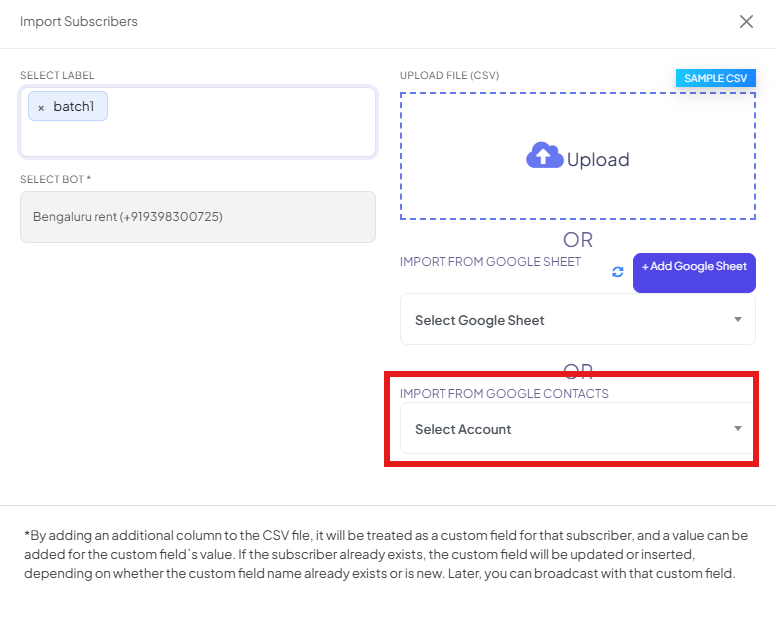
Import from Google Contacts
1
Open Export/Import → Import from CSV
From the Subscriber Manager list, open Export/Import, then Import from CSV — this
opens the same modal used for every import type.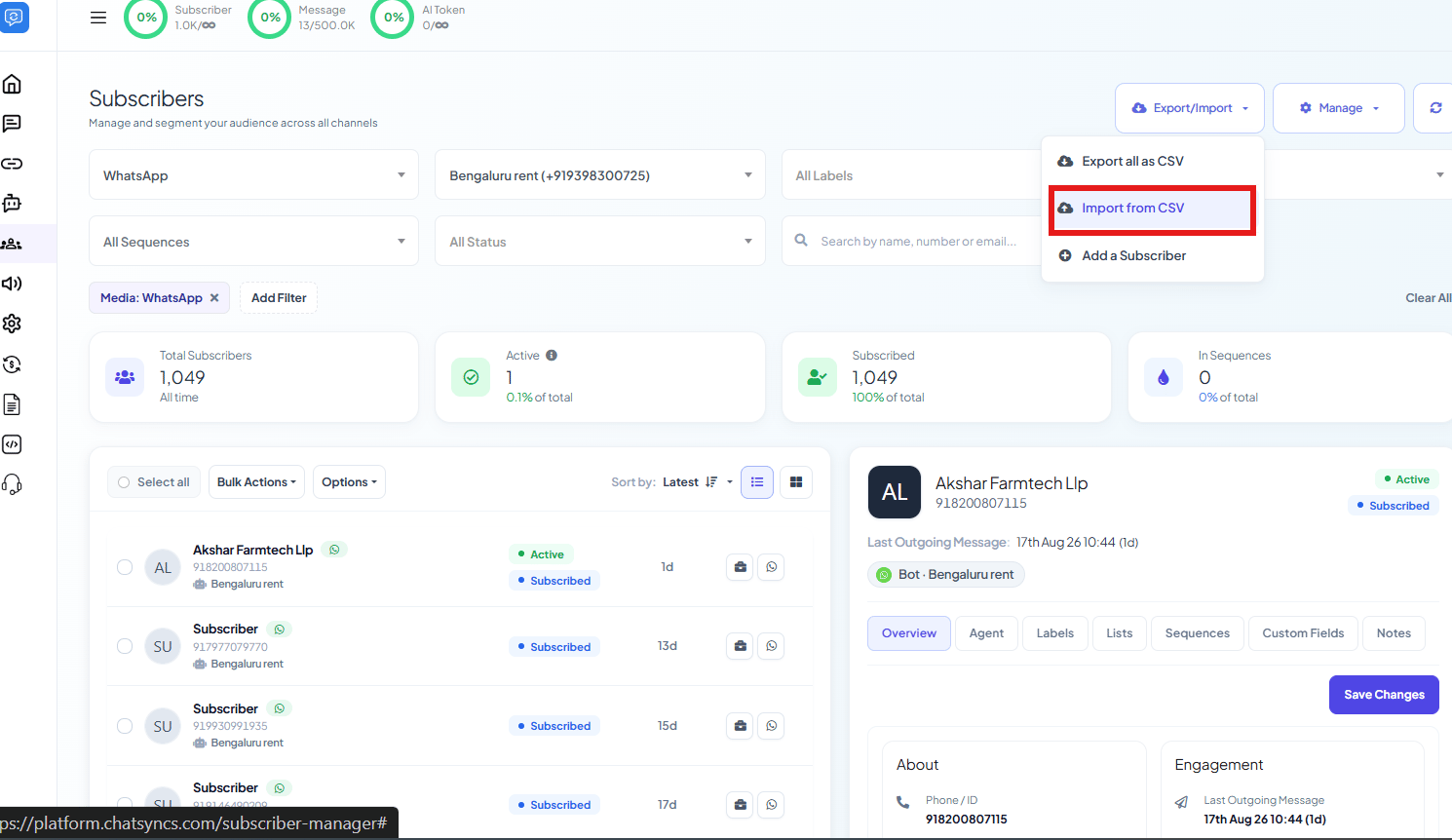
2
Select a Label and Bot
Select Label is optional — tag every imported contact with it right away (e.g.
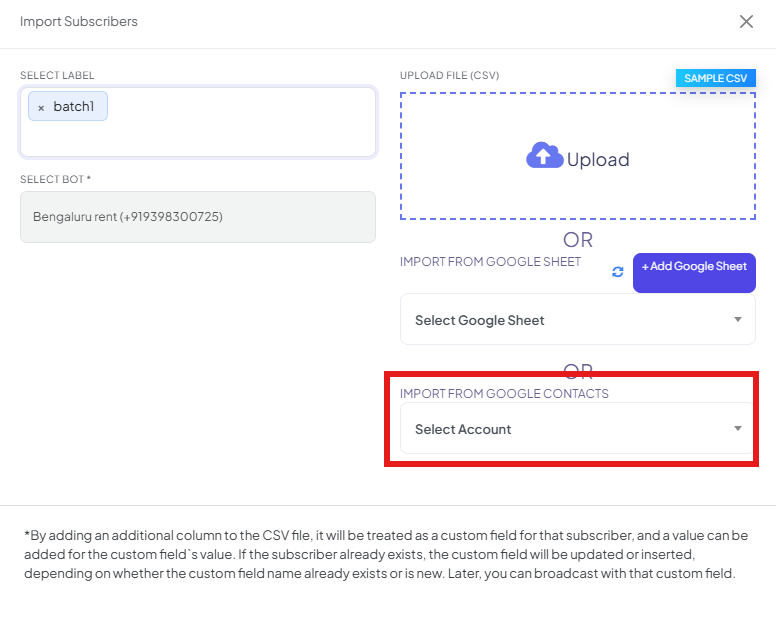
batch1). Select Bot is required.3
Open Import from Google Contacts
Scroll to the Import from Google Contacts section of the same modal.
4
Select Account
Pick the connected Google account to read contacts from, or connect one if none is listed
yet.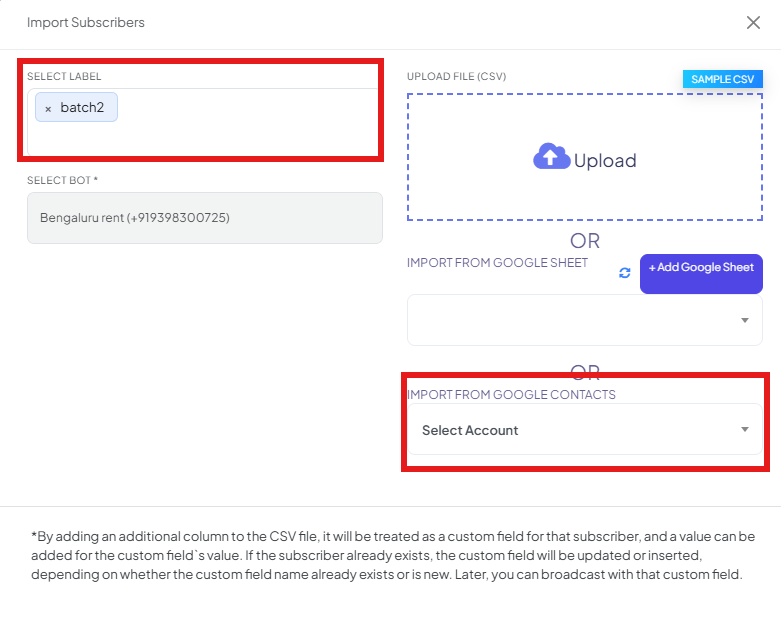
5
Confirm the import
ChatSyncs shows a preview of the imported contacts with Name and Phone already
mapped to Subscriber Name and Phone Number — unlike CSV or Google Sheet import,
you don’t have to pick the mapping yourself, just review it and click Confirm.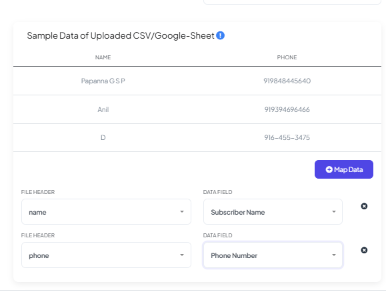
Frequently asked
What's the difference between Google Contacts import and Google Sheet import?
What's the difference between Google Contacts import and Google Sheet import?
Google Contacts import reads your connected Google account’s saved contacts directly —
good when there’s no spreadsheet at all. Google Sheet import reads a spreadsheet you
connect — good for structured lists with extra columns you want as custom fields.
Can I import custom field data from Google Contacts?
Can I import custom field data from Google Contacts?
No — Google Contacts only provides a name and phone number. For custom field data (city,
company, order ID, etc.), use
How Do I Import Subscribers from Google Sheets?
or How Do I Import Subscribers Using a CSV File? instead, where extra columns become
custom fields automatically.
Do I need to connect a Google account before I can import from Google Contacts?
Do I need to connect a Google account before I can import from Google Contacts?
Yes — pick it from Select Account in the Import Subscribers modal. If none is listed,
connect one there first.
Does importing from Google Contacts create duplicate subscribers?
Does importing from Google Contacts create duplicate subscribers?
No — each contact is matched by phone number. An existing subscriber’s record is updated
rather than duplicated if you re-run the import later.
Do I need to pick a Label or Bot before importing?
Do I need to pick a Label or Bot before importing?
Select Bot is required — every imported contact needs a bot to belong to. Select
Label is optional, useful for tagging the whole batch (e.g.
google_contacts_import) so
it’s easy to find and filter afterward.Related Documentation
- Subscriber Manager — the subscriber list and full Options menu.
- How Do I Import Subscribers Using a CSV File? — for a spreadsheet with extra columns you want as custom fields.
- How Do I Import Subscribers from Google Sheets? — for importing from a live, connected Google Sheet.
- How Do I Add a Subscriber Manually? — for adding one contact at a time instead.
- How Do I Manage Custom Fields and Labels? — how labels segment your subscriber list.