

When to use CSV import
Use CSV import when you already have a spreadsheet of contacts — exported from another tool, a sales list, an event sign-up sheet — and want to bring them all into ChatSyncs at once, instead of adding them one at a time or waiting for each person to message the bot first. It’s the fastest way to seed Subscriber Manager with an existing contact list. Only have a handful of contacts, or contacts already living in a Google Sheet or your Google account? See How Do I Add a Subscriber Manually?, How Do I Import Subscribers from Google Sheets?, or How to Import Contacts from Google Contacts instead.Import a CSV file
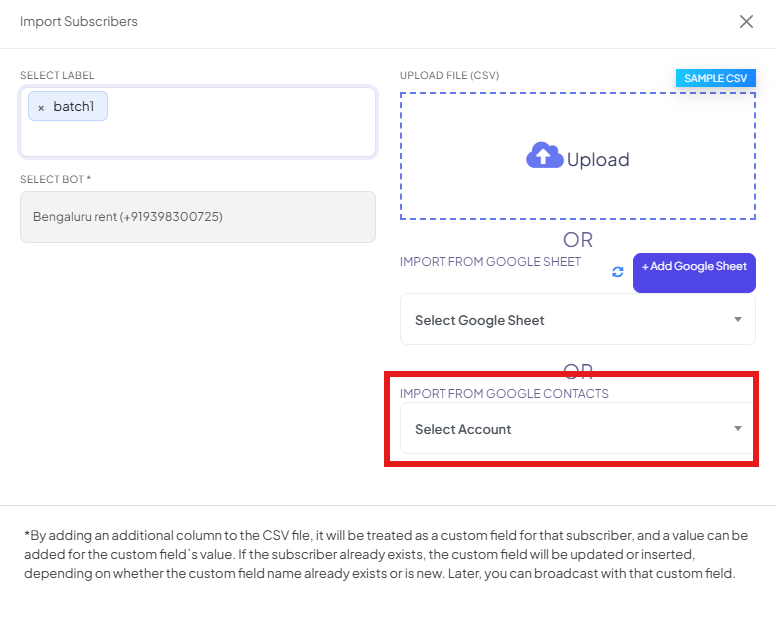
Open Export/Import → Import from CSV
Select a Label and Bot
batch1). Select Bot is required — pick which bot the imported subscribers belong to.Prepare your file to match the required format
Upload the file
Map each column
Confirm the import
The CSV format
A CSV needs at minimum a phone number and name column, e.g.:city and
membership_type columns alongside the required two:
city and membership_type filled in automatically as
custom fields — no extra setup needed as long as those fields already exist (or ChatSyncs creates
them from the column header the first time you map them).
8.8E+12 instead of
8801710000000), and a CSV exported in that state will import garbled or truncated numbers.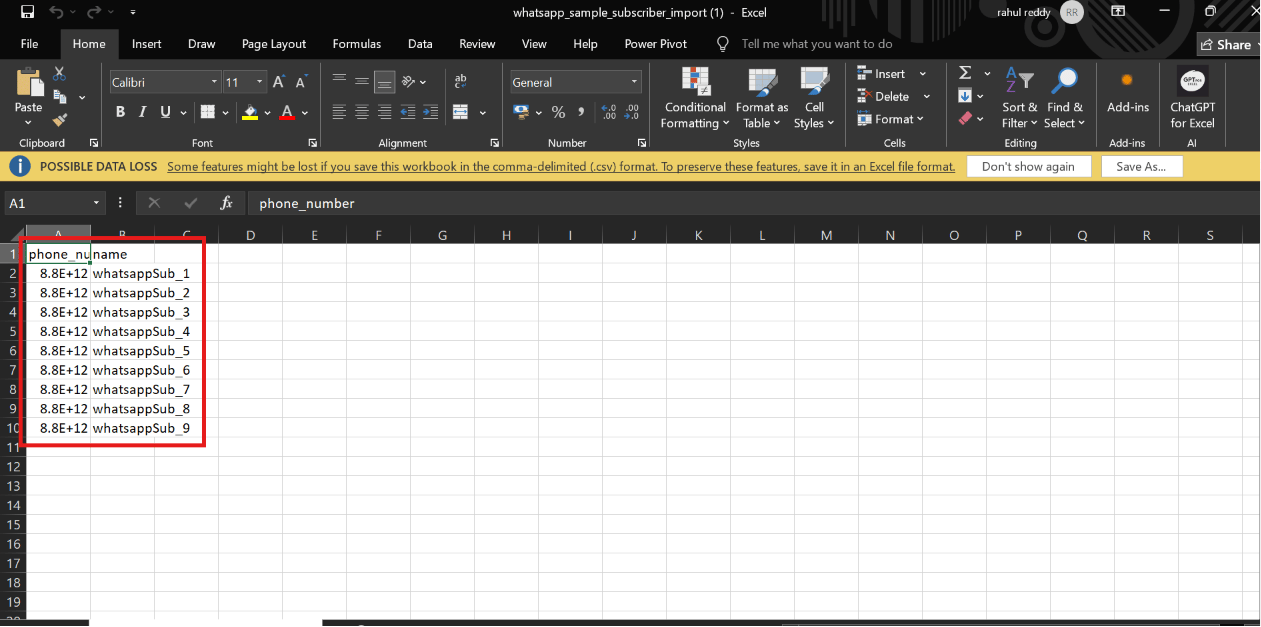
A phone_number column displayed in scientific notation (8.8E+12) before formatting.
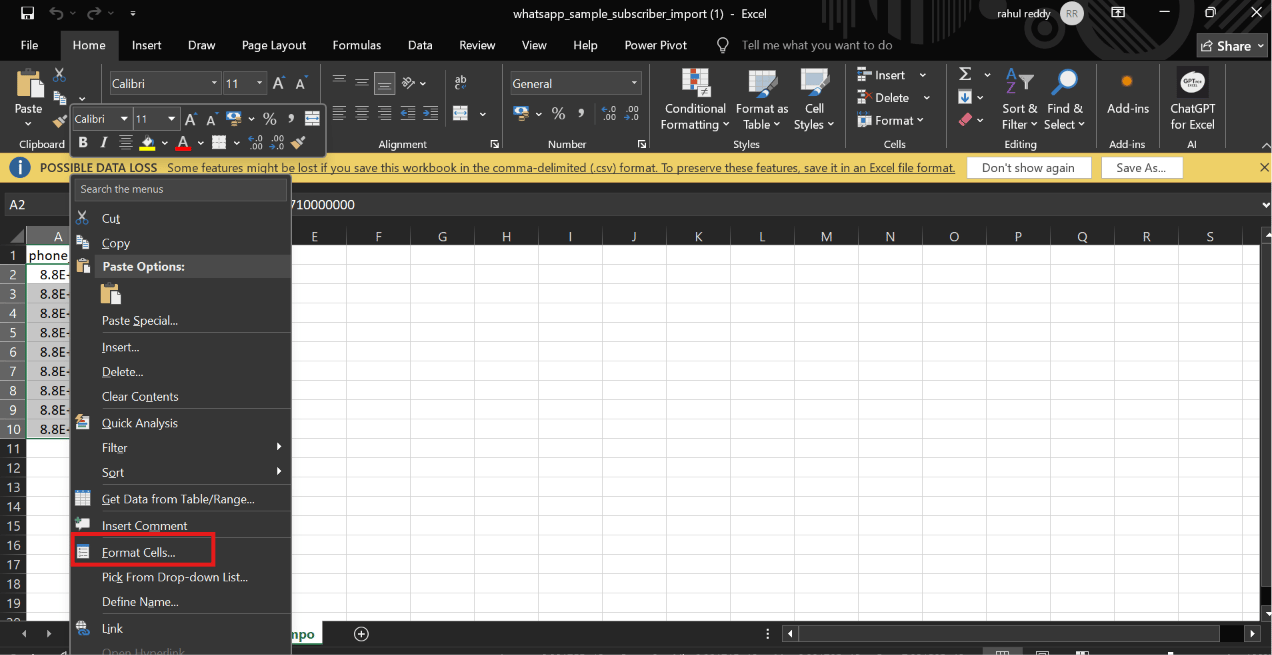
Right-clicking the phone_number column and selecting Format Cells to fix the display.
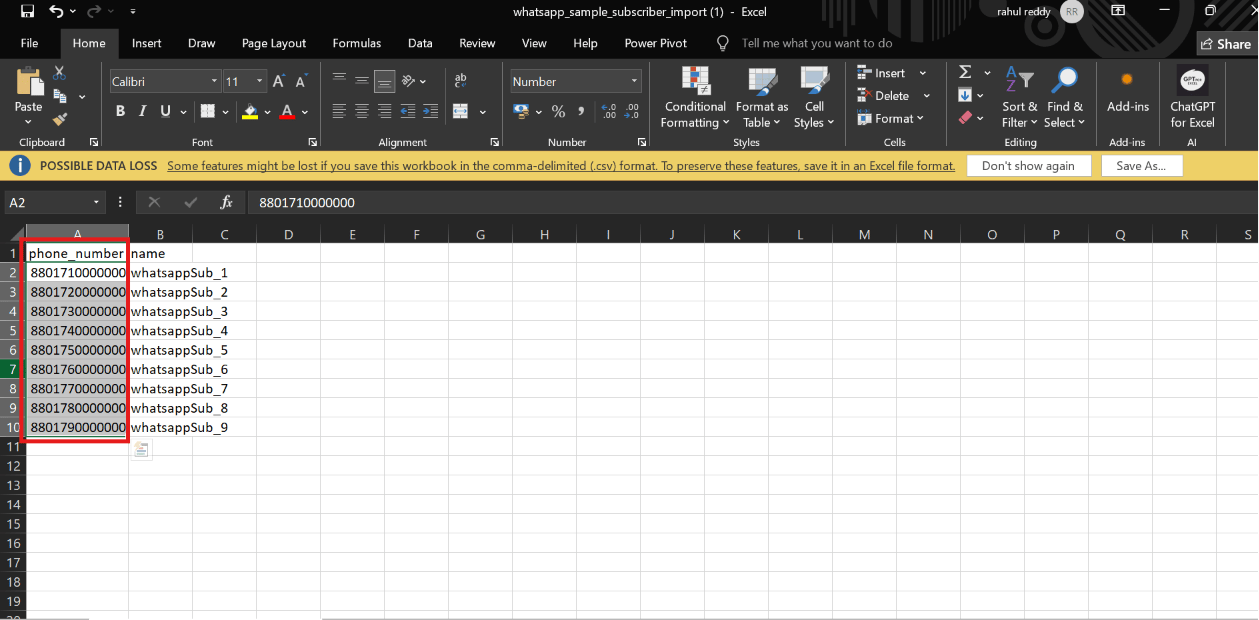
The phone_number column after formatting — full numbers like 8801710000000 instead of scientific notation.
Map the columns
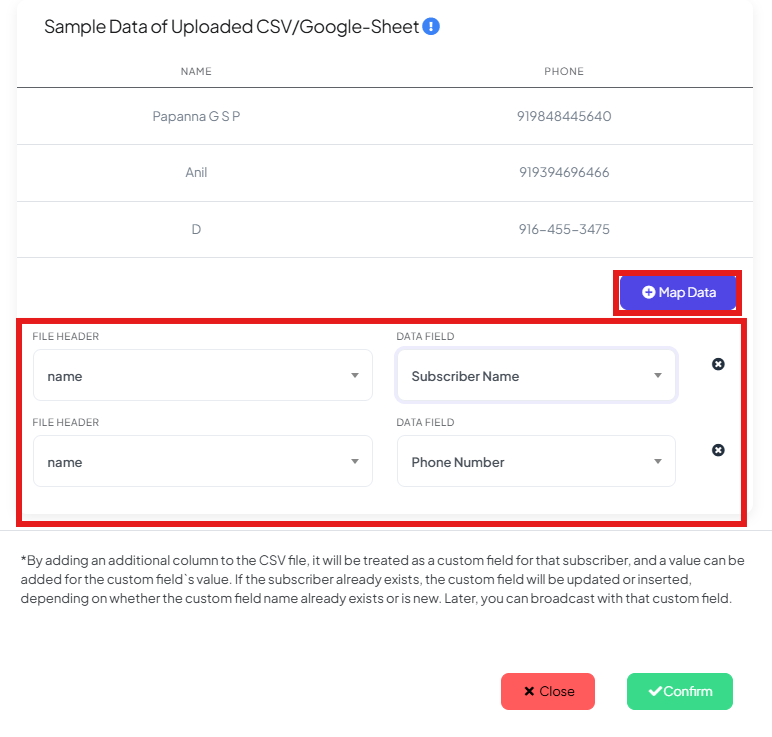
- Map
phone_number→ Phone Number. - Map
name→ Subscriber Name. - Verify every mapping carefully before confirming — a wrong mapping imports the wrong data into the wrong field for every row.
Troubleshooting
Frequently asked
What columns does my CSV file need at minimum?
What columns does my CSV file need at minimum?
phone_number column and a name column. Any other column is imported automatically as
a custom field.Can I import custom fields along with my subscribers?
Can I import custom fields along with my subscribers?
phone_number and name is imported automatically as a
custom field, matched by
its column header.Why do my imported phone numbers look wrong or truncated?
Why do my imported phone numbers look wrong or truncated?
8.8E+12). Format the
phone number column as Number (0 decimal places) or Text — right-click → Format
Cells — before saving the file as CSV, or the import will bring in the garbled value.What happens if I import a phone number that's already a subscriber?
What happens if I import a phone number that's already a subscriber?
Do I need the country code in the phone number column?
Do I need the country code in the phone number column?
+ or
spaces, e.g. 919876543210.Can I preview the expected file format before uploading?
Can I preview the expected file format before uploading?
My subscribers' names show as question marks or broken characters after import.
My subscribers' names show as question marks or broken characters after import.
Is there a limit to how many rows I can import in one CSV?
Is there a limit to how many rows I can import in one CSV?
Can I import the same CSV file twice without creating duplicates?
Can I import the same CSV file twice without creating duplicates?
Related Documentation
- Subscriber Manager — the subscriber list, Options menu, and Download(all) as CSV.
- How Do I Manage Custom Fields and Labels? — how imported columns become custom fields.
- How Do I Add a Subscriber Manually? — for adding one contact at a time instead.
- How Do I Import Subscribers from Google Sheets? — for importing without exporting a CSV file first.
- How to Import Contacts from Google Contacts — for importing straight from your Google account’s saved contacts.