

- Takes more steps than the one-click path.
- Gives full visibility into every ID and code involved — nothing happens automatically behind the scenes.
- The customer creates their own Meta app, then copies a few values from it into ChatSyncs by hand.
Where this starts and ends: the Alternative panel
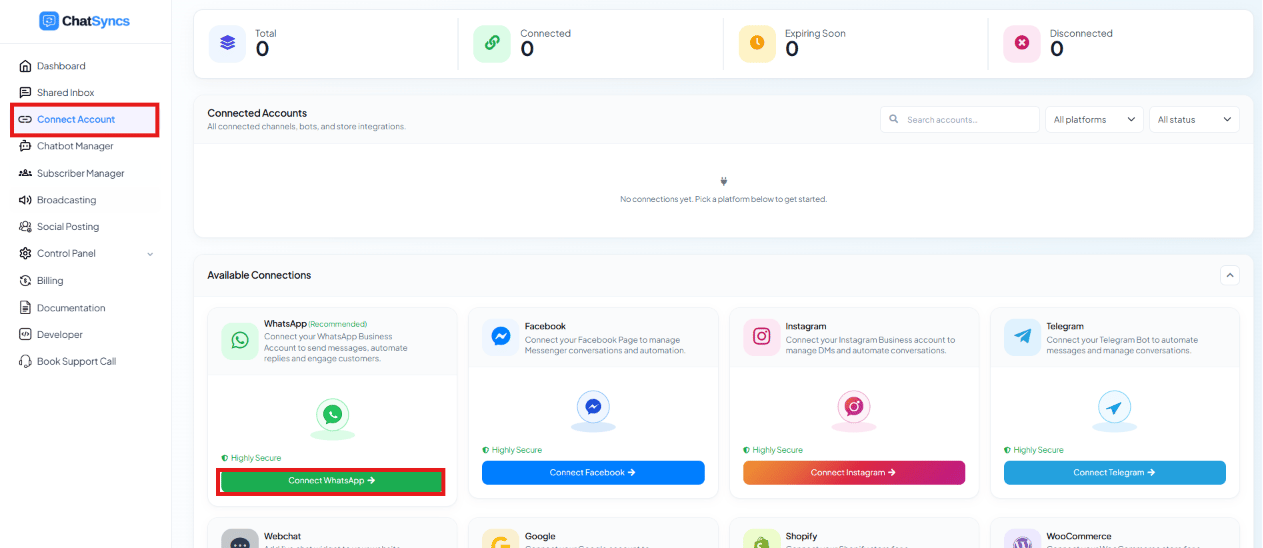
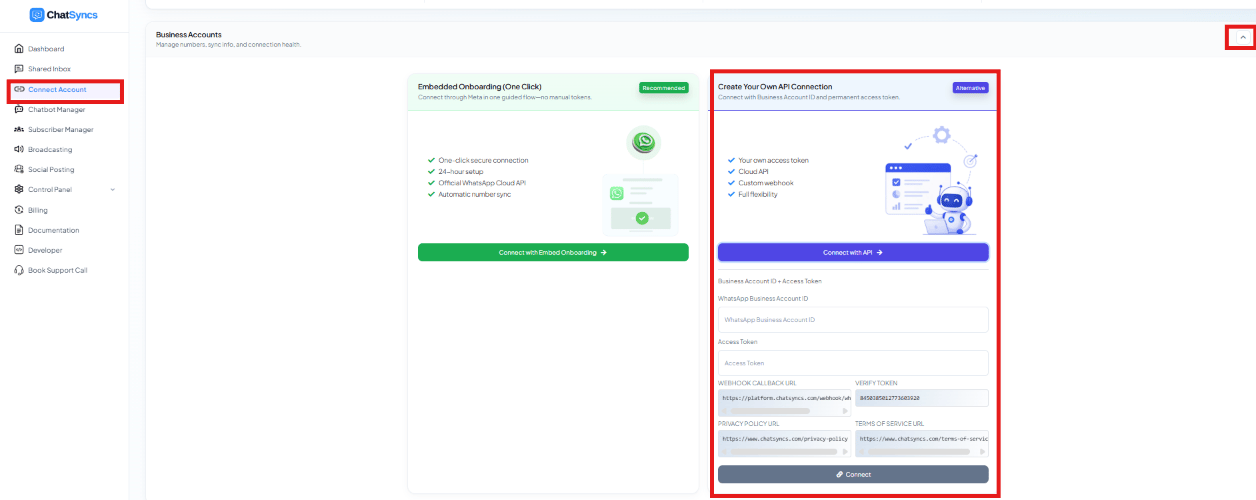
- At the start, copy the Webhook Callback URL, Verify Token, Privacy Policy URL, and Terms of Service URL shown here — they get pasted into the Meta app.
- At the end, come back to this same panel to paste in the WhatsApp Business Account ID and the Access Token, then click Connect.
Step 1: Set up the Meta app and get the Business Account ID
Video walkthrough: creating the business portfolio and generating the permanent access token in Meta's current dashboard.
Sign in to the developer portal
developers.facebook.com and sign in, or create an account.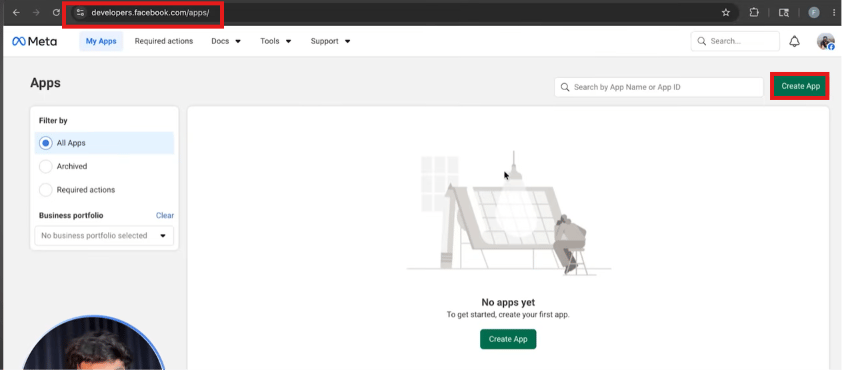
Create an app
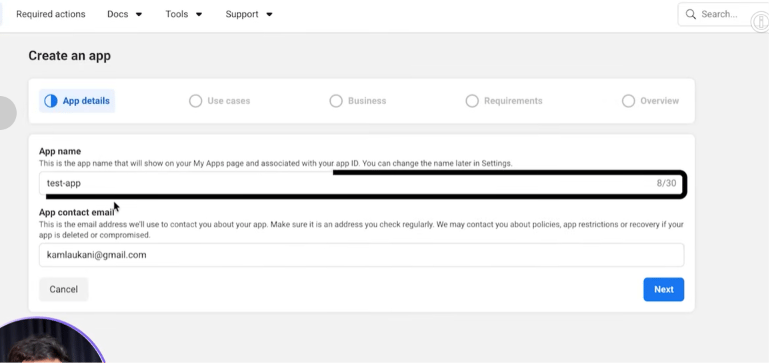
Select the WhatsApp use case
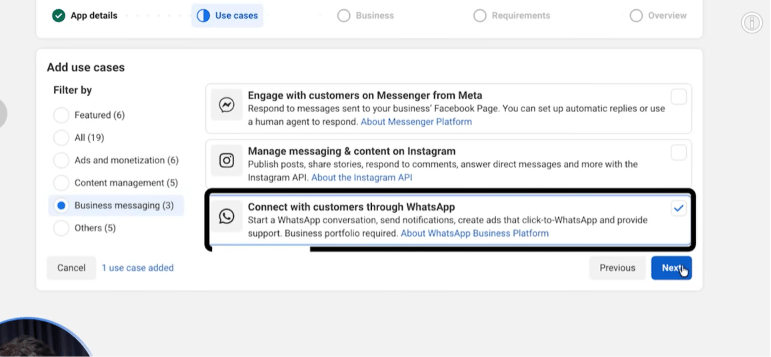
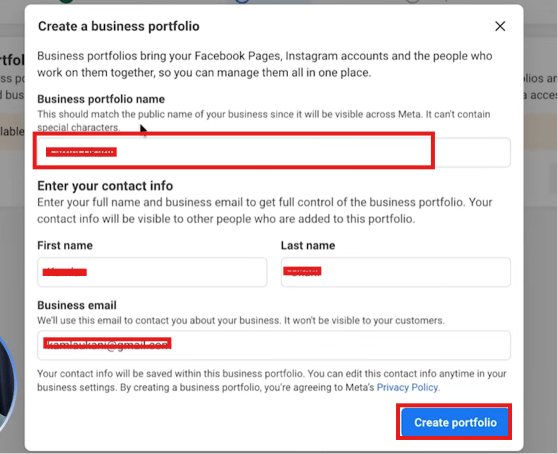
Connect a business portfolio
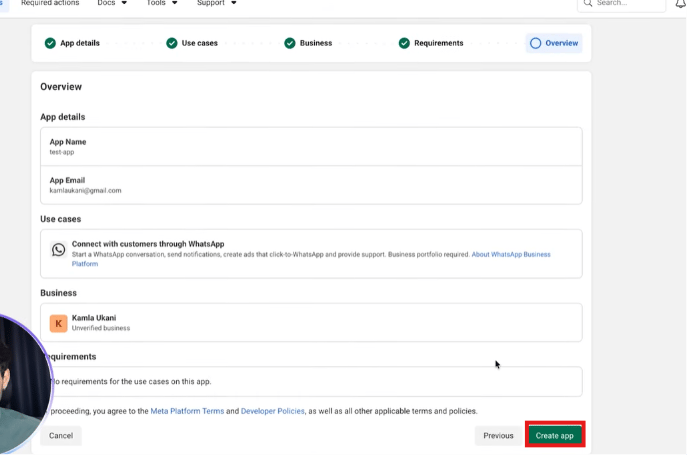
Review and create the app
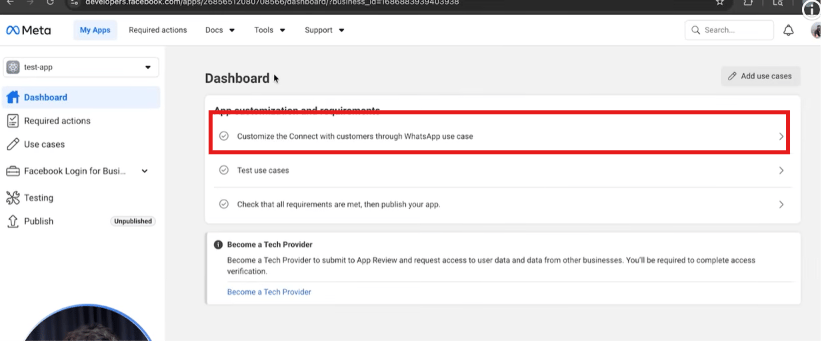
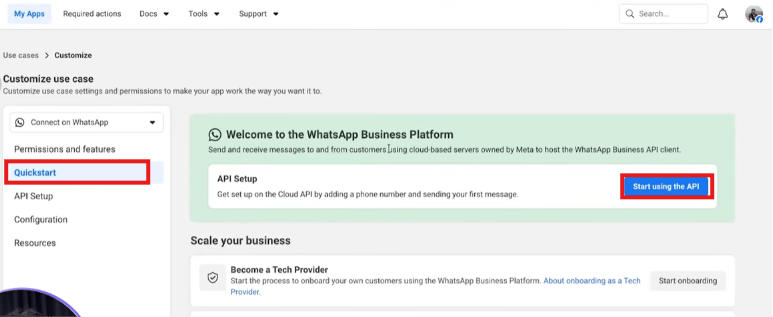
Customize the WhatsApp use case
Start using the API
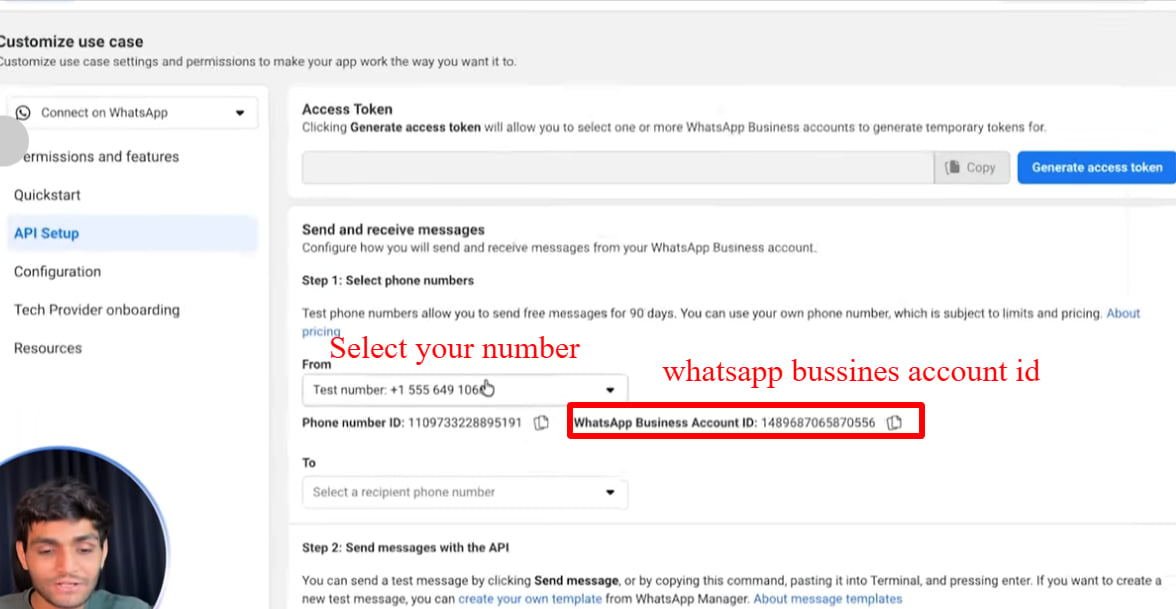
Copy the Business Account ID
Step 2: Generate the permanent access token
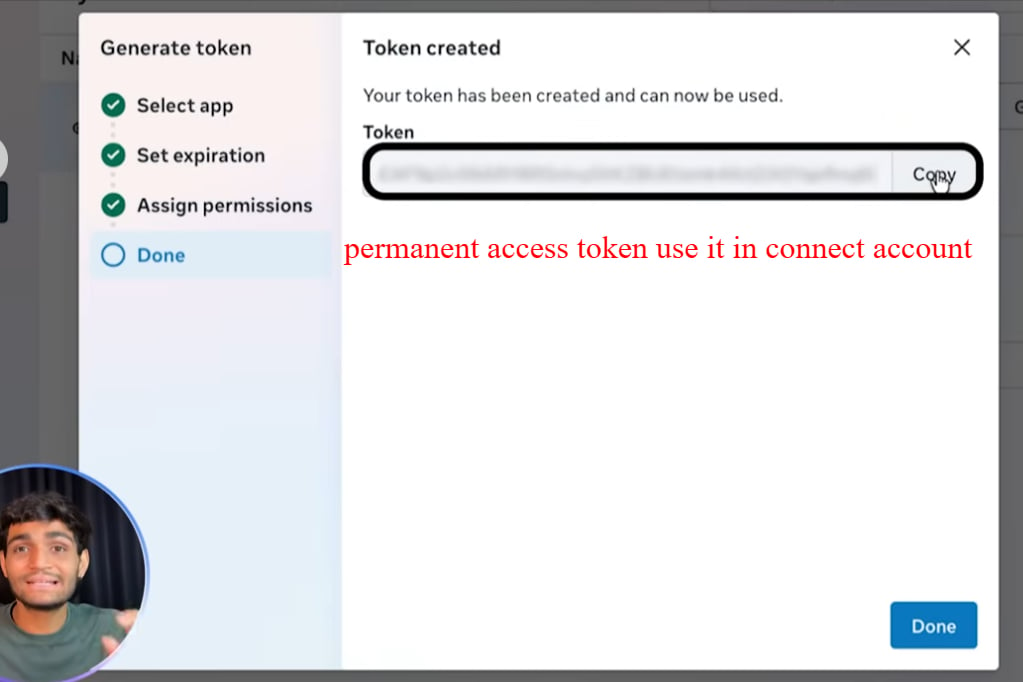
In this step, you’ll create something Meta calls a system user inside Meta Business Manager, give that system user full access to both your app and your WhatsApp Business Account, and then generate a permanent token from it — this is the second value the Alternative panel is asking for. Make sure you use this permanent token, not the temporary token that Meta’s API Setup screen also shows you — that temporary token quietly stops working after about an hour, and your ChatSyncs connection will break without any warning when it does. (See the video above for the same walkthrough in Meta’s current dashboard.)Open Business Settings
business.facebook.com, open your business portfolio, and click into its
Settings.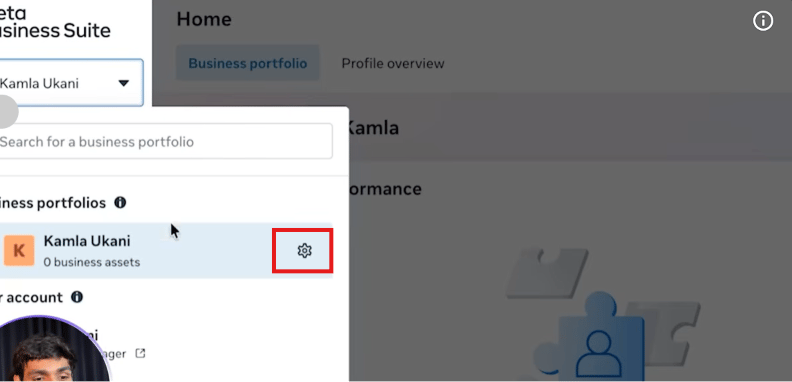
Open System Users
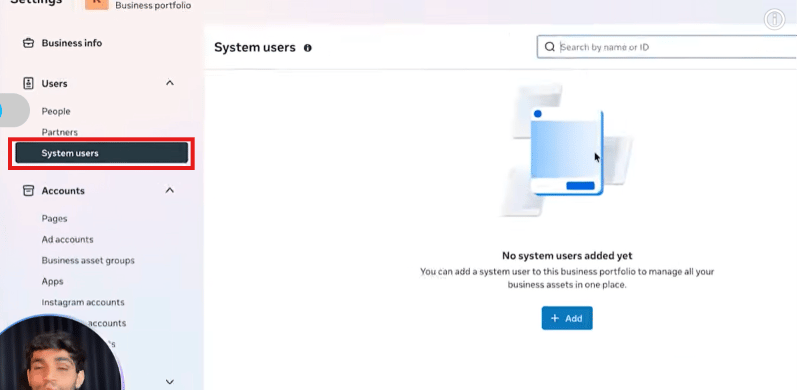
Create a system user
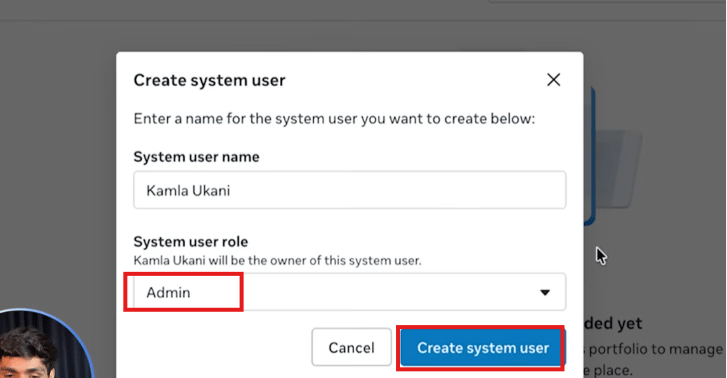
Assign assets to the system user
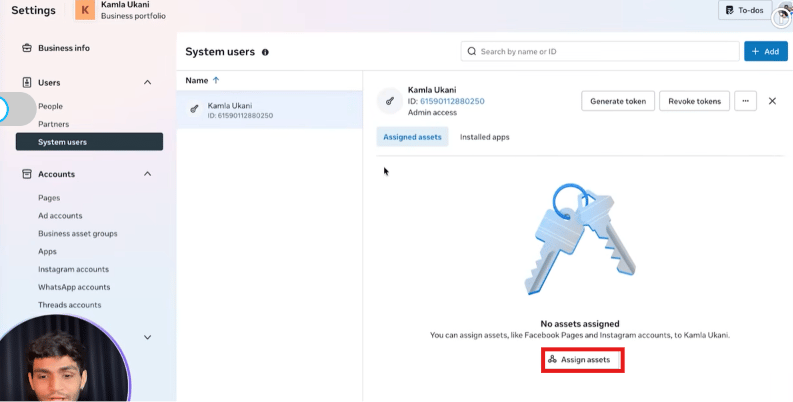
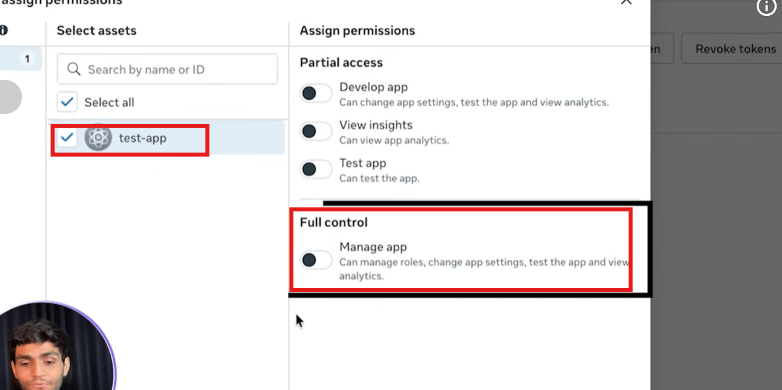
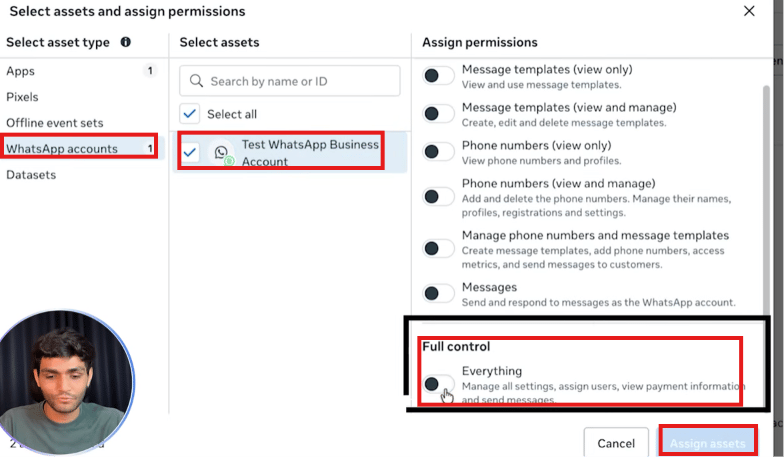
Generate the token
whatsapp_business_messaging, whatsapp_business_management,
whatsapp_business_manage_events).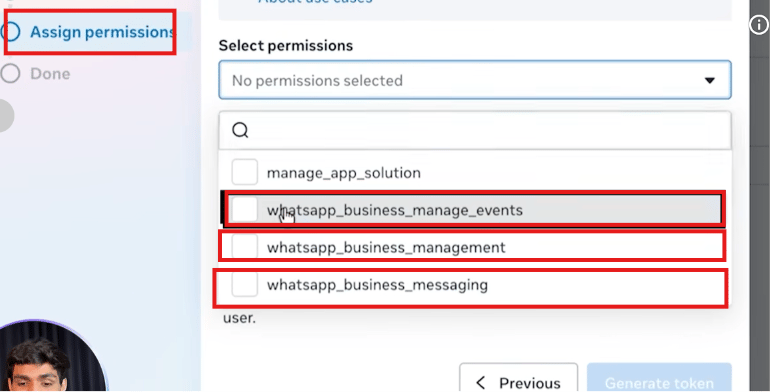
Save it immediately
Verify it (optional)
developers.facebook.com/tools/debug/accesstoken/) to confirm it’s valid — a permanent
token shows “Never” as its expiry.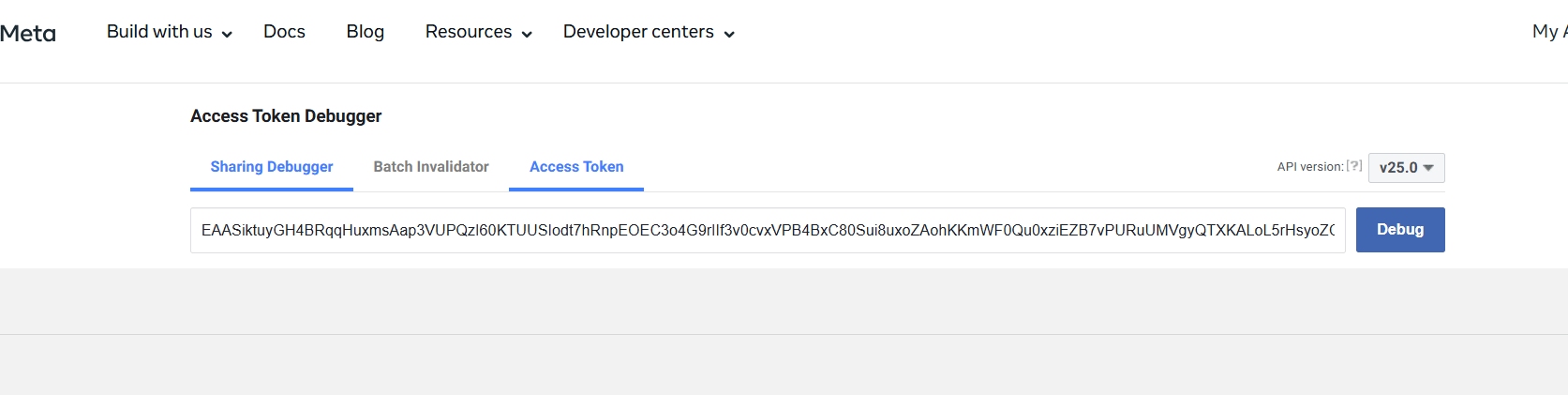
Step 3: Paste the webhook details back into the Meta app
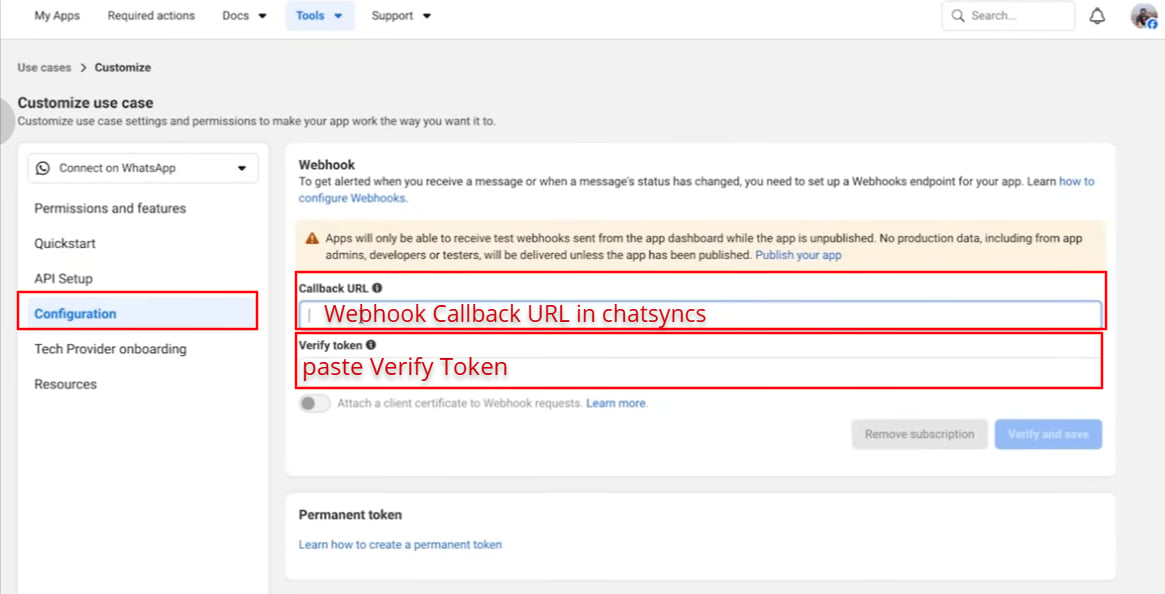
Open Configuration
Paste the Webhook Callback URL
Paste the Verify Token
Verify and save
Step 4: Add the legal URLs to the Meta app
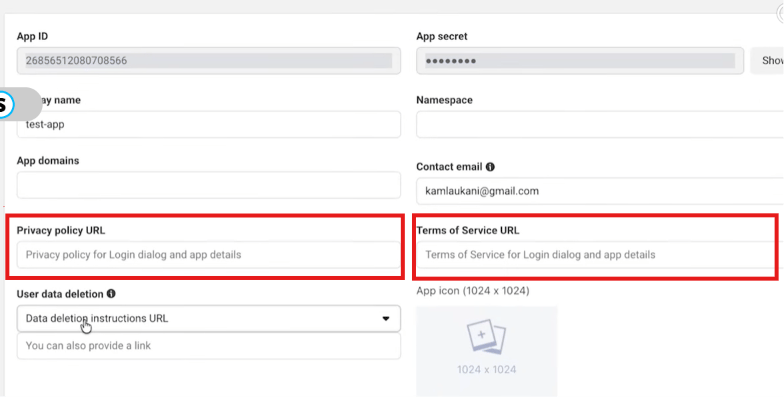
Step 5: Finish the connection in ChatSyncs
Back in the ChatSyncs Alternative panel, paste in the WhatsApp Business Account ID (Step 1) and the Access Token (Step 2), then click Connect.Frequently asked
Embedded signup isn't working for a customer — what's the alternative?
Embedded signup isn't working for a customer — what's the alternative?
What two values does the Alternative panel actually need from Meta?
What two values does the Alternative panel actually need from Meta?
Why does the connection fail even with a correct Business Account ID and token?
Why does the connection fail even with a correct Business Account ID and token?