

Prerequisites
- A WhatsApp number connected to ChatSyncs — see Connect WhatsApp.
- A Keyword Replies bot flow already handling the customer’s first message — read Keyword Replies first; this guide only covers the assignment-specific part of that flow.
Implementation Guide
Step 1 — Create a Team Role in User Permission
Objective: Define the role that will group the rotating agents together, before any agent exists to assign it to. Explanation: User Permission creates the Team Role packages that User Manager later assigns to each team member — the role has to exist first, since creating a team member asks you to pick one. Actions to perform:- Go to Control Panel → User Permission → Create.
- Name the role for this rotation, e.g.
Sales TeamorHR Team.
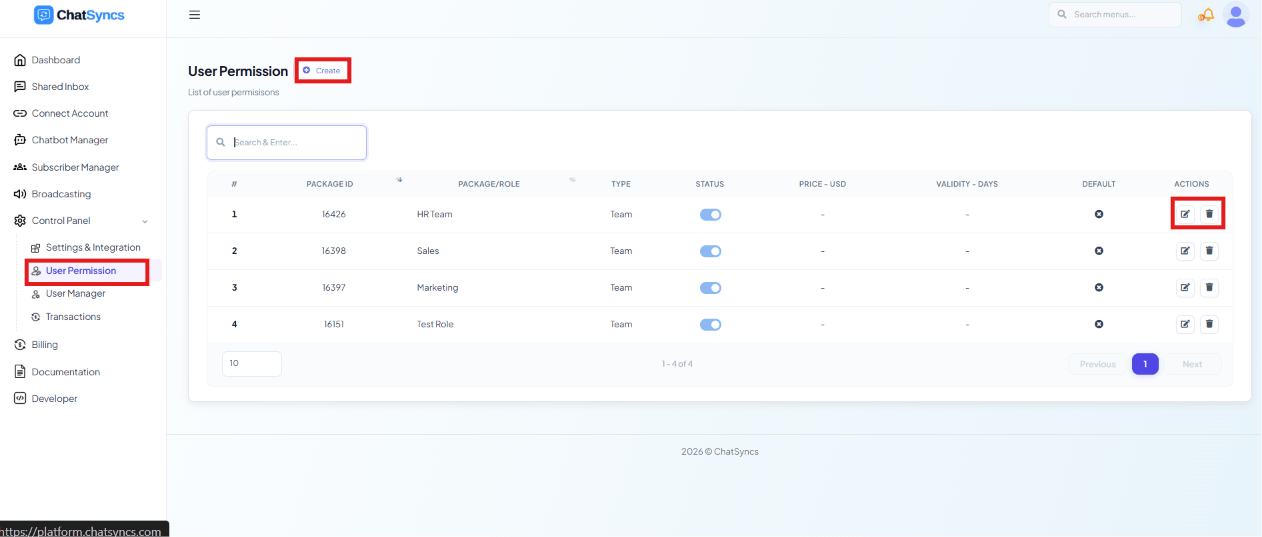
Control Panel → User Permission, with the Create button highlighted.
Step 2 — Create the team members
Objective: Get every agent who should take a turn in the rotation into ChatSyncs. Explanation: Round Robin only rotates among users who exist as team members in User Manager — there’s nothing to rotate across until the agents themselves are created. Actions to perform:- Go to Control Panel → User Manager → Create.
- Add each agent who should take part in the rotation, e.g.
Rahul ReddyandLakshit Ukani.
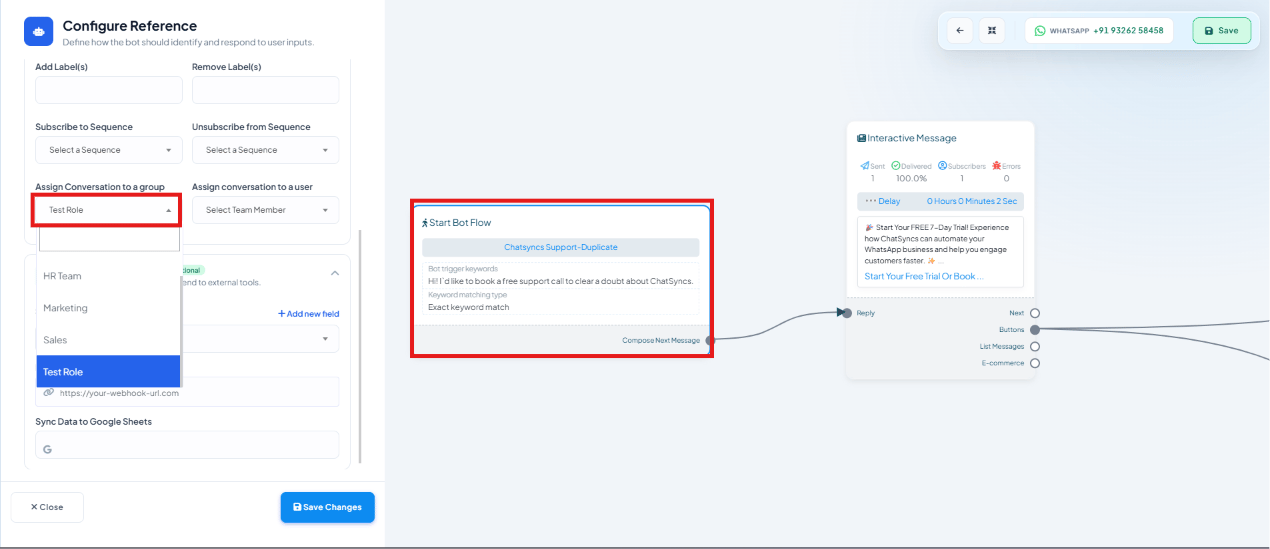
Step 3 — Assign every agent the same Team Role
Objective: Group the rotating agents together so Round Robin knows who shares the rotation. Explanation: Round Robin identifies “the group” by Team Role — every user assigned the same role (created in User Permission, applied to each user in User Manager) becomes part of the same rotation pool. Actions to perform:- In User Manager, edit each team member and set their Team Role to the shared role for this
rotation, e.g.
Sales Team,HR Team, or a custom role name likeTest Role.
Expected result: All the agents who should rotate together now share one Team Role.
Notes: The role’s name doesn’t change the behavior — what matters is that every agent meant
to rotate together carries the exact same Team Role.
Step 4 — Configure the bot flow to assign into that group
Objective: Connect the customer-facing bot flow to the rotation you just set up. Explanation: In Keyword Replies’ Automation Actions, the Assign Conversation to a Group field hands the conversation to a Team Role the moment the flow reaches that block. Actions to perform:- Open the bot flow, then its Automation Actions panel.
- Set Assign Conversation to a Group to the shared Team Role from Step 3.
- Click Save Changes.
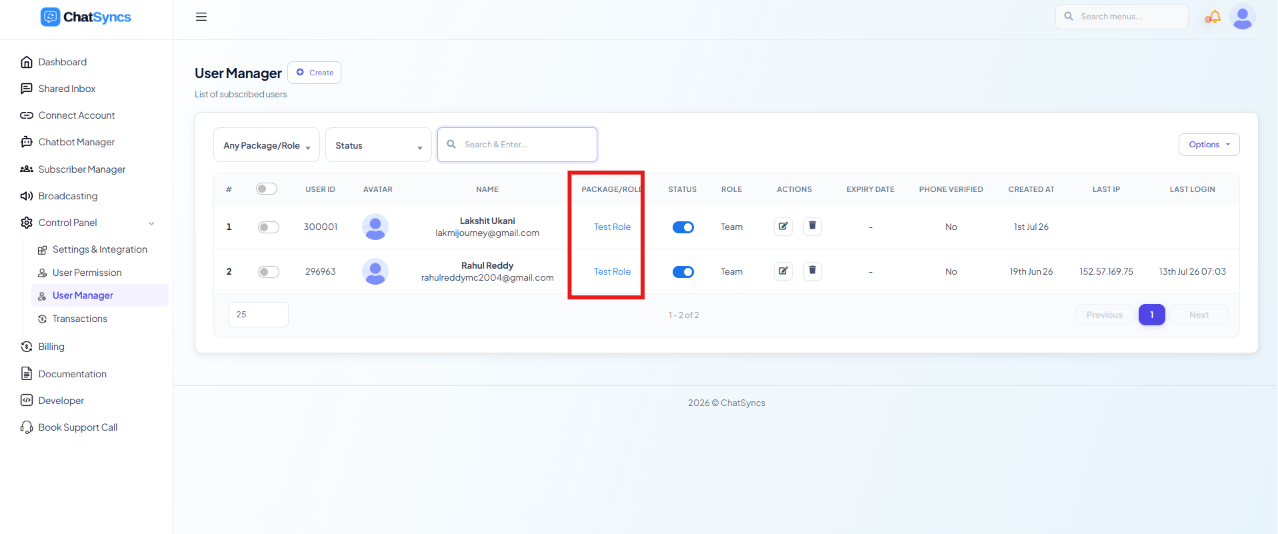
Step 5 — Or trigger it from an AI Agent intent instead
Objective: Feed the same group from an AI-driven conversation, not just a Keyword Replies bot flow. Explanation: AI Agents and Intent Detection has its own Agent Assignment action — when a customer’s message matches a defined intent (e.g.Test Role - assignment, triggered by phrases like “I want to buy” or “price detail”), it
hands the conversation straight to a Team/Department instead of answering it, and Round Robin
picks the next available agent from there exactly as it would from a bot flow.
Actions to perform:
- In Chatbot Manager → AI → AI Agents and Intent Detection, create or open an intent.
- Under Choose an action, enable Agent Assignment.
- Set Assign to a Team or Department to the same shared Team Role from Step 3, and write an Automated Message for Agent Assignment.
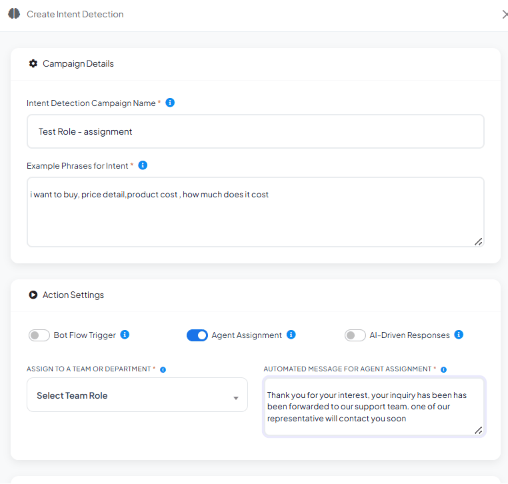
A Test Role - assignment intent with Agent Assignment enabled and an automated message ready — the Assign to a Team or Department field still needs a role picked.
Step 6 — Set each agent’s online / offline status
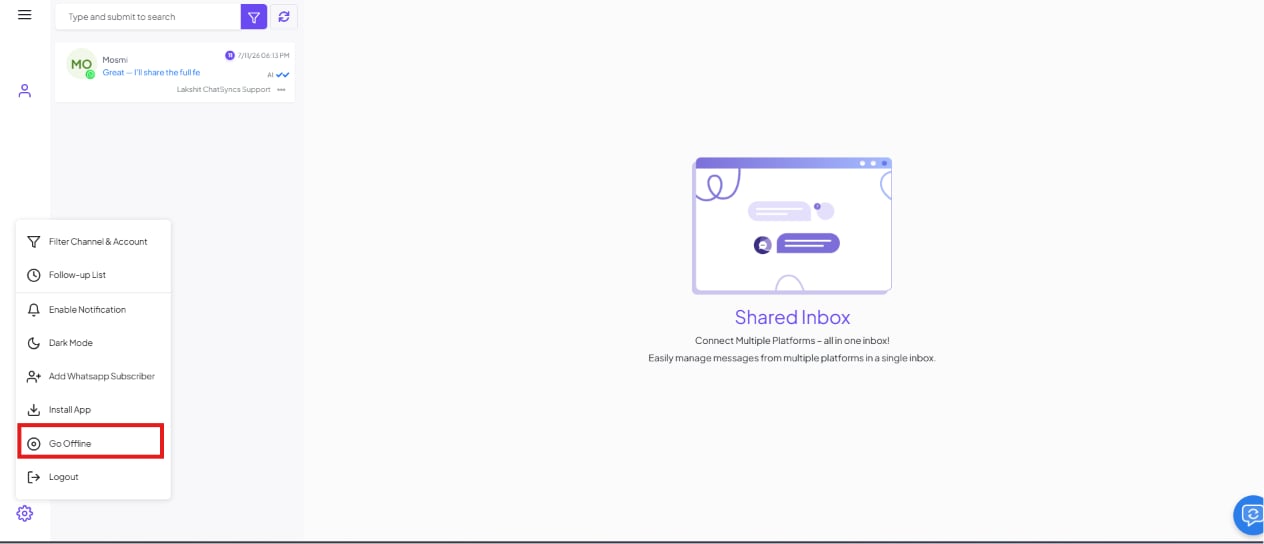
Objective: Make sure Round Robin only assigns conversations to agents who are actually available. Explanation: Round Robin checks availability before assigning. An online agent is eligible for the next conversation; an offline agent is skipped and the next agent in the rotation is checked instead. Actions to perform:- From the Shared Inbox settings menu, toggle Go Offline (or back online) to control your own availability.
Step 7 — Confirm the assignment in the Shared Inbox
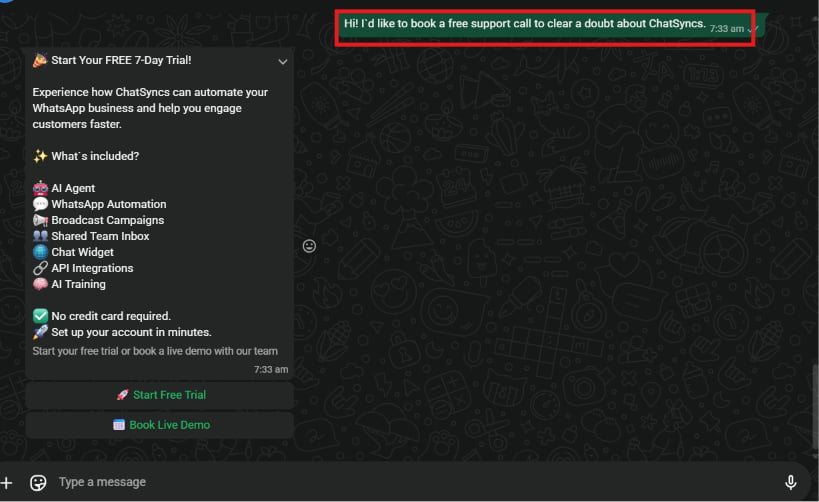
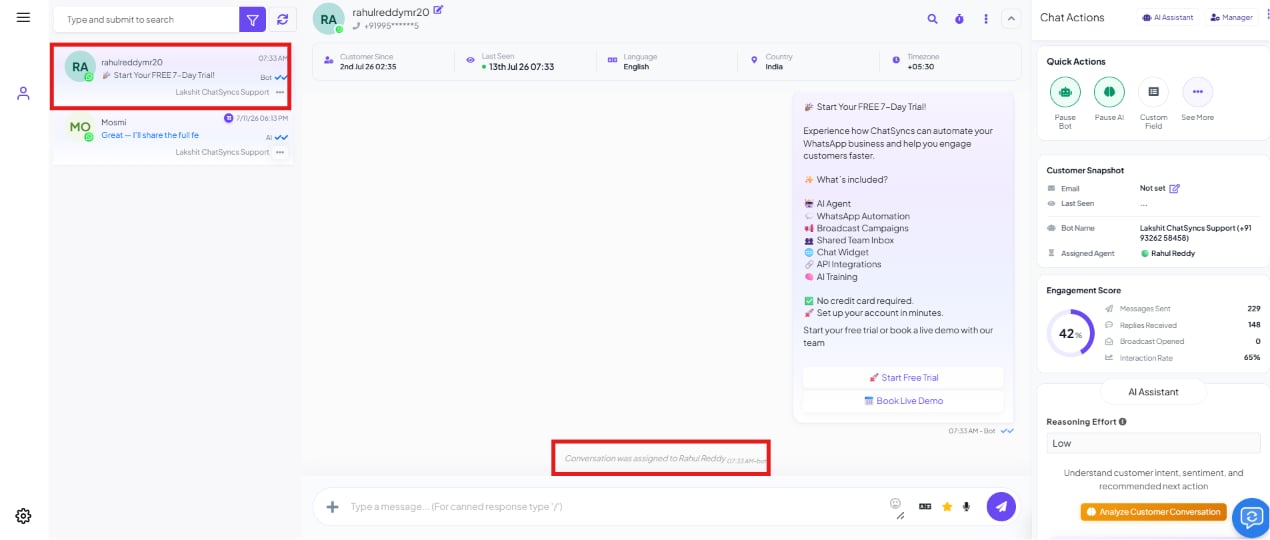
Objective: Verify a real customer conversation actually lands with the expected agent. Explanation: Once a customer messages in and triggers the bot flow, the resulting conversation shows up in the Shared Inbox with its Assigned Agent clearly labeled. Actions to perform:- Send a test message to the connected WhatsApp number to trigger the bot flow.
- Open the conversation in the Shared Inbox and check who it was assigned to.
Features Used
Expected Result
- Incoming conversations rotate automatically across the team, with no manual assignment.
- Offline agents are skipped, so conversations only reach agents who can actually respond.
- If a whole group is offline, the conversation waits and goes to the first agent who comes back online — nothing is silently dropped.
- The Shared Inbox always shows a clear, visible owner for every conversation.
FAQs
How does Round Robin decide who's 'next' in the rotation?
How does Round Robin decide who's 'next' in the rotation?
It cycles through the online agents who share the Team Role selected in Assign Conversation
to a Group, one at a time, in sequence — the same agent doesn’t get picked again until
everyone else in the group has had a turn.
What happens if every agent in the group is offline?
What happens if every agent in the group is offline?
The conversation waits unassigned rather than going to no one permanently. As soon as any
agent from that group comes back online, Round Robin assigns it to them.
Can I use different groups for different types of conversations?
Can I use different groups for different types of conversations?
Yes — point different bot flows (or different branches of the same flow) at different Team
Roles. For example, a Sales-triggered flow assigns to
Sales Team, while a support keyword
assigns to Support Team, and a billing keyword assigns to Billing Team.Can a conversation be manually reassigned after Round Robin picks an agent?
Can a conversation be manually reassigned after Round Robin picks an agent?
Yes — any team member with access can reassign a conversation from the Shared Inbox’s
Assigned Agent field under Automation & Flow,
the same way you’d hand a chat to someone directly.
Does the customer see which agent they were assigned to?
Does the customer see which agent they were assigned to?
No — assignment is internal. The customer just sees replies coming from the business number;
the Assigned Agent label is only visible to your team in the Shared Inbox.
How is this different from assigning every conversation manually?
How is this different from assigning every conversation manually?
Do I need a separate bot flow for Round Robin to work?
Do I need a separate bot flow for Round Robin to work?
No — Round Robin is just one automation action (Assign Conversation to a Group) inside
whichever Keyword Replies flow already greets the
customer. There’s nothing extra to build beyond that one field.
Can Round Robin be triggered without a Keyword Replies bot flow at all?
Can Round Robin be triggered without a Keyword Replies bot flow at all?
Yes — AI Agents and Intent Detection’s
Agent Assignment action hands a conversation to a Team/Department the moment a customer’s
message matches a defined intent, with no bot flow involved. Point it at the same shared
Team Role and Round Robin rotates it exactly the same way.
Related Documentation
- User Manager — create and manage team members.
- User Permission — define the Team Role used to group rotating agents.
- Keyword Replies — the bot flow builder that triggers the assignment.
- AI Agents and Intent Detection — trigger the same assignment from an AI-detected intent instead of a bot flow.
- Shared Inbox — where assigned conversations are viewed and handled.
Back to Business Problem
Start over from the beginning of this use case.